Download PDF
Download page Custom Reports.
Custom Reports
Custom Reports Overview
The action blocks provided by our app are highly configurable. You can customize:
the trigger for report generation (available in Workflows and when using Create from scratch in the Automation Center),
the email body,
which columns to include in the report,
the reporting period,
and which combinations of statuses to analyze.
This flexibility allows you to tailor the report to your workflow and reporting requirements.
 You can send reports to recipients outside your monday.com account without adding them as guests. Just enter their email addresses in the automation rule or workflow, and the report will be sent automatically.
The report depth is calculated from the moment the automation or workflow runs and looks back over the number of days defined in the rule. For example, if the automation runs daily at 16:46, the report will include all events that match the rule’s criteria up to that time.
Reports in the Board Email Reports | Item Updates Reports app are gradually being migrated to the new builder in monday.com. As this process continues, additional reports will become available with the same level of customization and automation.
1. Status Report (Time in Status / Status Change)
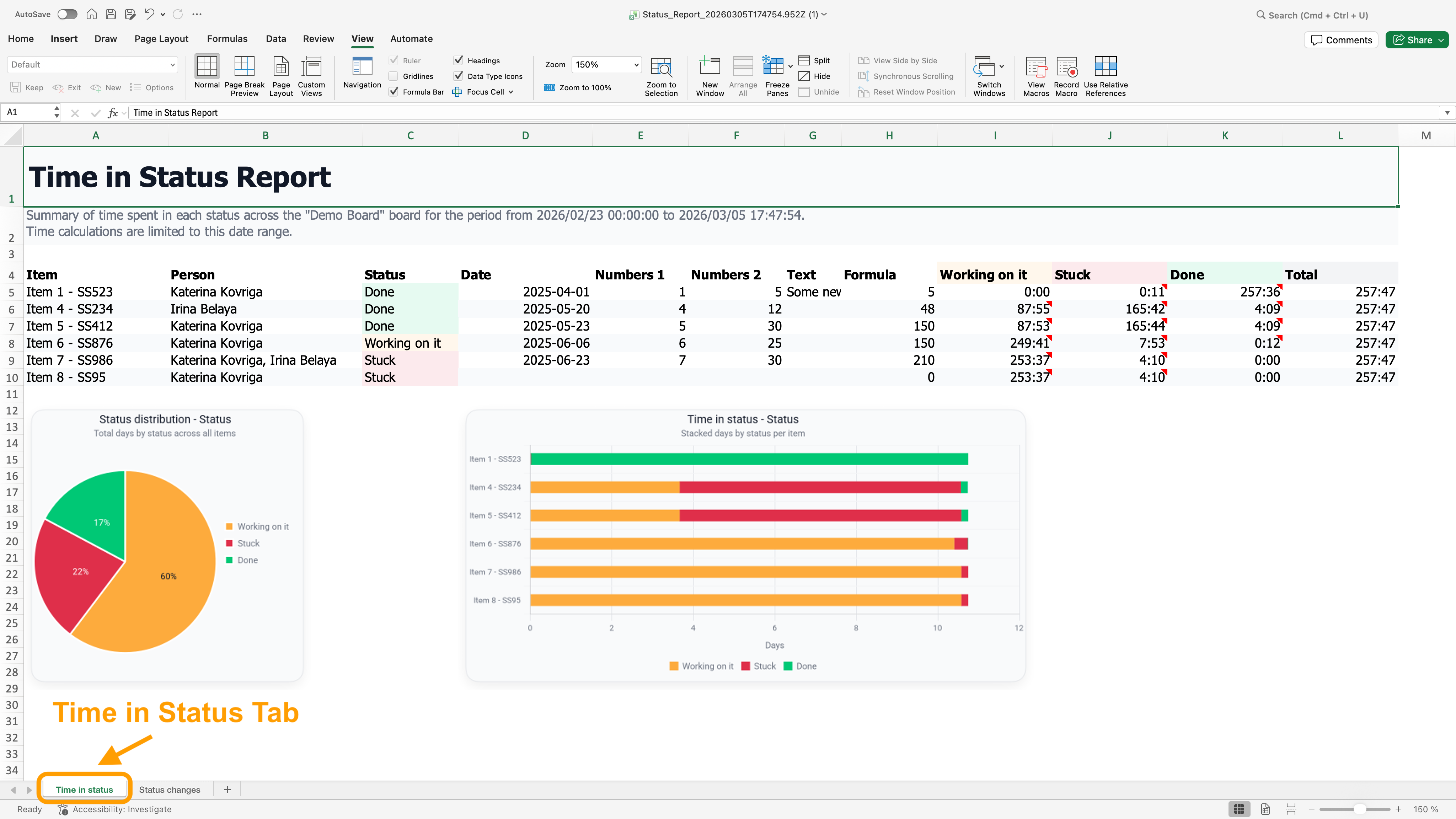
The Status Report currently includes two tabs:
- Tab 1: Time in Status
Provides a summary of the time spent in each status across the selected items. This view helps you quickly identify workflow stages where items spend an unusually long time. For example, a team lead can see when items remain in the "Stuck" status due to blockers or dependencies and decide when to step in to resolve them.
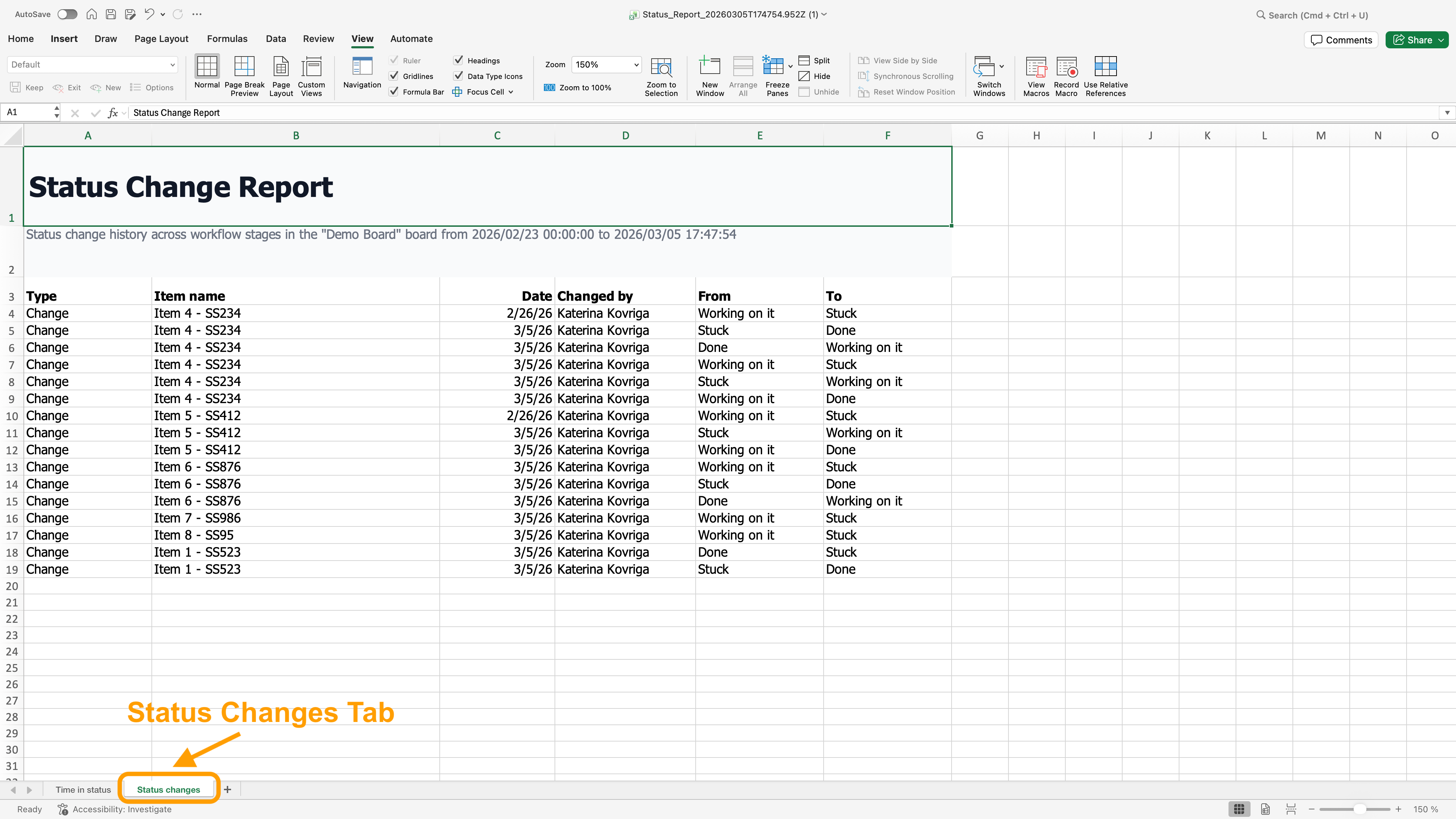
- Tab 2: Status Changes
Shows a chronological list of all status changes for the items included in the report. This helps you understand why delays occur - for example, whether an item stayed in the same status for a long time or frequently moved between statuses. A single long "Stuck" period may indicate a major blocker, while repeated switching between "In Progress" and "Stuck" may suggest multiple smaller issues or gaps in preparation.
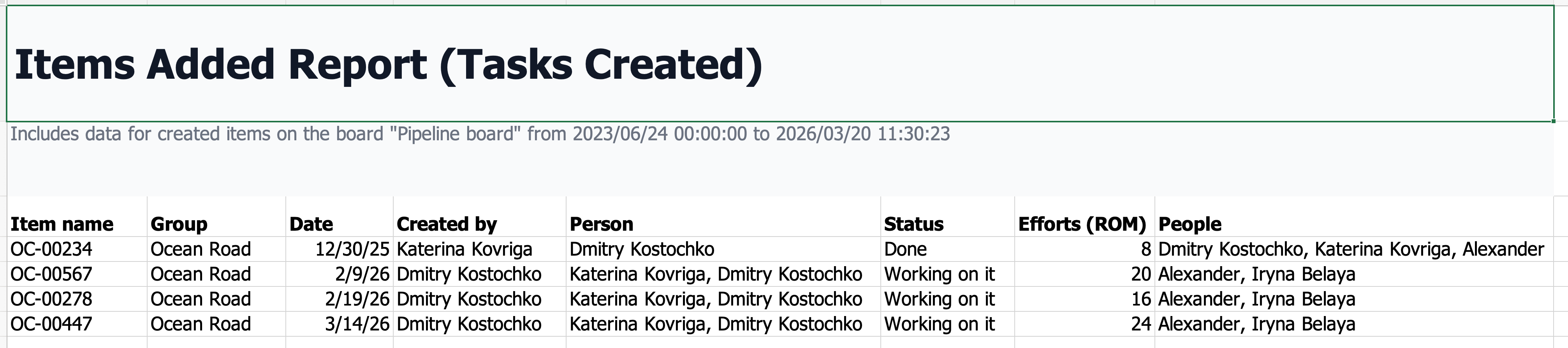
2. Tasks Created Report
The Tasks Created Report shows all new items created within the selected time period, helping you understand task creation trends and improve workload management. For example, a team lead can receive a weekly report showing how many new tasks were added to the "To Do" group over the past 7 days. This helps monitor workload growth, identify potential bottlenecks, and ensure tasks are distributed effectively across the team.
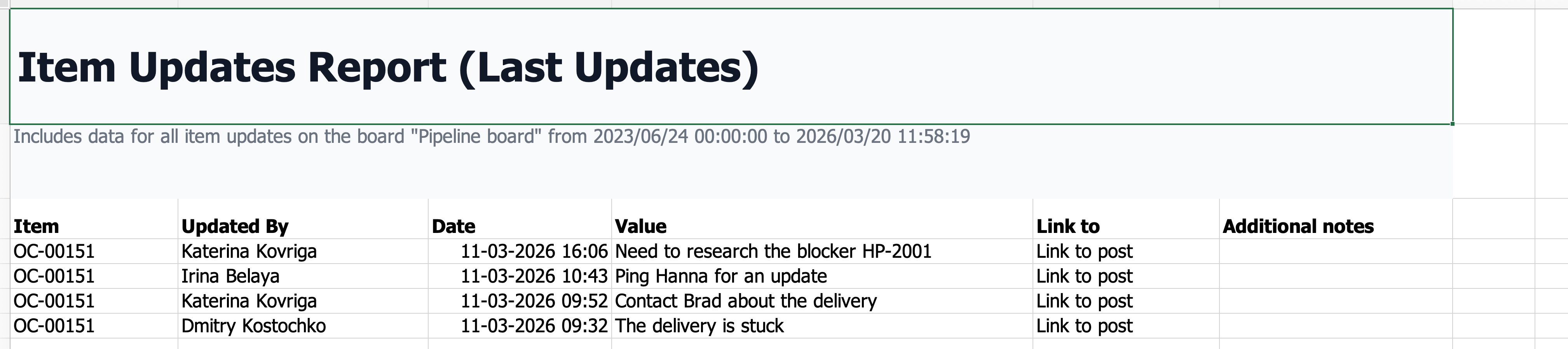
3. Last Updates Report
The Last Updates Report shows item updates added within the selected time period, helping you identify inactive tasks, prevent delays, and ensure steady project progress. For example, a team lead can see which tasks are actively discussed and assess whether it’s time to step in.
By "updates," we refer to the Updates section of an item.
4. Last Updates by User Report
The Last Updates by User Report follows the same structure as the Last Updates Report, but includes a built-in filter that lets you select a specific user as the author of the updates. For example, a team lead can track an individual’s workload, while managers can review all feedback provided by a designer across different project items.
By "updates," we refer to the Updates section of an item.

5. Overdue Item Report
The Overdue Items Report shows items with past deadlines, helping you monitor and manage overdue tasks to keep projects on track. For example, a project manager can receive a daily report listing all tasks in the "In Progress" group with deadlines that have passed in the last 24 hours. This helps identify potential delays, prioritize urgent work, and proactively address roadblocks.
 To use this report, ensure the Date column is configured as the deadline in the column settings.

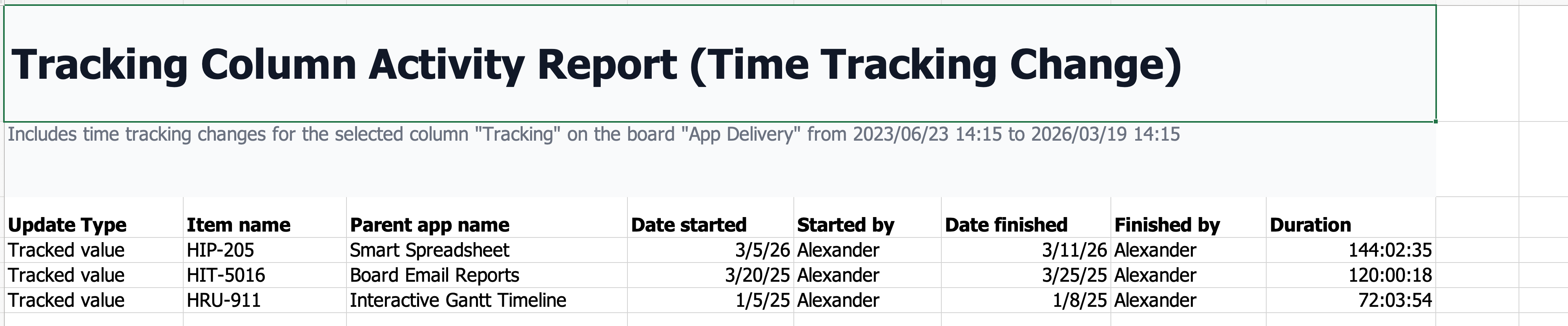
6. Time Tracking Change Report
The Time Tracking Change Report shows updates to time tracking, helping you monitor workload and assess team performance. For example, a team lead can receive a weekly report summarizing all tasks where time tracking was updated over the past 7 days. This allows teams to:
understand which tasks the team is actively working on,
evaluate how time is distributed across tasks,
assess individual performance and workload balance.
The report shows the task duration within the selected reporting period, not the full lifetime duration of the task.
If an item with active time tracking is deleted, the timer will continue running until it is stopped manually. To stop it, go to your profile picture → Trash → find the deleted item with active time tracking → Actions column → View → stop the timer in the relevant column.
7. Number Change Report
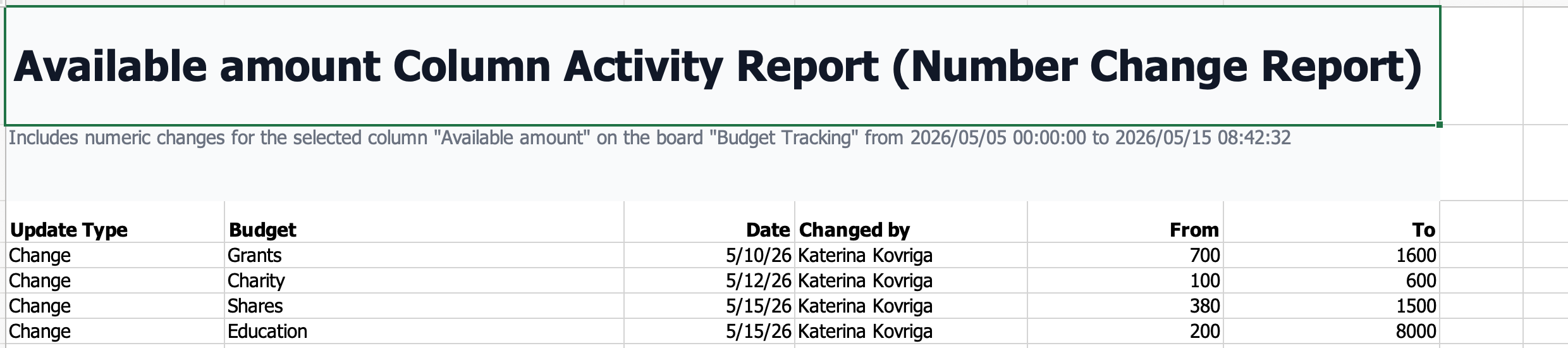
The Number Change Report tracks updates to numeric columns, helping you monitor budget changes and financial adjustments for better visibility and planning.
For example, a finance manager can receive a weekly report showing all tasks where number values - such as budgets, expenses, or revenue figures - were updated during the past 7 days. This makes it easier to track changes in financial allocations, identify discrepancies or unexpected increases, and keep forecasts and reports up to date. By monitoring these updates regularly, teams can stay on top of budgets and spot significant changes early for review.

If you need a specific custom action block that isn't already available, feel free to reach out to our team with your request - we'll be happy to implement it for you!
Custom Reports Setup
You can create a custom report in several ways.
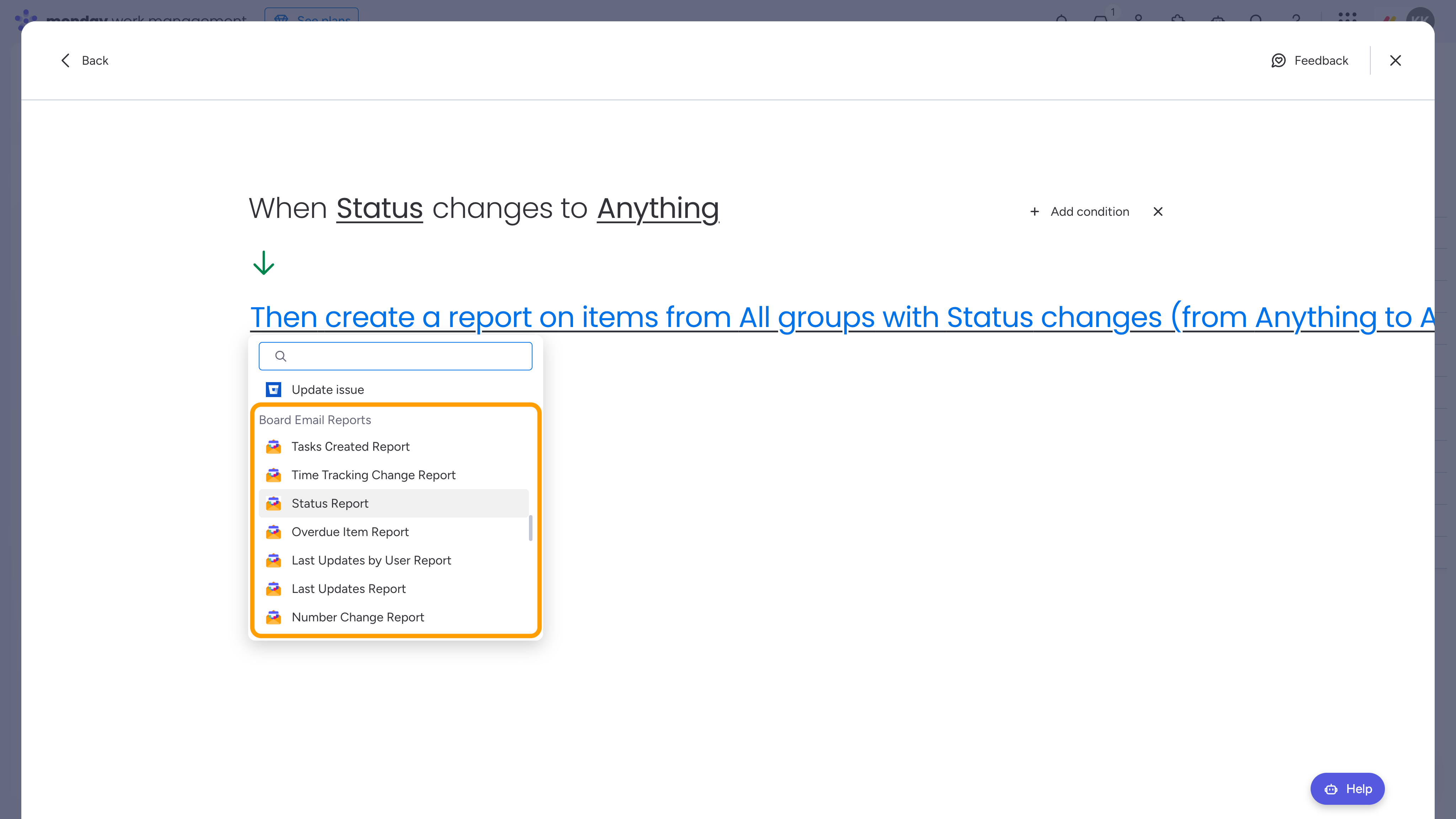
Through the Automation Center (fully customized report):
Navigate to the Automation Center.
Select Create from scratch.
Define a trigger for the automation.
Add the required action block provided by the Board Email Reports | Item Updates Reports app.
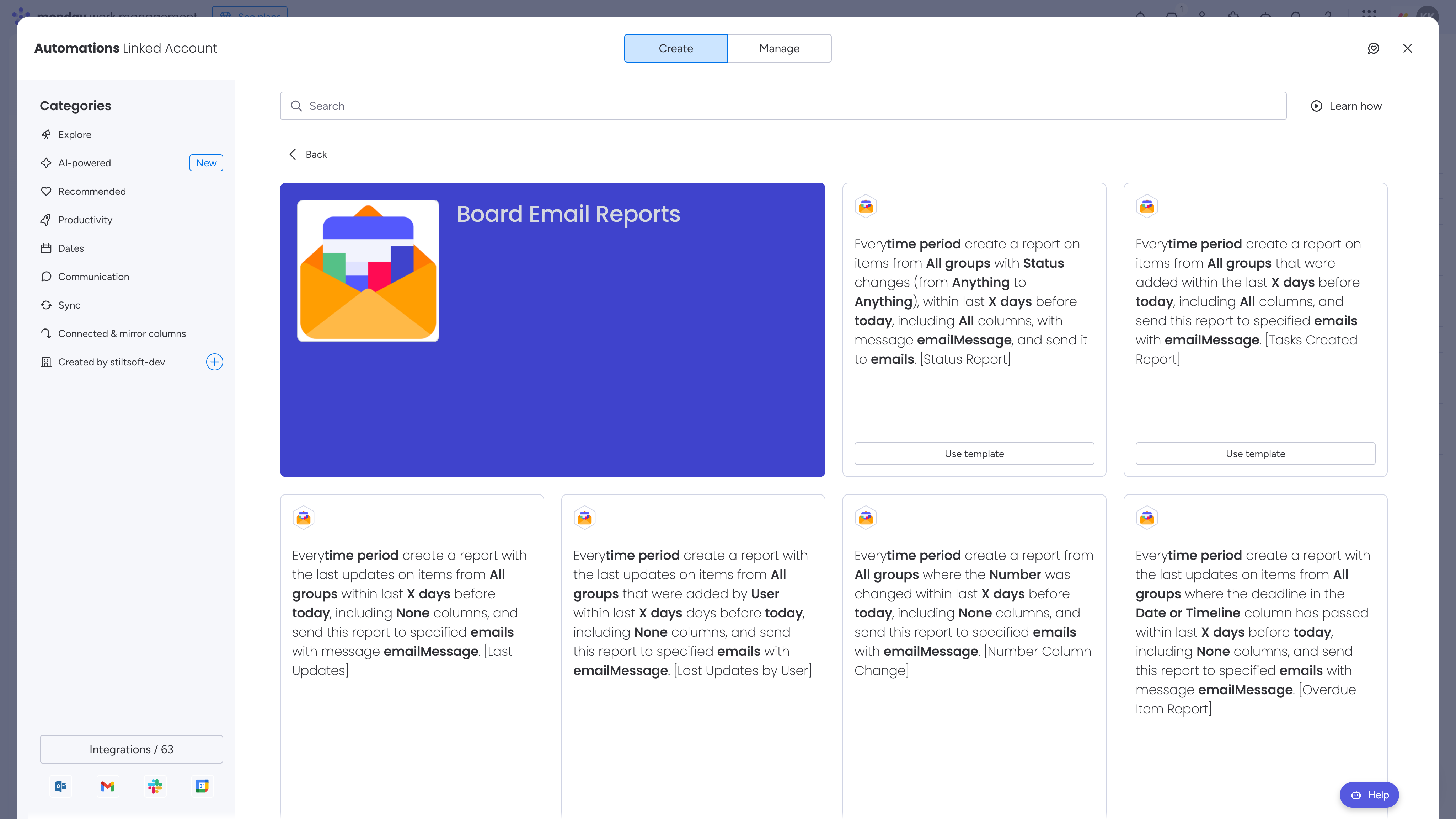
Through the Automation Center (custom template with a predefined trigger):
Navigate to the Automation Center.
Locate the Board Email Reports folder containing templates built with the new monday builder.
Select the required report template.
Via a monday Workflow (fully customized report):
- Create a new Workflow or open an existing one.
- Define a trigger for the workflow.
- Add the required action block from the Board Email Reports | Item Updates Reports app.
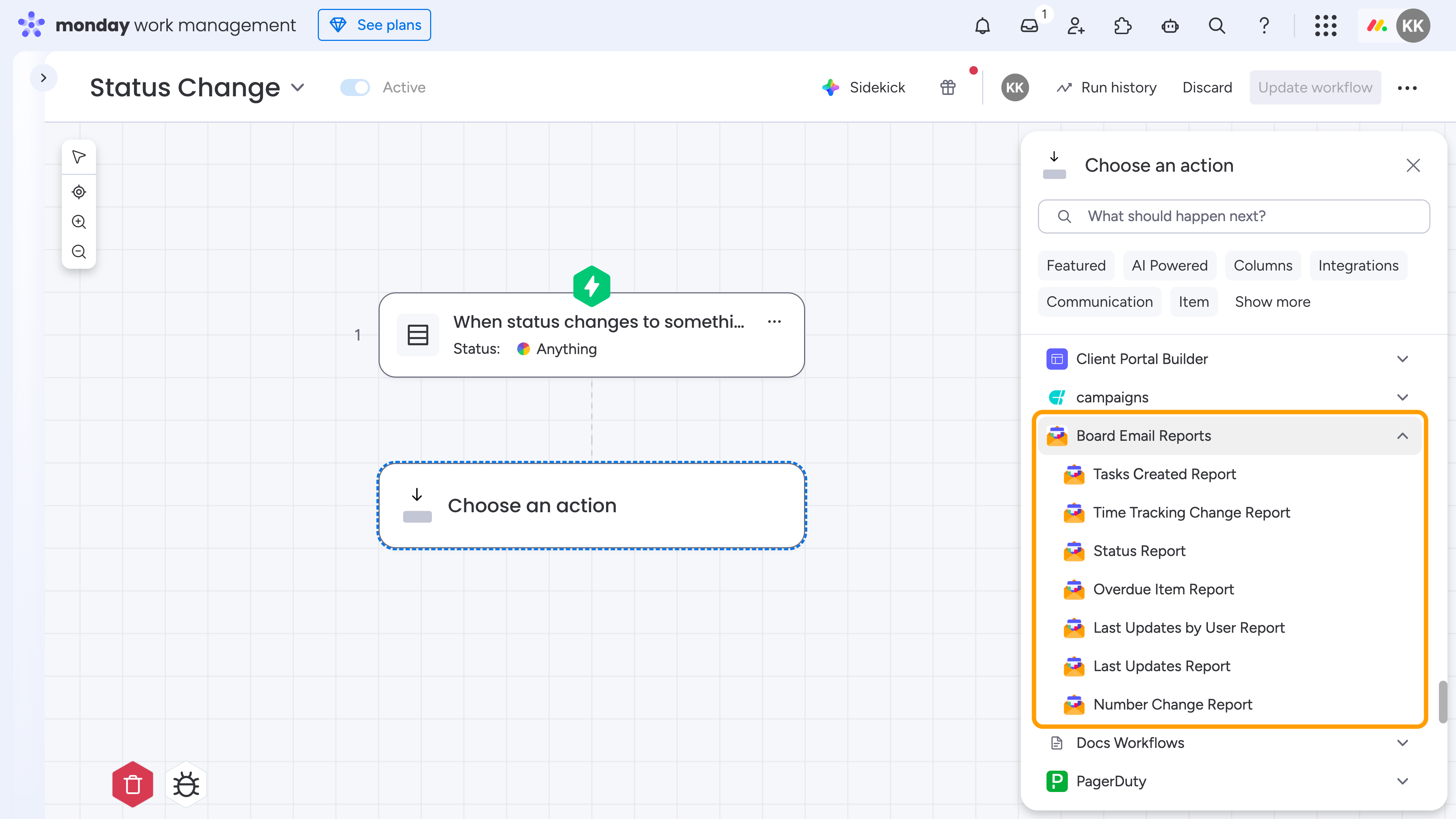
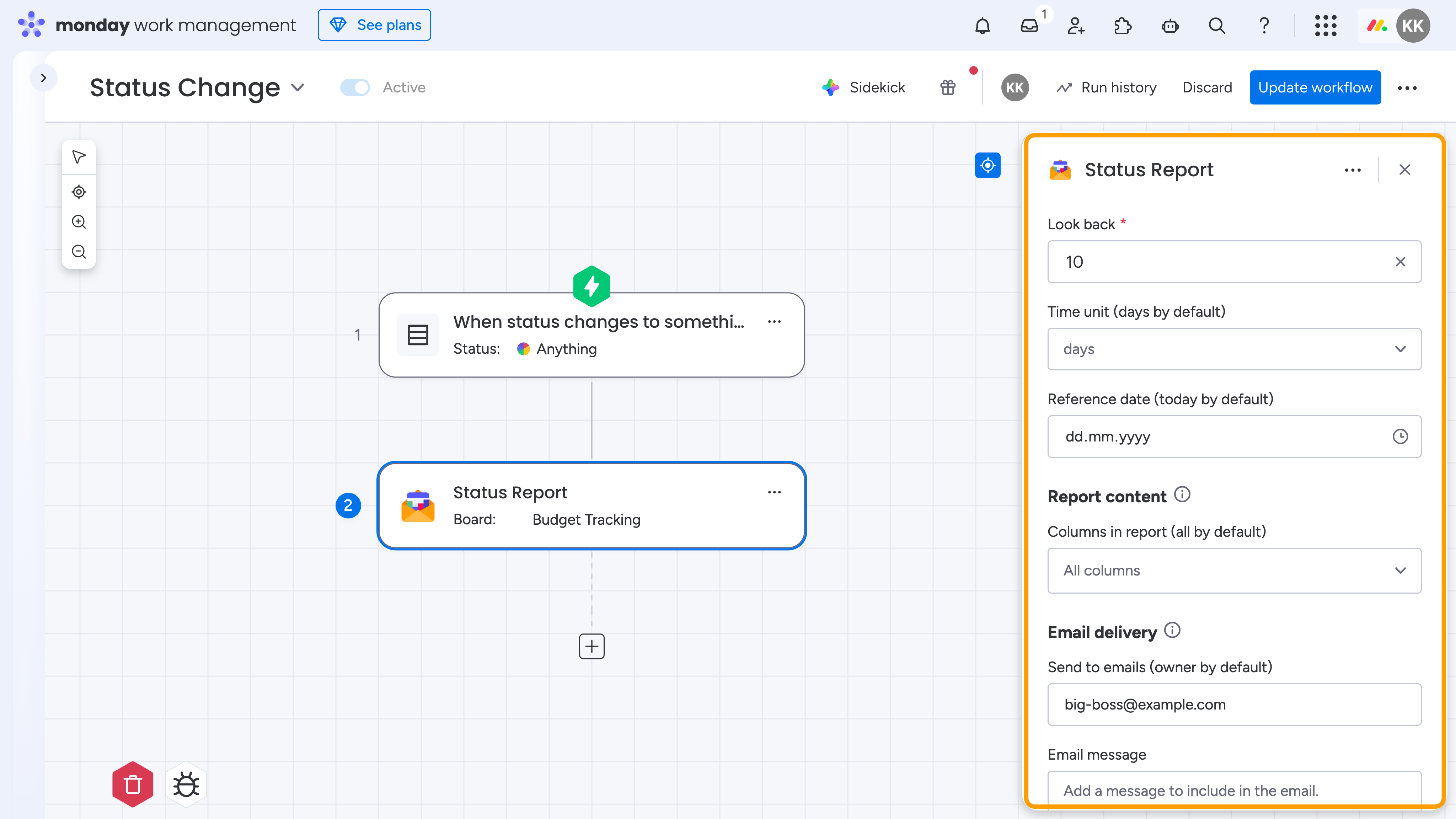
Once added, configure the action block (Workflow block or automation recipe) by selecting the report depth, required columns, email recipients, and other settings.
If you need a specific custom action block that isn't already available, feel free to reach out to our team with your request - we'll be happy to implement it for you!