Download page Add Files and Images to Checklist Items.
Add Files and Images to Checklist Items
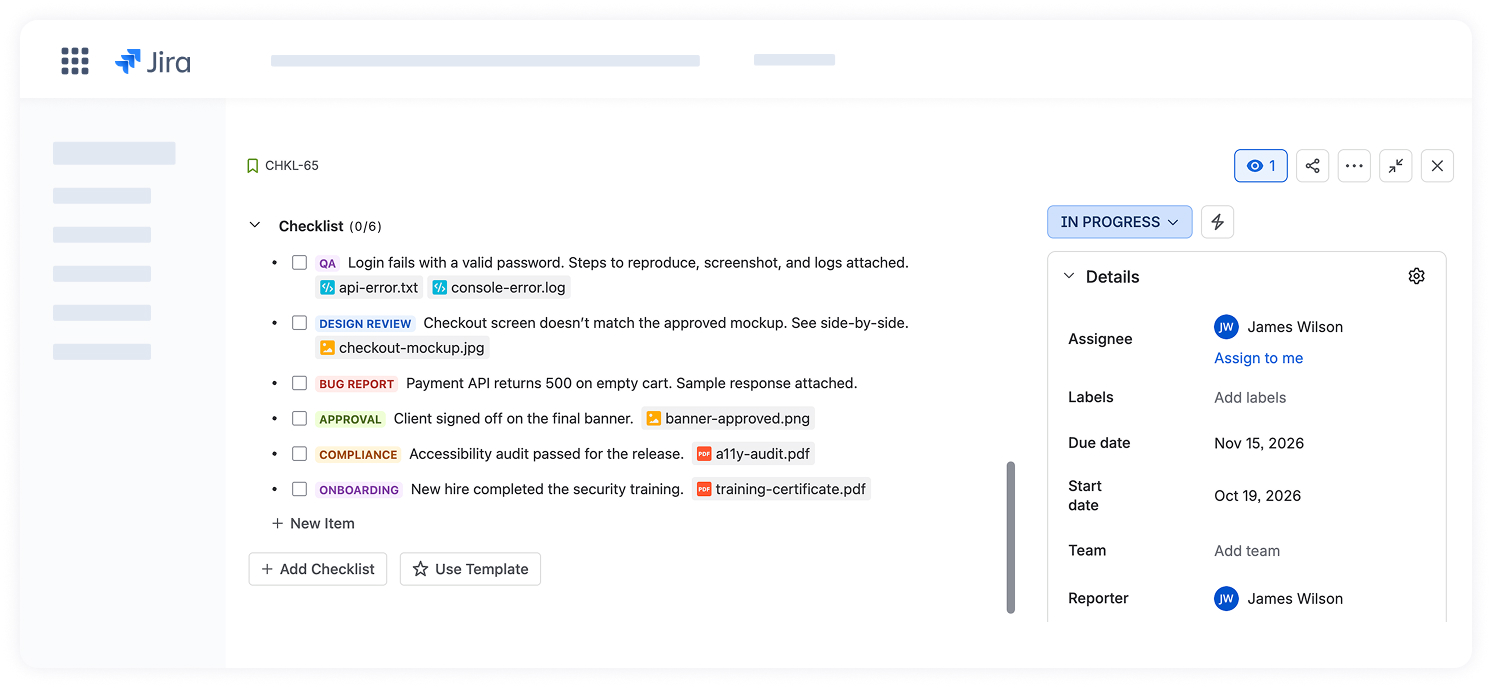
Checklists for Jira (Templates & Automation) allows you to add images, screenshots, and files directly to your checklist items in Jira. Attachments live right inside the item to:
Keep instructions, examples, and reference files next to the step, instead of scattered across comments and links.
Attach proof right where it belongs. When a test step fails, a screenshot and logs show the developer exactly what went wrong.
Spend less time hunting for the right file or asking “which one did you mean?” as it’s already in the item.
How to add files and images to a checklist item
There are three ways to add files and images to a checklist item. Each one is simple, so use the one that fits your flow.
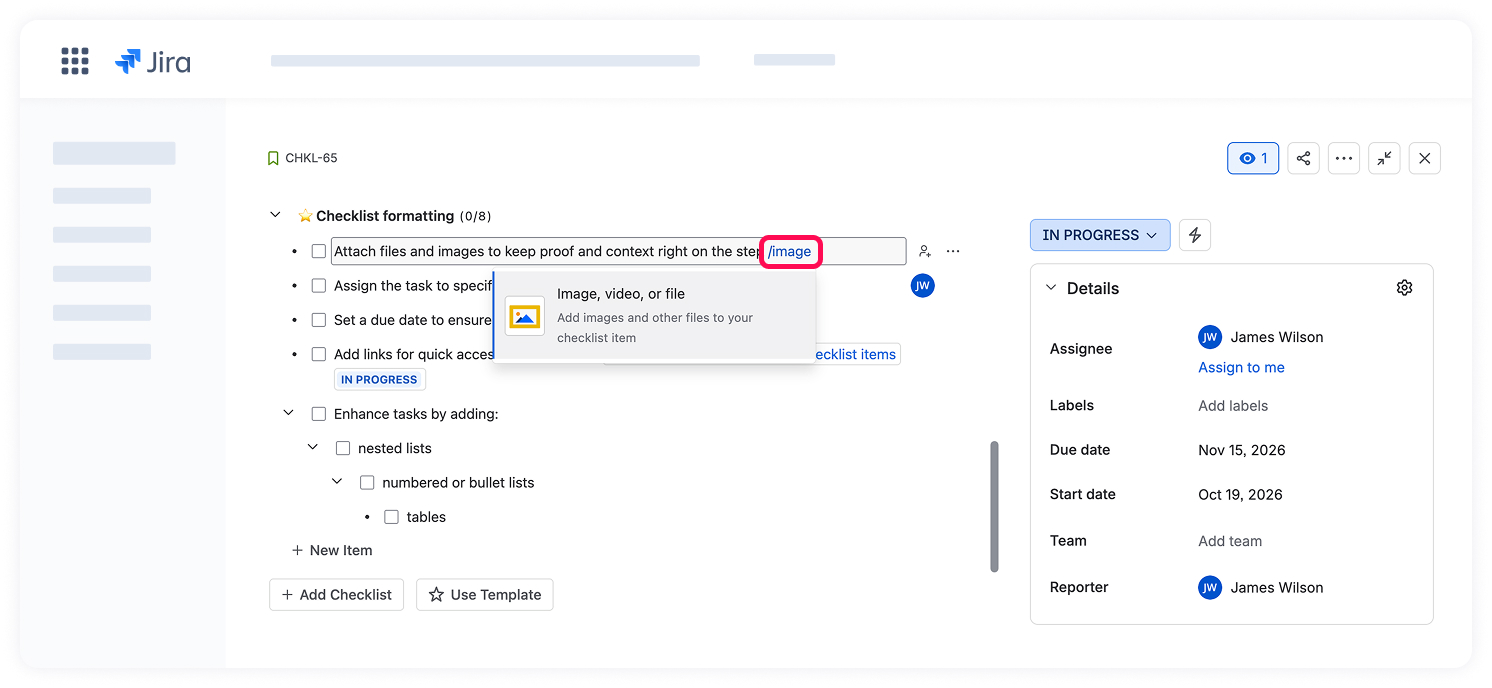
Use the /image command
Open or add a checklist item, then type /image. It’s the standard way you add images across Jira and Confluence.
Click Choose file, pick an image or file from your computer, and it’s added to the item.
Paste from the clipboard
Copy an image or take a screenshot (for example, with Shift+Cmd+4 on Mac or Win+Shift+S on Windows).
Paste it into the checklist item you’re editing withCmd+V / Ctrl+V. The image will be added instantly.
Drag and drop
Just drag an image or file from your computer and drop it onto the checklist item (no edit mode needed). It works exactly like dropping an image into a Jira work item.
How to manage attachments in checklists
In the checklist item view mode:
Clicking an image opens a full-size preview in a new window.
Clicking a file attachment downloads it immediately to your computer.
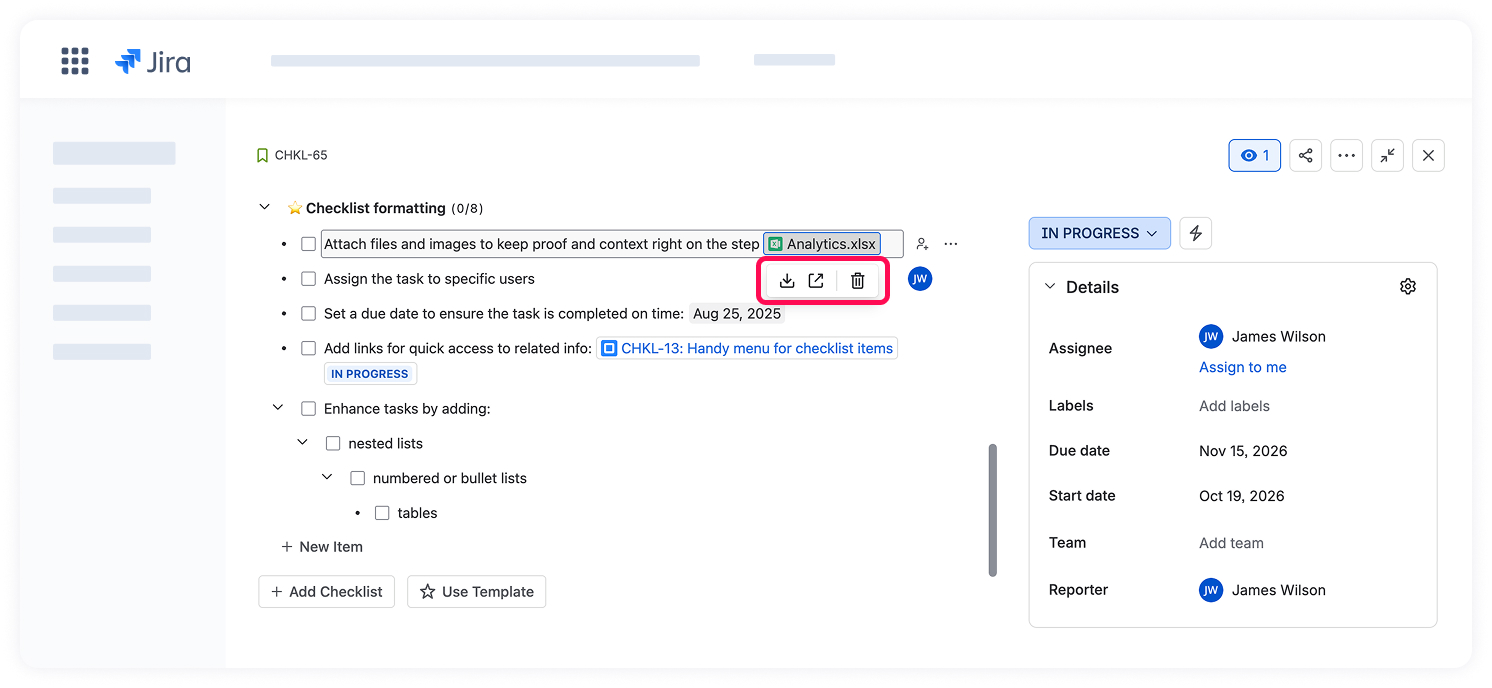
In checklist item edit mode, click an attachment to open a quick menu with three actions:
Preview: opens an image preview. Files are downloaded instead.
Download: save the attachment to your computer.
Delete: remove the attachment from the checklist item.
This makes it easy to review, replace, or clean up attachments while you're editing a checklist item.
Checklist templates don’t include images. For now, templates keep item text only, without attachments. If this is something you need, please let us know.
Cookie Notice
This website uses cookies for analytics, personalization and advertising. By continuing to browse, you agree to our use of cookies. Learn more