Checklists for Jira (Templates & Automation) lets you share checklist progress with your customers directly in the customer portal. This gives requesters visibility into the steps your team is following to resolve their request, without giving them any edit access.
Visibility is controlled per project, and checklists are hidden from customers by default.
This setting is available only for Jira Service Management (JSM) and Customer Service Management (CSM) projects. It does not apply to other project types.
Configure checklists' visibility in the customer portal
- Open your JSM or CSM project.
- Go to Space settings → Apps → Checklists for Jira (Templates & Automation).
- Find the Customer portal visibility section.
- Choose one of the three options:
- Hide checklists — Checklists are not visible to customers. This option is the default for all projects.
- Show progress only — Customers see the checklist name and its completion progress, for example, Migration checklist (3/5).
- Show full checklist — Customers see all checklist items and their statuses in read-only mode.
- Click Save.
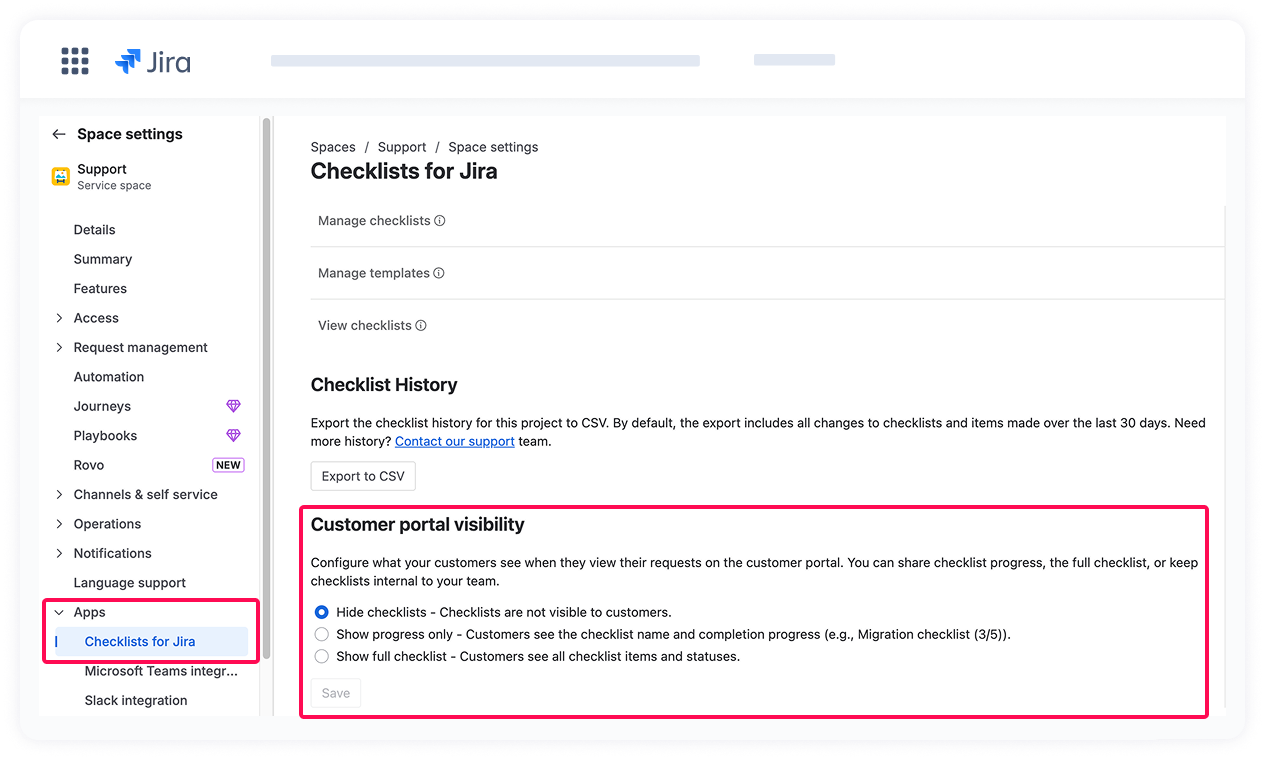
The setting applies to the whole project. If a work item contains multiple checklists, they all follow the same project setting, and each is shown as a separate block in the portal.
Visibility indicator in the agent view
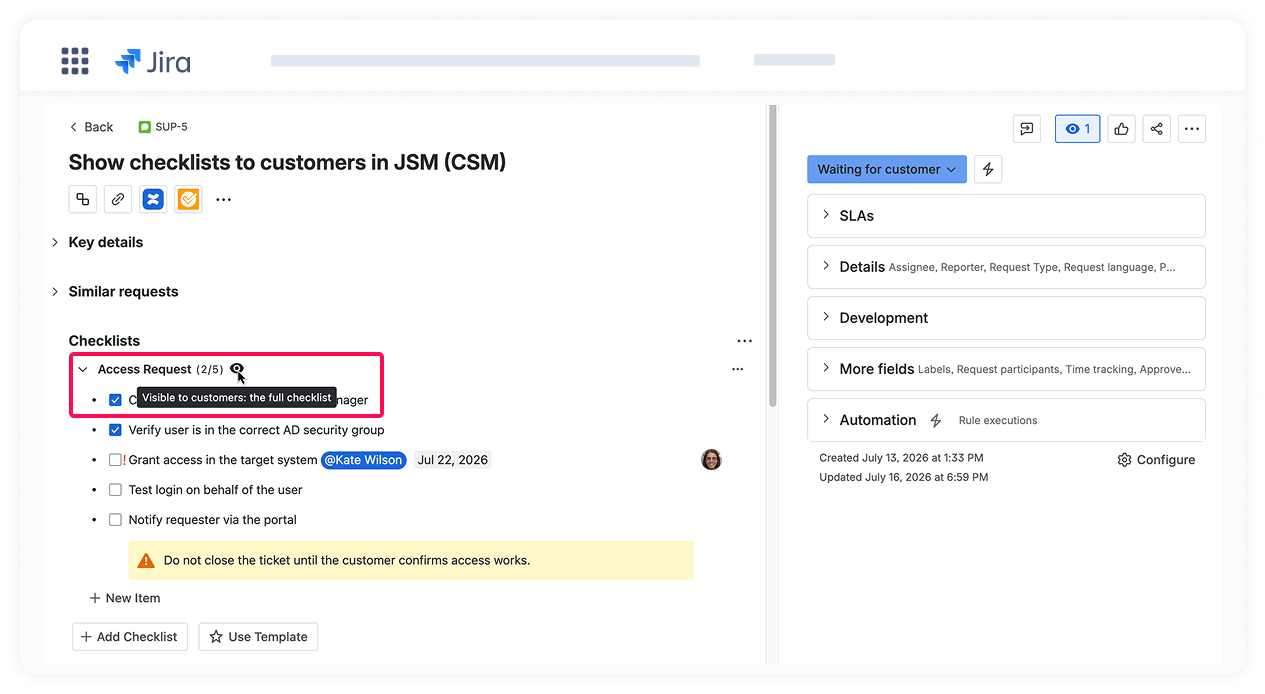
When a checklist or its progress is shared with customers, the  icon appears next to the checklist name inside the Jira work item in the agent's view. Hover over the icon to see what is currently shared:
- "Visible to customers: checklist name and progress only" — when the "Show progress only" option is selected.
- "Visible to customers: the full checklist" — when the "Show full checklist" option is selected.
What customers can and can't see
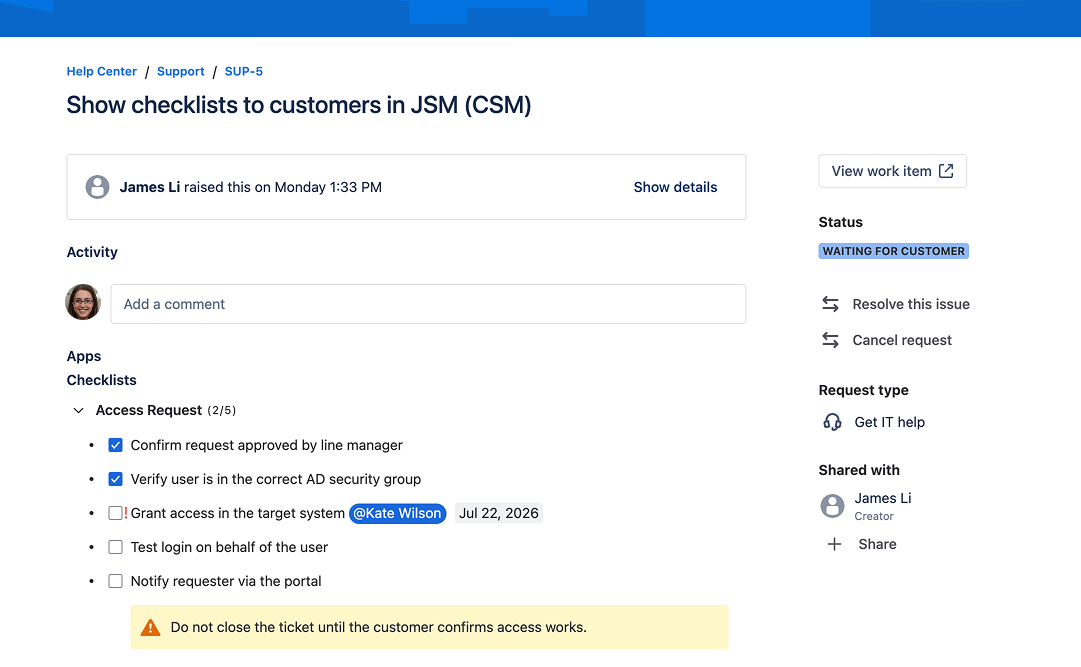
When a full checklist is shared, customers view it in read-only mode. They cannot add, edit, complete, or delete items. Additionally, to keep internal details private, each item's assignees won't be shown to customers.
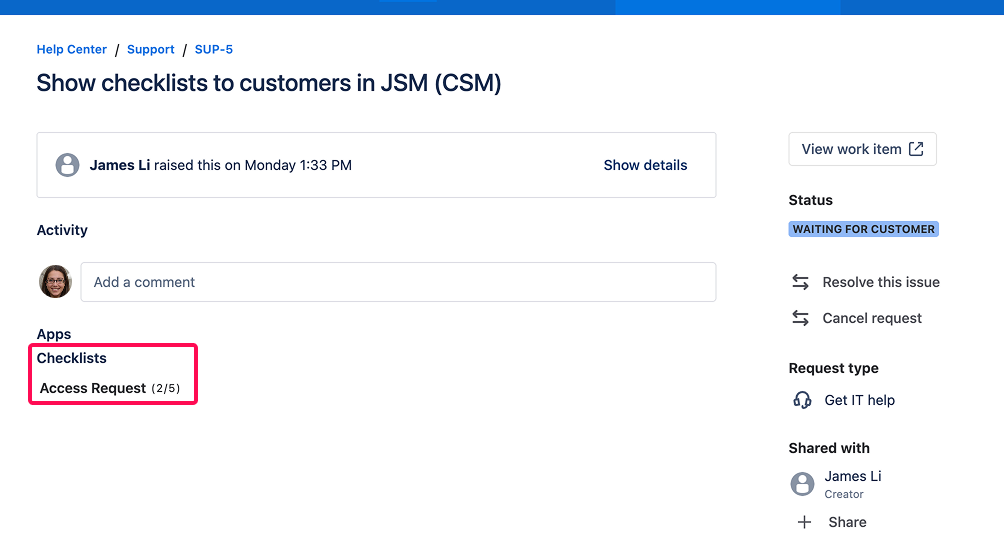
When a checklist's progress is shared, customers can see only the checklist name and its completion progress in their ticket.
Empty checklists won't be shown to customers, regardless of the setting. If a checklist has all of its items deleted and becomes empty, it disappears from the customer view.