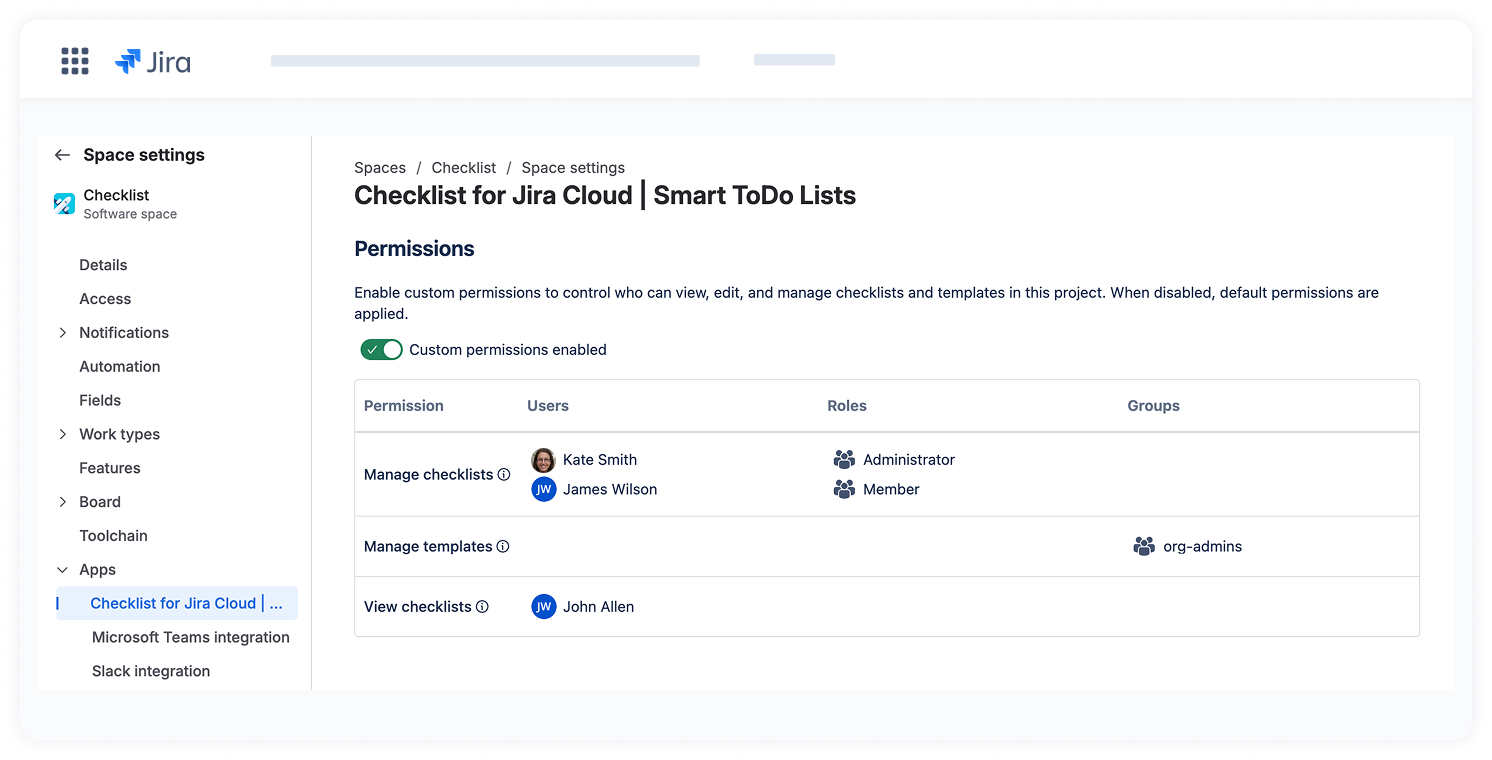
Custom permissions allow administrators to define who can view, manage, and edit checklists and checklist templates independently of Jira permissions.
Default permissions:
Users who can view an issue can view checklists and templates.
Users who can edit an issue can create and edit checklists and templates.
Managing Custom Permissions
Permissions are configured per project and apply to all issue types within that project.
Only users with the following Jira permissions can manage Checklist permissions:
ADMINISTER
ADMINISTER_PROJECTS
SYSTEM_ADMIN
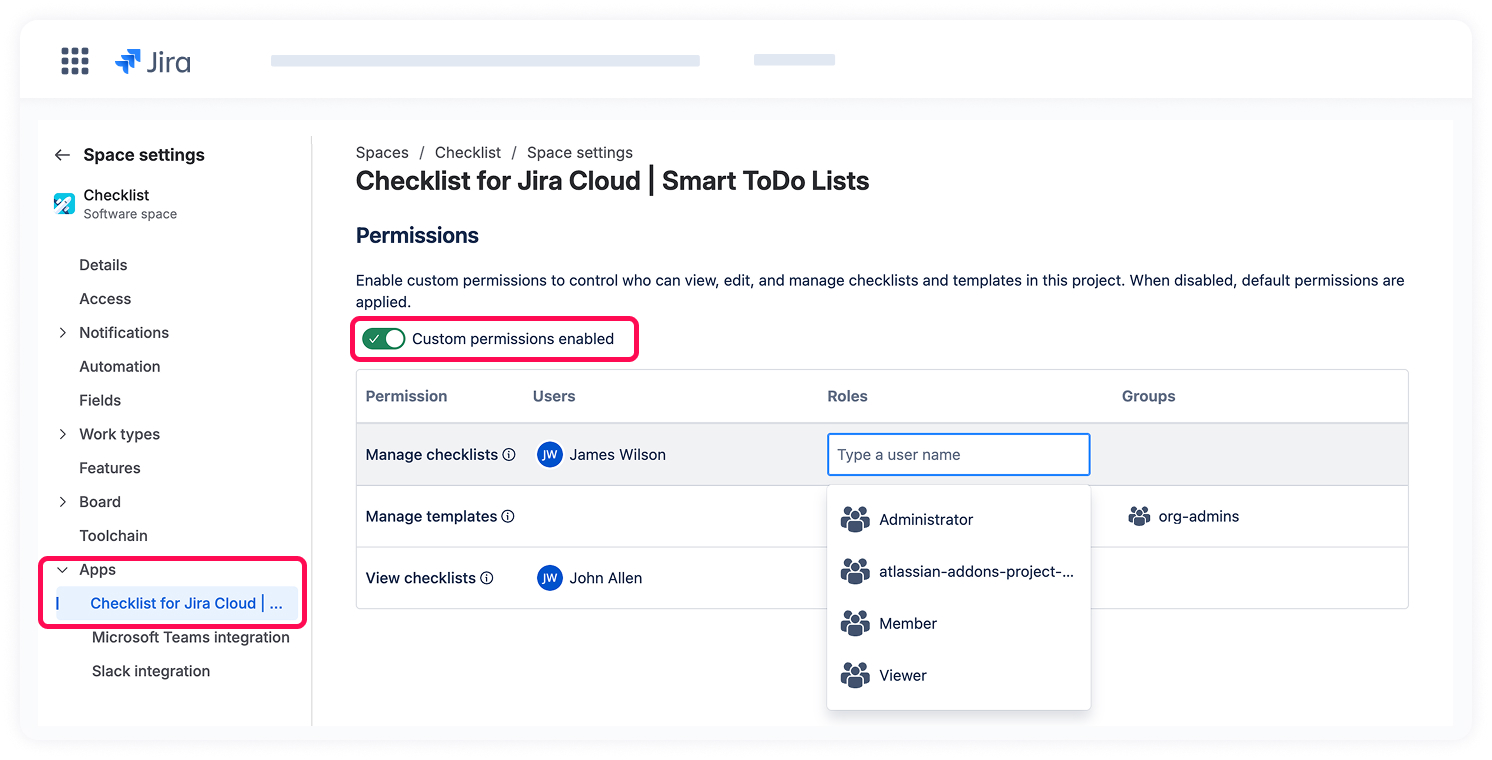
An admin can grant permissions based on:
Jira project roles
Jira groups
Individual users
Multiple roles, groups, or users can be selected.
If a user belongs to several groups or roles with different permission levels, the most permissive setting applies.
Assigning Permissions
To set custom permissions:
Go to Project settings (Space Settings) → Apps → Checklist for Jira Cloud.
Enable Custom Permissions using the toggle.
Under each permission type (View Checklists, Manage Checklists, and Manage Templates), select who can perform the action.
If custom permissions are enabled but not configured, all checklists will be view-only until permissions are assigned to specific users, roles, or groups.
Types of Permissions
The following permissions can be configured:
View checklists
Manage checklists
Manage templates
View existing checklists in Jira work items
Add new checklists and items
Edit existing checklists and items
Delete checklists and items
Save a checklist as a reusable template
View templates
Create new templates
Edit existing templates
Apply templates to Jira work items
Delete templates
Cookie Notice
This website uses cookies for analytics, personalization and advertising. By continuing to browse, you agree to our use of cookies. Learn more