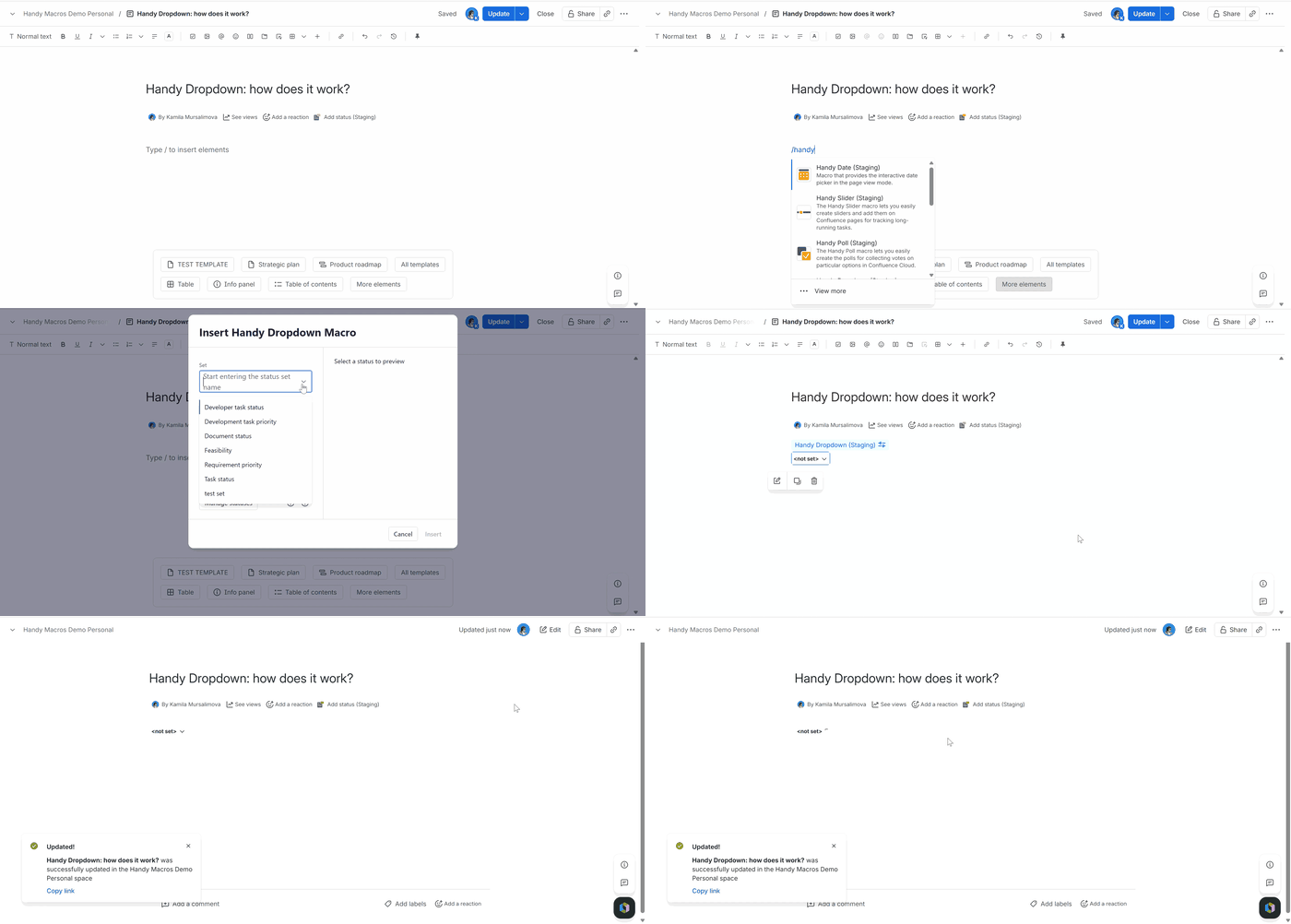
Once you have one or more status sets created in your Confluence instance, you can insert a Handy Dropdown macro and interactively switch between statuses of the selected status set.
Insert the Handy Dropdown macro on a page by typing /handy dropdown or with the help of the Insert menu .
Select a set and a status, or leave it with the default <not set> value.
Insert the macro and update or publish the page.
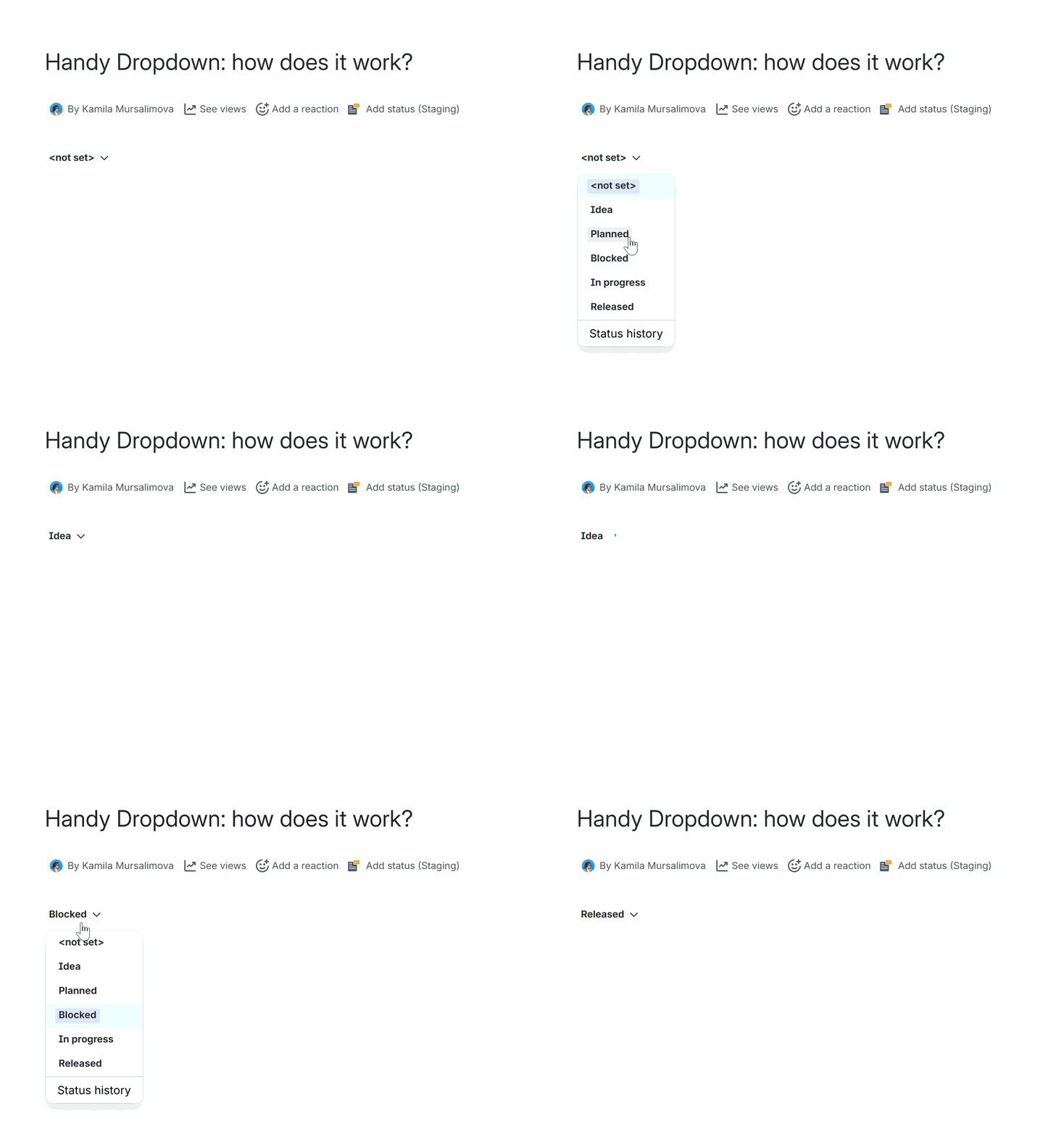
Change the status in the page view mode
Click the dropdown.
Select a new dropdown option.
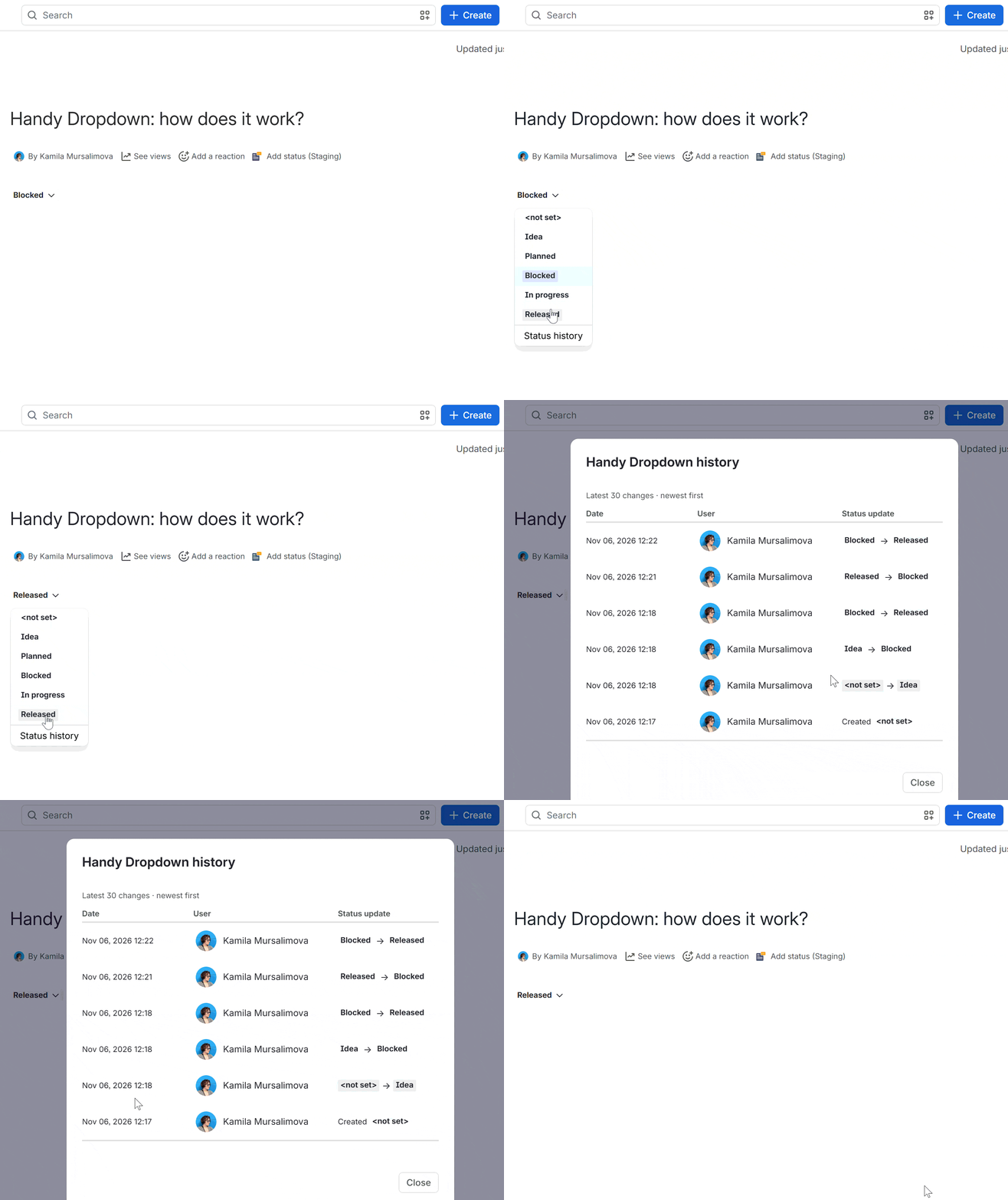
View Handy Dropdown History
For the correct Dropdown History behavior, please, don't copy Handy Dropdown but create it on a page from the Insert menu or by typing /handy status. Otherwise, the change history will be copied along with the macro.
Click Handy Dropdown in the page view mode.
Open the Status History tab.
See the date, time, user, and value changes including the creation of Handy Dropdown.
Handy Dropdown History shows the last 30 operations of status changes.
Known issues
If you copy Handy Dropdown with history and paste it on the same page, your copied Handy Dropdown gets the original Handy Dropdown history as well. To avoid this behavior, insert Handy Dropdown on a page by typing /handy dropdown or with the help of the Insert menu .
Cookie Notice
This website uses cookies for analytics, personalization and advertising. By continuing to browse, you agree to our use of cookies. Learn more