Insert the Handy Slider macro on a page and define its parameters

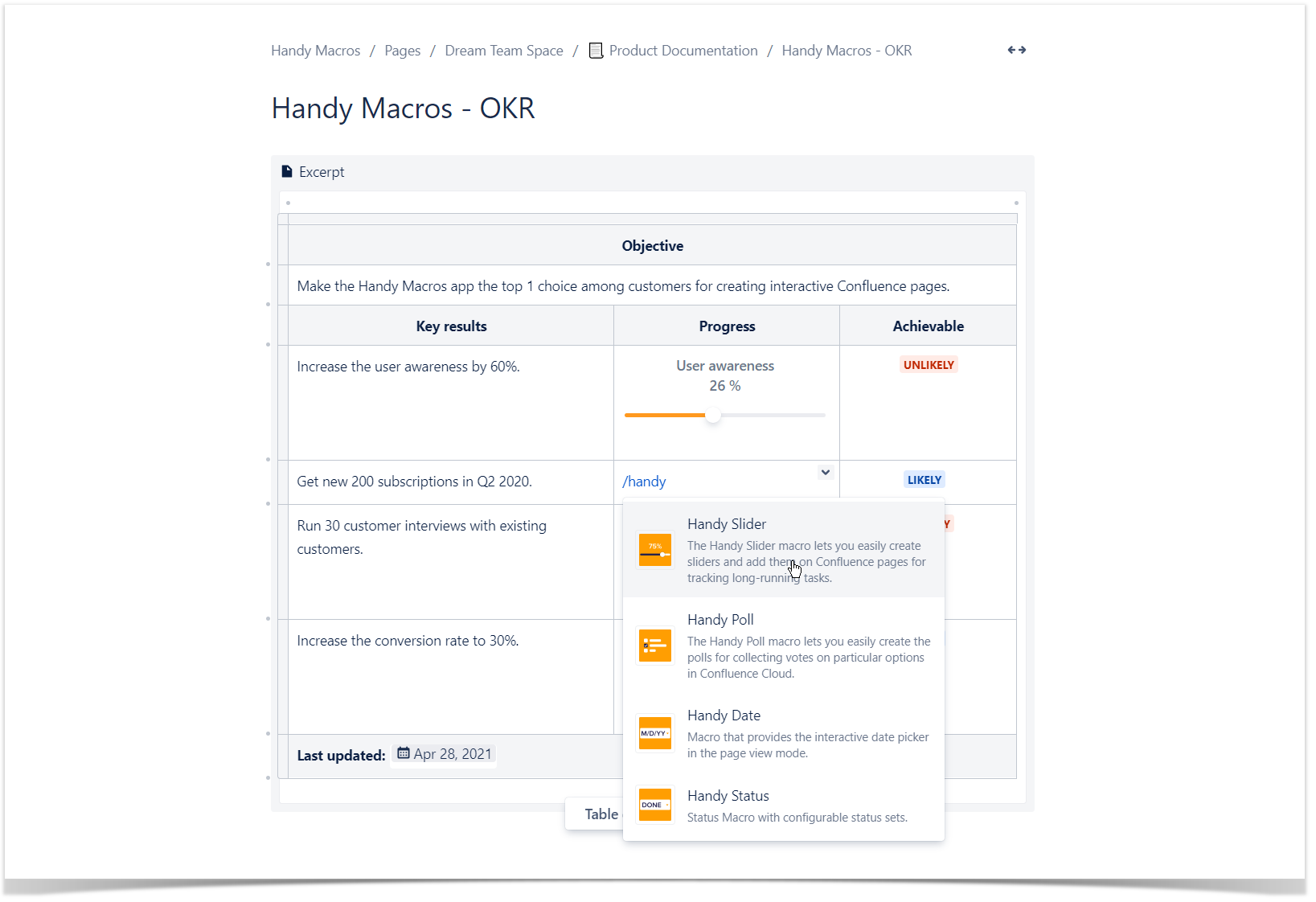
  1. Insert the Handy Slider macro on a page by typing /handy slider or with the help of the Insert menu .
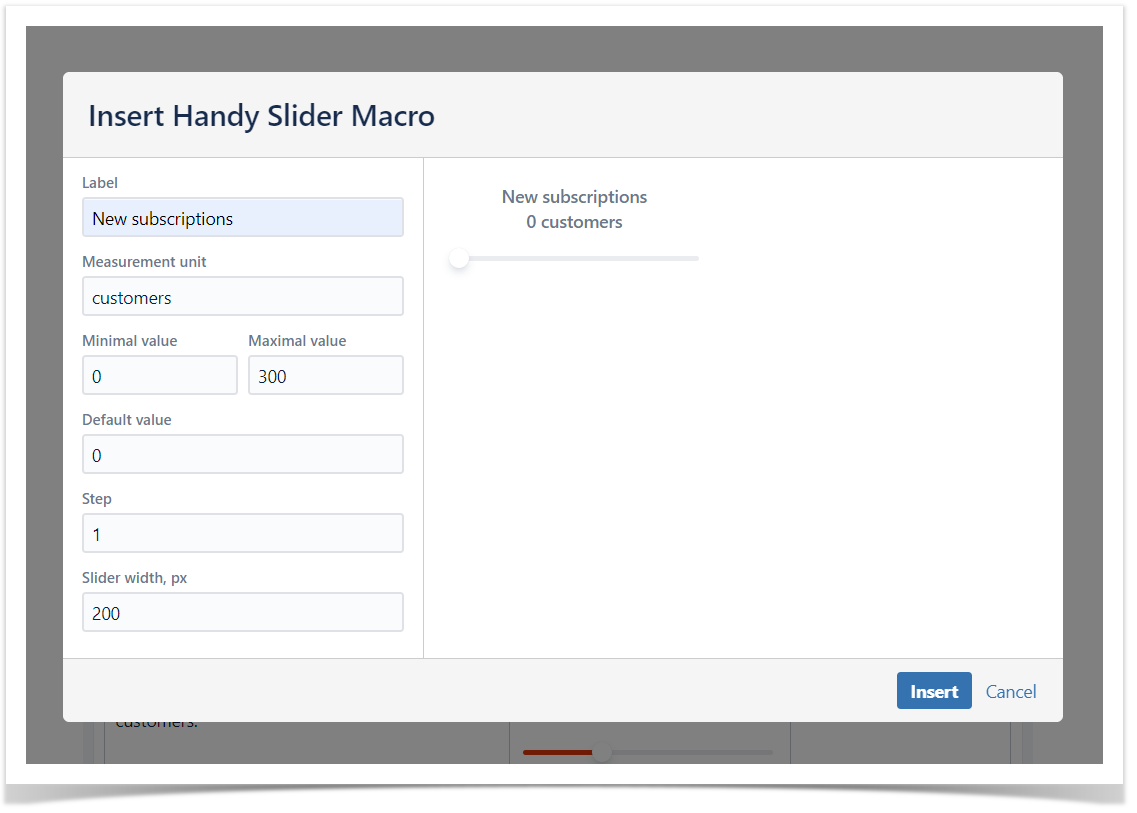
  2. Configure the macro parameters as follows:
    • Label - enter the label that will be shown above the slider.
    • Measurement unit - enter the unit of measurement for the label (%, items, $).
    • Minimal / Maximal value - enter the value range of the slider.
    • Default value - enter the default value. It cannot be less than the minimum value and greater than the maximal value.
    • Step - enter the step that will be used to increment values when you drag the slider.
    • Slider width, px - enter the width of the slider in pixels.

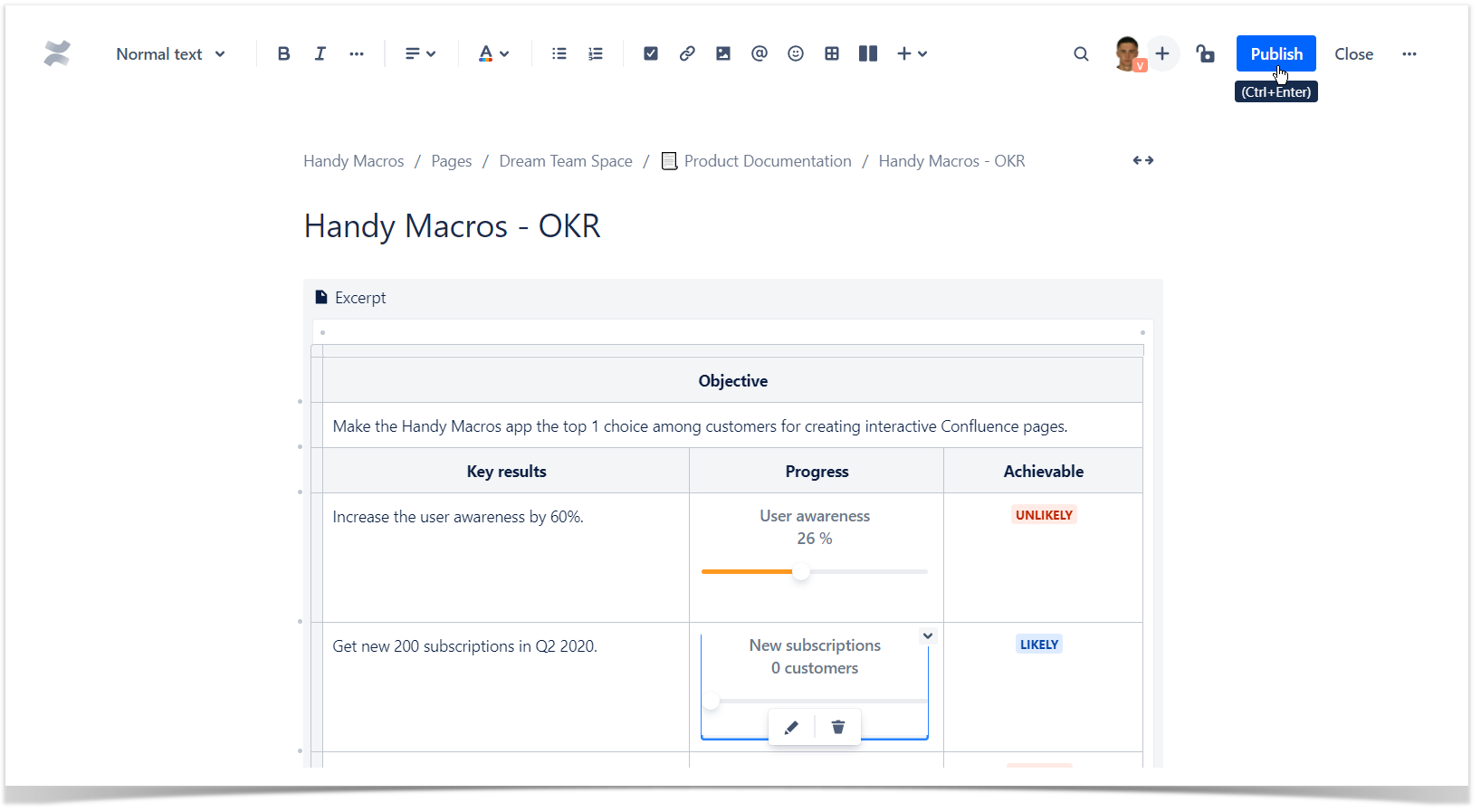
Save the macro and publish the page.

Read our article to find out more.


Check out our article with tips for creating external documentation in Confluence.

Change Handy Slider on the page

  1. Locate the slider on the page.
  2. Drag the slider to the left or to the right.

Please note that the Handy Slider macro value can be changed by any user with page edit permissions who can update Content Properties using the standard Confluence REST API. The history of changes is not available via the app UI so we suggest not using Handy Slider for sensitive data where data audit is required.