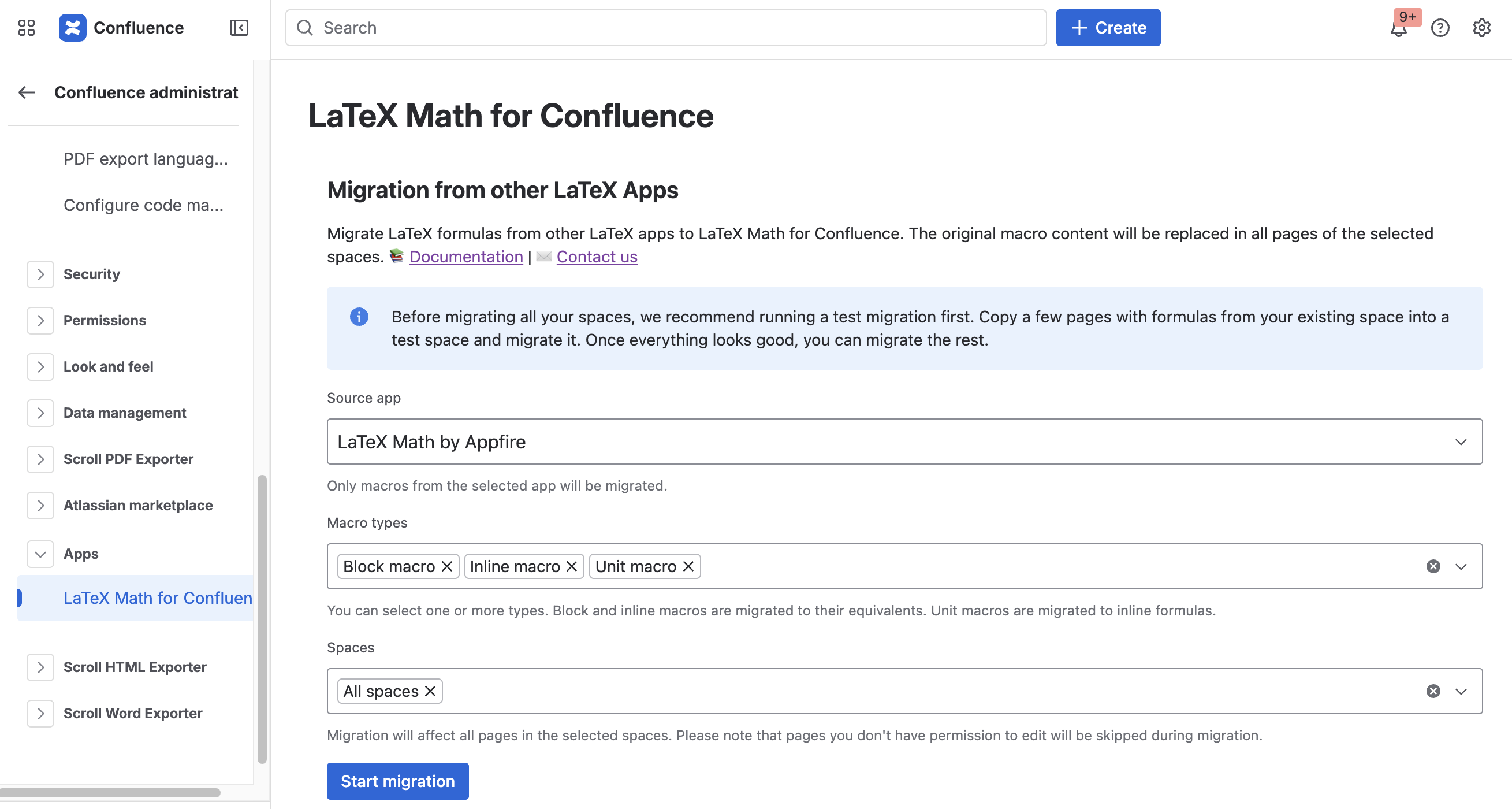
If you're switching from LaTeX Math by Appfire or LaTeX Math Lite by Appfire, you can migrate your formulas to LaTeX Math for Confluence by Stiltsoft directly from Confluence Administration. The original macros are replaced with their LaTeX Math for Confluence equivalents on all pages of the spaces you select.
A few things to know before running a migration:
Permissions. Migration runs under your user account. Only pages you have edit permission for will be migrated. Pages with restricted access that you can't edit are skipped automatically.
Run a test migration first. We recommend copying a few pages with formulas from your existing space into a test space and migrating it first. Once the result looks good, migrate the rest.
How to run a migration
Open Confluence Administration → Apps → LaTeX Math for Confluence.
Step 1 — Source app. Select the app you're migrating from. Only macros from the selected app will be migrated.
Step 2 — Macro types. Select one or more macro types to migrate:
Block macro
Inline macro
Unit macro
Block and inline macros are migrated to their equivalents. Unit macros are migrated to inline formulas.
Step 3 — Spaces. Select the spaces you want to migrate. The dropdown shows only spaces that contain formulas from the selected source app. You can select multiple spaces or choose All spaces.
Click StartMigration.
While migration is running, you'll see a progress modal. You can stop the migration at any time using the Stop migration button — pages that have already been processed won't be reverted automatically.
Migration results
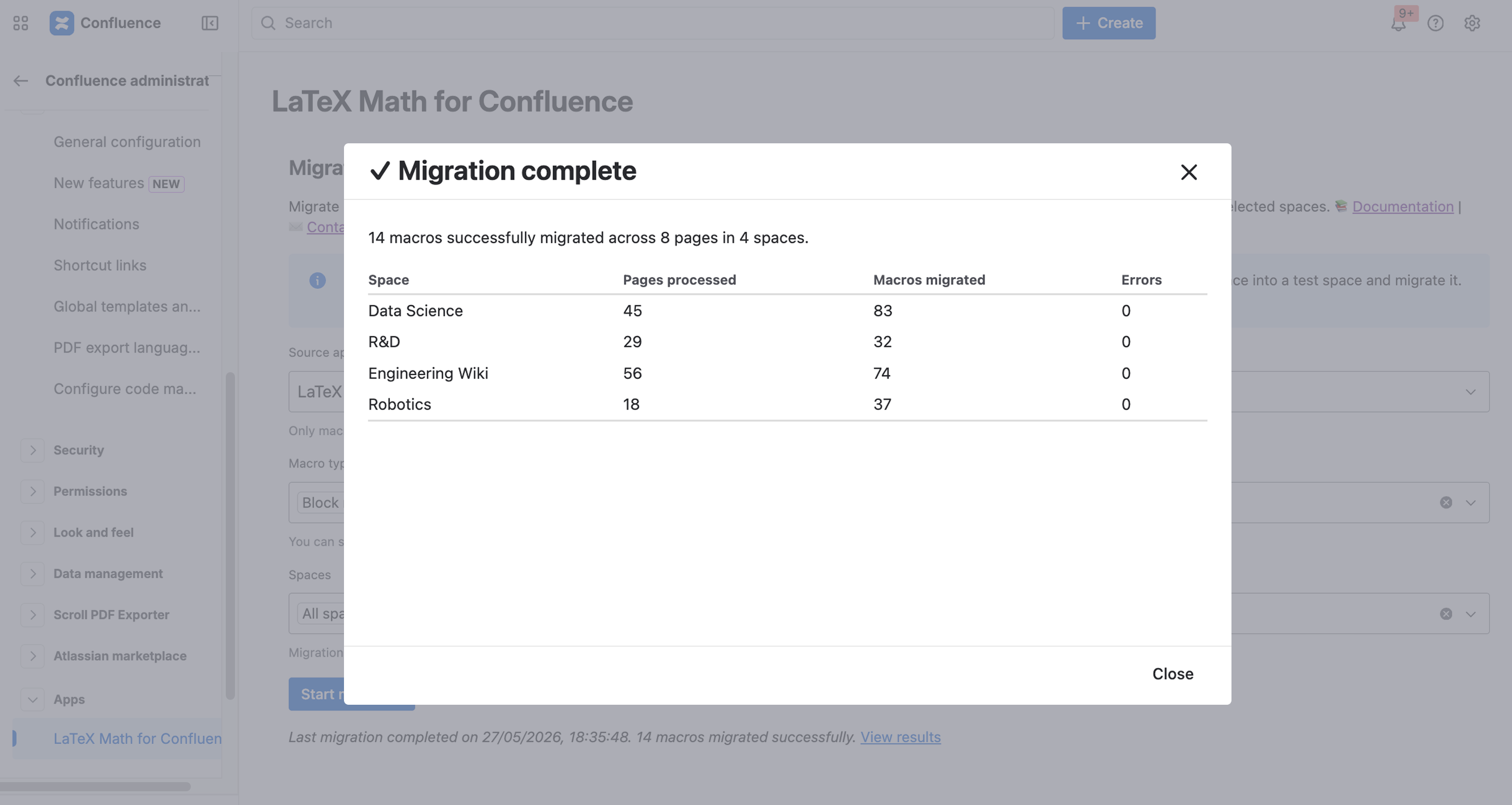
Once migration completes, you'll see a summary, and the results table shows the breakdown per space:
After migration is complete, a short summary of the last run stays visible under the Start migration button. Click View results at any time to reopen the full results modal. The summary is replaced when you start a new migration. Example:
Notes:
If no macros from the selected source app and types are found in the selected spaces, the results will show the following message: "No macros of the selected types were found in the selected spaces."
Errors are typically caused by pages that are locked or for which you don't have edit permission.