Ensure that all checklist items are completed before a work item can be transitioned to a specific status. This workflow validator helps teams maintain quality standards by preventing incomplete work from moving forward in your workflow.
How it works
When a user attempts to transition a work item that has incomplete checklist items, the validator will prevent the transition and display an error message. If a work item contains multiple checklists, the validator applies to all of them. Every checklist item across all checklists must be completed before the transition is allowed.
How to add the validator
Access the workflow editor
The first step depends on the type of your project.
For company-managed projects:
- Navigate to Space settings -> Workflows.
- Find the workflow you want to add the validator to, and click Edit workflow.
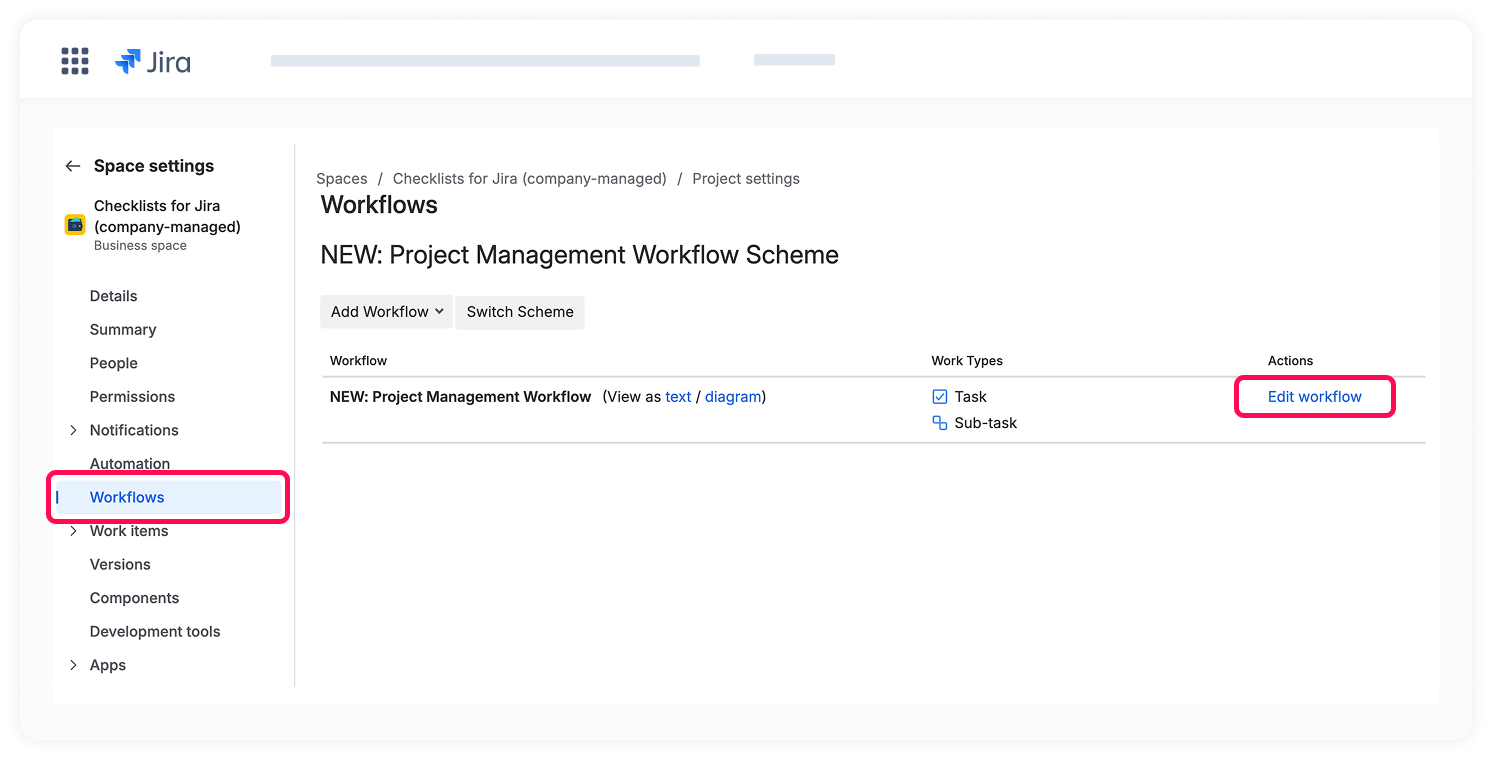
For team-managed projects:
- Navigate to Space settings -> Work types.
- Choose the work type you want to configure.
- Click Edit workflow.
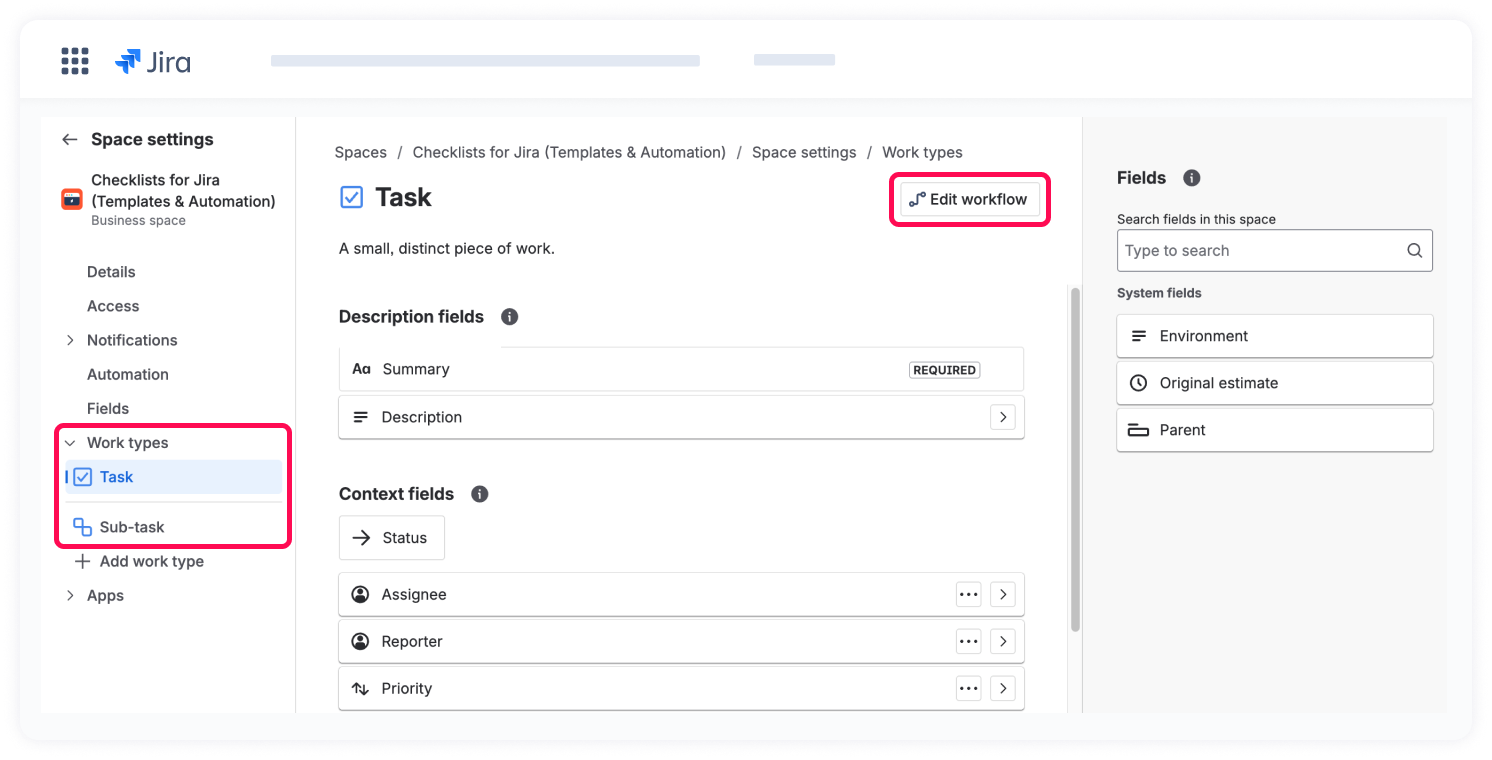
Add the validator
Once you're in the workflow editor:
- Select the transition (arrowed line) where you want to add the validator, and click Add rule.
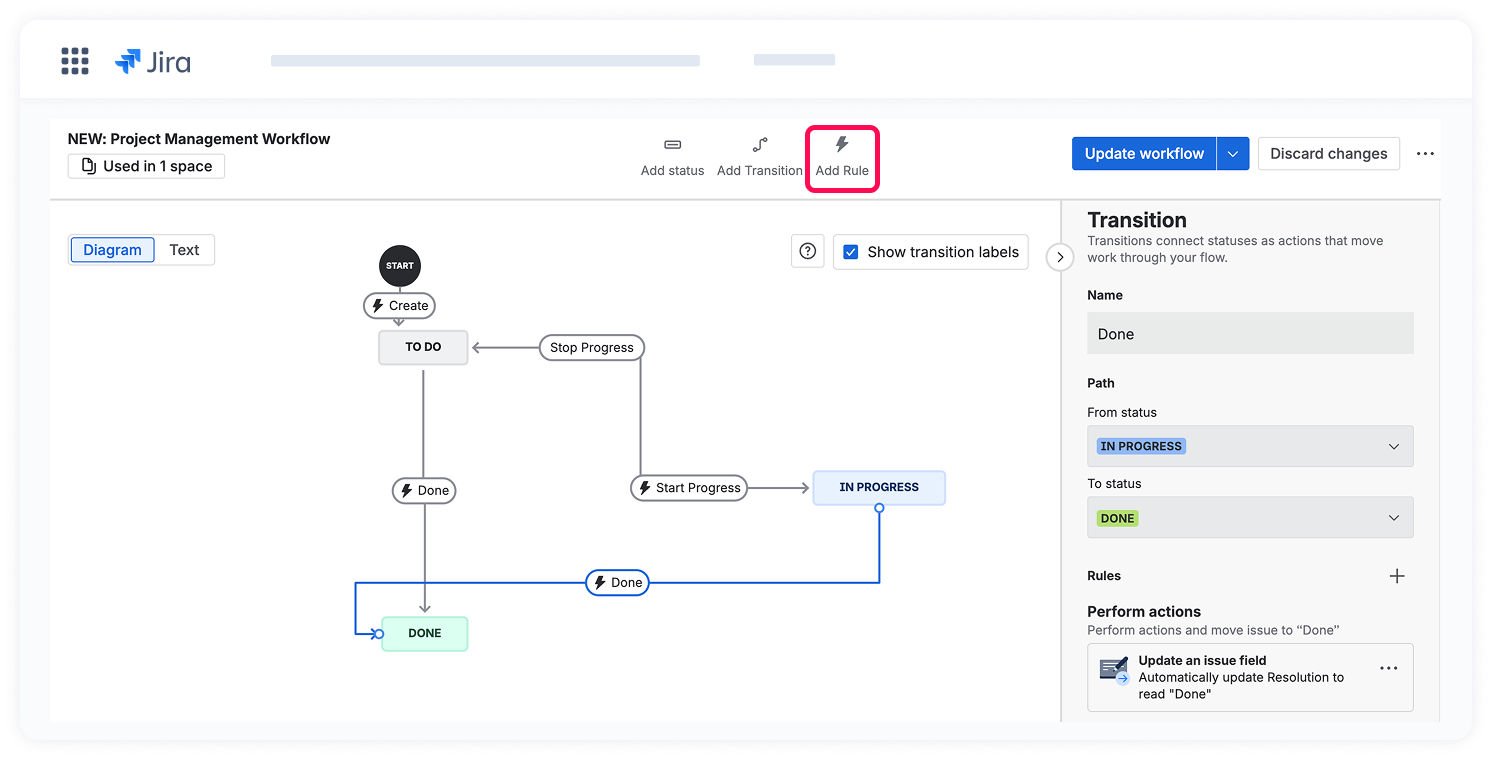
2. In the configuration screen, click Checklists for Jira (Templates & Automation) under Marketplace Rules.
3. Choose Checklists: Validate that all checklist items are complete.
4. Click Select.
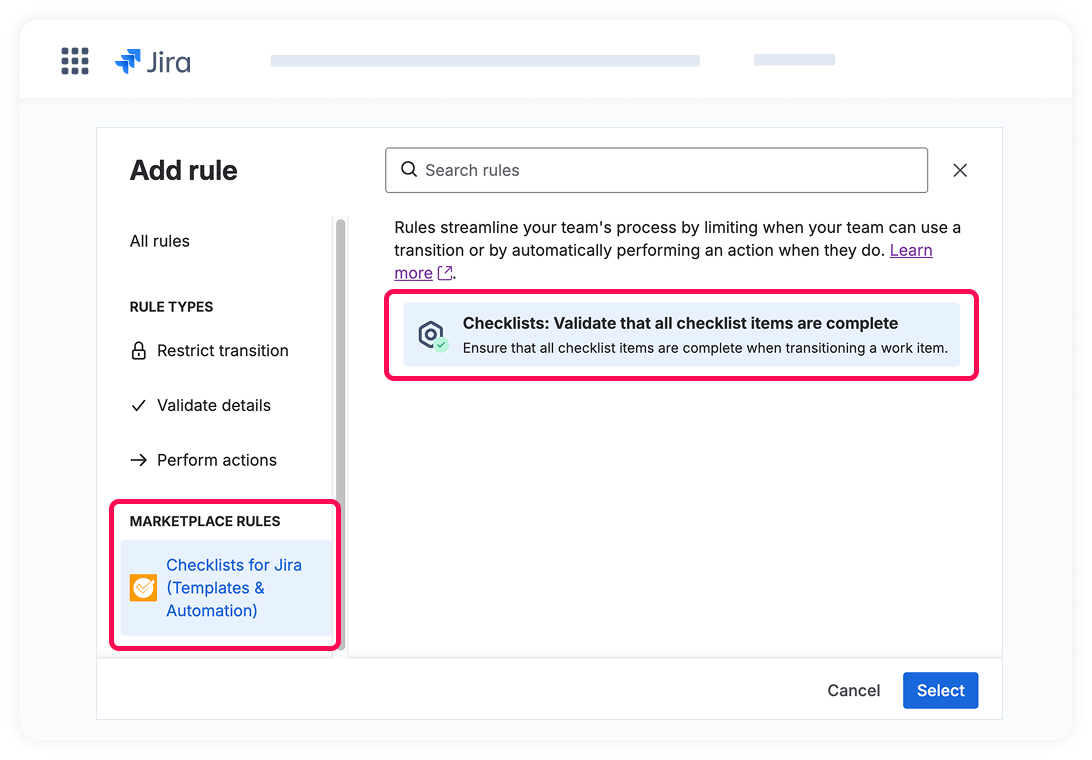
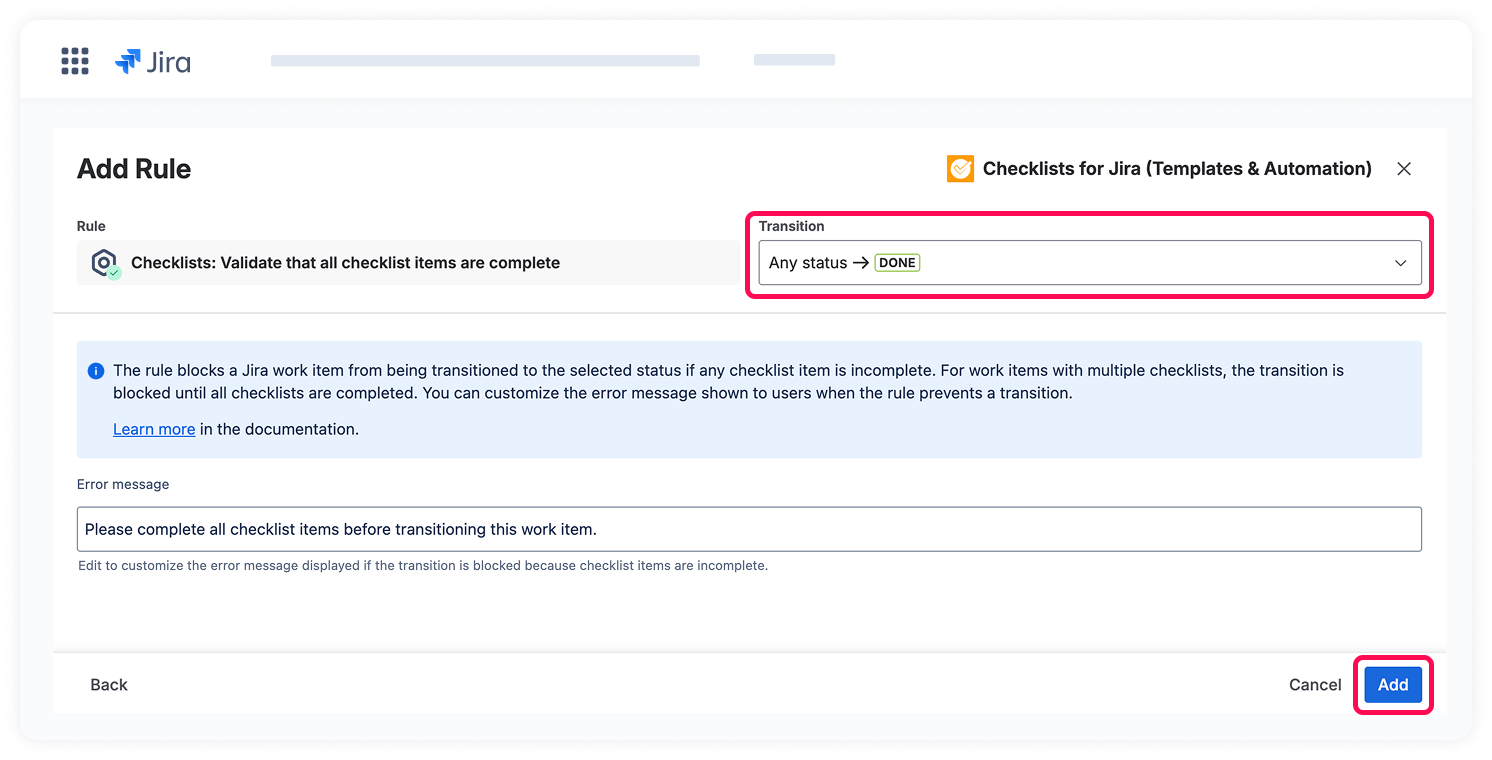
After selecting the validator, a configuration dialog appears where you can define its parameters:
- Choose the transition path
Select the transition to which this validator should be applied, based on your workflow configuration. - Customize the error message (optional)
The error message field is pre-filled with a default message. You can customize this message to match your team's terminology or provide users with specific guidance. - Click Add to apply the rule to the transition.
After configuring the validator, click the Update workflow button to save your changes.
This rule ensures that no step is accidentally skipped, maintaining consistent quality standards across your team's workflow.