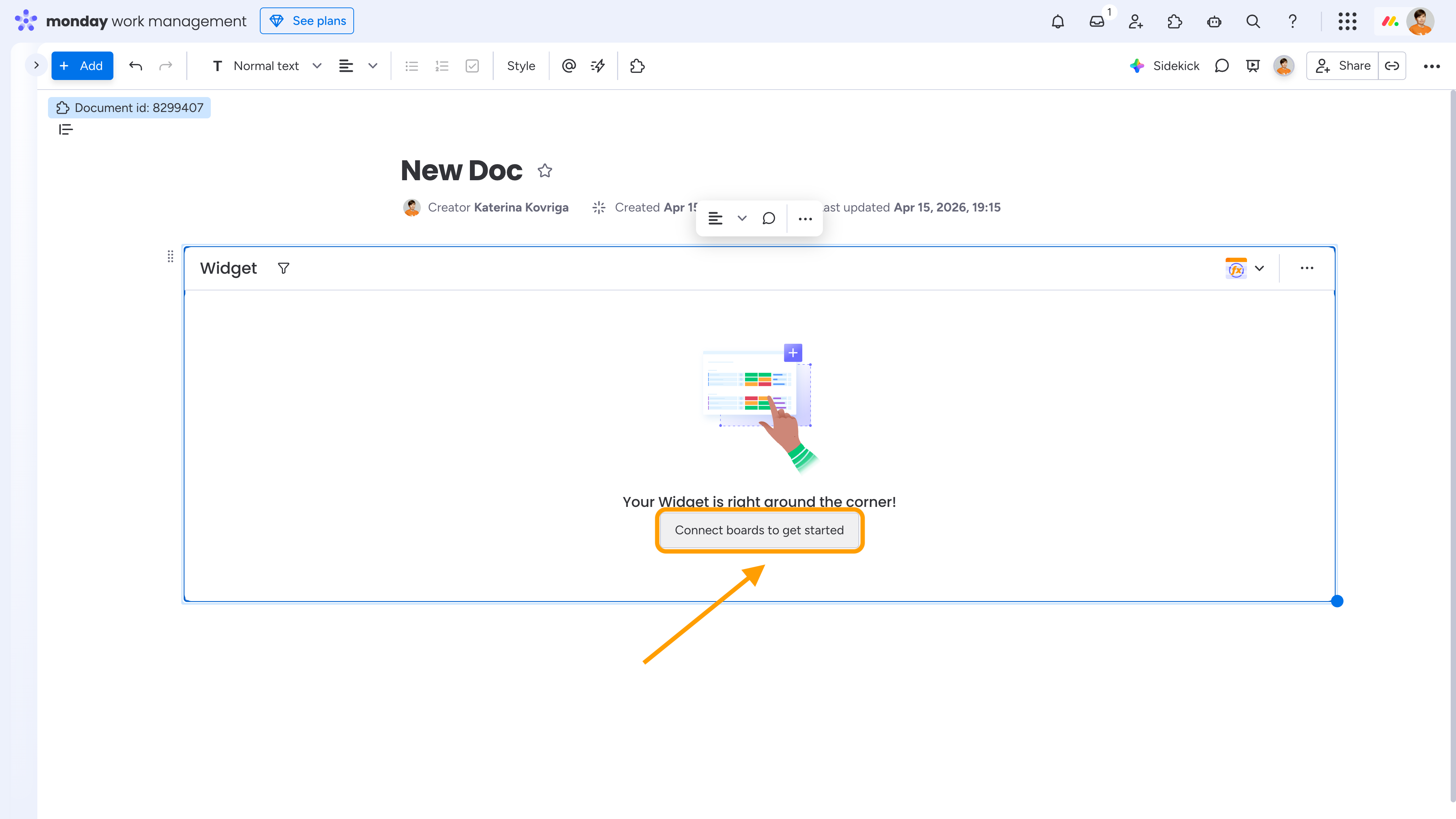
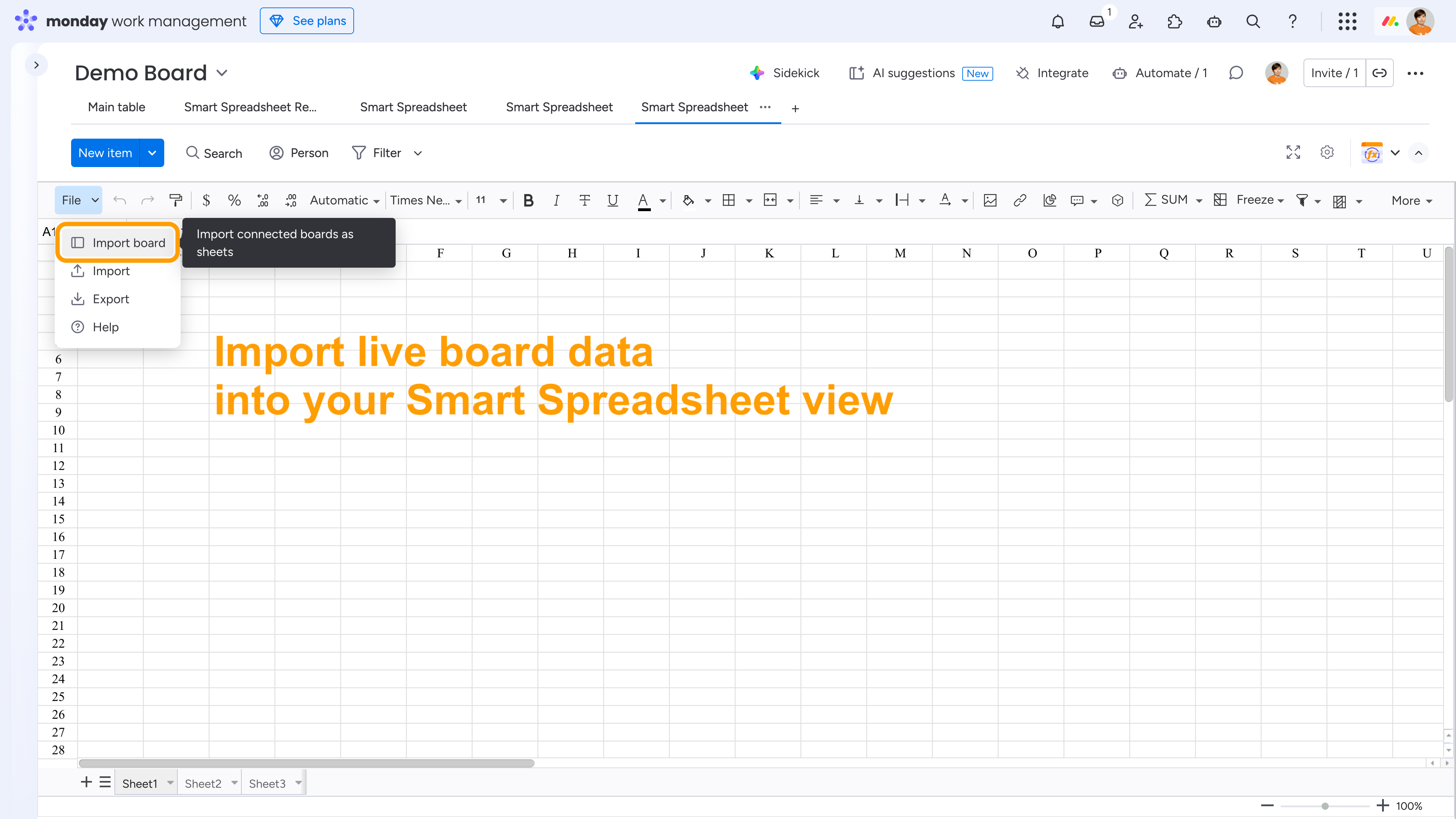
You can import a board with subitems into a Smart Spreadsheet from a board view, item view, doc, or dashboard widget.
To import a board manually, go to File → Import Board.
By default, the import dialog opens automatically when you insert a new Smart Spreadsheet view. If you prefer to import boards manually, disable the "Auto-open import dialog for new views" option.
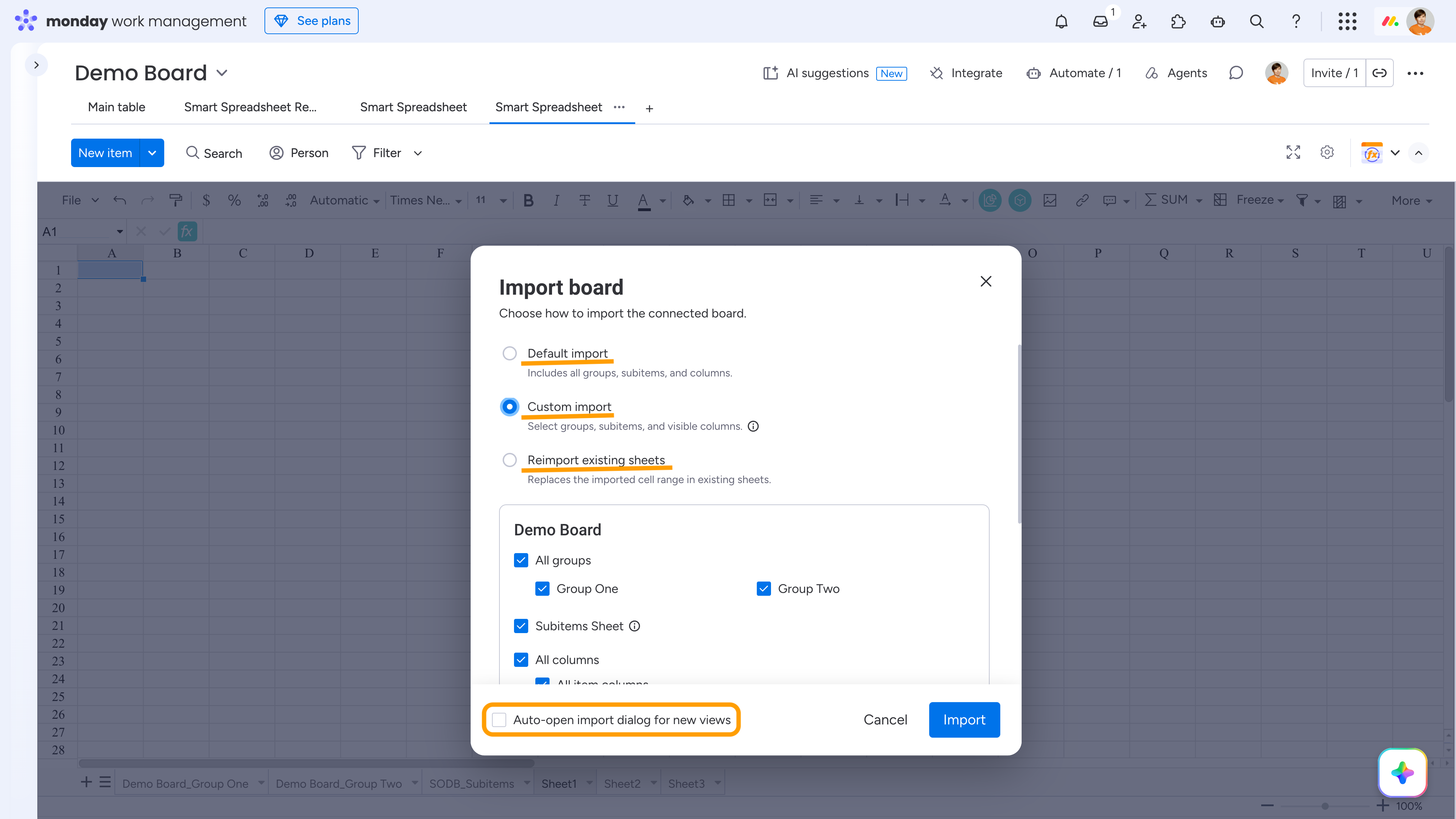
You can choose between three import modes:
1. Default import
Imports everything as-is, including board groups, subitems, and all columns.
2. Custom import
Lets you control what gets included:
- Select which board groups to import
- Choose whether to include a subitems sheet
- Select which columns (fields) to display
Unselected groups and subitems are not imported.
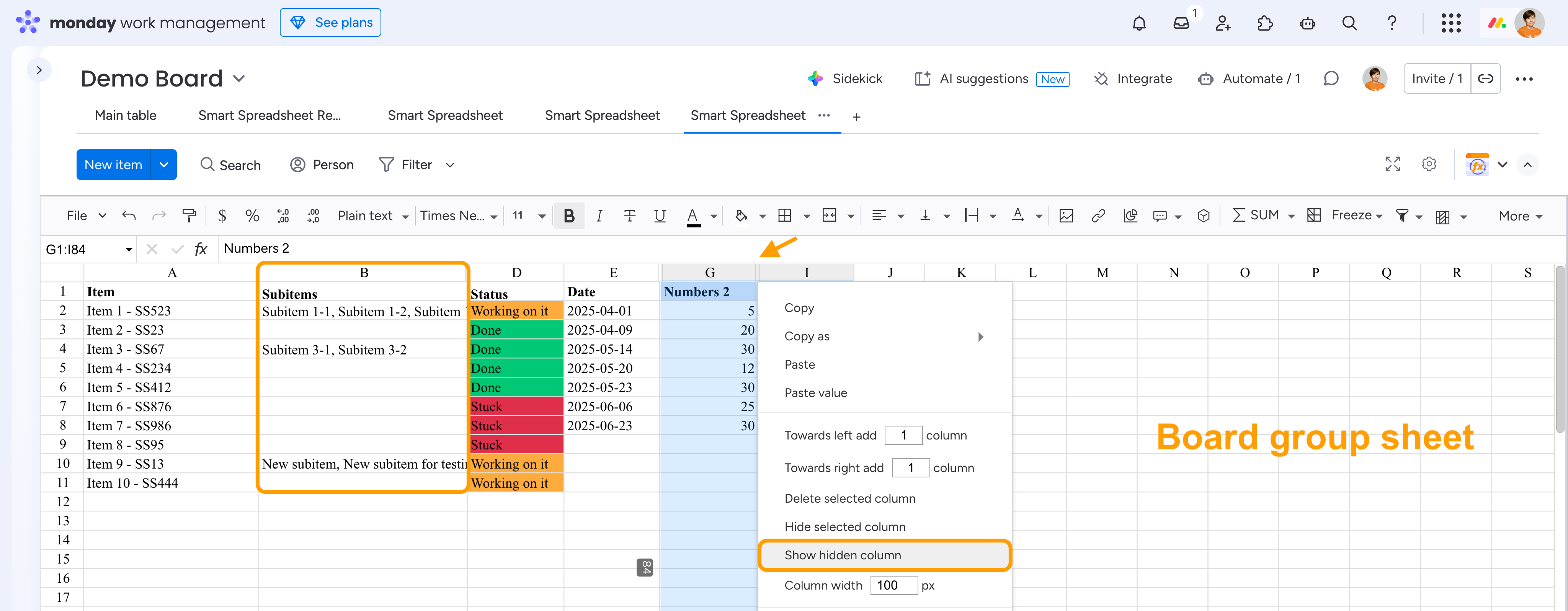
Unselected columns are still imported but remain hidden in the spreadsheet - you can unhide them at any time.
3. Reimport existing sheets
Recreates previously imported board ranges using the latest board structure and data. No new sheets are created. Can be useful if synced columns were accidentally deleted.
How data is structured:
- Each group is imported as a separate sheet
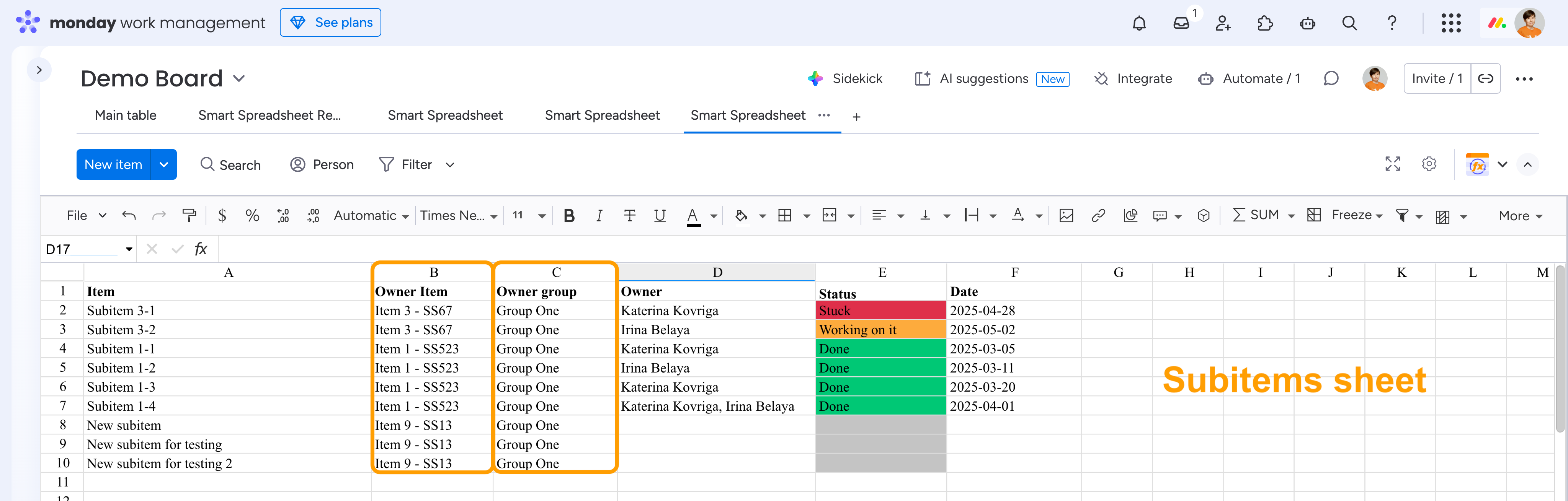
- All subitems are imported into a single sheet
You can import the same board multiple times. The resulting sheets will be named with index numbers (1, 2, etc.), like copies.
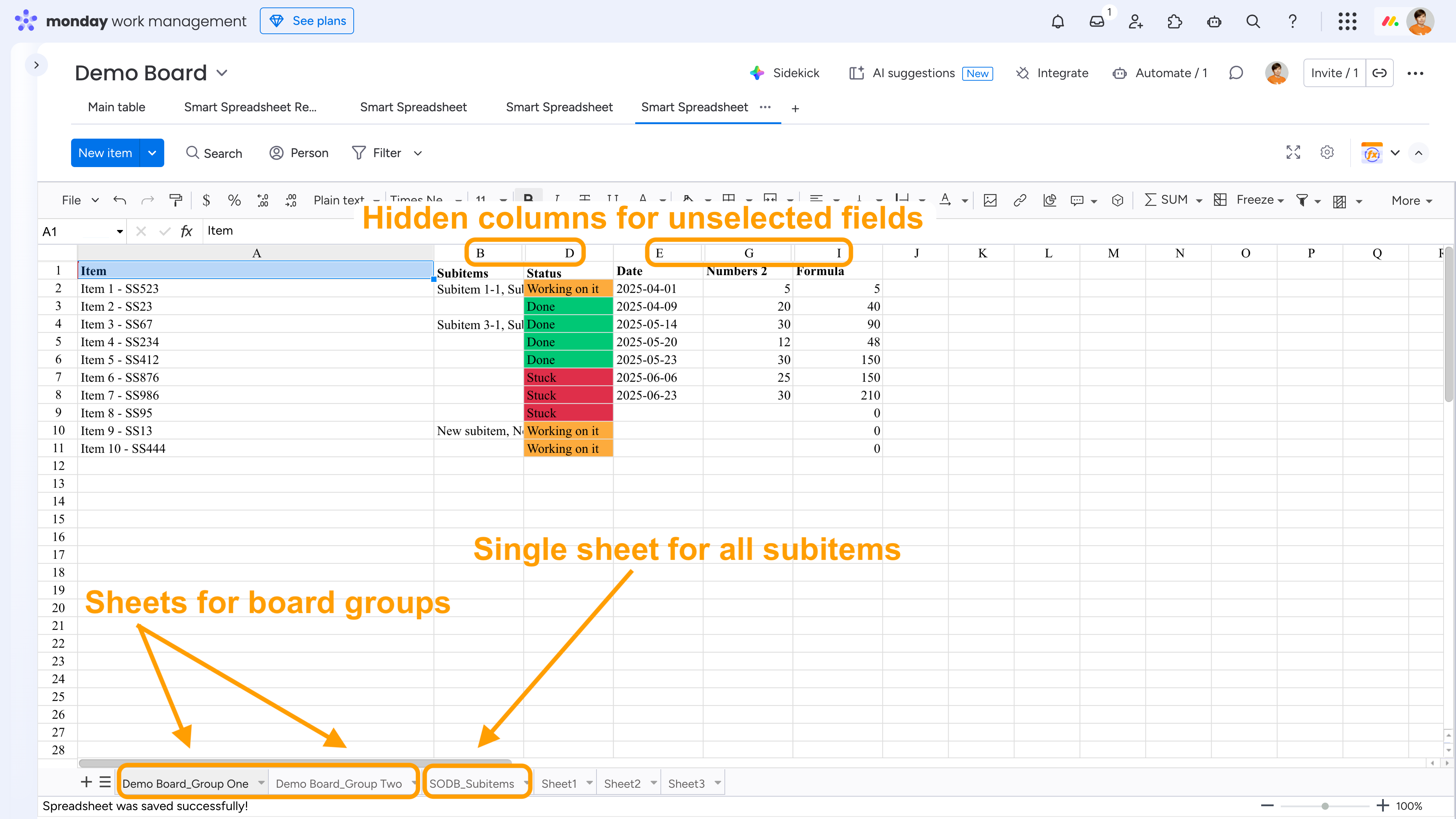
Additional columns are added automatically:
- In group sheets: a Subitems column with related subitems
- In the subitems sheet:
- Owner Item - the parent item
- Owner Group - the group the parent item belongs to
 In the dashboard and doc widgets, first connect the required board(s) to Smart Spreadsheet, then import the board.