Use this rule to add a checklist automatically when specific fields change (e.g., Priority, Component, Labels, or a custom field).
1. Navigate to Space settings > Automation.
2. Click Create rule > From Scratch to start a new automation rule.
3. Choose a trigger: Field value changed.
4. Select the Fields to monitor for changes and the Change type.
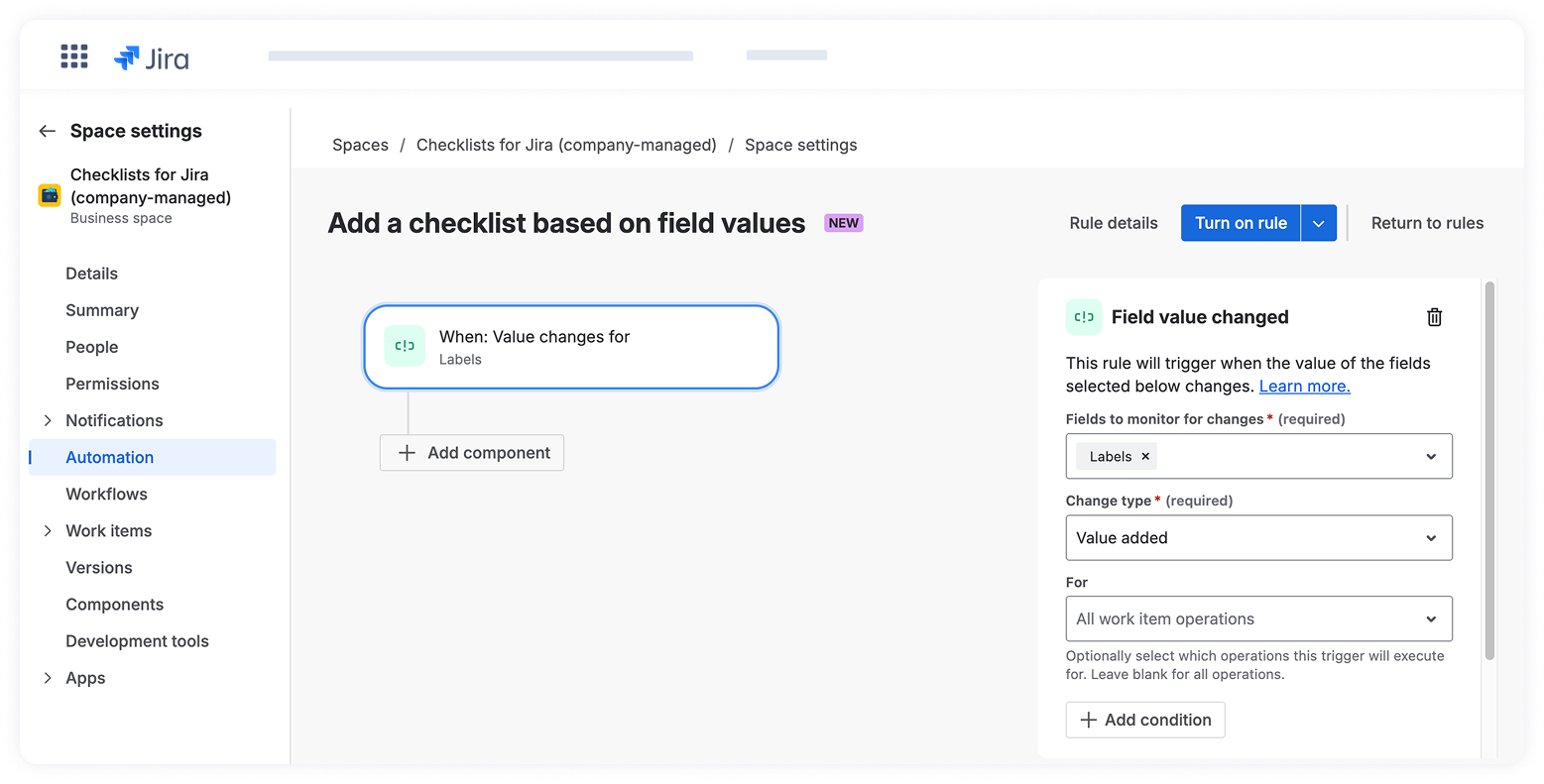
5. Click Next.
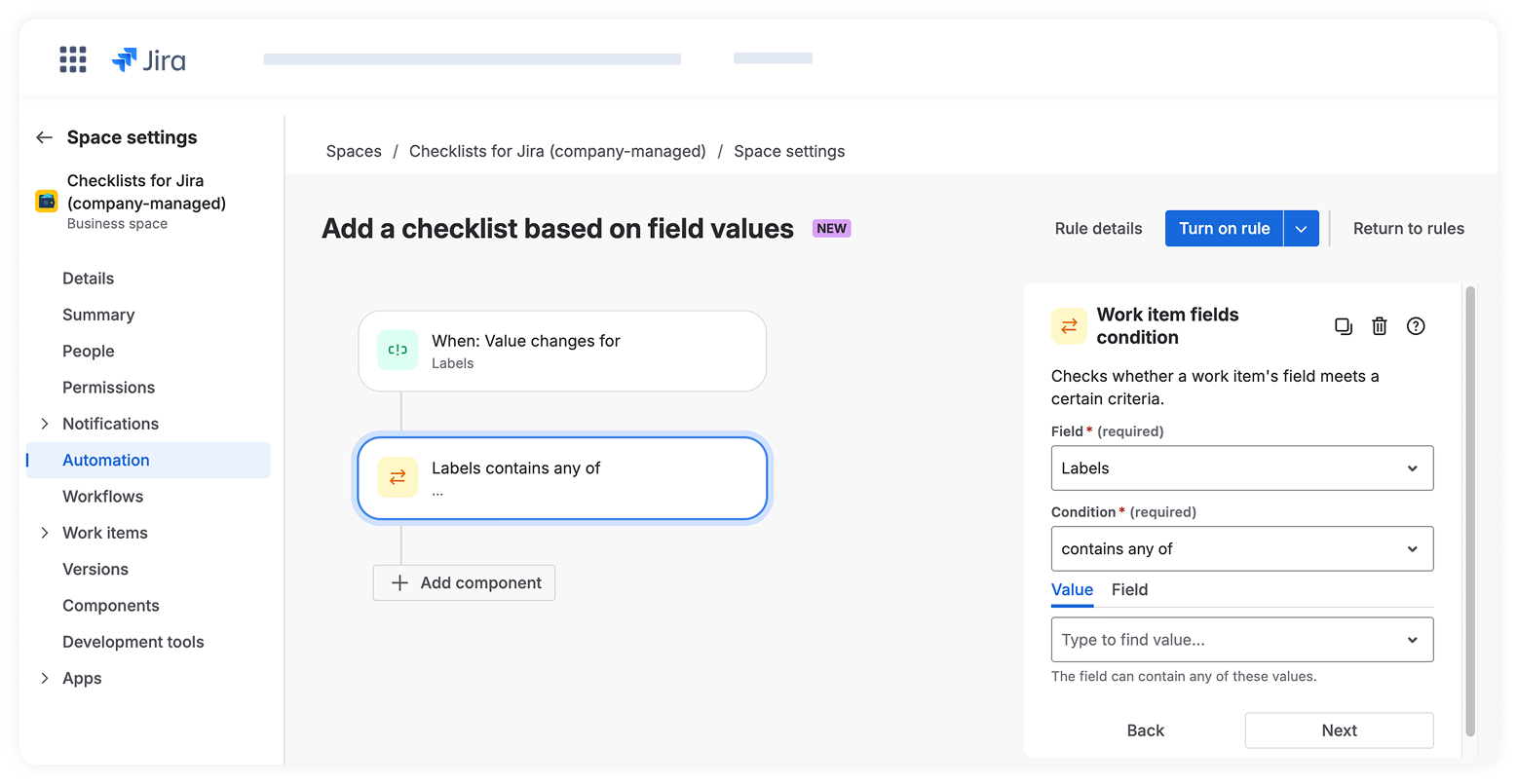
6. (Optional) If you want to check whether a work item's field meets a certain criterion, add a component: Add a condition and:
6.1 Choose the field (the same as in the trigger)
6.2 Select a condition from the dropdown list
6.3 Type Value
6.4 Click Next
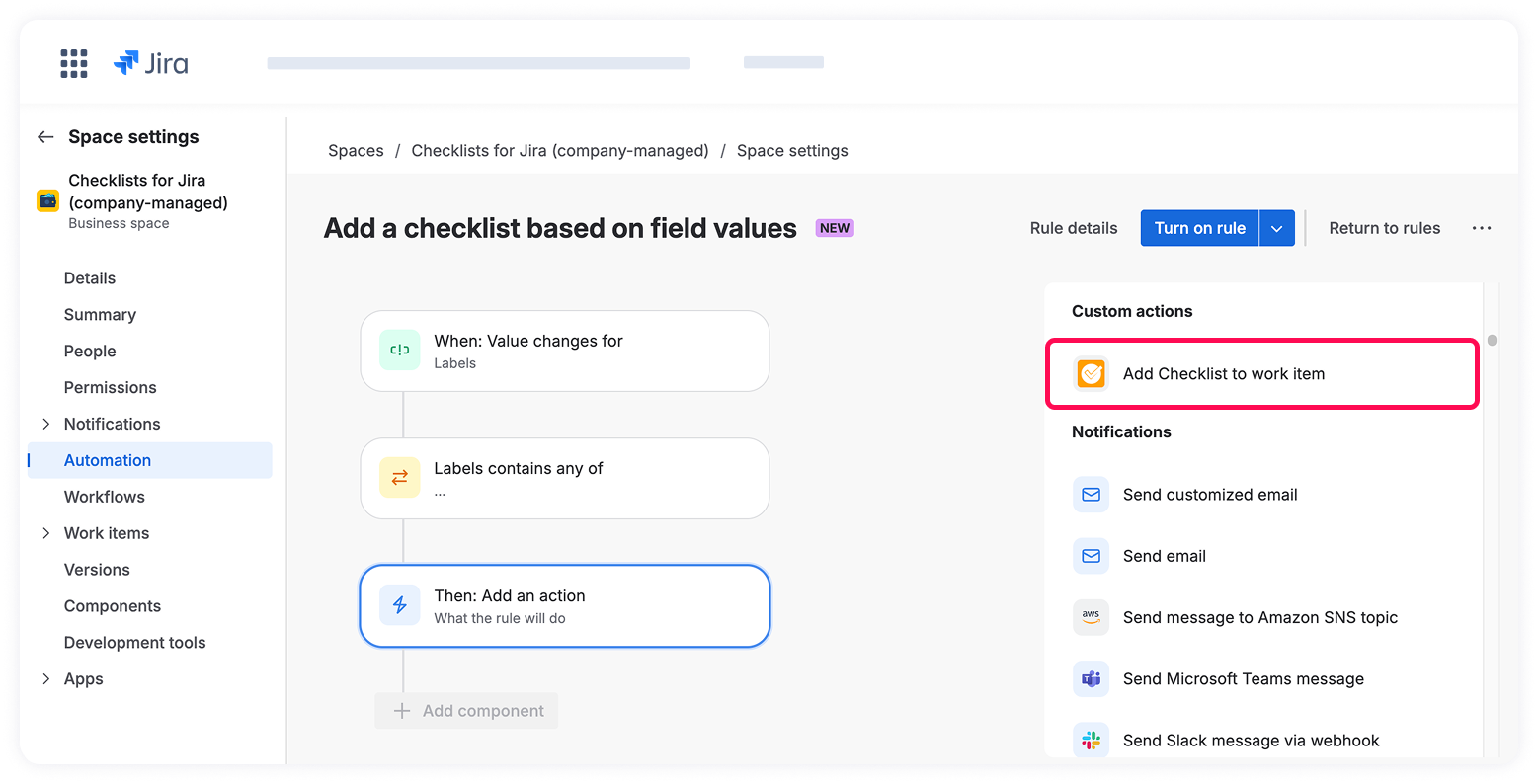
7. Click +New Component and choose THEN, add an action.
8. Select Add Checklist to work item from the list of components and connect Atlassian Automation to Checklists for Jira (Templates & Automation).
9. Choose the Custom template (manual input) option from the dropdown menu if you'd like to define checklist structure manually using Checklist syntax.
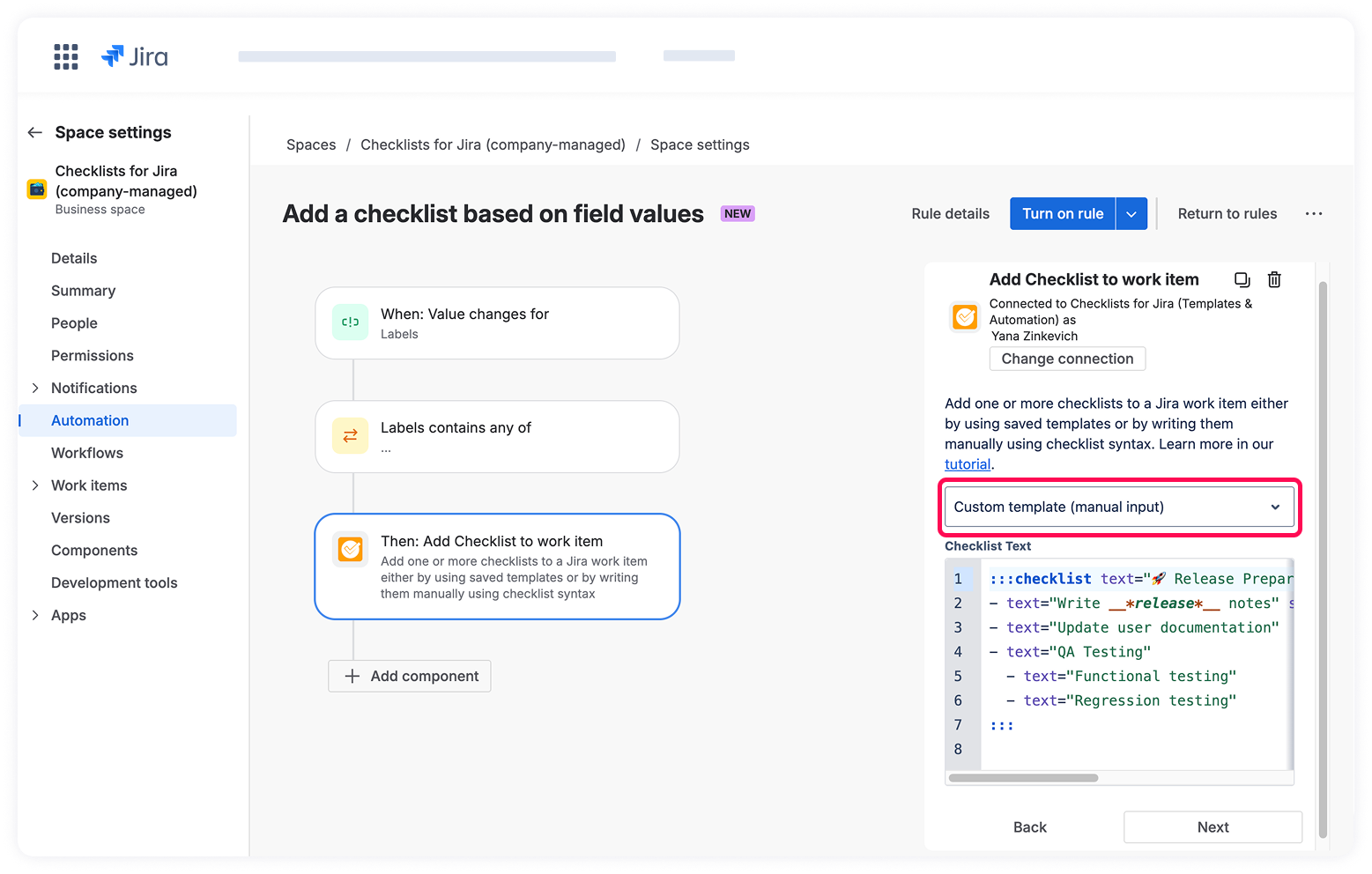
OR
Select a pre-configured checklist template from your templates library.
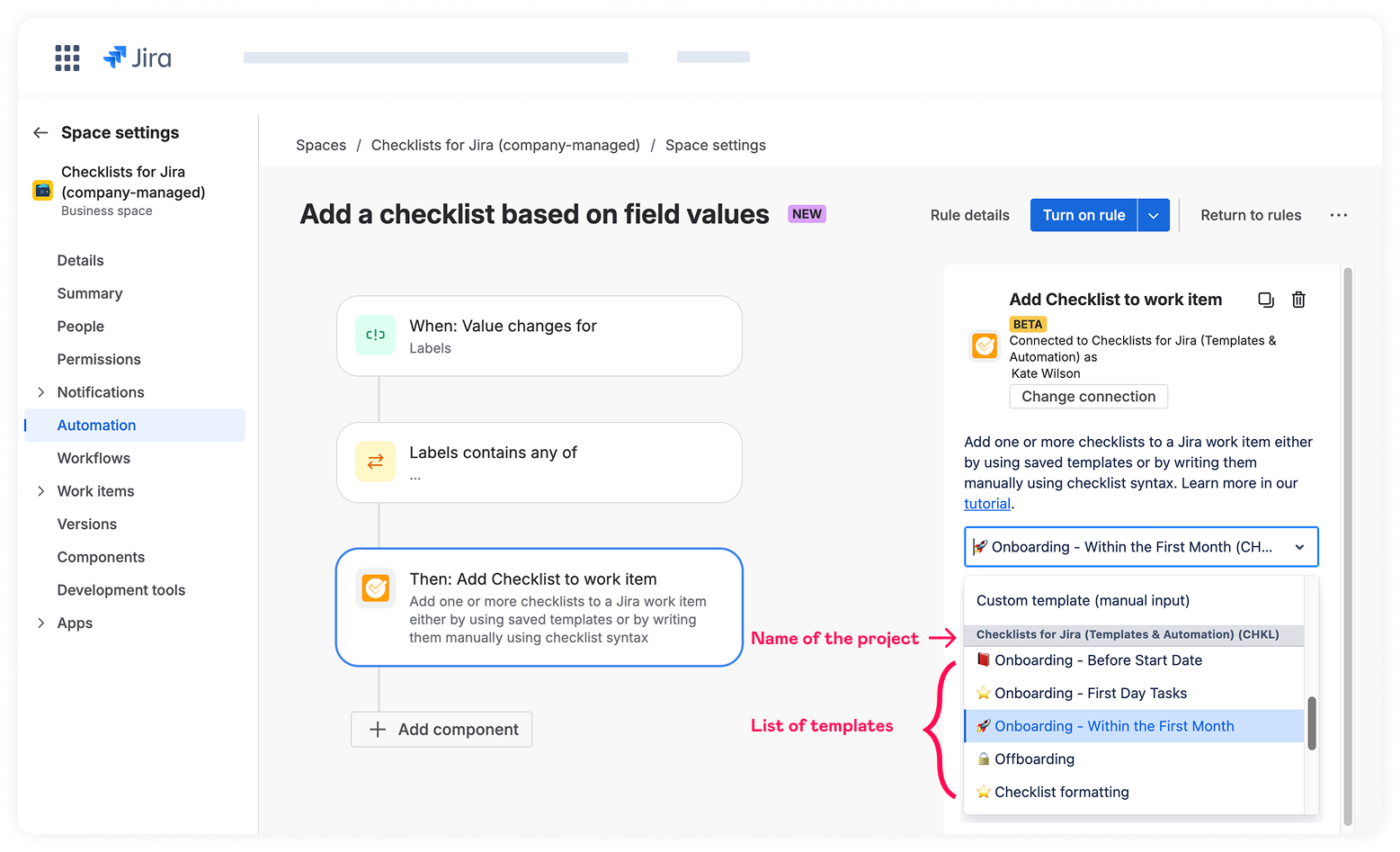
When configuring an automation, users can view and use all templates they have access to across the entire Jira instance, regardless of the project for which it is created.
10. Click Next.
11. Fill in the rule details and validate it to verify that it works correctly.
12. Turn on the rule to activate it.
