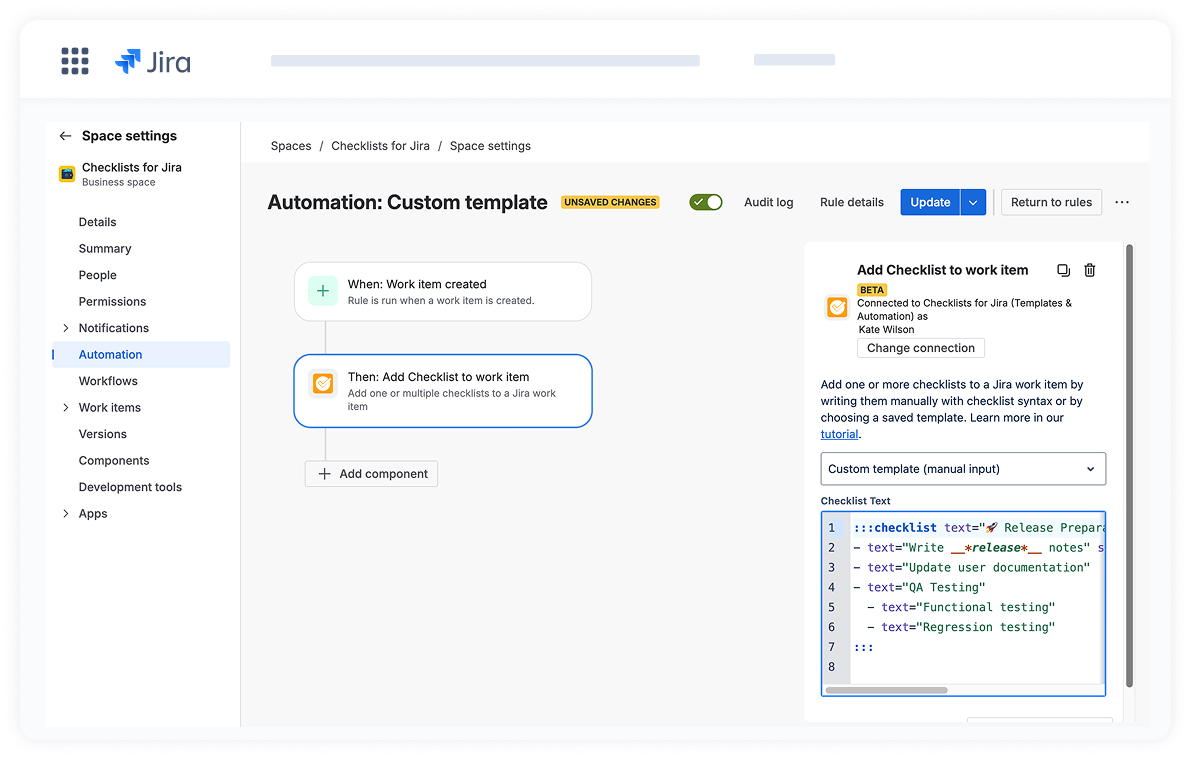
By configuring Jira Automation rules, you can automatically add checklists to work items when specific triggers occur, ensuring consistent processes across your team with minimal manual effort.

Two ways to add checklists via Automation

Option 1: Use a saved template (coming soon)

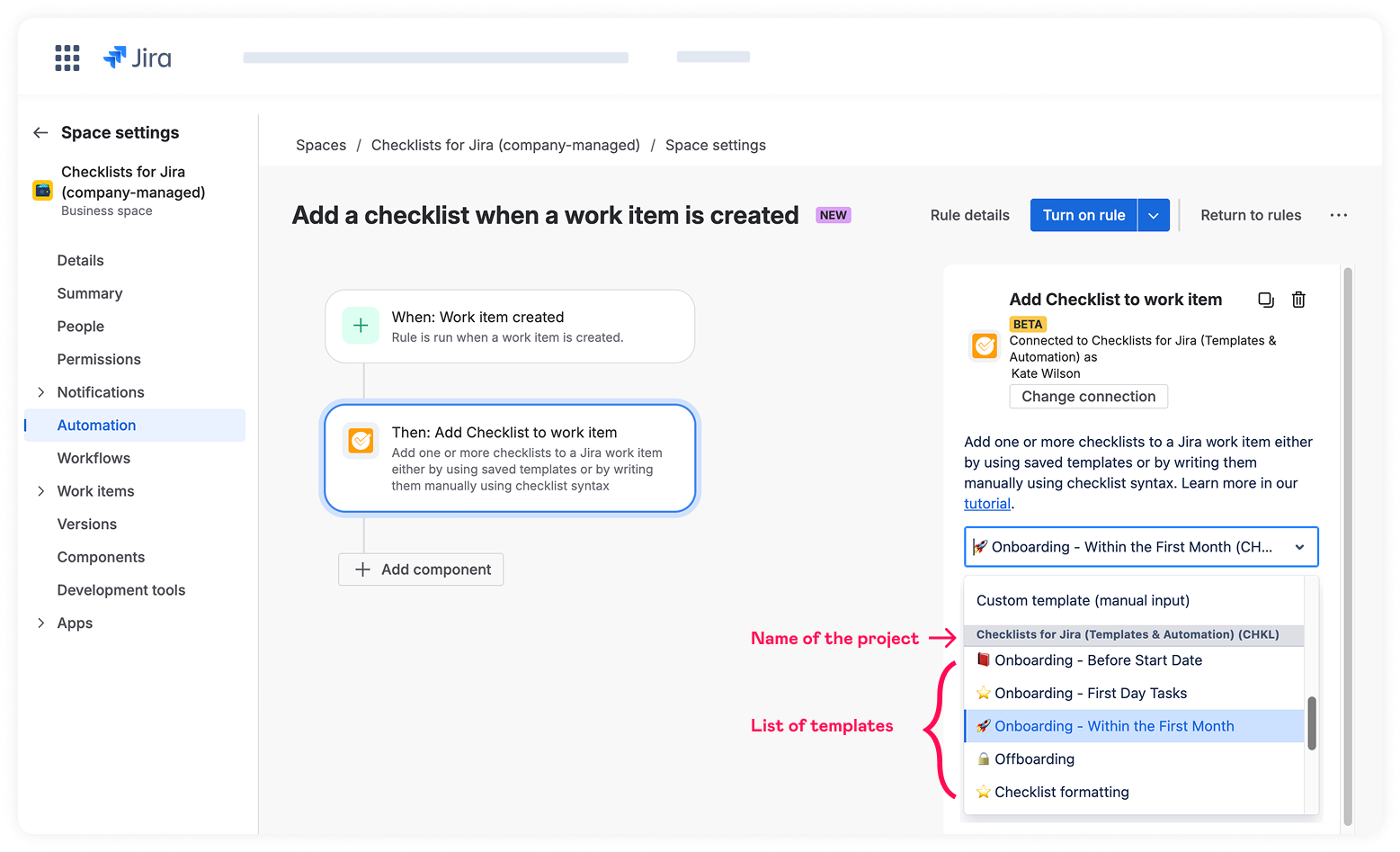
Select a pre-configured checklist template from your templates library. The template will be applied automatically when the automation rule triggers.

Best for:

  • Recurring, standardized checklists that don't change
  • Quick setup without writing syntax

When configuring an automation, users can view and use all templates they have access to across the entire Jira instance, regardless of the project for which it is created.

📖 Learn more: Create checklist templates

Option 2: Write manually using checklist syntax

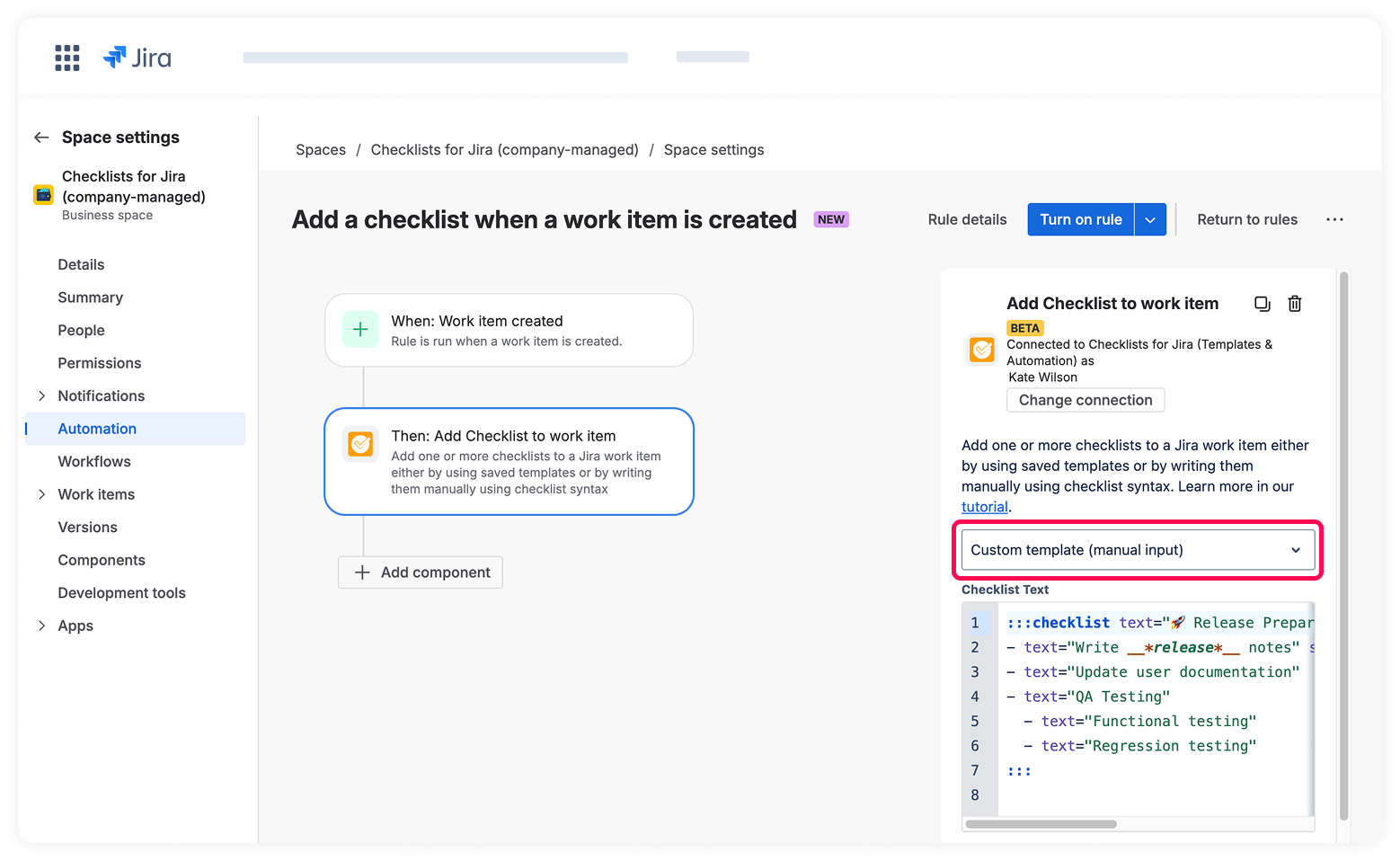
Define checklist structure using special syntax that supports formatting, nested items, assignees, and dynamic content with Jira smart values.

Best for:

  • Custom checklists that need to adapt based on work item data
  • Dynamic content using smart values (e.g., assignee names, due dates, issue keys)
  • Adding multiple checklists with one automation rule

📖 Learn more: Checklist syntax for creating custom templates

How to add a checklist via Automation

Step 1: Open Automation

  1. Navigate to Space settings > Automation.
  2. Click Create rule to start a new automation rule.
  3. Fill in Rule details

Step 2: Choose your trigger

Select when you want to add a checklist.

Common triggers:

  • Work item created - Add a checklist when a new work item is created
  • Work item transitioned - Add a checklist when an issue moves to a specific status
  • Field value changed - Add a checklist when a field value changes
  • Scheduled - Add a checklist at a specific time

📖 Learn more: Jira automation triggers

Step 3: Add conditions (optional)

Narrow down when the checklist should be added.

Common work item fields conditions:

  • Issue type equals Bug/Story/Task
  • Priority equals Highest/High
  • Reporter is a specific user

📖 Learn more: Jira automation conditions

Step 4: Add the "Add Checklist to work item" action

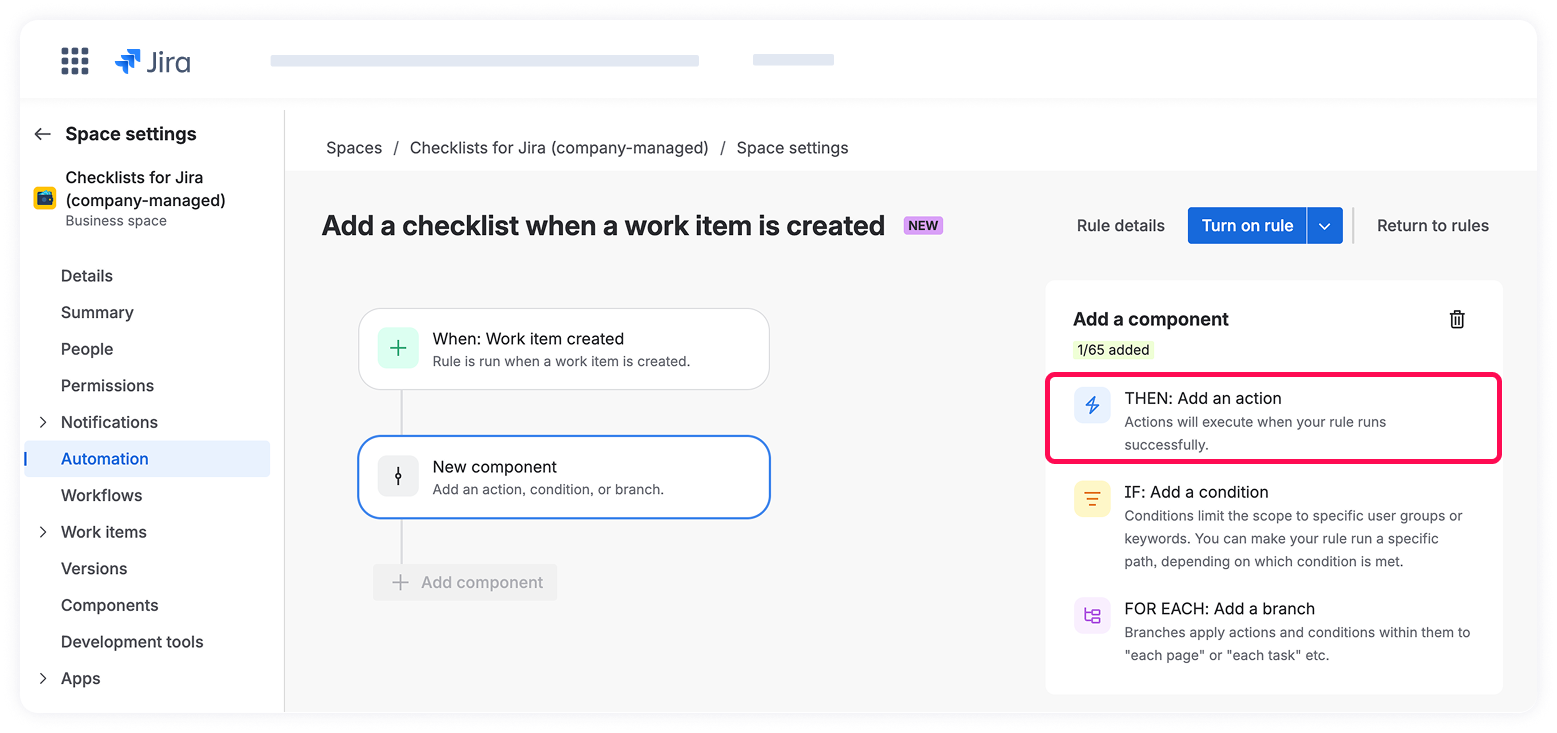
  1. Click Then: Add an action
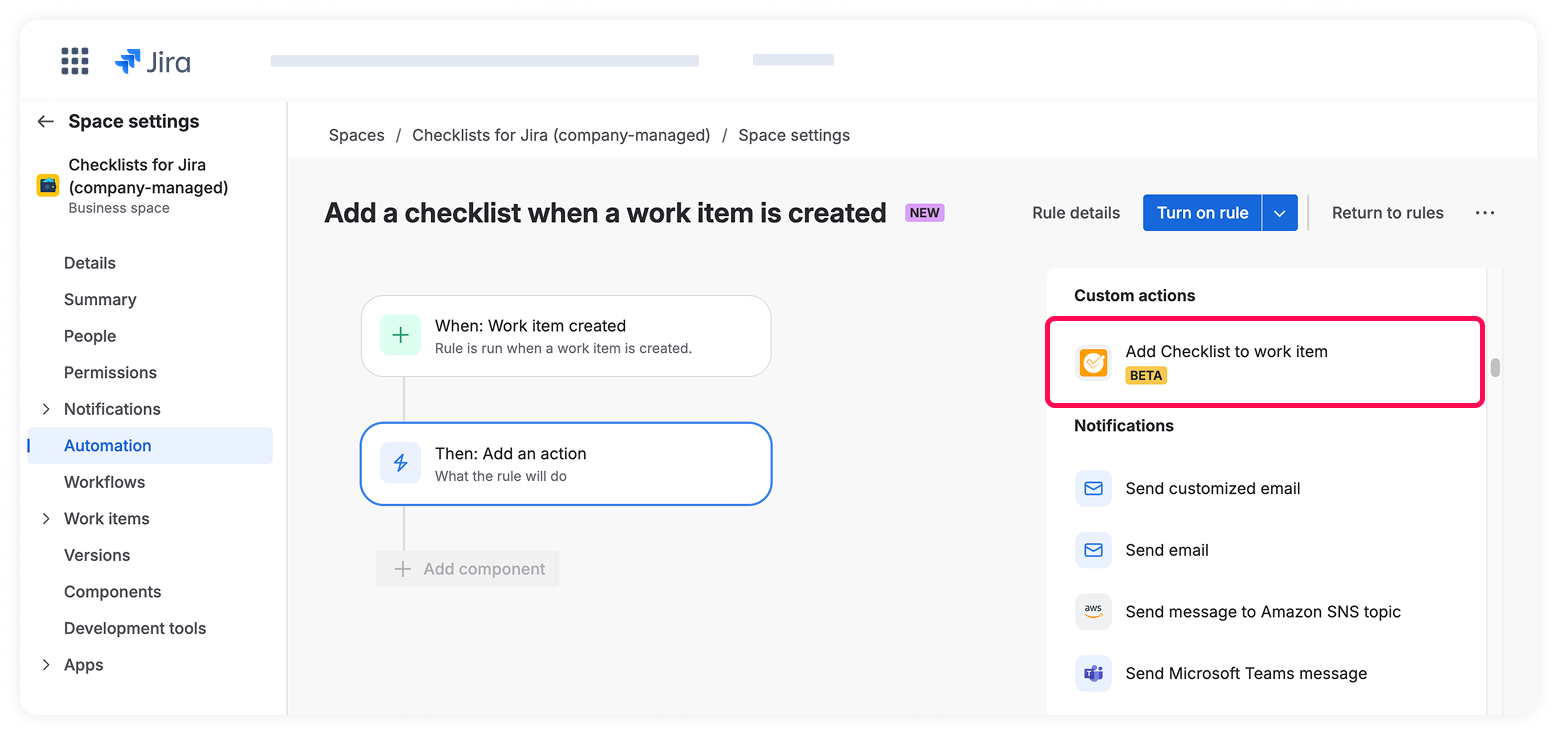
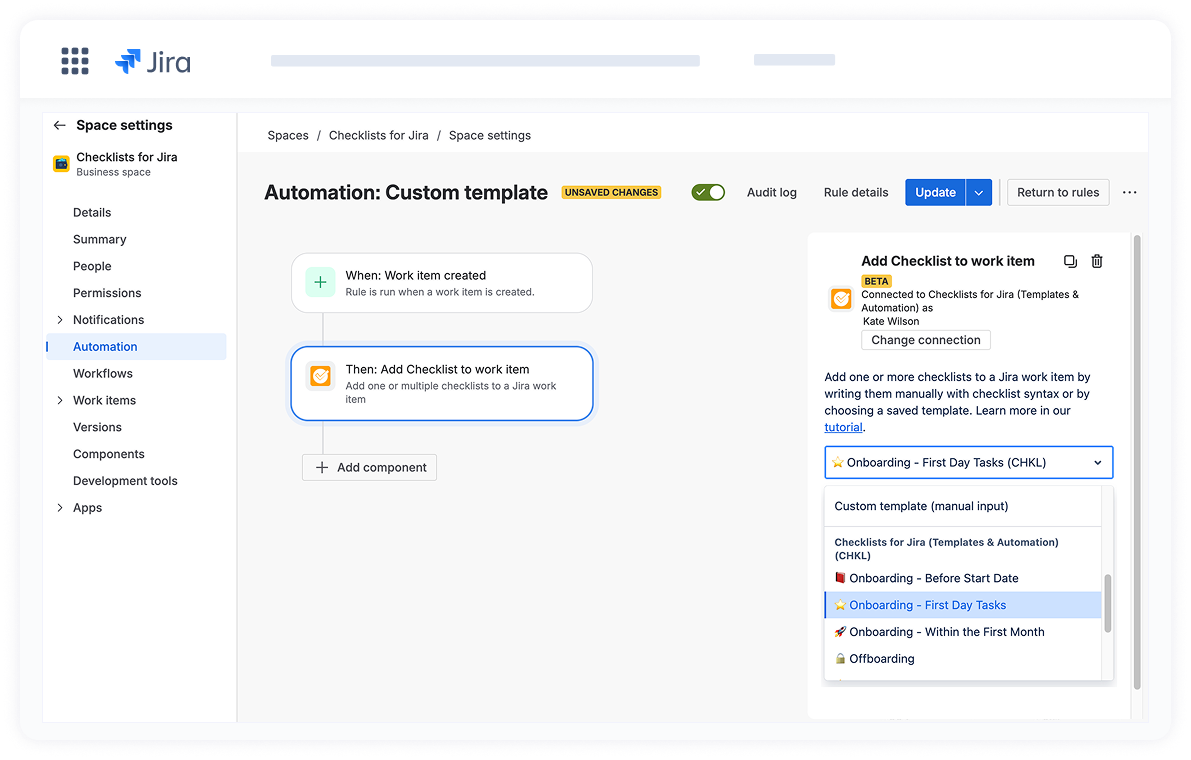
  2. Select Add Checklist to work item and connect Atlassian Automation to Checklists for Jira (Templates & Automation).
  3. Enter checklist syntax in the text field or choose a template.
  4. Click Save.

Step 5: Test and enable

  1. Click Validate rule to verify that it works correctly.
  2. Turn on the rule to activate it.


📩 Need help? Feel free to contact us.