We suggest looking through our article covering the details of working with tables
Use Handy Status with Page Properties and Page Properties Report
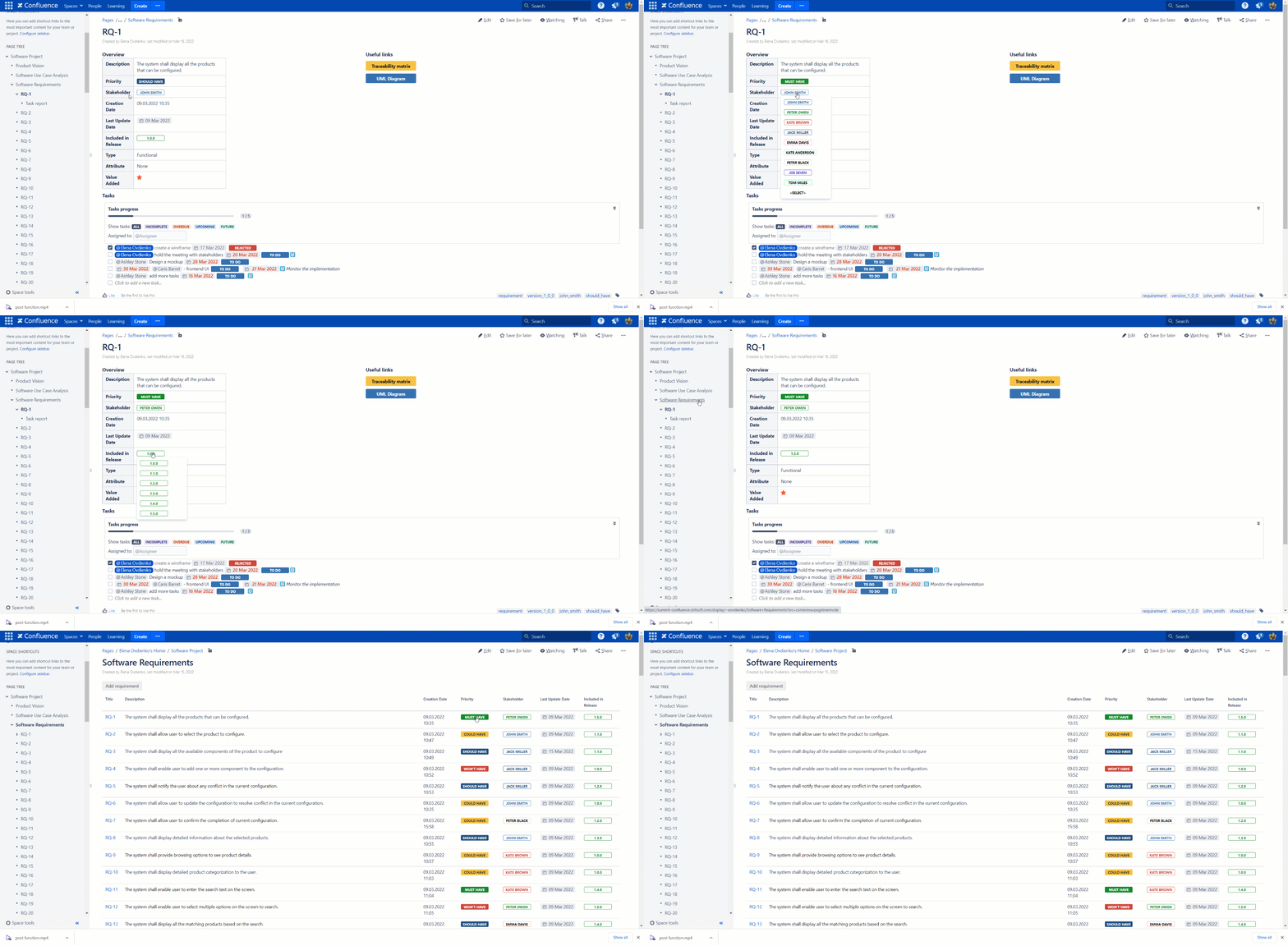
You can use Handy Status with the native Confluence Page Properties and Page Properties Report macros to enhance status management and consistency on your Confluence pages. For example, if you need some information with certain statuses to be displayed on both Confluence pages and make sure that once the status is changed on the first page, it's also changed on the second one, Page Properties and Page Properties Report can help you out. Handy Status works perfectly within both of them. Our users could apply this feature to multiple use cases. Thus, it's possible to manage efficiently decisions, meetings, product requirements, project statuses, events, and team activities.
Add Handy Status to thePage Propertiesmacro on Confluence pages.
Insert thePage Properties Reportmacro on a master page.
Change statuses directly in Page Properties Report.
The changes are applied to the corresponding statuses on child pages with Page Properties automatically.
Sort, filter, and aggregate statuses with the Table Filter and Charts for Confluence app
For more complex use cases when you need to work with many Handy Statuses in one table, we suggest combining two Stiltsoft apps. Use the Table Filter and Charts for Confluence app to easily locate statuses in a certain value and create pivot tables and charts based on them.
Add multiple Handy Statuses in a table on a Confluence page.
Add the macro you need from the Table Filter app.
Now you can search for statuses and visualize data.
How to add Handy Status in the storage format
Starting from versions 3.10.1, 4.2.1 and 5.0.0 you can insert the Handy Status macro directly in the storage format, using the example below: