Overview
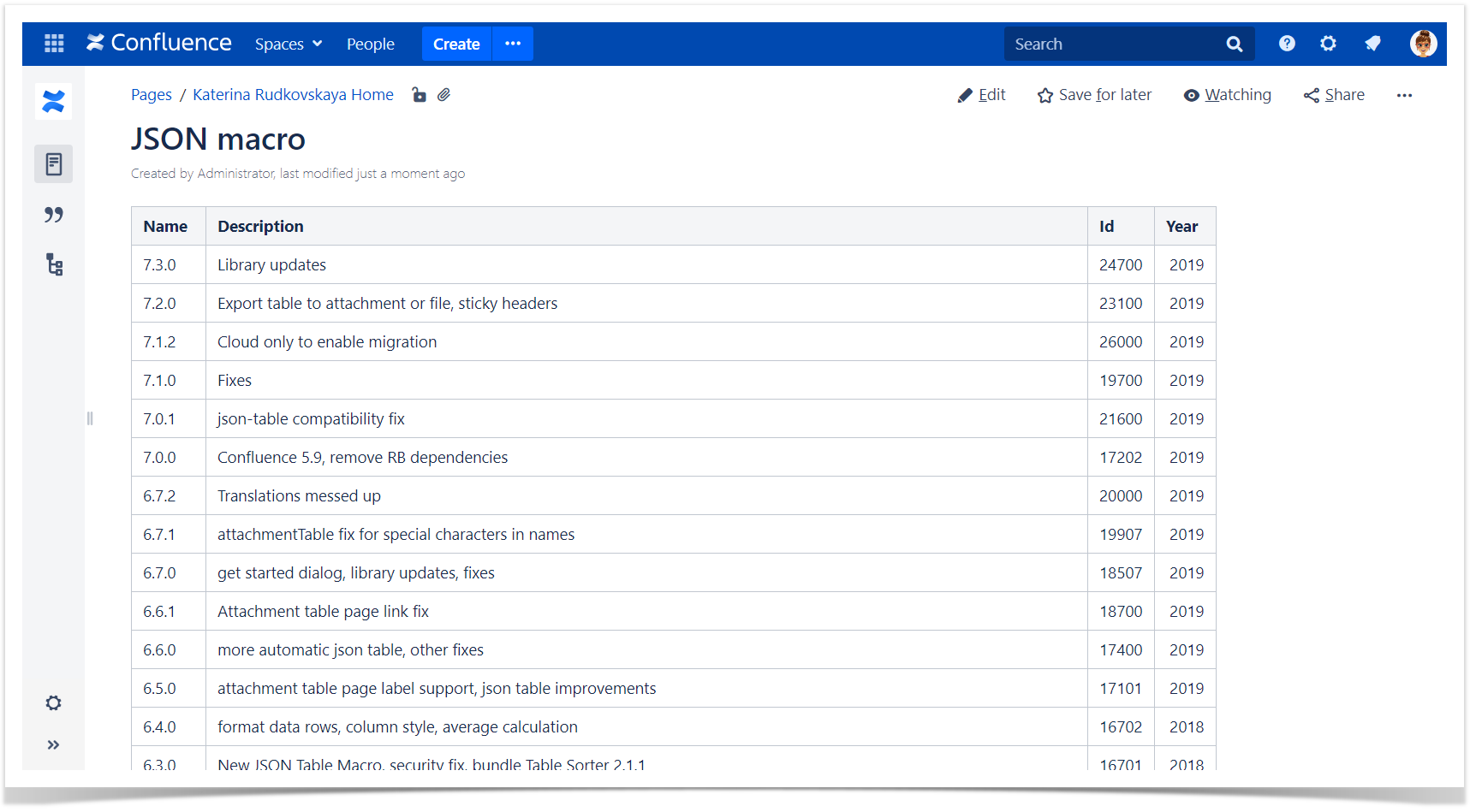
The Source Table:
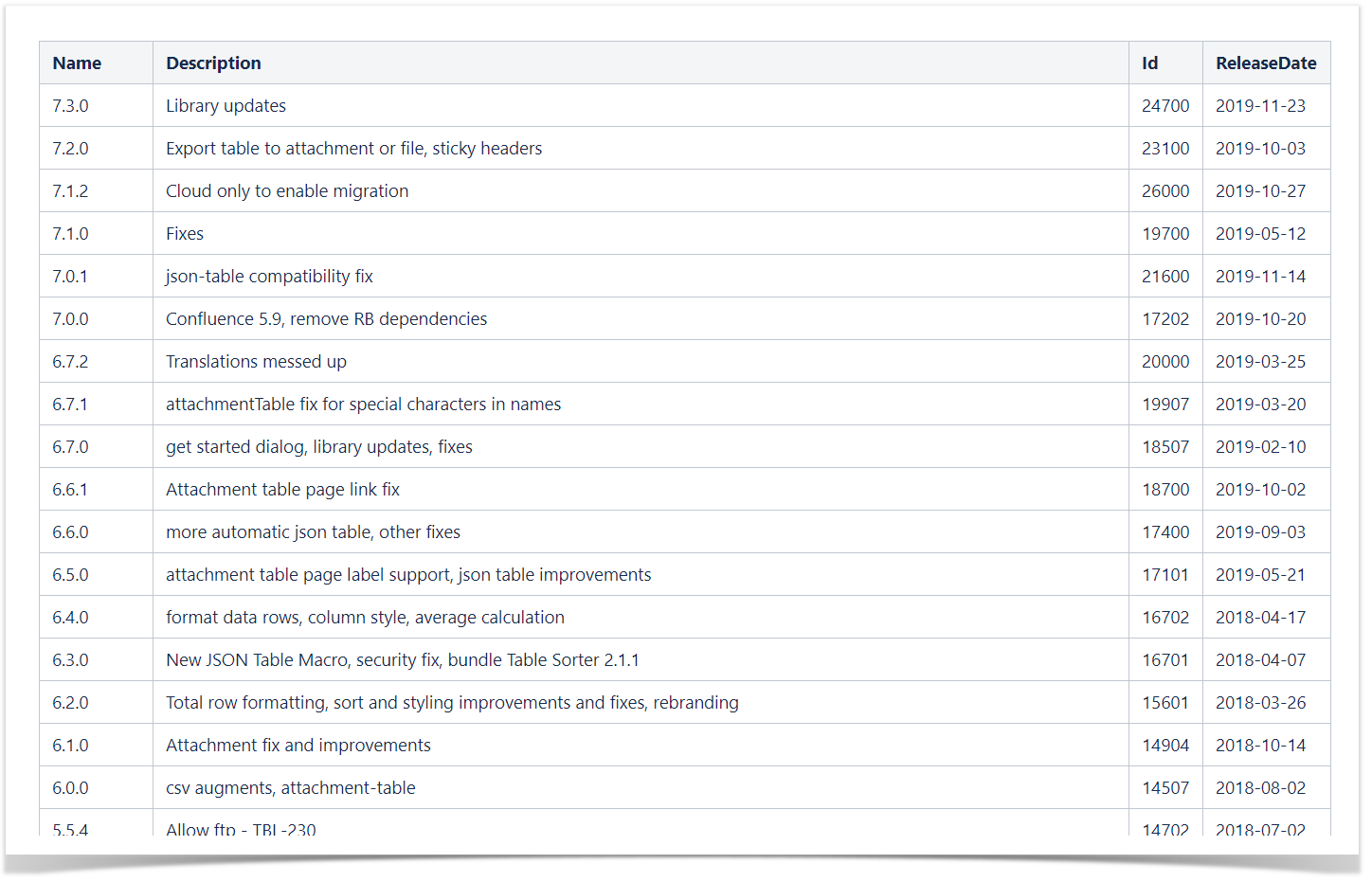
The Result:

Use Case №1
Insert any of the the Advanced Tables macros (Table Plus, CSV Table, Attachment Table, JSON Table) and combine it with our app.
| Info |
|---|
You can find more information about the Advanced Tables app on the documentation site. |
| Handy Carousel |
|---|
|
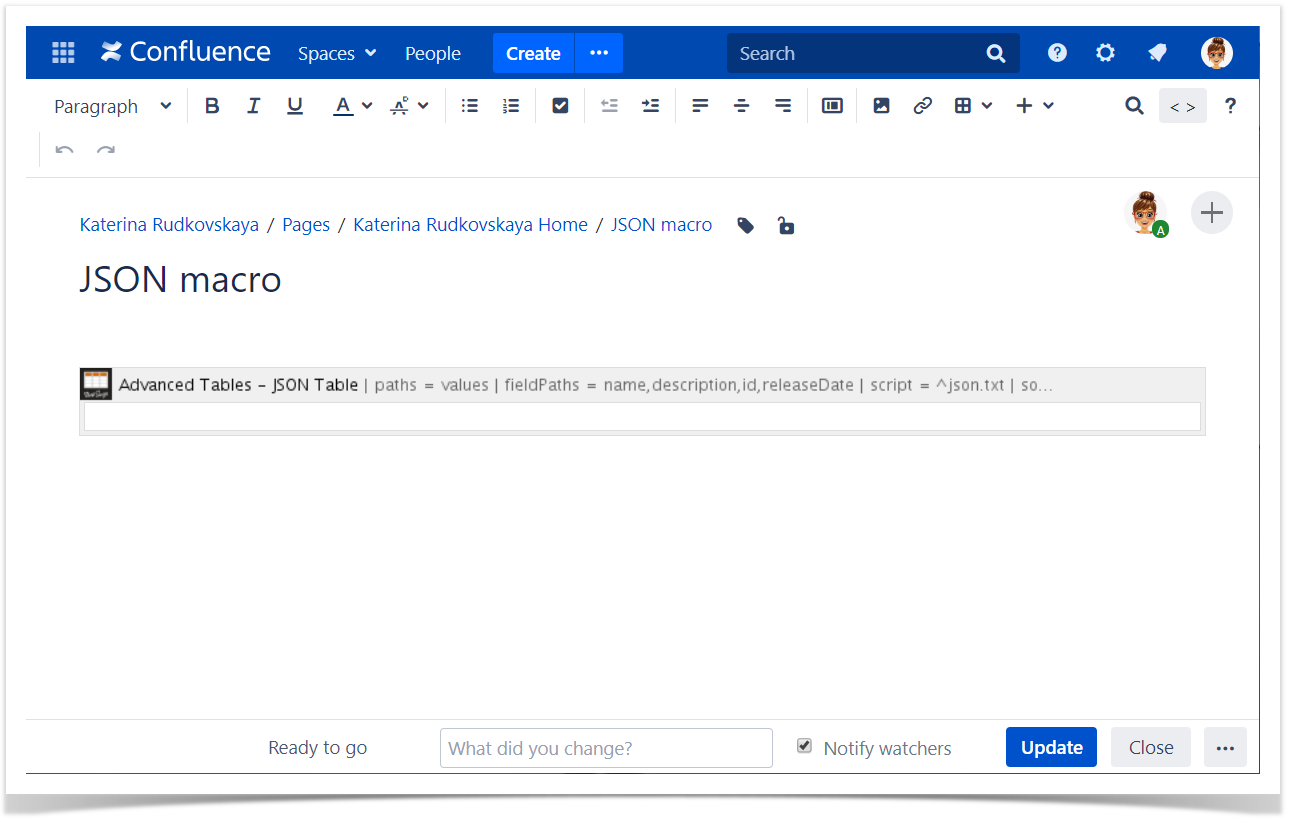
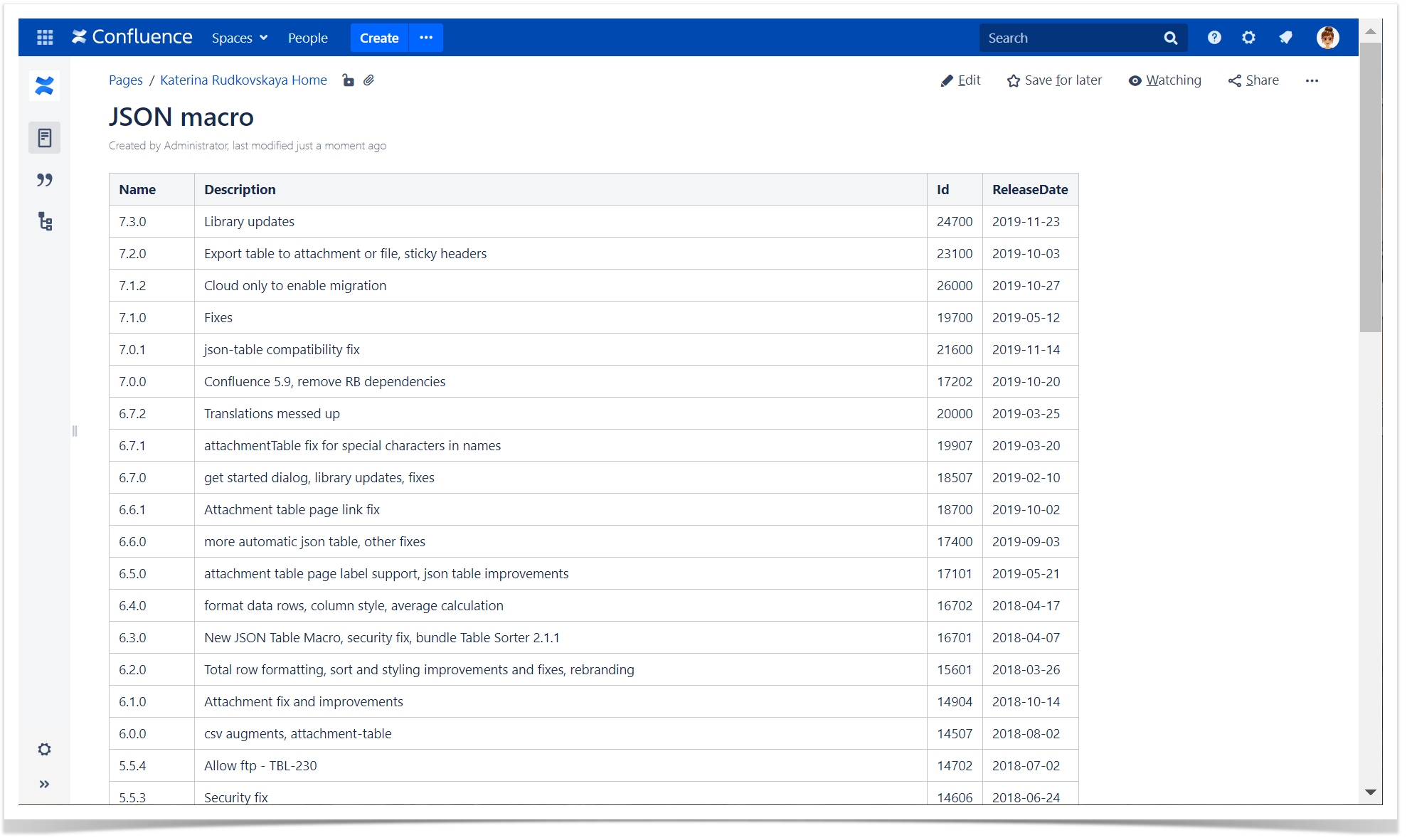
Table Filter & Advanced Tables - JSON Table
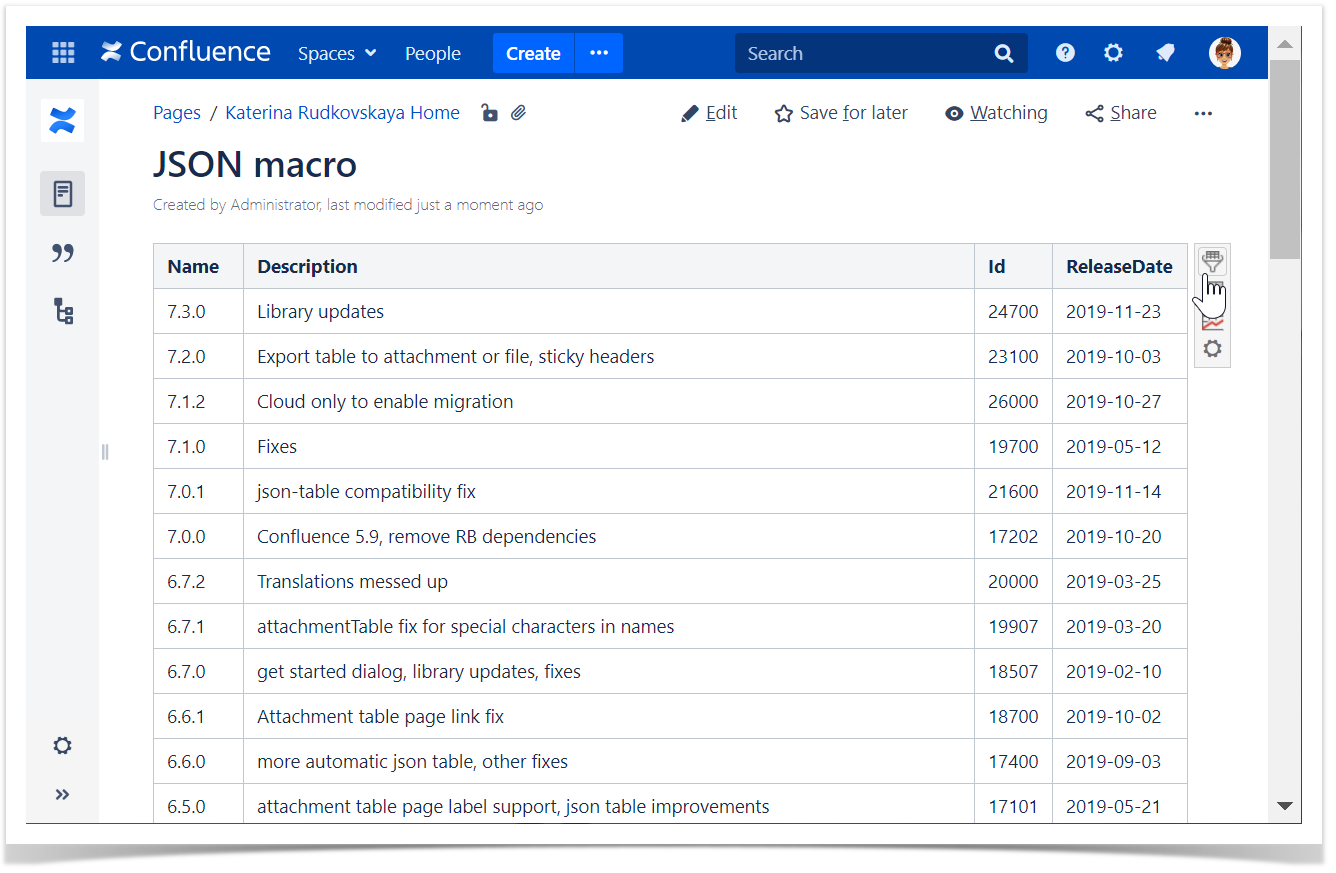
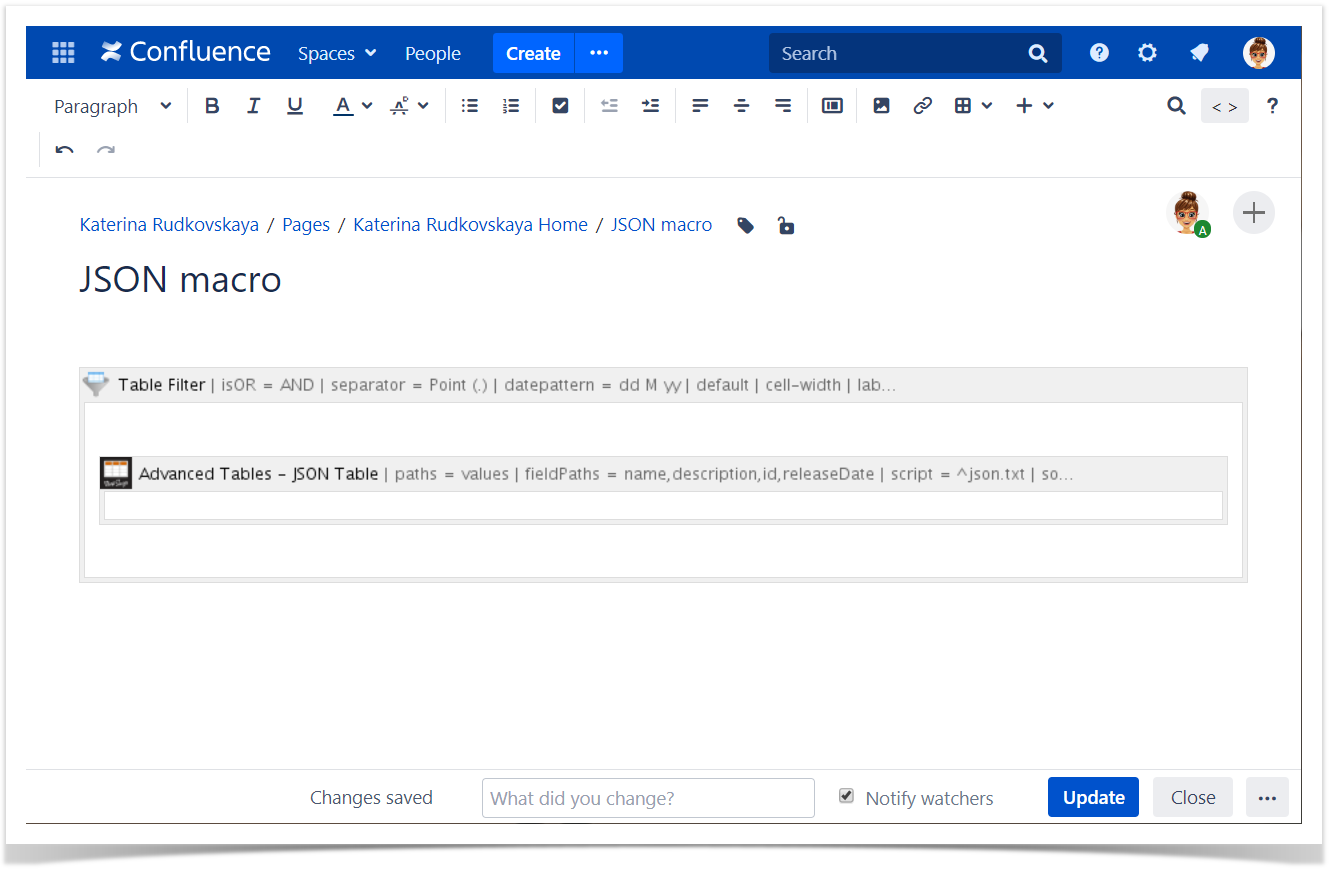
1. Add the Table Filter macro to the JSON Table macro.
| Info |
|---|
Table Filter helps you to filter data, set default sorting, freeze rows and columns, calculate totals and more. |
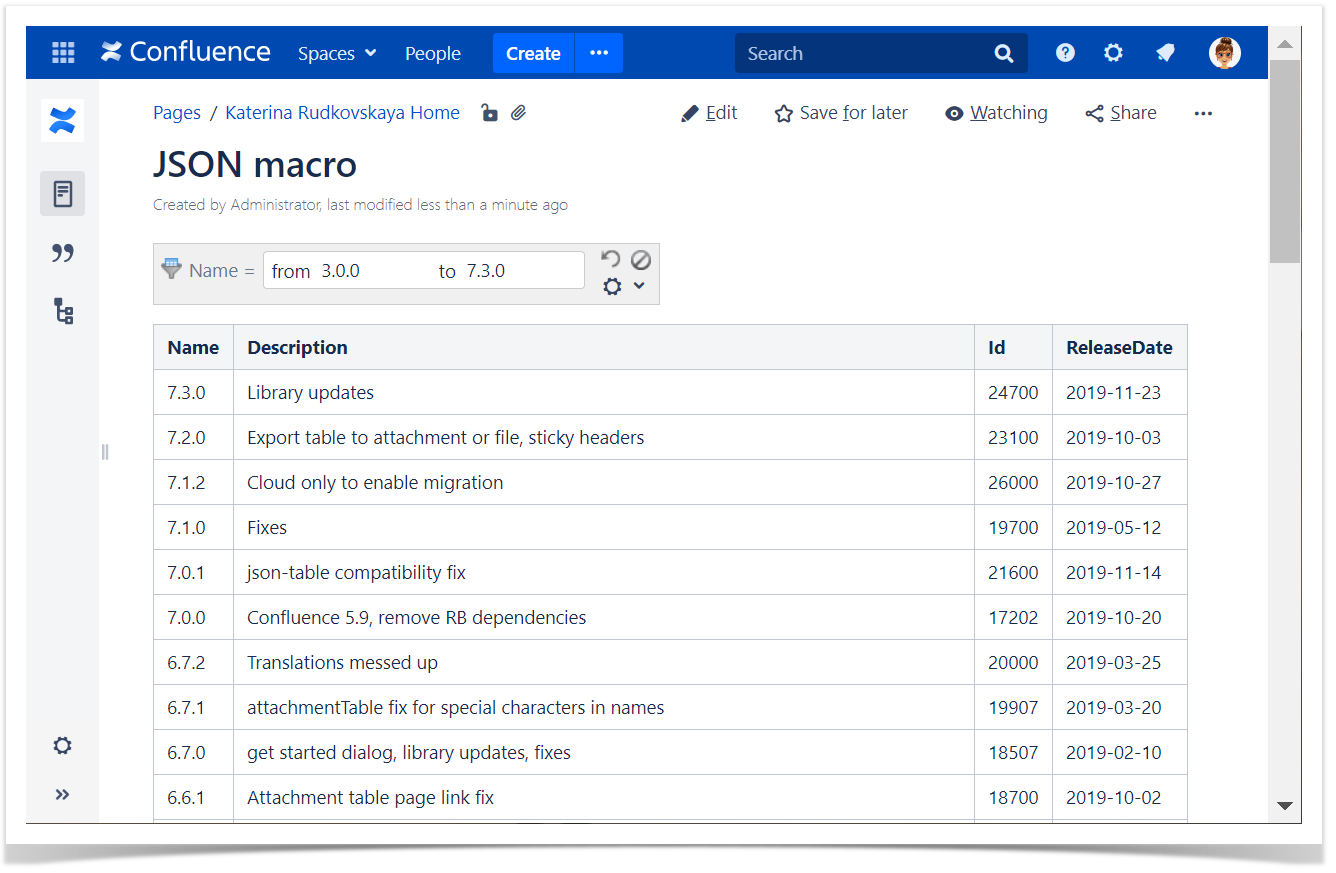
2. Add filters to the table columns and set filter values.
| Handy Carousel |
|---|
|
Pivot Table & Advanced Tables - JSON Table
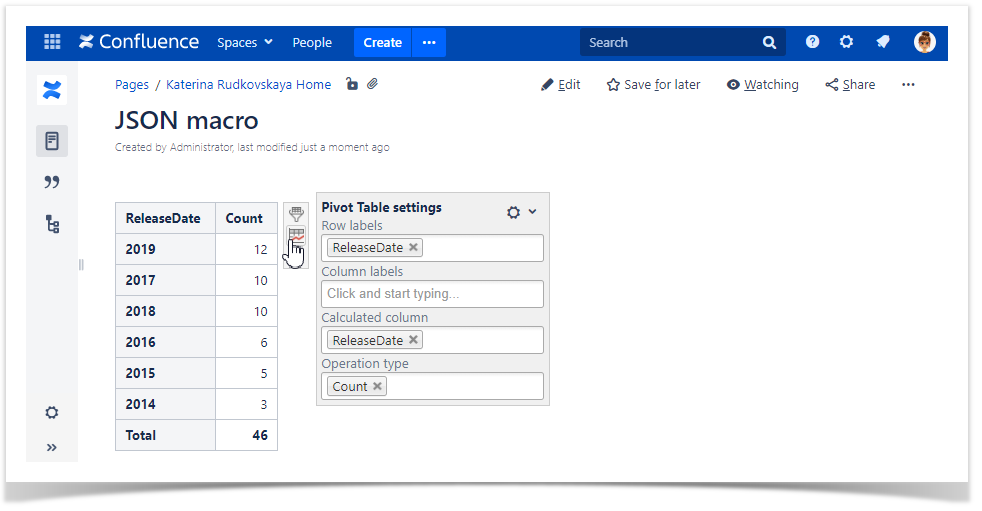
3. Add the Pivot table macro to the JSON Table macro with the filtered data.
| Info |
|---|
Pivot Table allows you to summarize and aggregate your table data. |
| Info |
|---|
Set the Date format which is used in your source table before aggregation by date. |
| Handy Carousel |
|---|
|

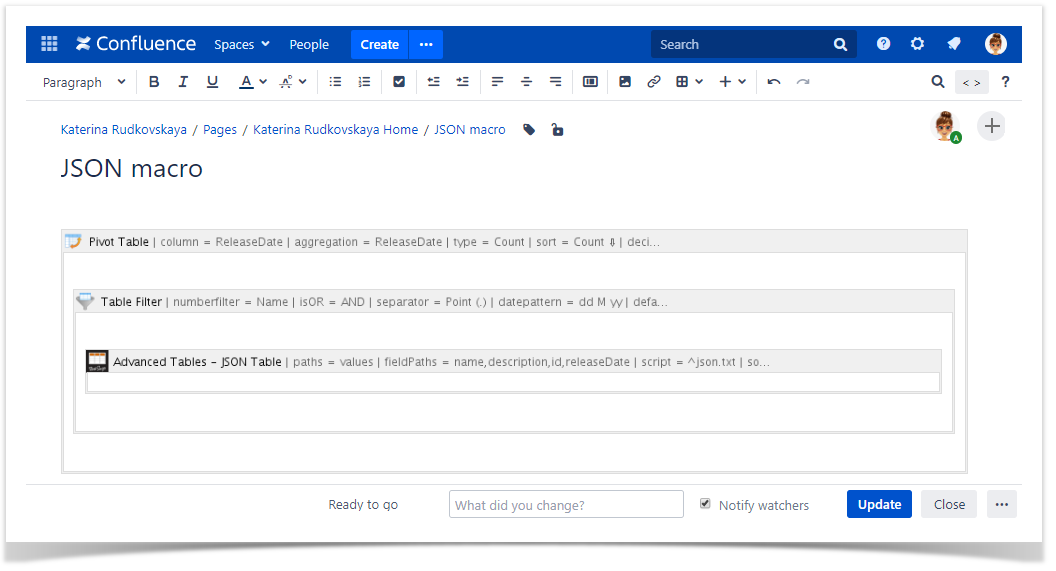
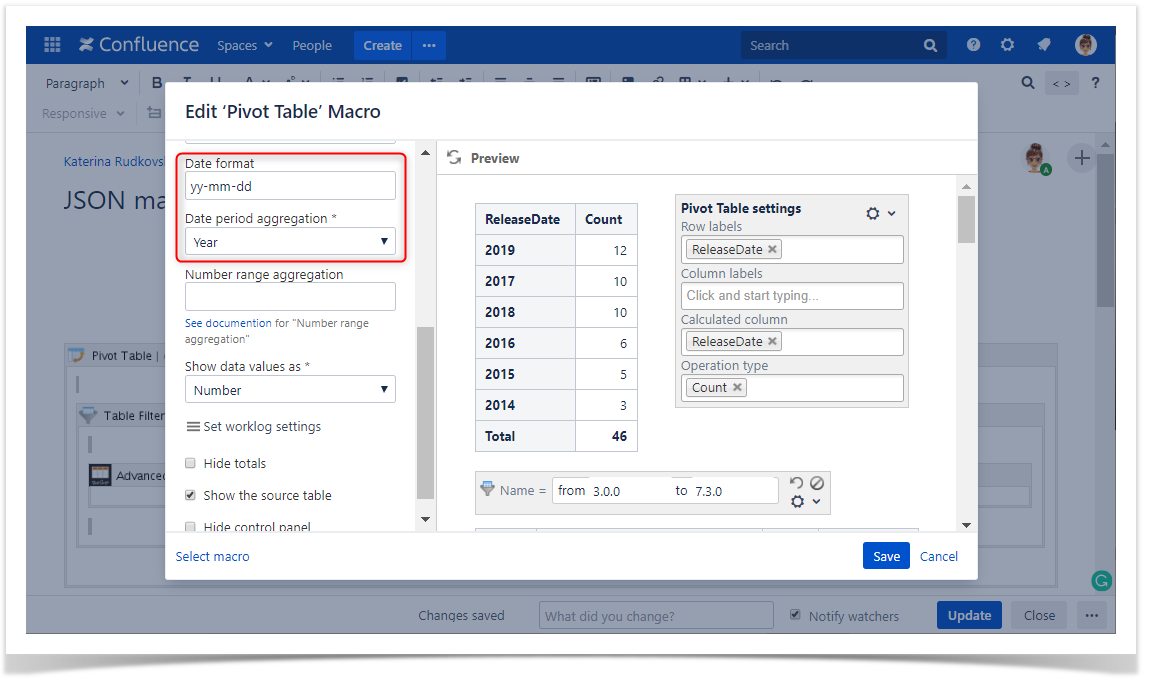
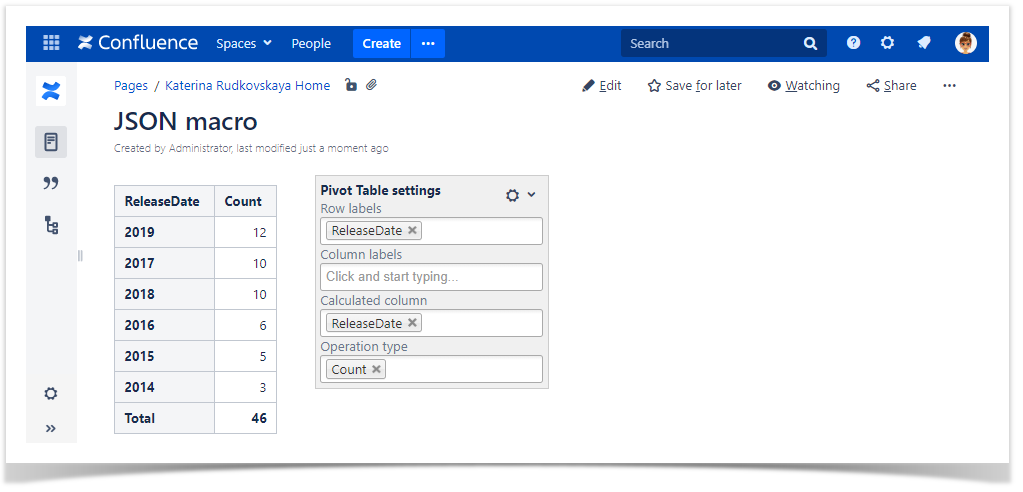
Chart from Table & Advanced Tables - JSON Table
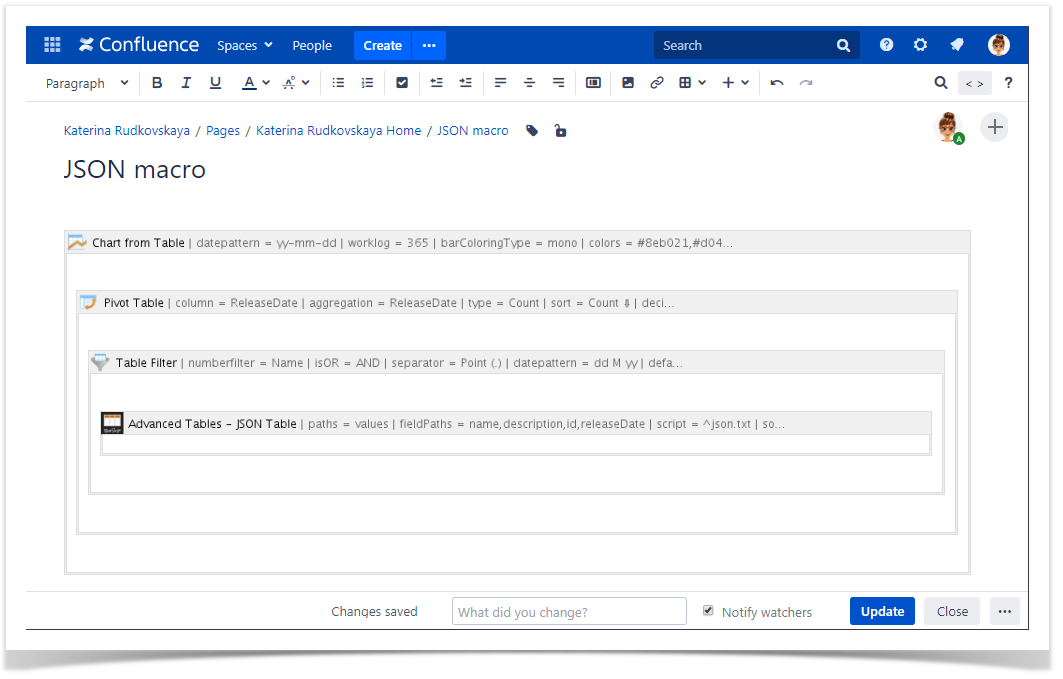
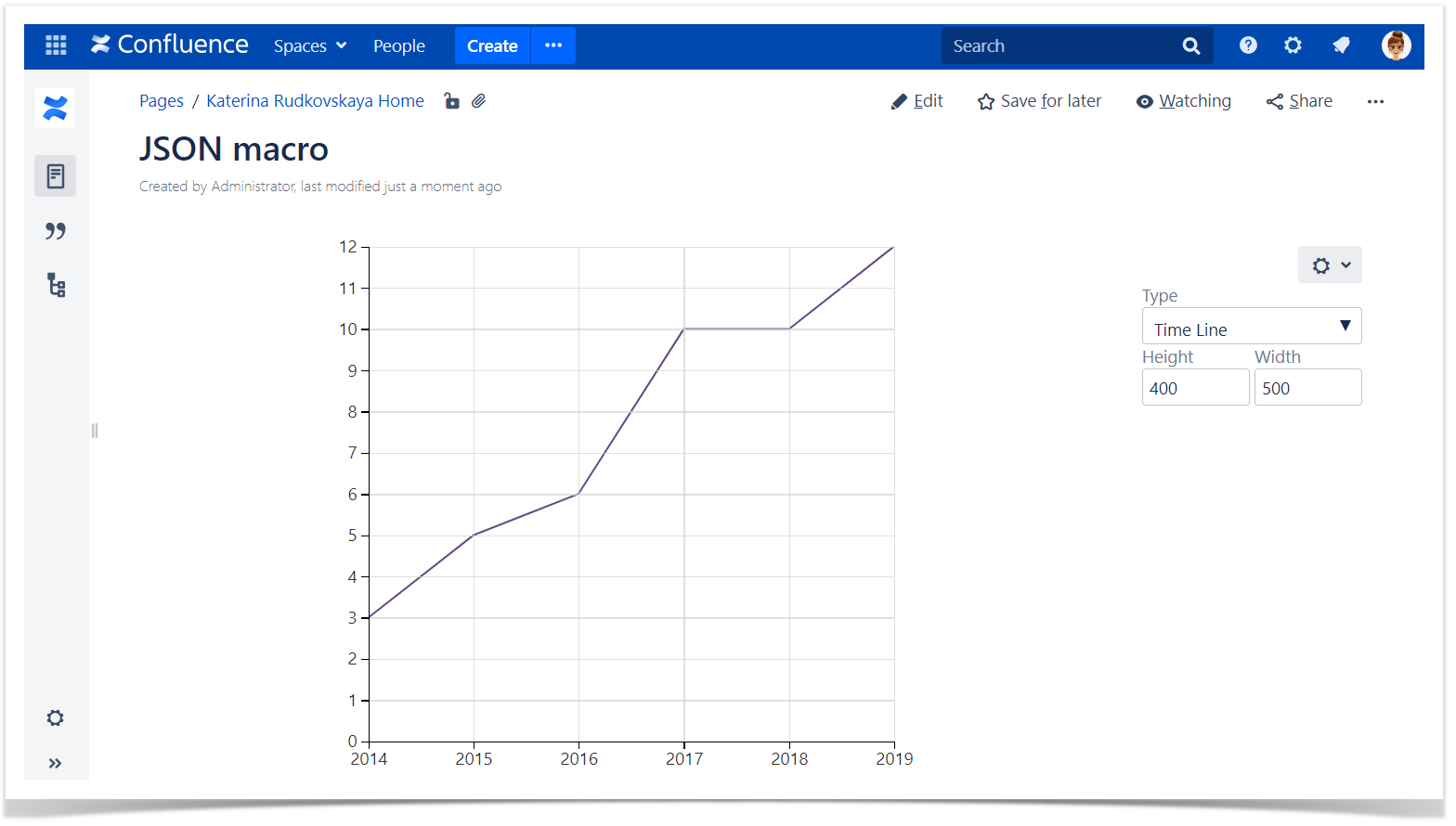
5. Add the Chart from Table macro to the already filtered and aggregated JSON Table macro to visualize data with the help ofcharts and graphs.
| Handy Carousel |
|---|
|
Use Case №2
Table Transformer & Advanced Tables - JSON Table
1. Add the Table Transformer macro to the JSON Table.
| Info |
|---|
You can place one or multiple tables within the macro body to merge, look up them or to perform custom calculations. |
2. S elect one of the presets or switch to the SQL query tab to use a custom SQL query.
This SQL query allows you to create a new column with the year outputted.
| Code Block |
|---|
SELECT Name, Description, Id, 'ReleaseDate'::Date->getFullYear() AS 'Year' FROM T* |
| Handy Carousel |
|---|
|


| Info |
|---|
You can change the filtration criteria, the pivot table and chart parameters on the fly. |
| Info |
|---|
You can use the JSON Table macro with each of our macros separately or combine them according to your needs. |