| Excerpt | ||
|---|---|---|
| ||
|

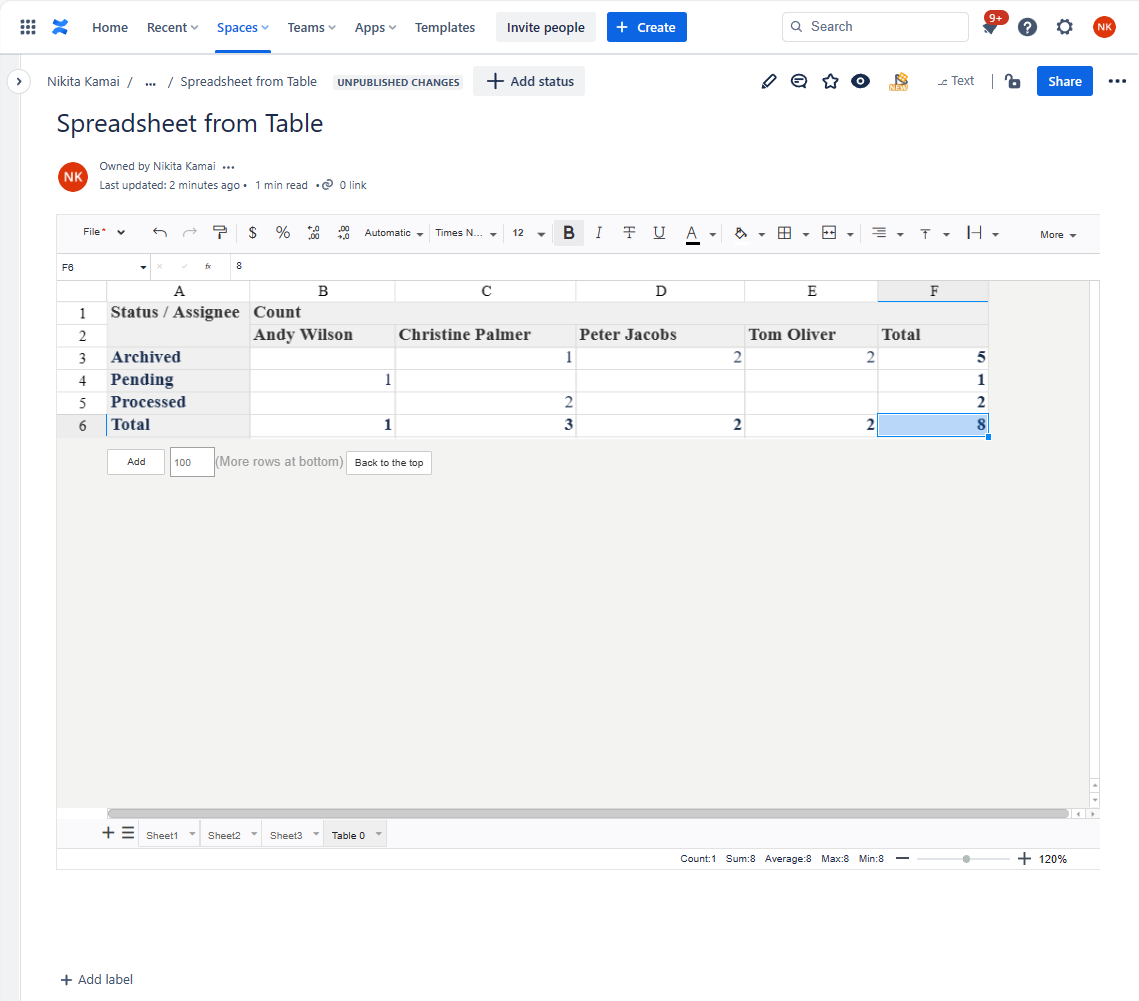
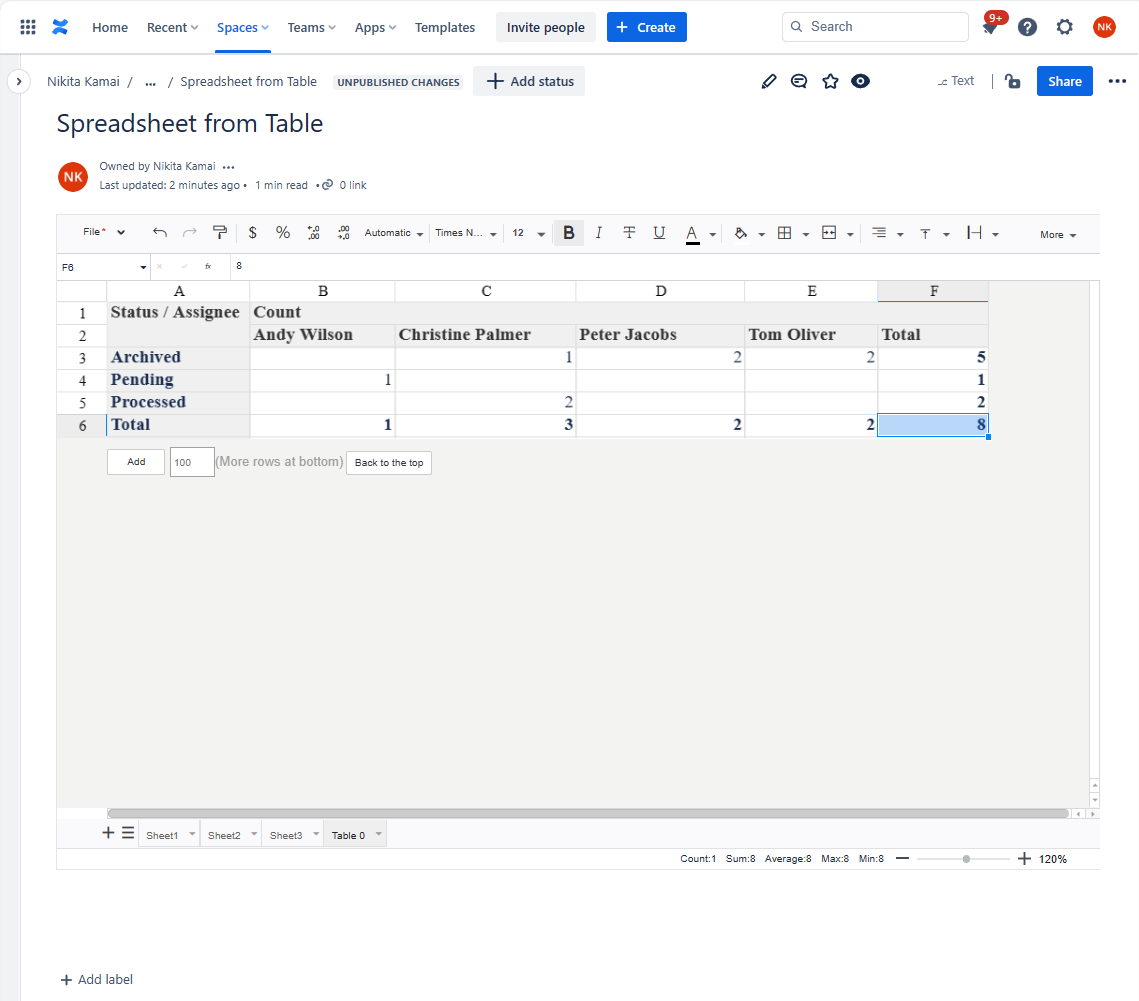
The Spreadsheet from Table macro allows you to convert your regular table or table outputting macro's content into a spreadsheet.
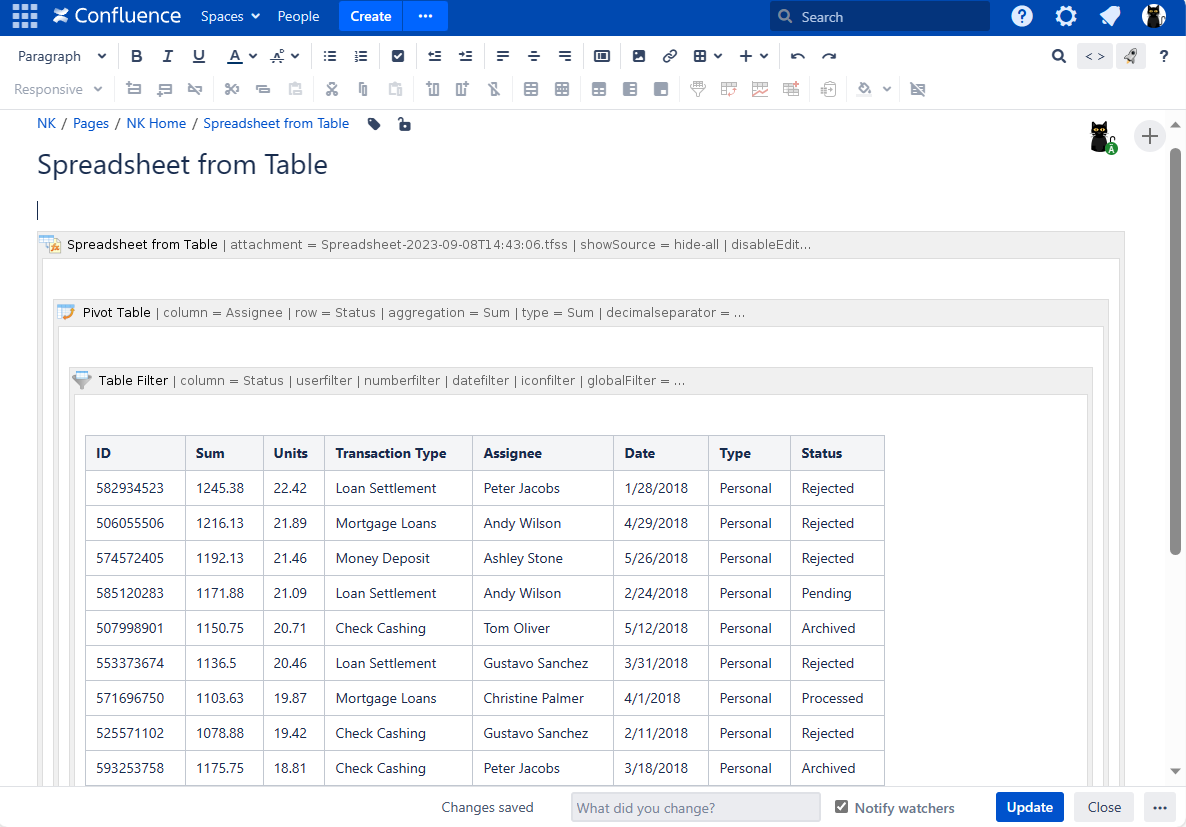
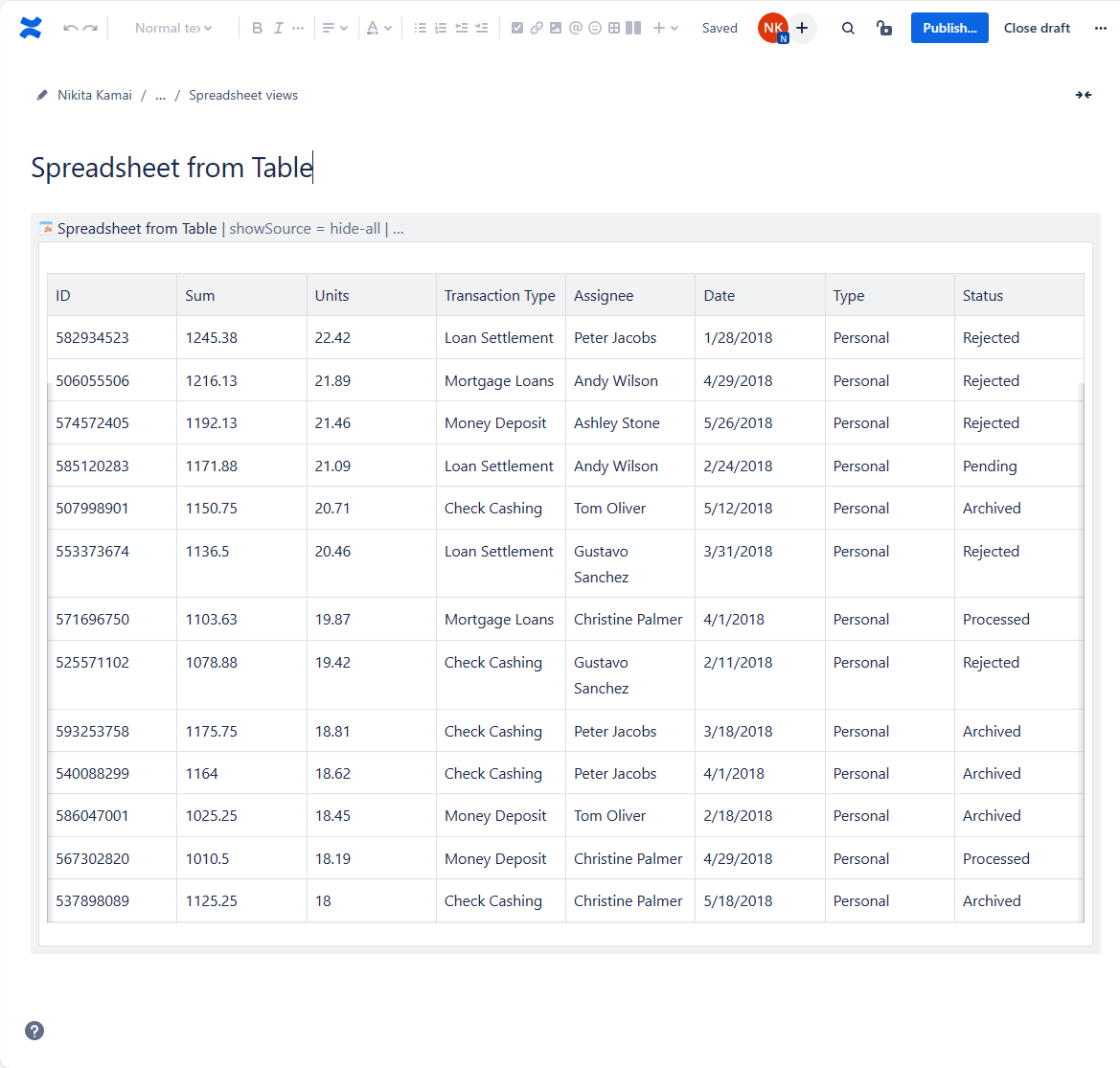
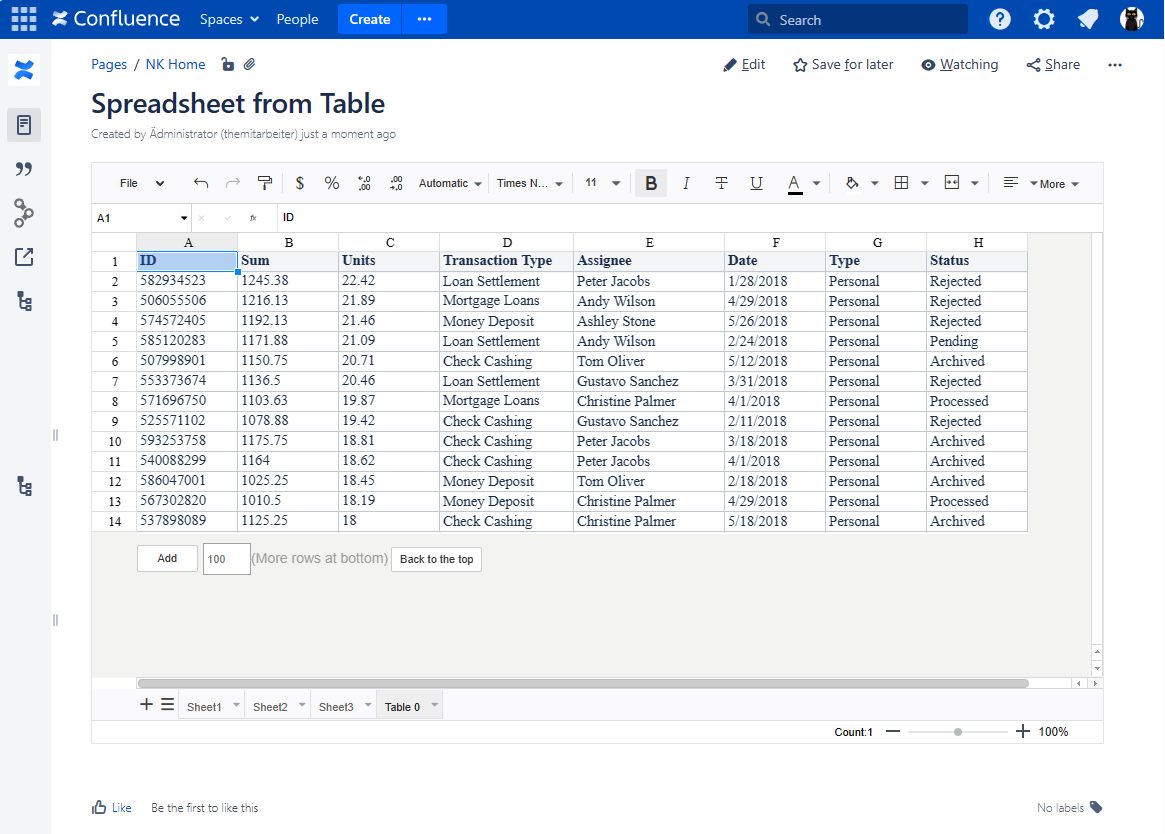
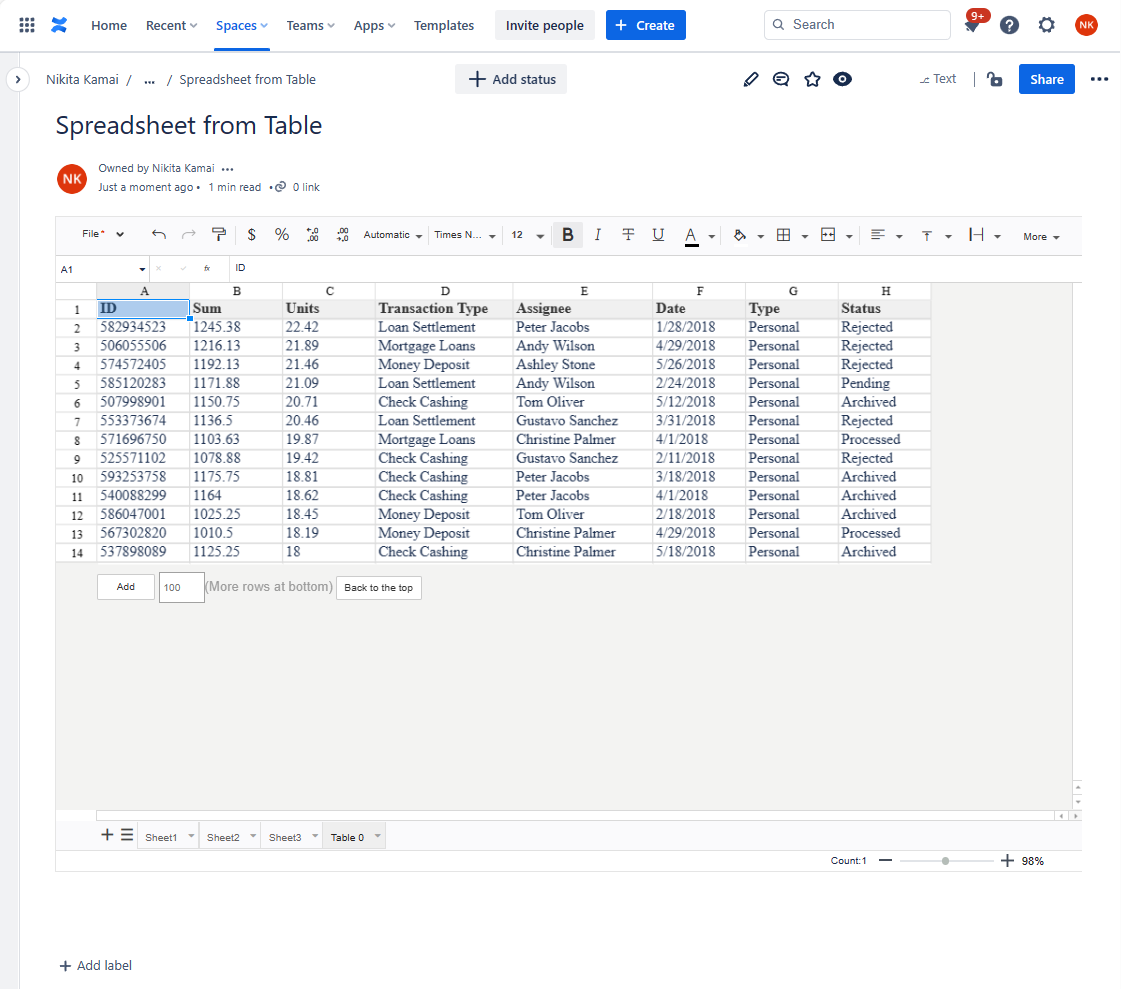
To turn your source table into an Excel-like sheet, insert the Spreadsheet from Table macro on the page and copy/paste your table (either manually created or macro generated) inside its body. Then you may open the macro once more or publish your page and return to the view mode - you'll see your data in the spreadsheet.
On Confluence Cloud, you can also add the Spreadsheet from Table macro live using the quick insert option:
- Click the More actions (⋯) menu in the top-right corner of the page.
- Go to Apps → Use Table Filter App Macros.
- Choose the required preset and follow the dialog.
The interface, tools, and features will be the same as in the Table Spreadsheet macro. But the difference is that the Table Spreadsheet macro is bodiless, so, you won't be able to wrap anything in it.
| Info |
|---|
Spreadsheet from Table will create a separate sheet for each source table/table outputting macro within its body. NOTE: The content of Spreadsheet from Table is dynamic , thus will change in its corresponding cell range every time the source table/-s are updated. |
| Tip |
|---|
Copy&paste the source cell range elsewhere in the current sheet or copy an entire sheet to create a static replica of your source table in the Spreadsheet from Table macro. |
| Section | ||||||||||||||||||||||||||||||||||||||
|---|---|---|---|---|---|---|---|---|---|---|---|---|---|---|---|---|---|---|---|---|---|---|---|---|---|---|---|---|---|---|---|---|---|---|---|---|---|---|
|




How to enable the Spreadsheet from Table macro
| Info | |||||
|---|---|---|---|---|---|
Spreadsheet from Table is available starting with the version 1.3.4-AC and OFF by default.
|

| Note | ||
|---|---|---|
| ||
As the Spreadsheet from Table macro stores table data in a spreadsheet as a snapshot upon saving, such data will become available for all users with page view&attachments permissions , even if the source data are derived from the limited access sources or macros as Jira issues , Page Properties Report , external databases , etc. |
As a Confluence admin:
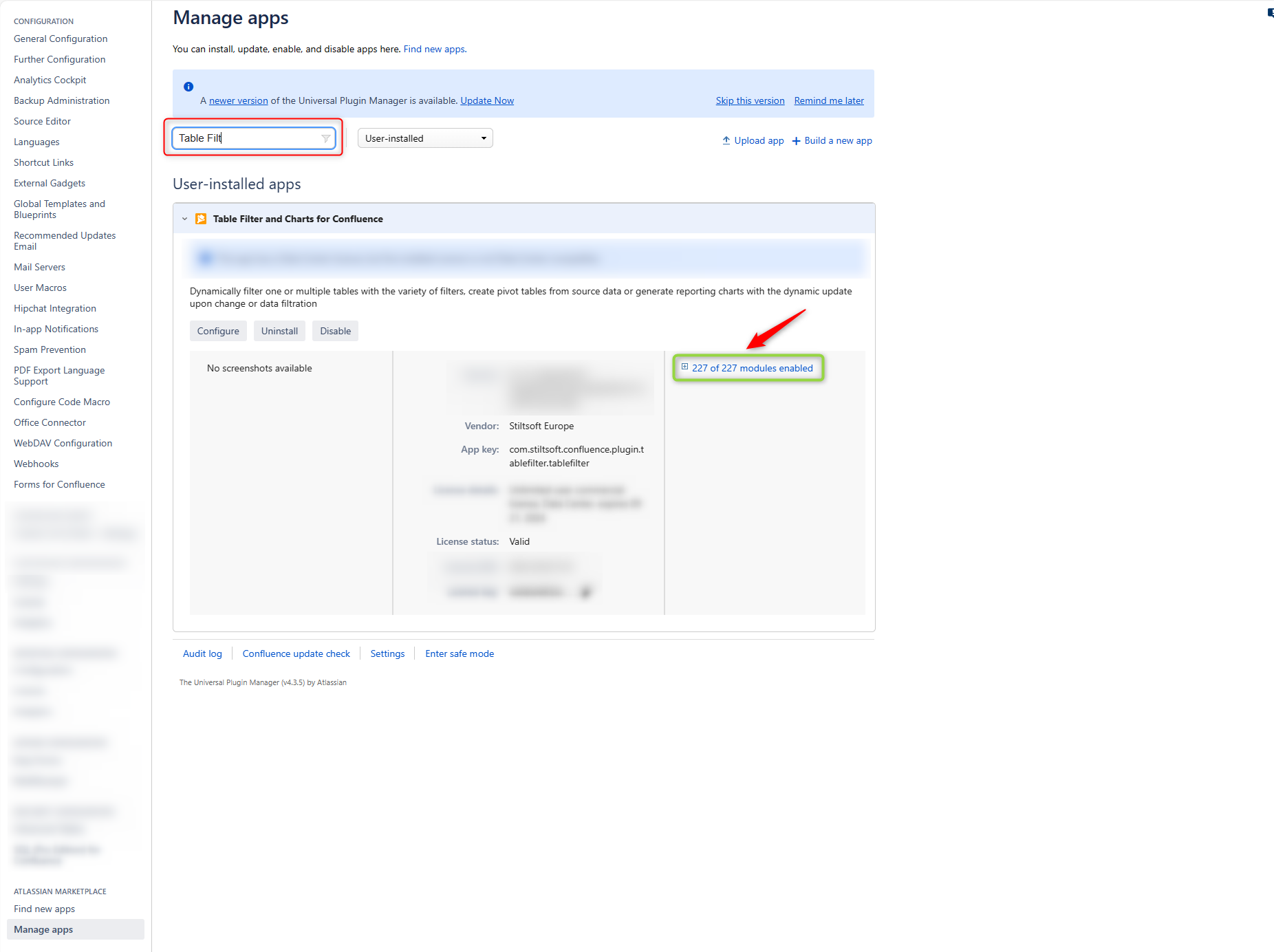
Navigate to the Manage Apps section of the given instance.
Locate the Table Filter, Charts & Spreadsheets add-on.
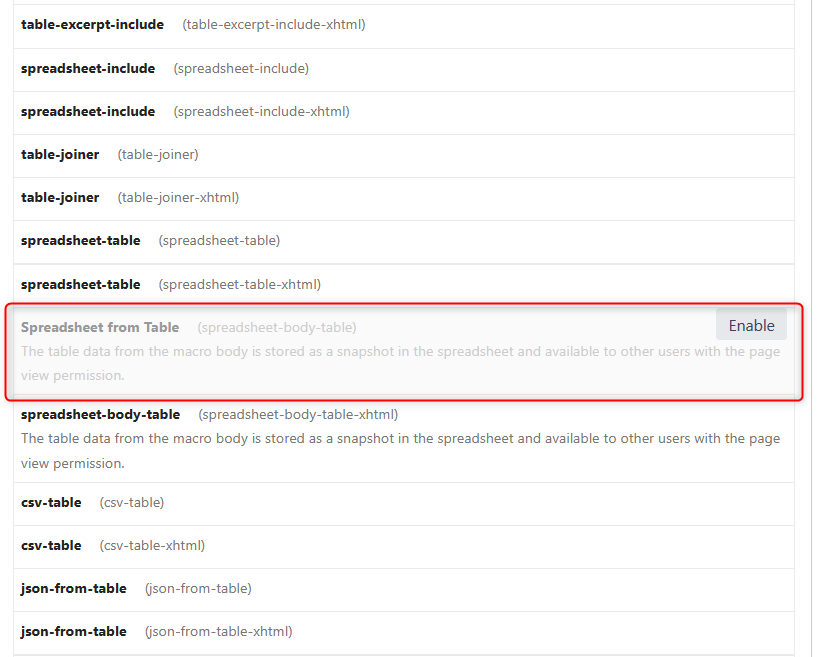
- Unfold the modules dropdown list to the right.
- Find the Spreadsheet from Table module and enable it.
As a Confluence admin:
Navigate to the Manage Apps section of the given instance.
Locate the Table Filter, Charts & Spreadsheets add-on.
- Click the Configure button.
- Enable the Spreadsheet from macro functionality.
| Handy Carousel | ||||
|---|---|---|---|---|
| ||||
|
| Handy Carousel | ||||
|---|---|---|---|---|
| ||||
|


Adding the Spreadsheet from Table macro to a page
There are two options available:
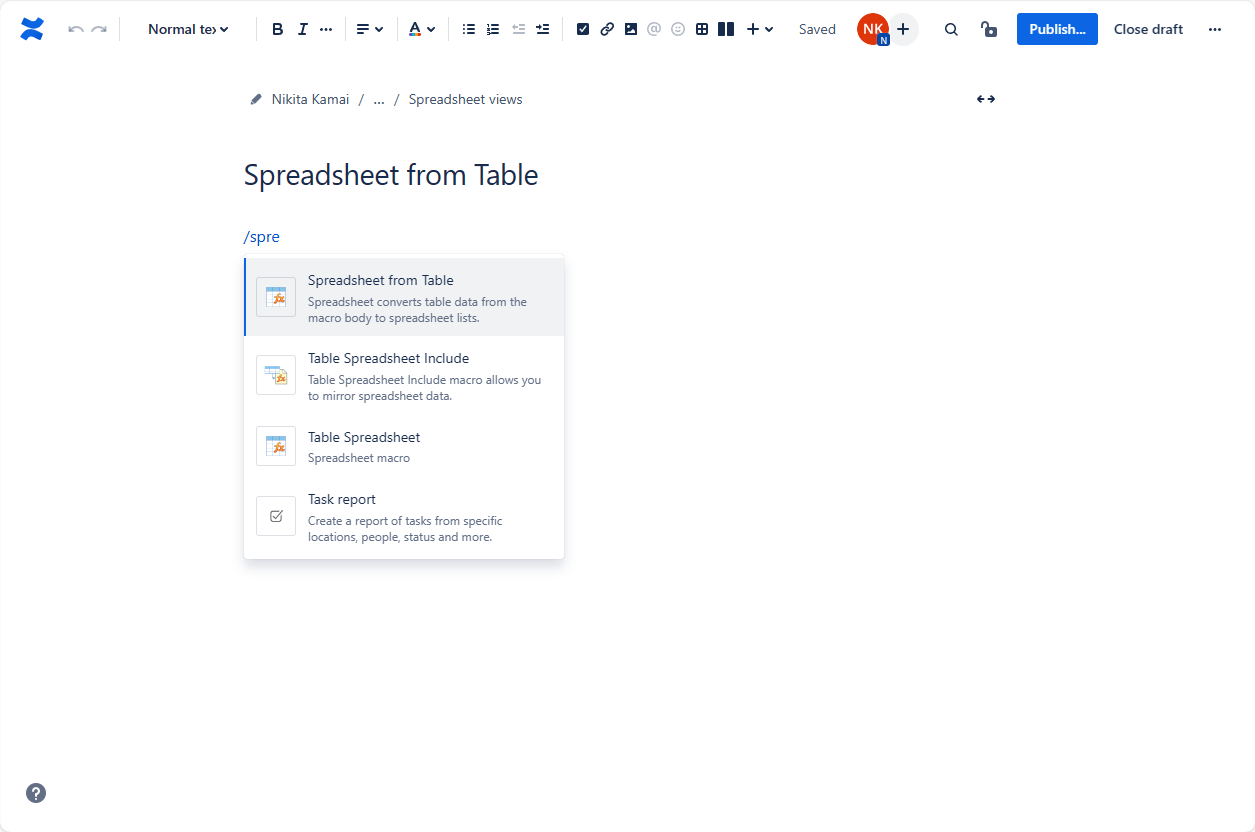
Start entering {Spreadsheet from Table and select the macro, OR
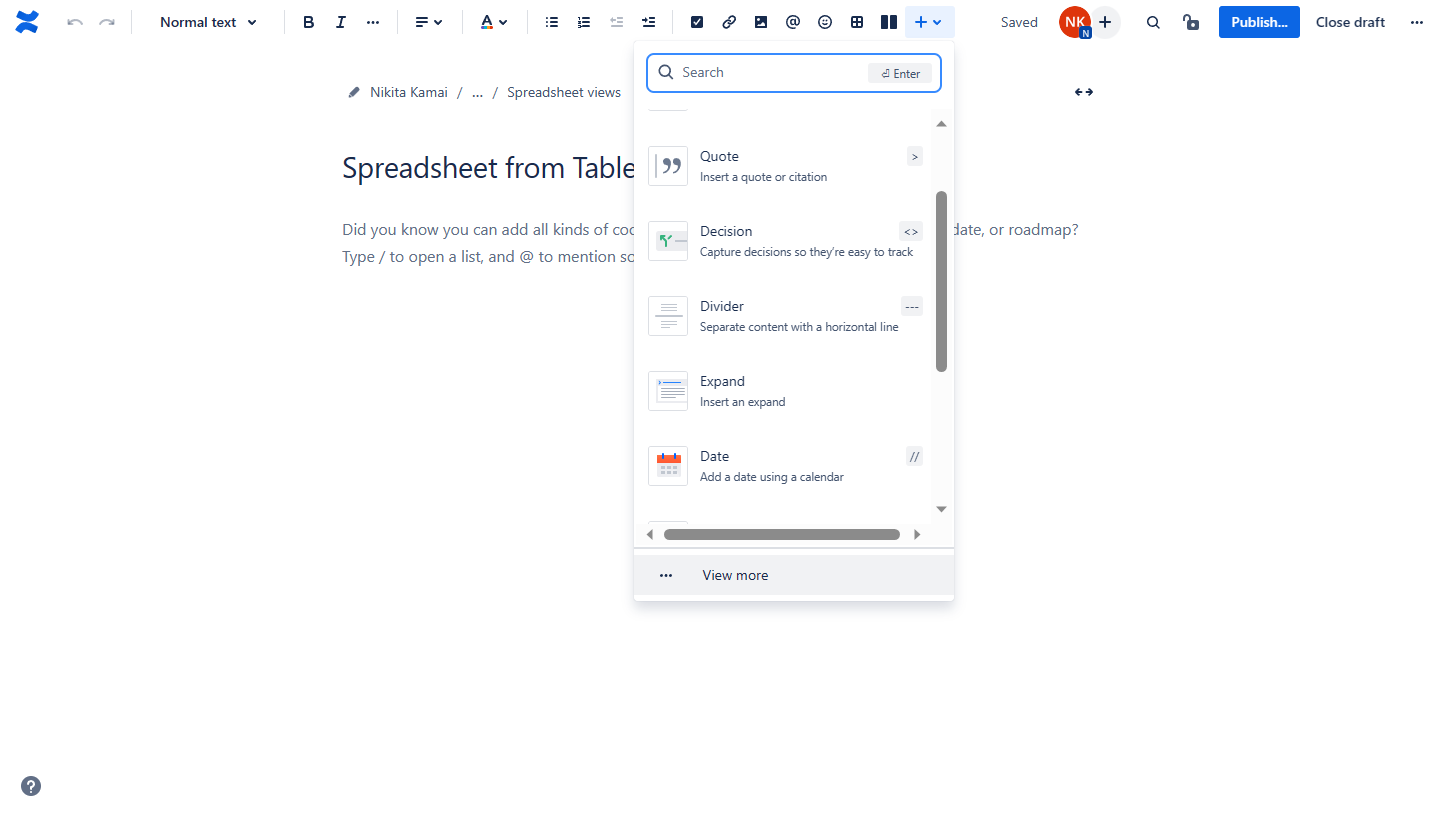
On the editor pane, click Insert more content -> Other macros , find the macro and insert it on the page
| Handy Carousel | ||||
|---|---|---|---|---|
| ||||
|
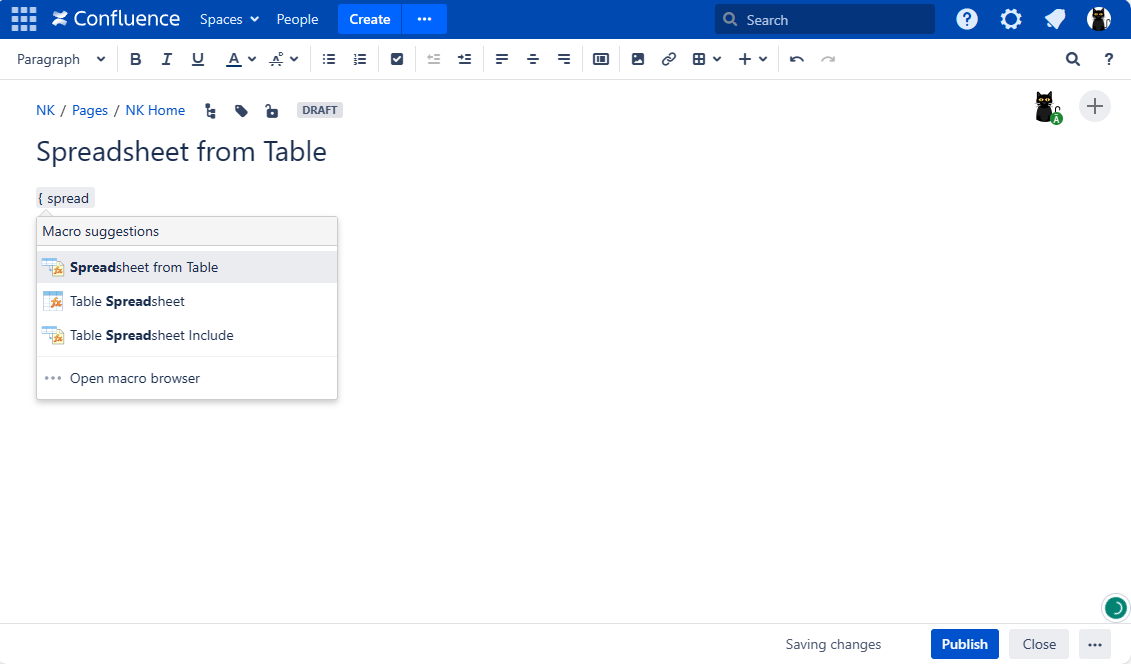
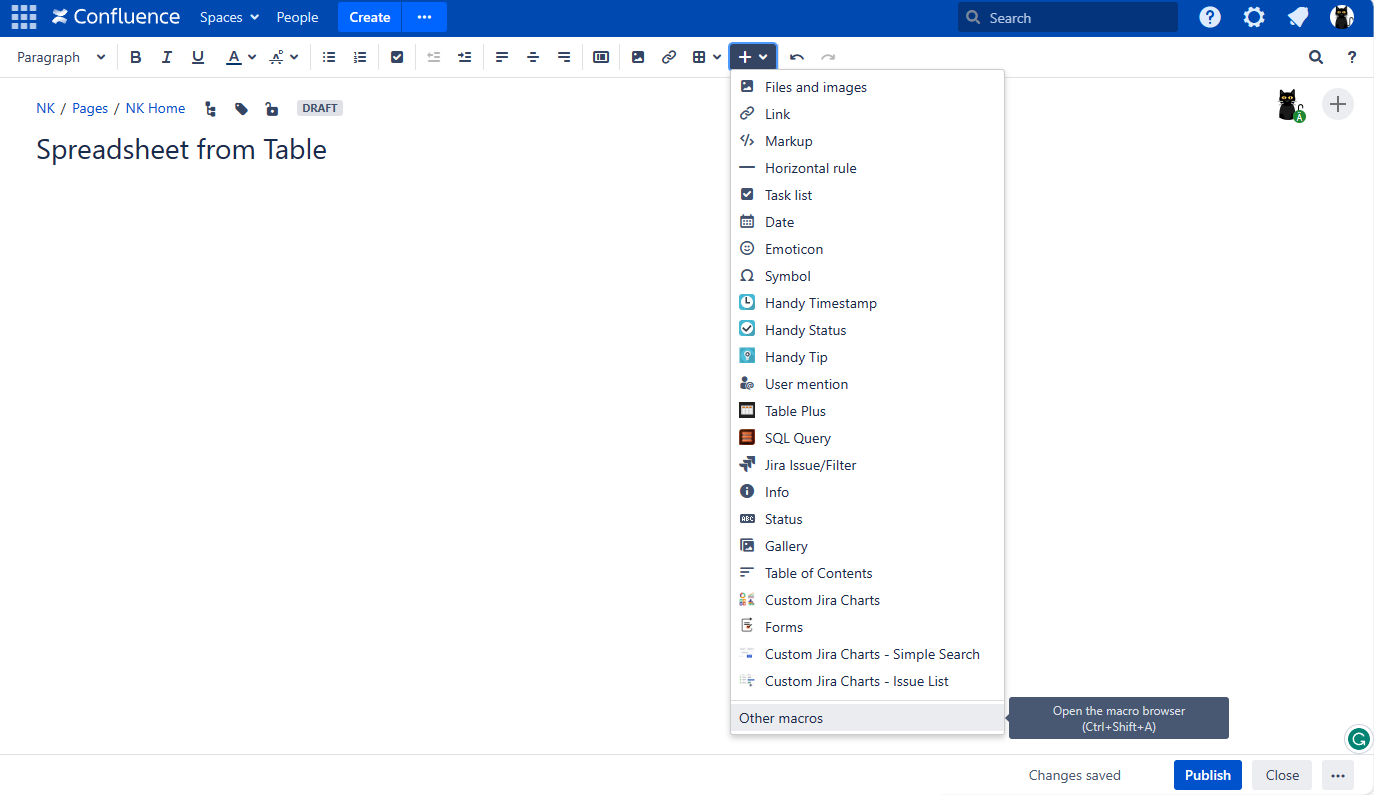
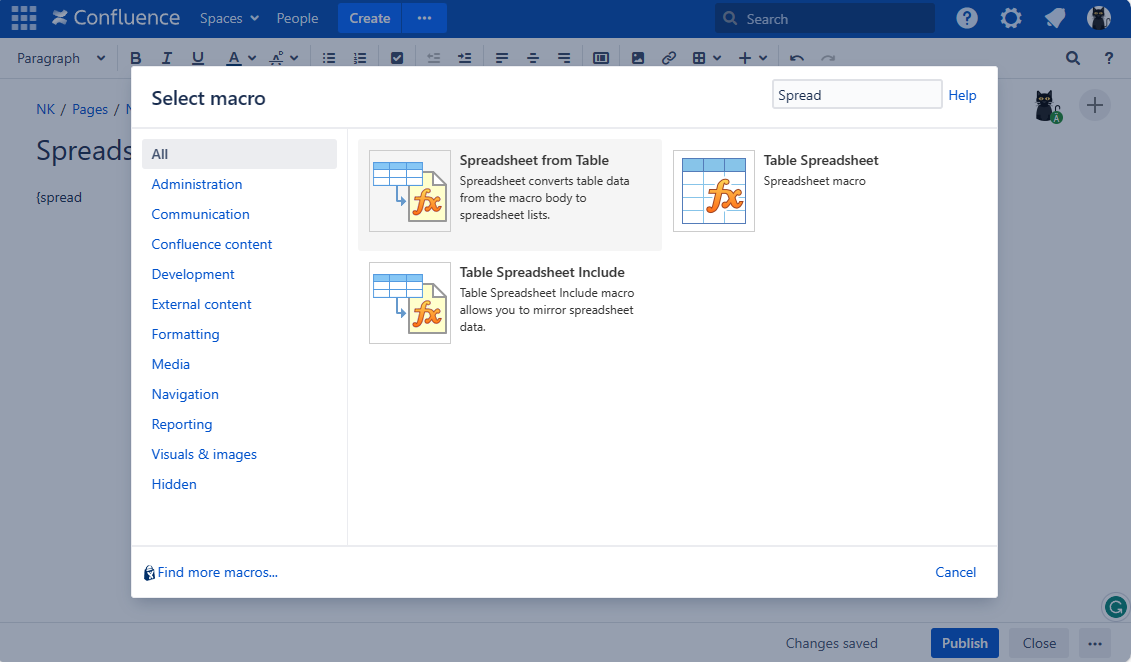
To add macros in view mode:
Click the More actions (⋯) menu in the top-right corner of the page.
Go to Apps → Use Table Filter App Macros.
| Multimedia | ||||||
|---|---|---|---|---|---|---|
|
In edit mode, macros are added just like any other Confluence macros:
Start entering /Spreadsheet from Table
and select the macro
.
On the editor pane
, clickInsert
-> View more, find the macro and insert it on the page.
Make sure the source table - whether manually created or generated by another macro - is placed inside the macro body.
| Handy Carousel | ||||
|---|---|---|---|---|
| ||||
|
| Multimedia | ||||||
|---|---|---|---|---|---|---|
|
| Note | ||||||||||
|---|---|---|---|---|---|---|---|---|---|---|
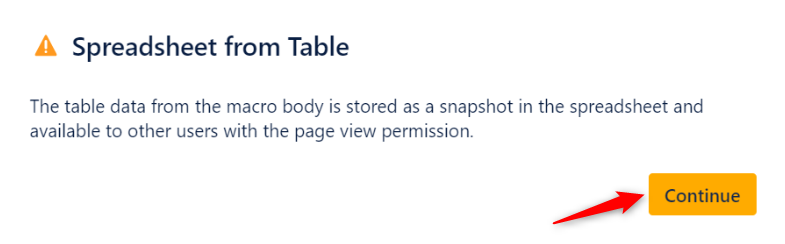
Once the Spreadsheet from Table macro is added to a page for the first time a user receives a special notification
to comply with the macro functionality feature implying the source data stored as a snapshot
within. |

| Handy Carousel | ||||
|---|---|---|---|---|
| ||||
|
| delay | 1000 |
|---|---|
| items | 0 |

| Note |
|---|
Don't copy the Spreadsheet from Table macro! Every time you need to work with a new data source, please add a new macro as described above. |
| Info |
|---|
Utilize the benefits of Excel-like spreadsheets right on your Confluence pages. Try spreadsheets for Confluence now! |
Using the Spreadsheet from Table macro
| Info |
|---|
Spreadsheet from Table macro retains the entire toolset of the Table Spreadsheet macro adding up a few additional features. |
| Info |
|---|
Spreadsheet from Table macro retains the entire toolset of the Table Spreadsheet macro adding up a few additional features. |
Show/Hide the source table
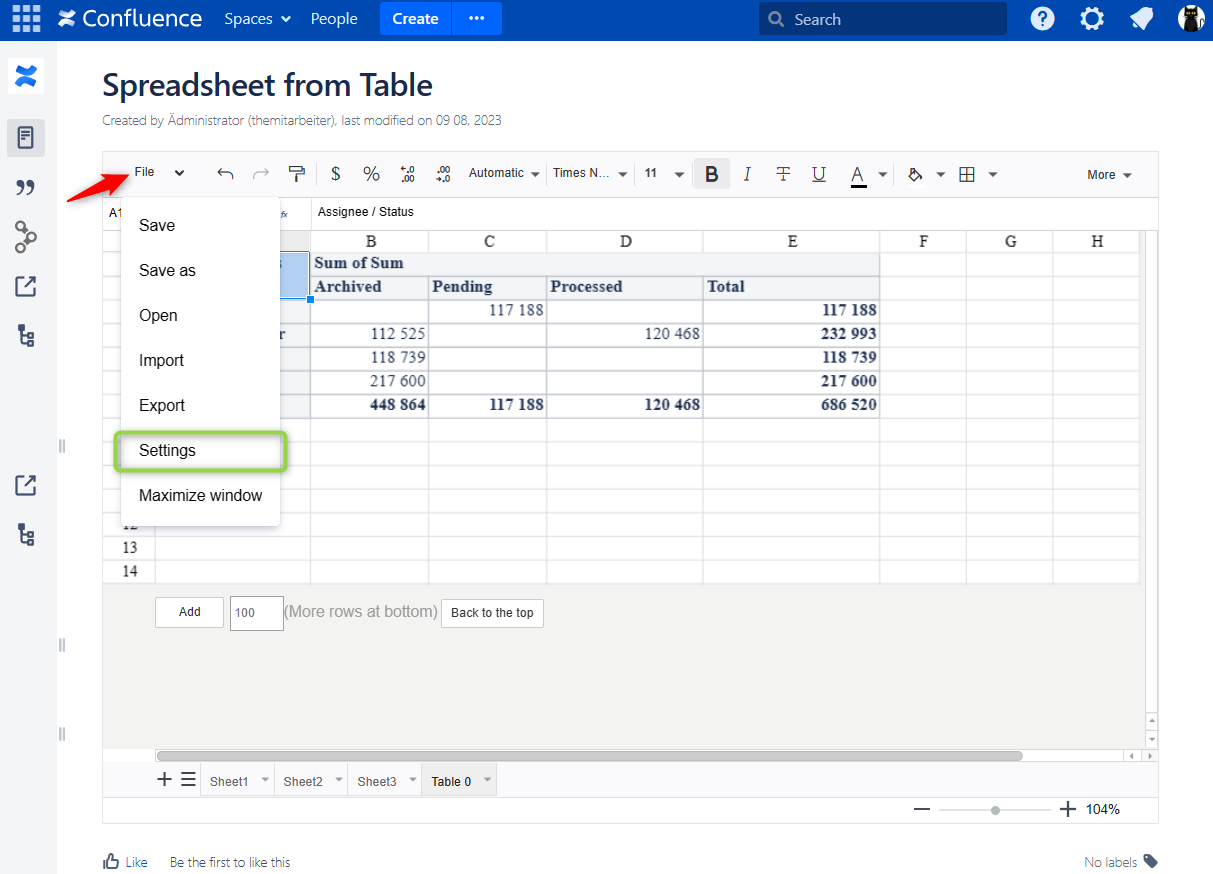
- Navigate to File->Settings.
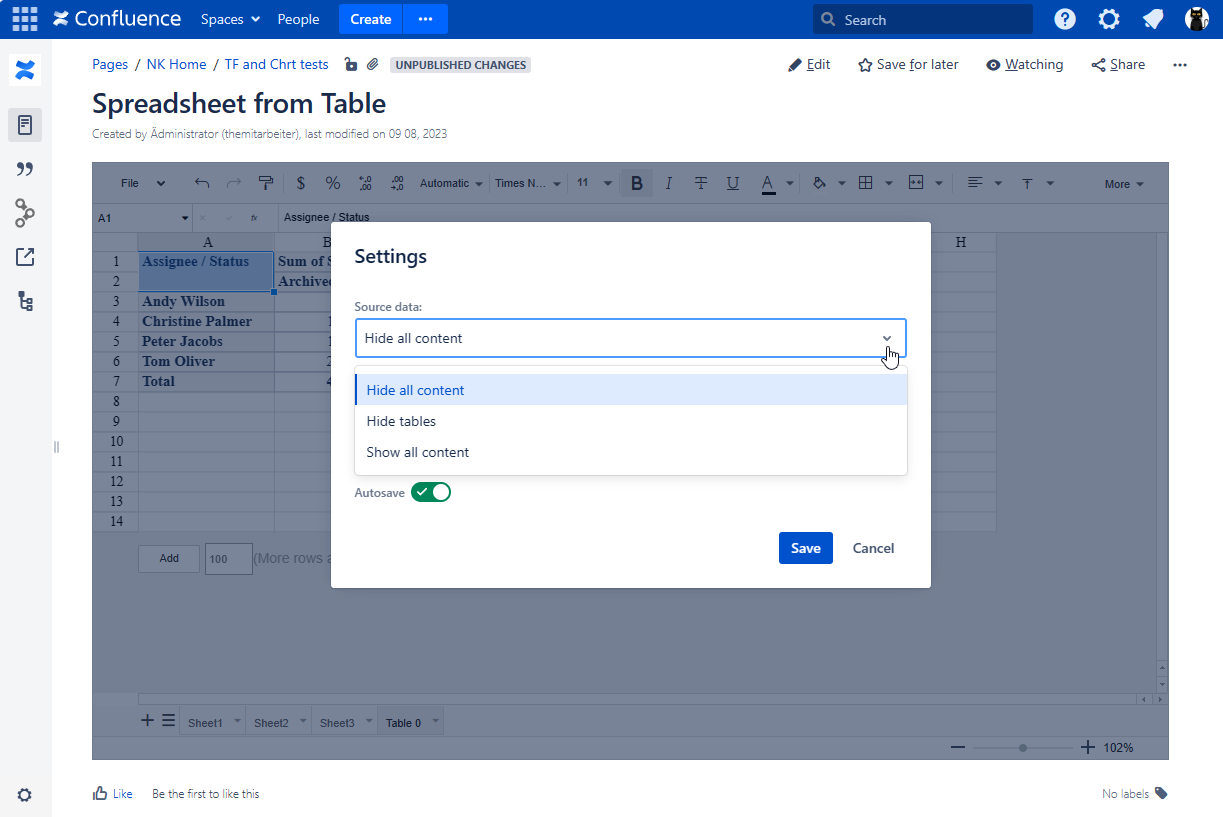
- Locate the Source data option and select the appropriate option, as follows:
- Show all content
- Hide tables
- Hide all content
- Save the macro and the page.
| Handy Carousel | ||||
|---|---|---|---|---|
| ||||
|
| Handy Carousel | ||||
|---|---|---|---|---|
| ||||
|

