LaTeX Math for Confluence by Stiltsoft lets you set the size of a rendered formula so it matches the text around it. Instead of guessing a scaling factor, you pick a text style — normal text or a heading level — and the formula is rendered at that size. The setting works for both inline and block LaTeX formulas.
- Open a Confluence page and switch to edit mode.
- Add a new block or inline formula by typing
/latex and choosing the needed LaTeX macro. Or click the existing formula and choose the edit icon in the menu. - In the macro configuration panel, open the Text styles selector.
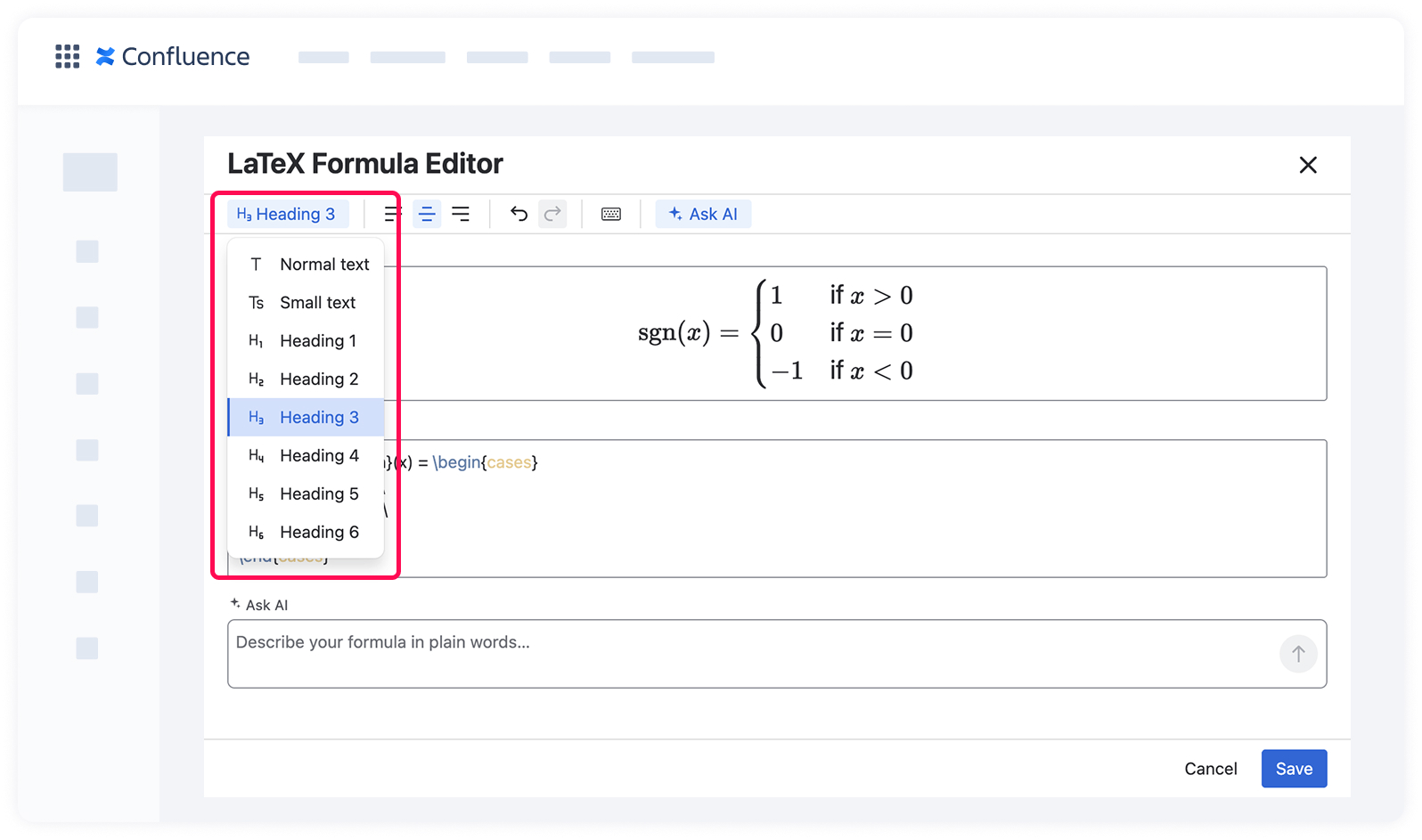
- Choose the text style the formula should match — Normal text, Small text, or Heading 1 to Heading 6. The preview updates immediately, so you can see the result before saving.
- Click Save to apply the changes.
Now your formulas sit at exactly the right size on the page ✨
By default, new formulas use the Normal text size. The size you choose is stored with the macro, so the formula keeps it wherever the page is viewed or exported.
Inline formulas and surrounding text
An inline formula is rendered at the size you choose in the Text styles selector — it doesn't pick up the style of the text around it automatically. Since new formulas use Normal text by default, a formula inserted into a heading looks smaller than the text next to it until you change the size. To make a formula blend into the line it sits in, select the matching text style: for a formula inside a Heading 2, choose Heading 2.
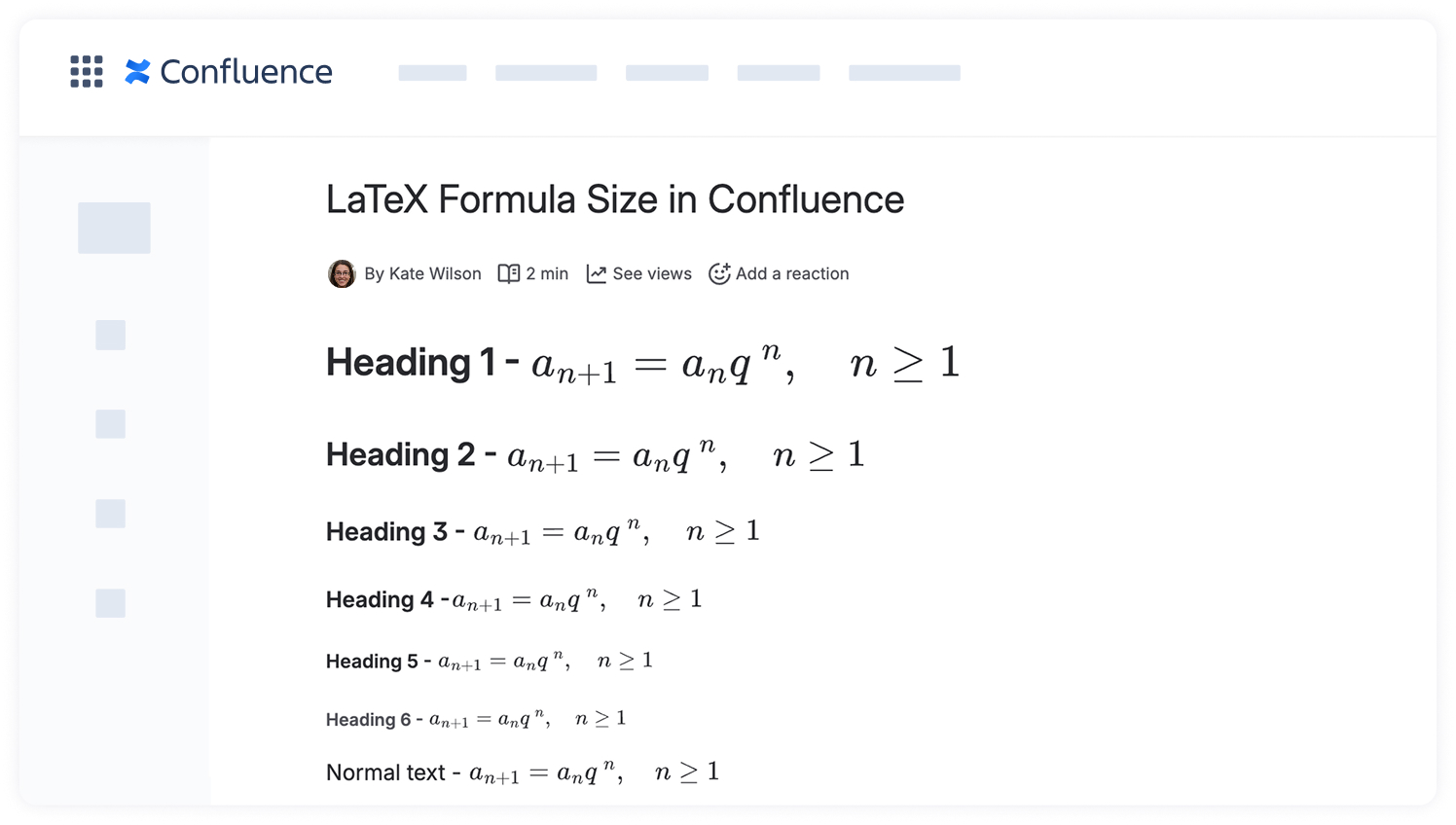
Formulas keep the size you selected when you export a page to PDF — both with Confluence's built-in PDF export and with the Scroll PDF Exporter.
Please note that the size setting isn't applied in the Scroll Word Exporter app. Formulas are still exported and remain readable, but at their default size.
For the full list of supported export options, see Exporting LaTeX Math in Confluence.