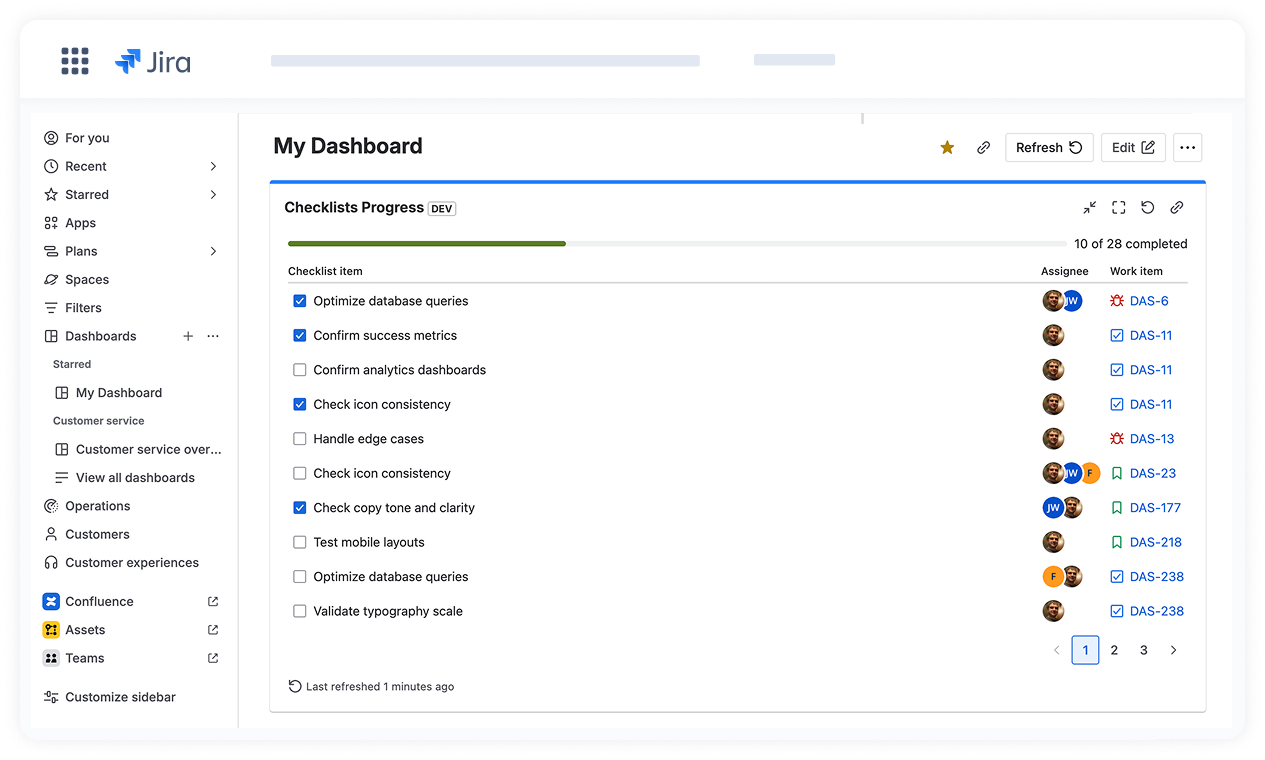
The Checklists Progress dashboard helps teams track checklist items across multiple projects, work items, and assignees in one place. With our dashboard gadget, you can quickly identify incomplete items, monitor progress, and ensure that important checklist steps are not overlooked.

Add the Checklists Progress dashboard

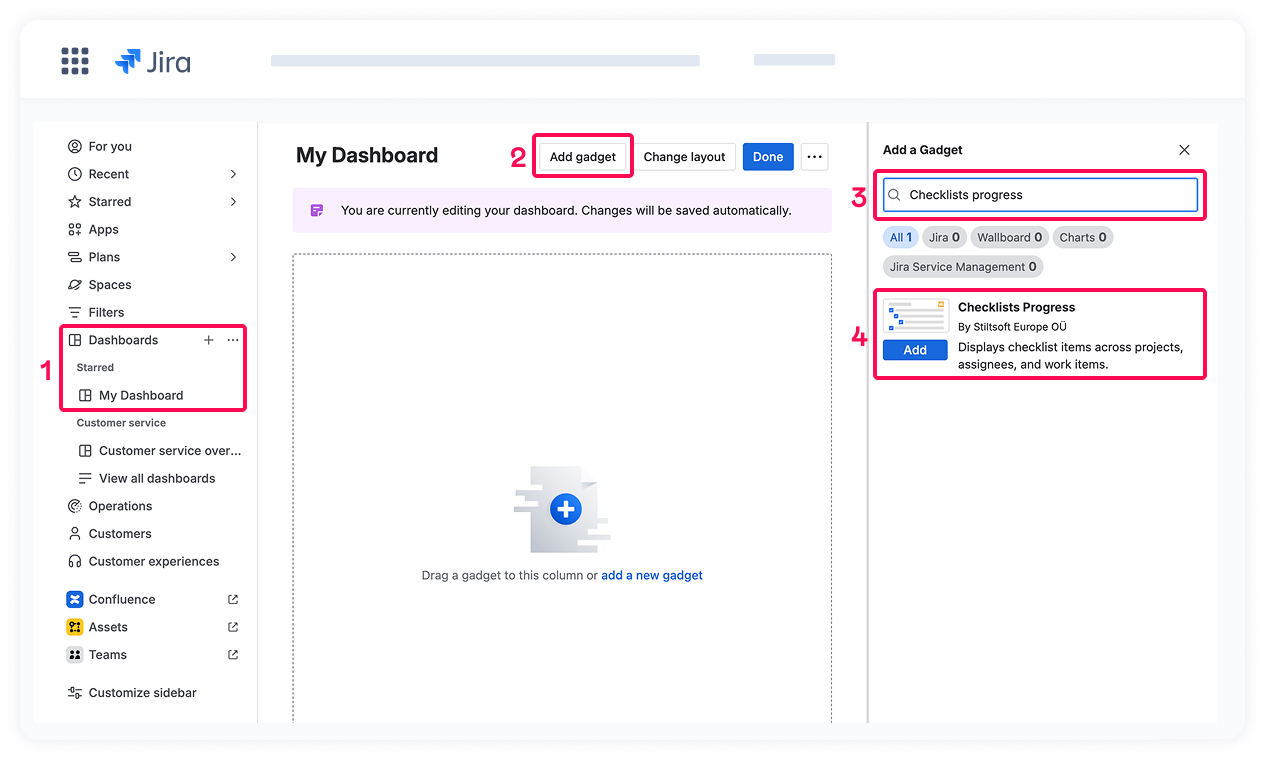
To start using the Checklists Progress dashboard:

  1. Open your current Jira dashboard and edit it, or create a new one.

  2. Click Add gadget.

  3. Search for Checklists Progress.

  4. Click Add gadget to add it to your dashboard.

Configure dashboard

Filters

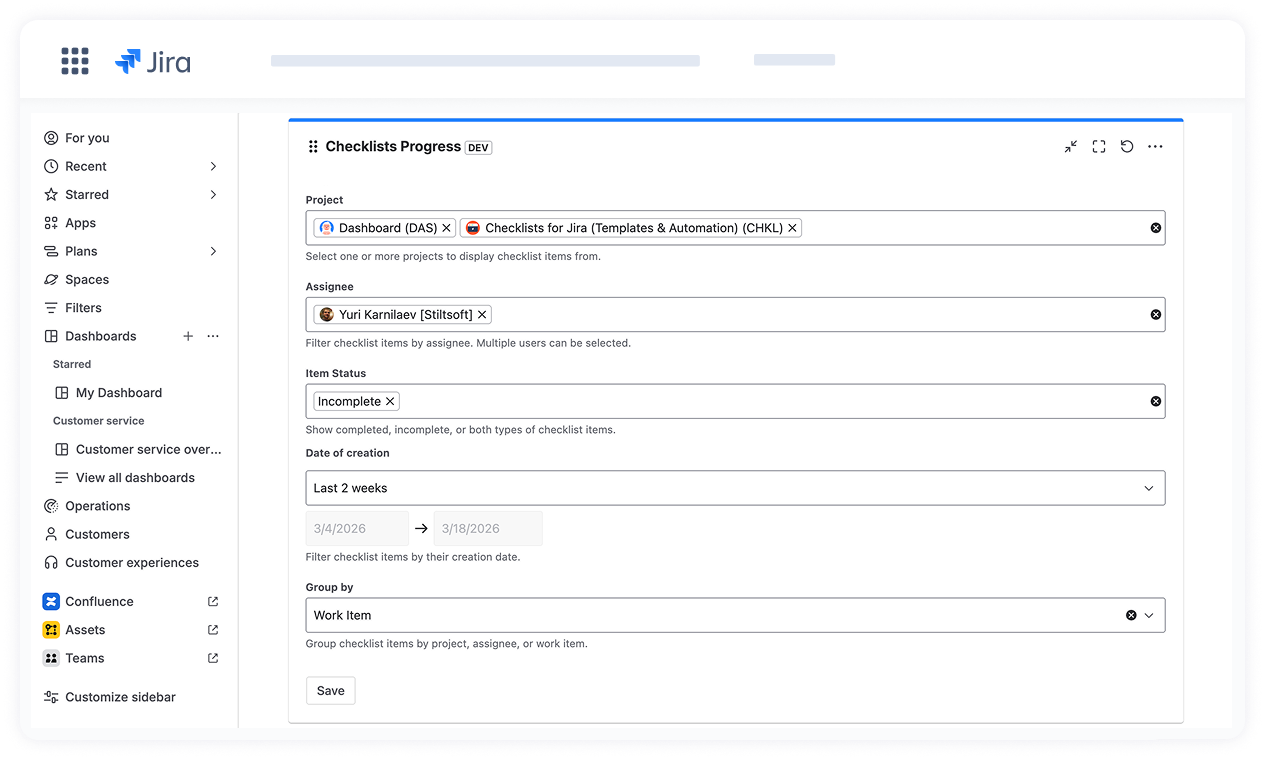
Before viewing data, configure the filters for the Checklists Progress dashboard. The configuration allows you to narrow down checklist items using the following criteria:

  • Project: Select one or more projects to view the checklist items for work items in those projects.
  • Assignee: Select one or more users to view the checklist items assigned to them. If a checklist item has multiple assignees, it will appear in the results if at least one of them matches the selected filter.
  • Item status: Filter checklist items by completion status: Completed or Incomplete. If no status is selected, the dashboard displays checklist items with both statuses.
  • Date of creation: Filter checklist items based on when they were created. By default, the field is pre-filled with the last two weeks.

The maximum selectable time range is 3 months. But you can select any date range, as long as it does not exceed 3 months.

Grouping

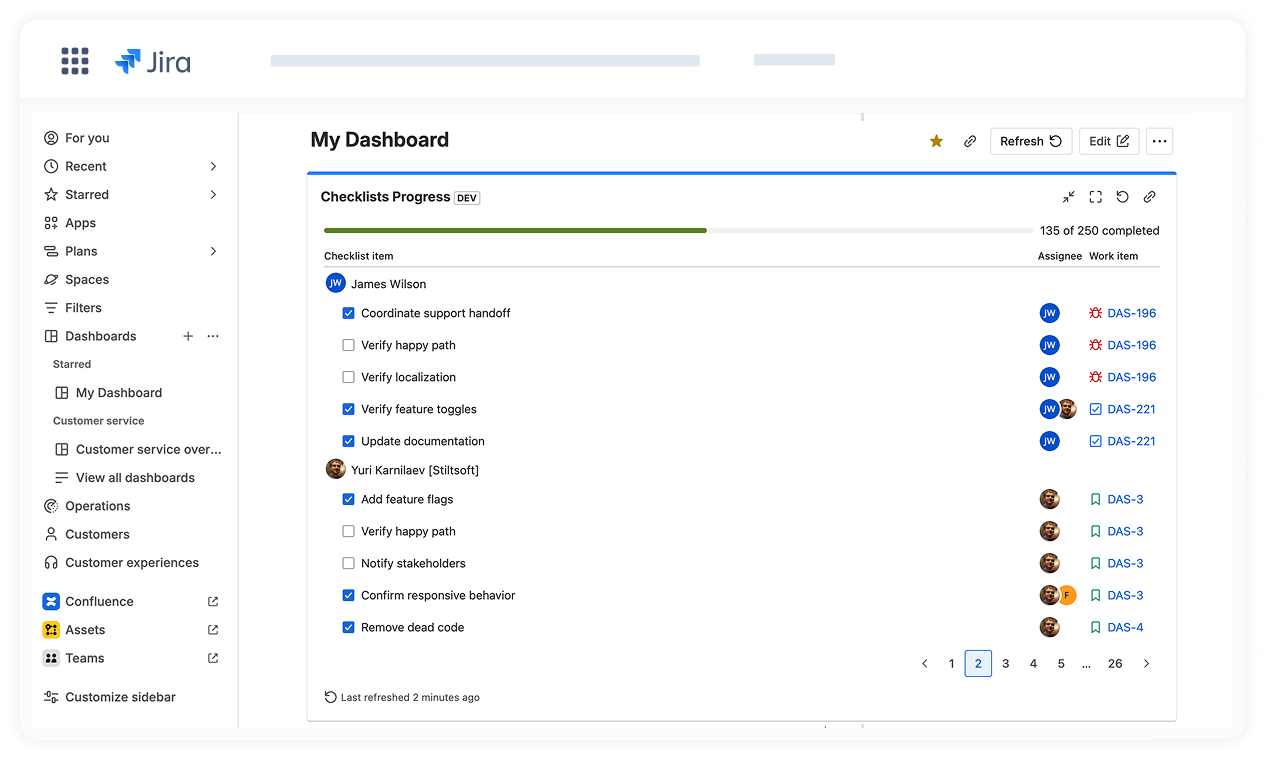
You can also group checklist items to better organize the results in the dashboard.

Available grouping options:

  • Project
  • Work item
  • Assignee
    • If a checklist item has multiple assignees, it appears in each corresponding assignee group.
    • Checklist items without an assignee are grouped under Unassigned.

Groups are displayed only when checklist items match the selected filters.

After the configuration is saved, the gadget will display checklist items that match the selected filters and grouping. 

The progress bar shows the number of completed and incomplete checklist items that match the selected filters. If the total number of items exceeds 1000, the bar displays 1000+ for the total count, while the number of completed items is shown accurately.