Download page Smart Spreadsheet - Main Functionality.
Smart Spreadsheet - Main Functionality
The Smart Spreadsheetallows you to add an Excel-like spreadsheet. You can work with it via a Board View, an Item View, a Custom Object, a Dashboard and a Doc Widget.
Main functions of Smart Spreadsheet
Cell format
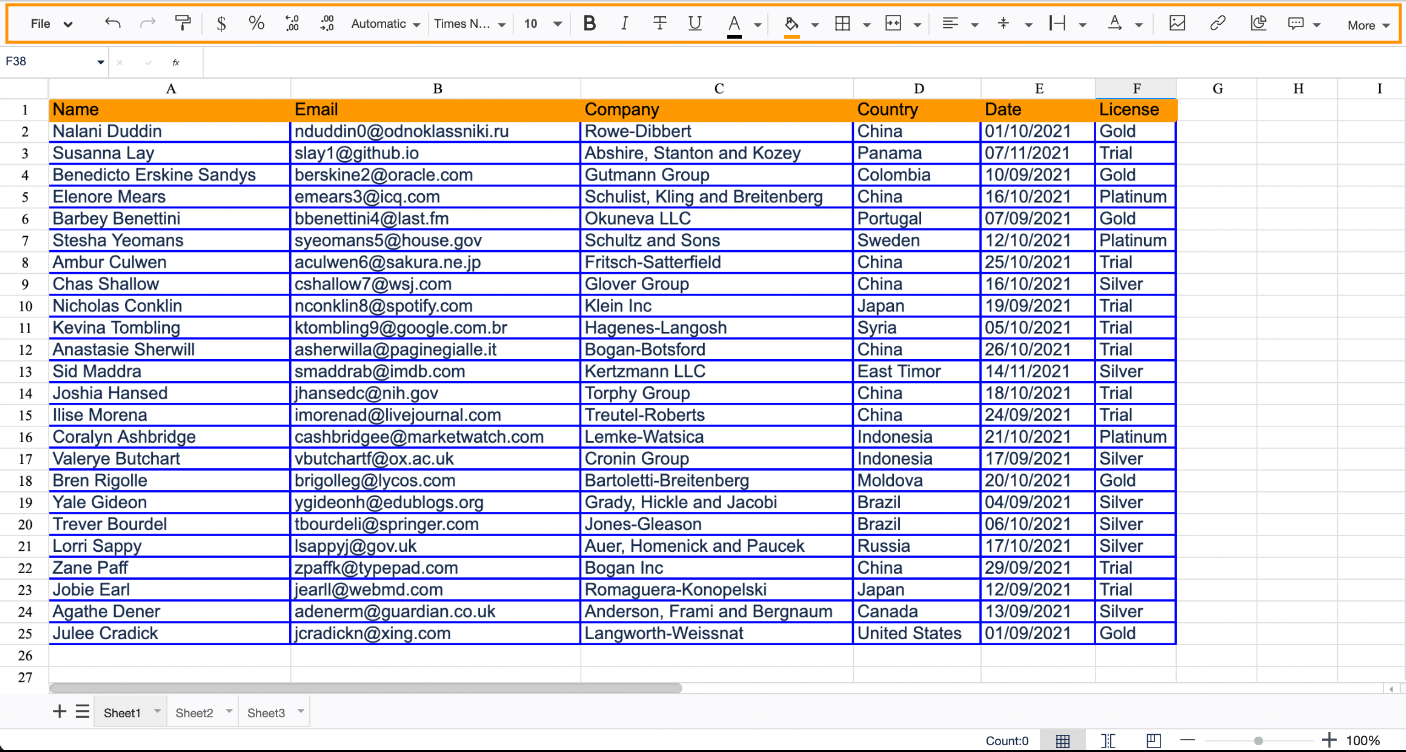
Text settings (font, size, type, color)
Cell color
Border style and color
Alignment and text placement
Merging cells
Freezing rows
Automatic functions
Multiple sheets
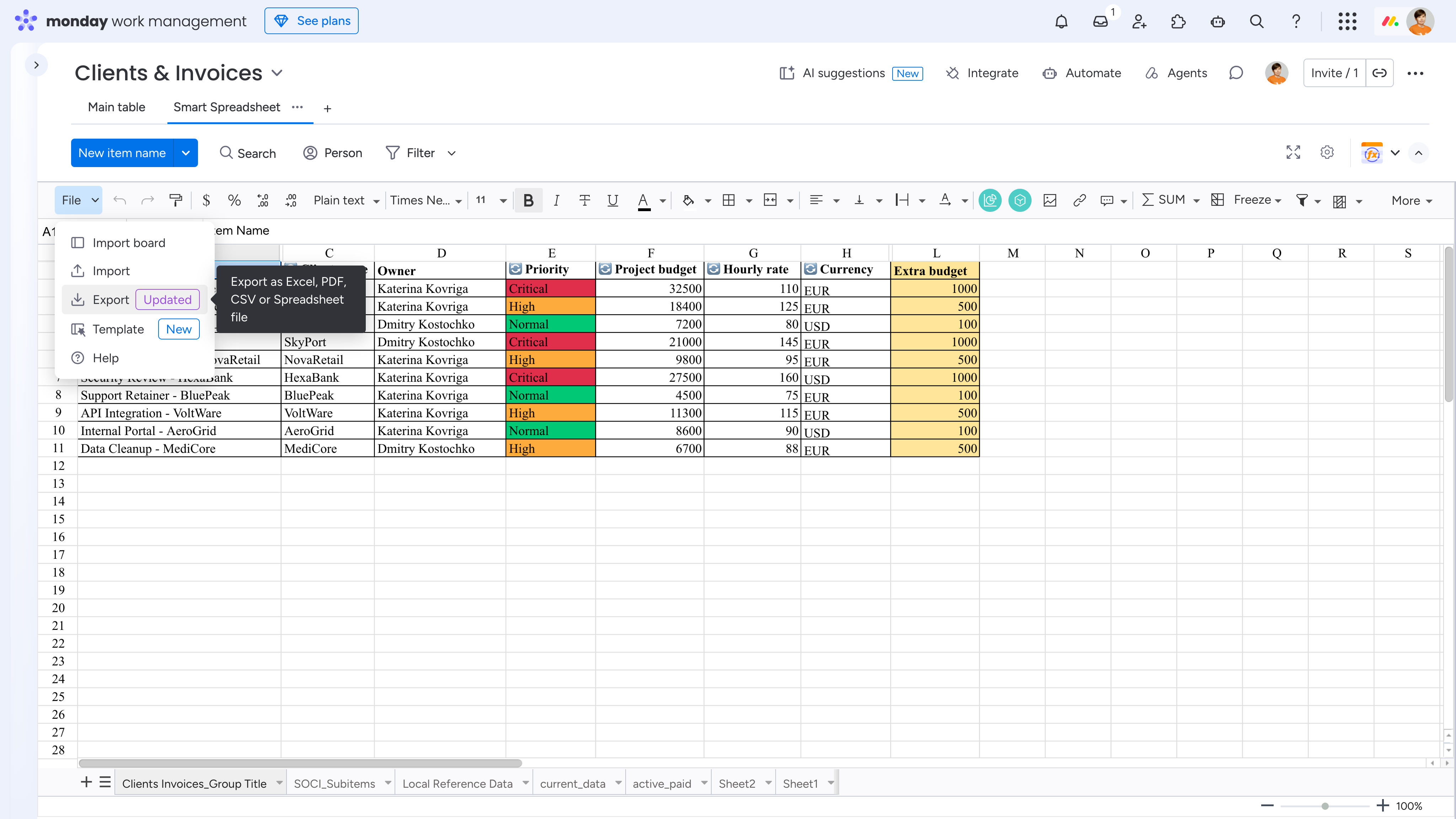
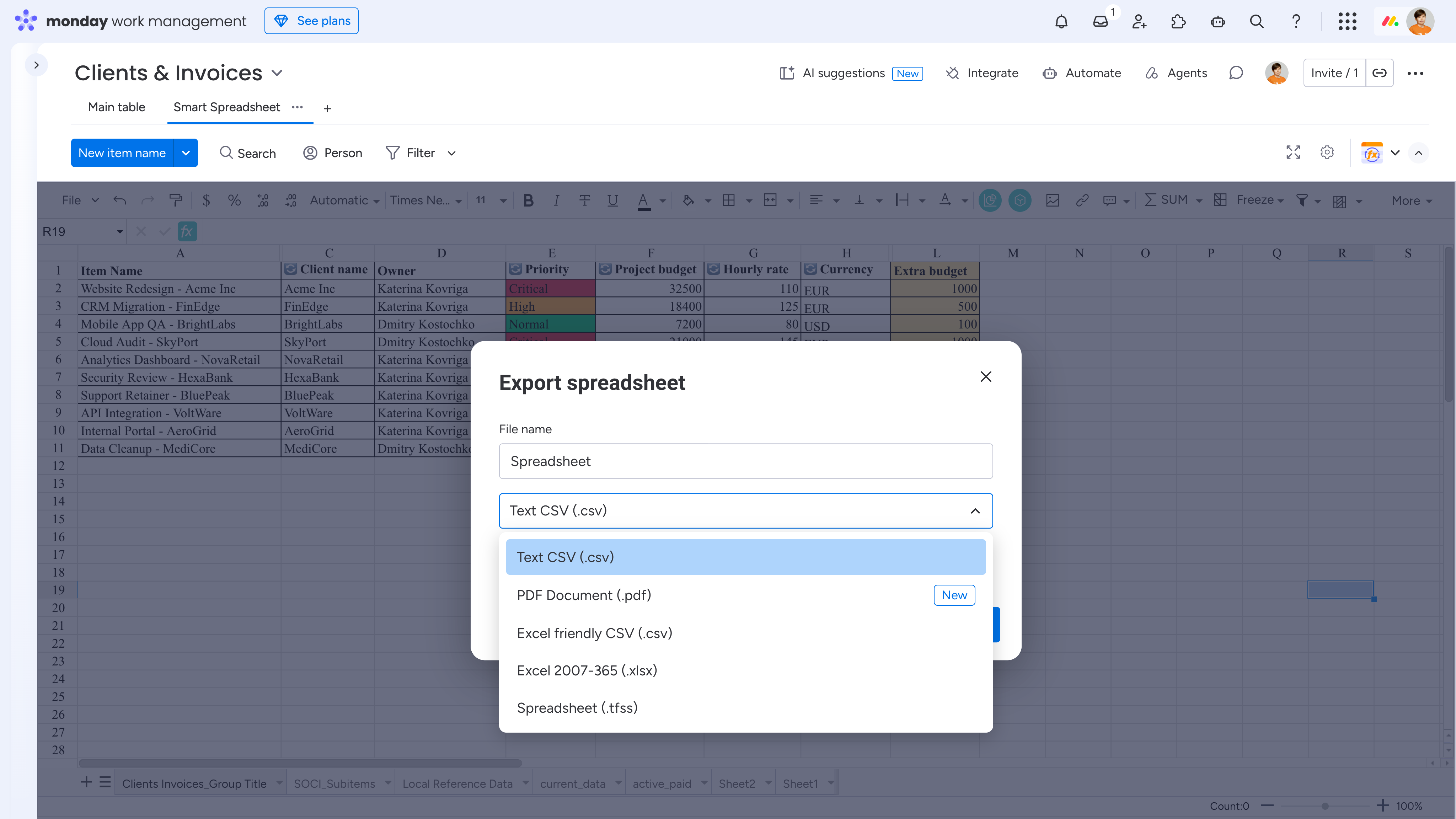
Export to .xlsx, .csv, .pdf, and Spreadsheet (.tfss) files
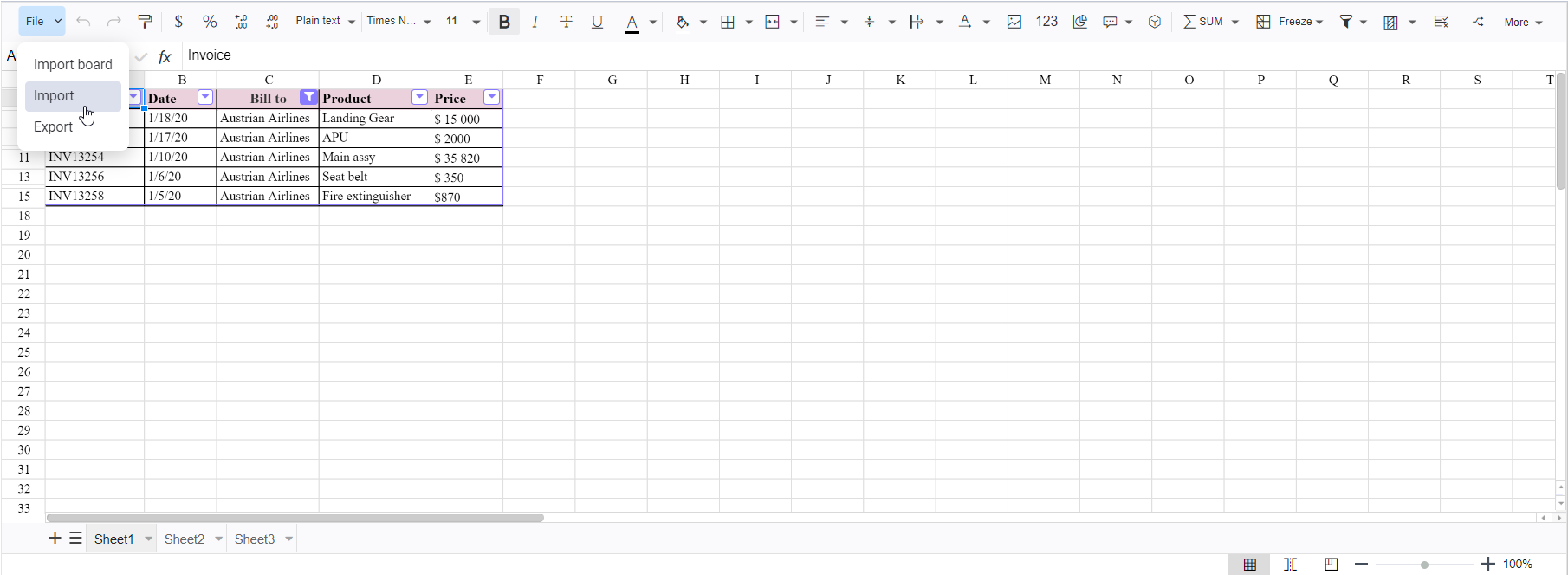
Import of .xlsx, .csv, and Spreadsheet (.tfss) files
Please note that some formatting may not be preserved when importing .xlsx files.
Filtering the spreadsheet
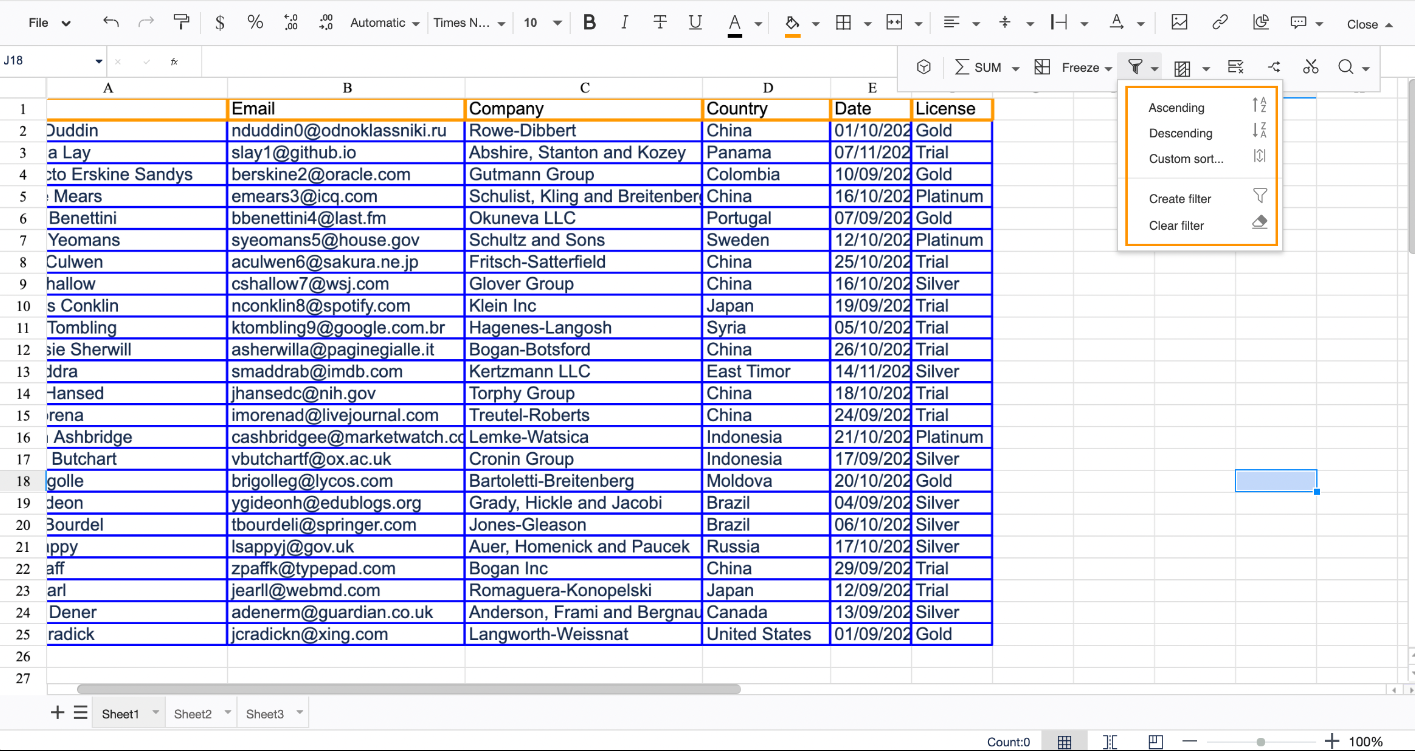
Click the funnel icon on the editor pane
To sort the spreadsheet, choose the sorting type
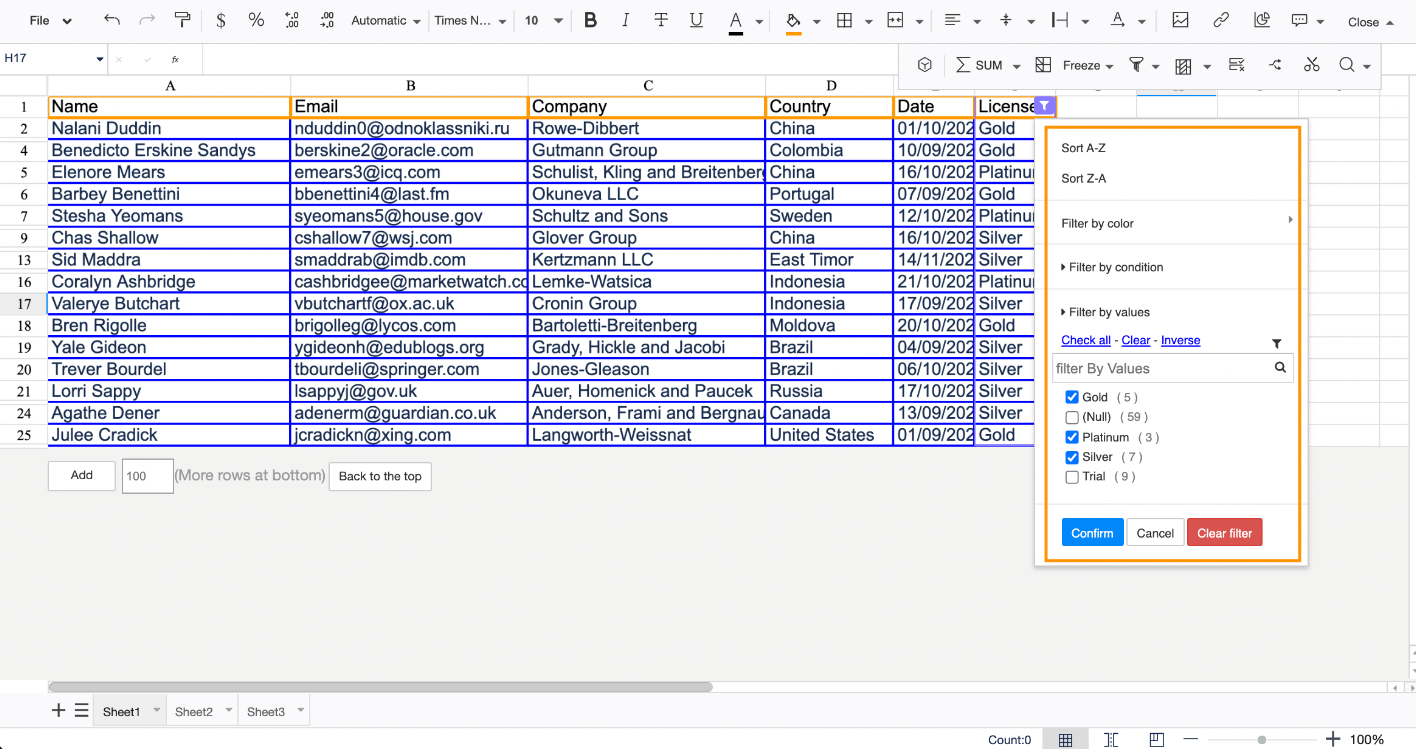
To filter the spreadsheet, select a column and click Create filter
Choose a condition to filter the column by
Confirm the settings or clear the filter, if no longer needed
Adding a pivot table
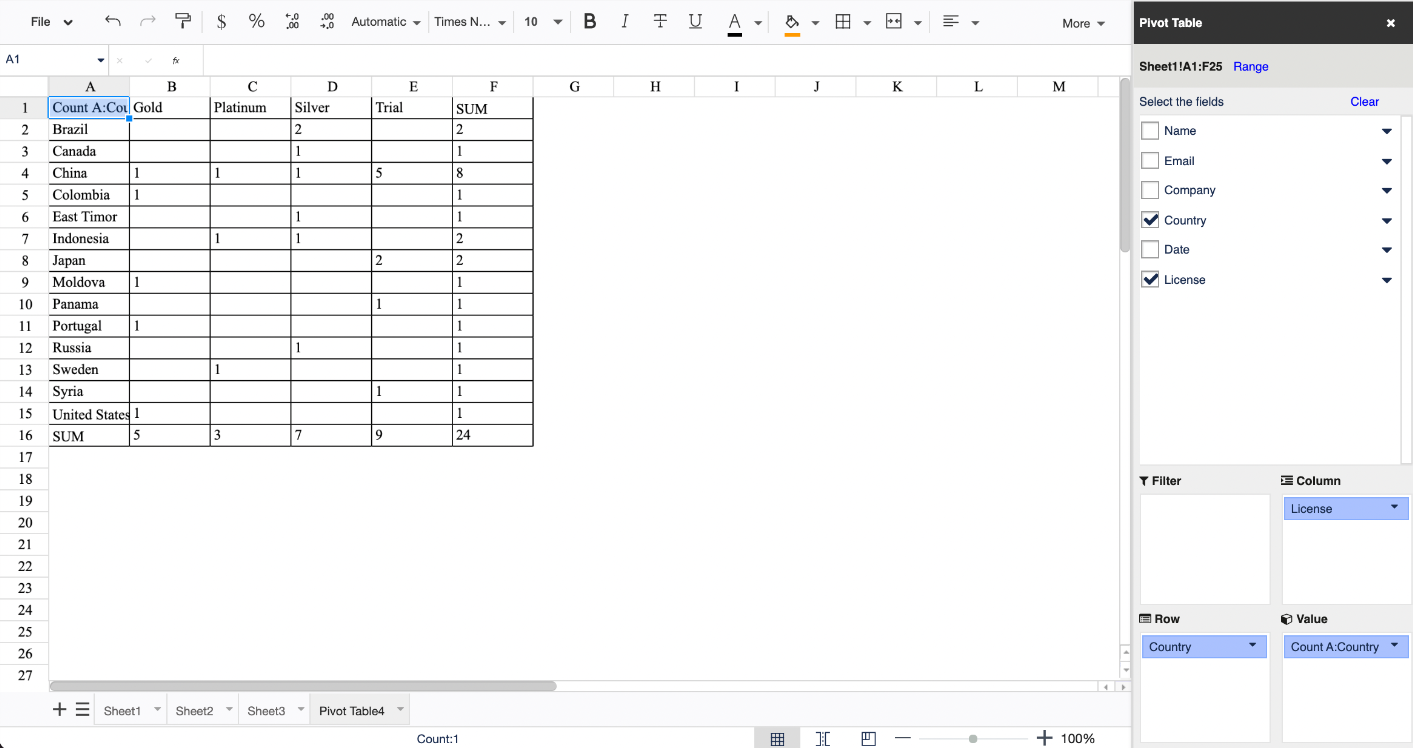
Select the pivot table macro on the editor pane
On a new sheet, choose the settings
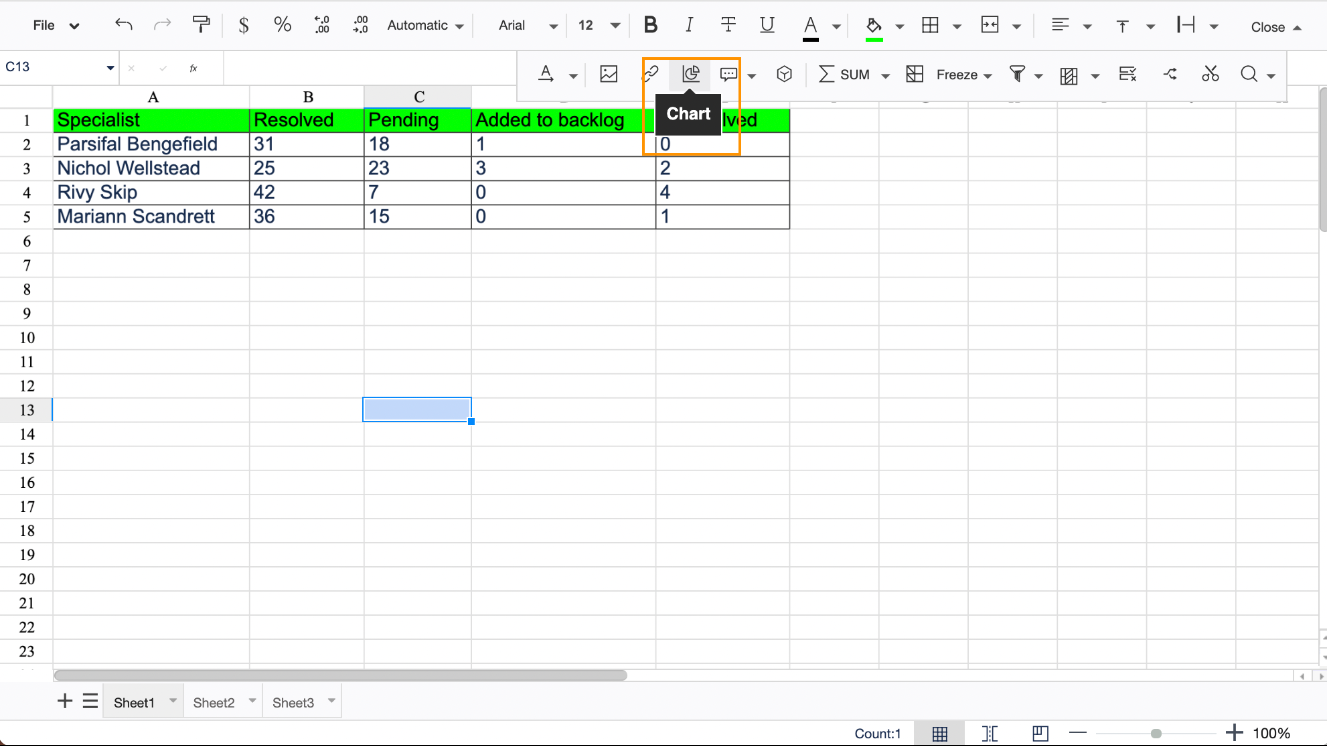
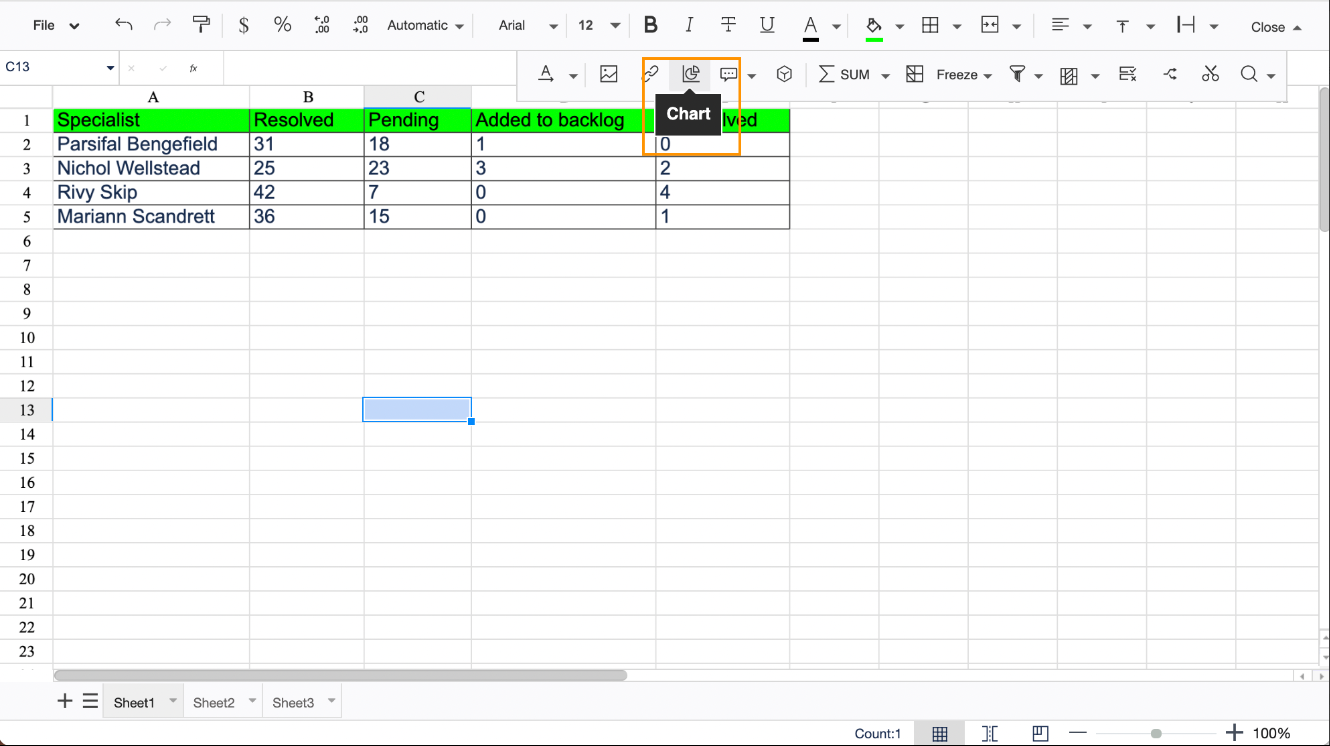
Adding a chart
Select the chart macro on the editor pane
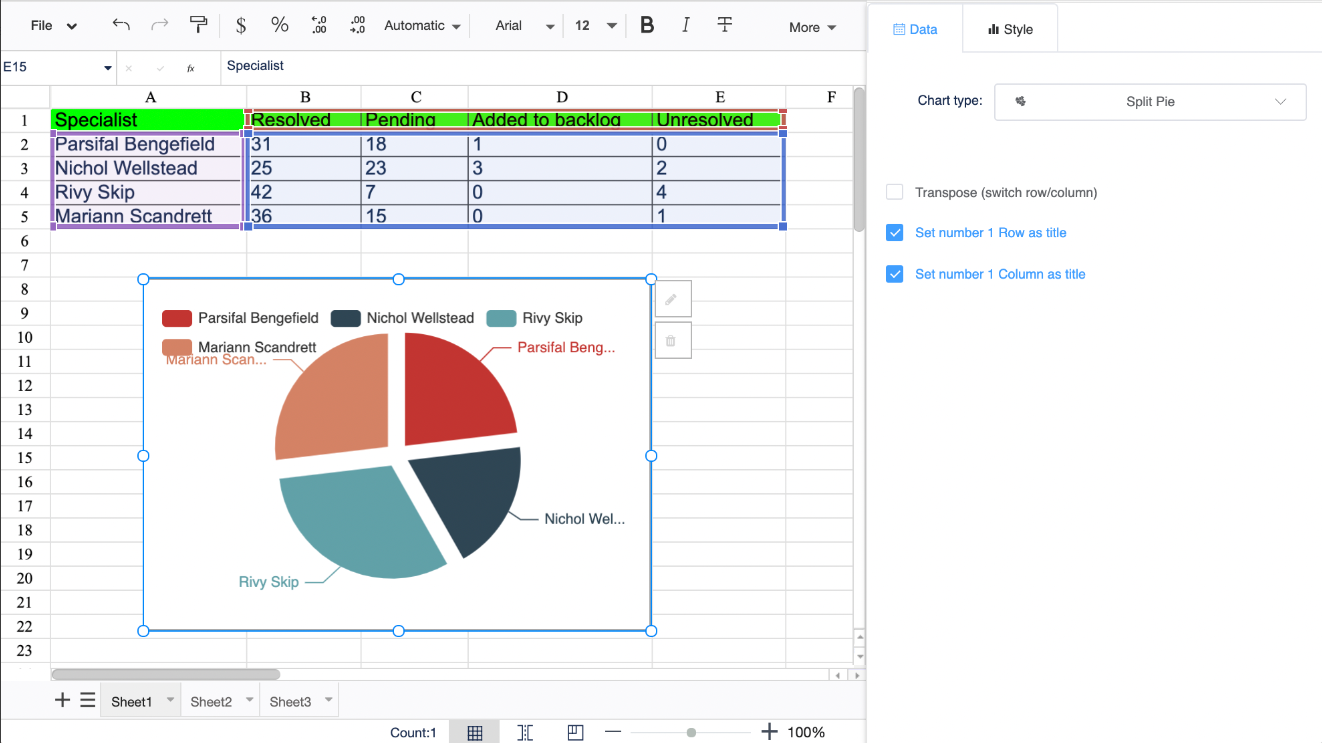
Choose chart settings
The following chart types are available:
Line chart
Area chart
Column chart
Bar chart
Pie chart
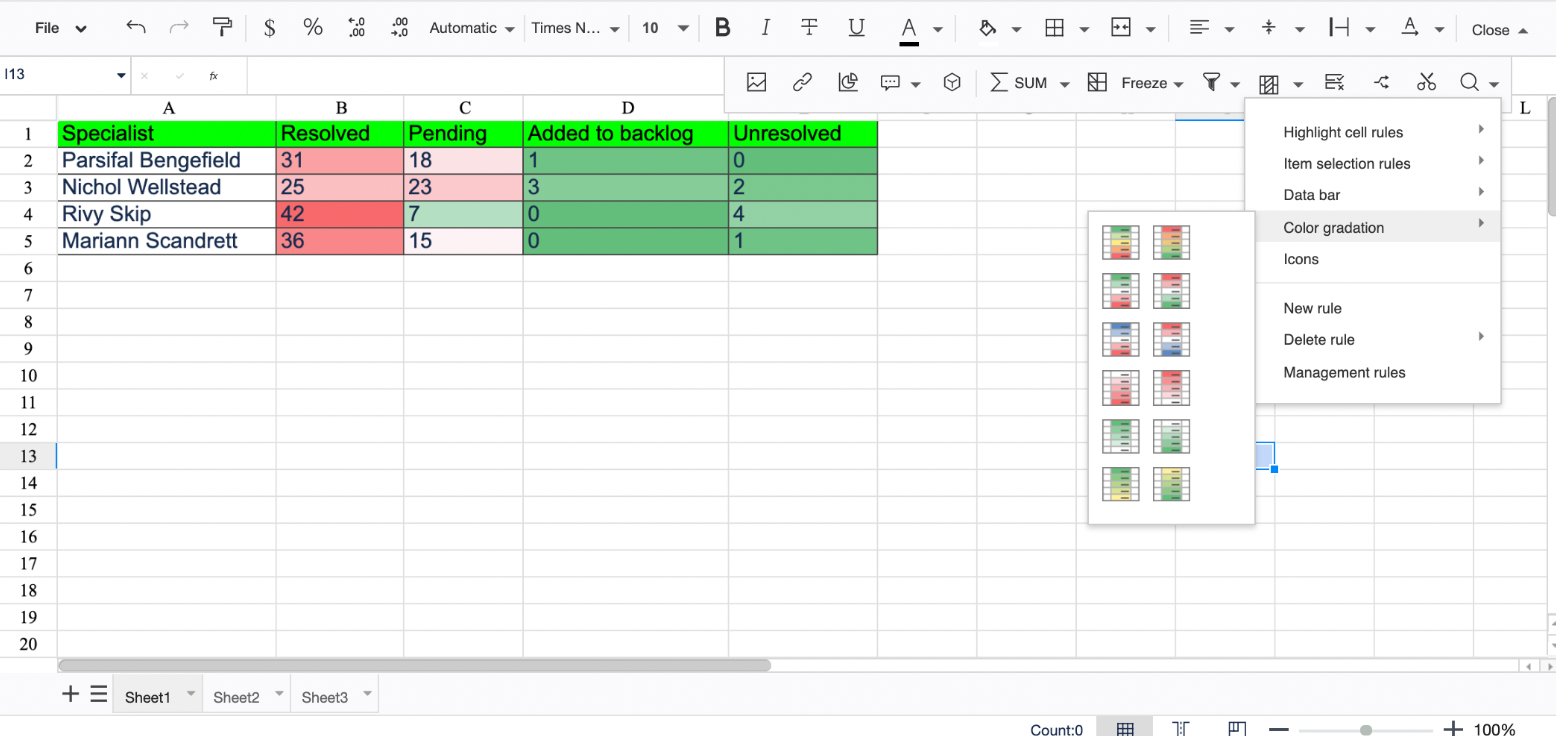
Conditional formatting
Select a table
Choose Conditional formatting on the editor pane
Select a suitable formatting preset or set your own rule
Import of external data
Import .xlsx, .csv, .tfss format files into Smart Spreadsheet via File->Import
Export of Smart Spreadsheet
Export Smart Spreadsheet data to .xlsx, .csv, .pdf, .tfss files via File->Export
Specify the spreadsheet file name
Choose the File type for exporting data
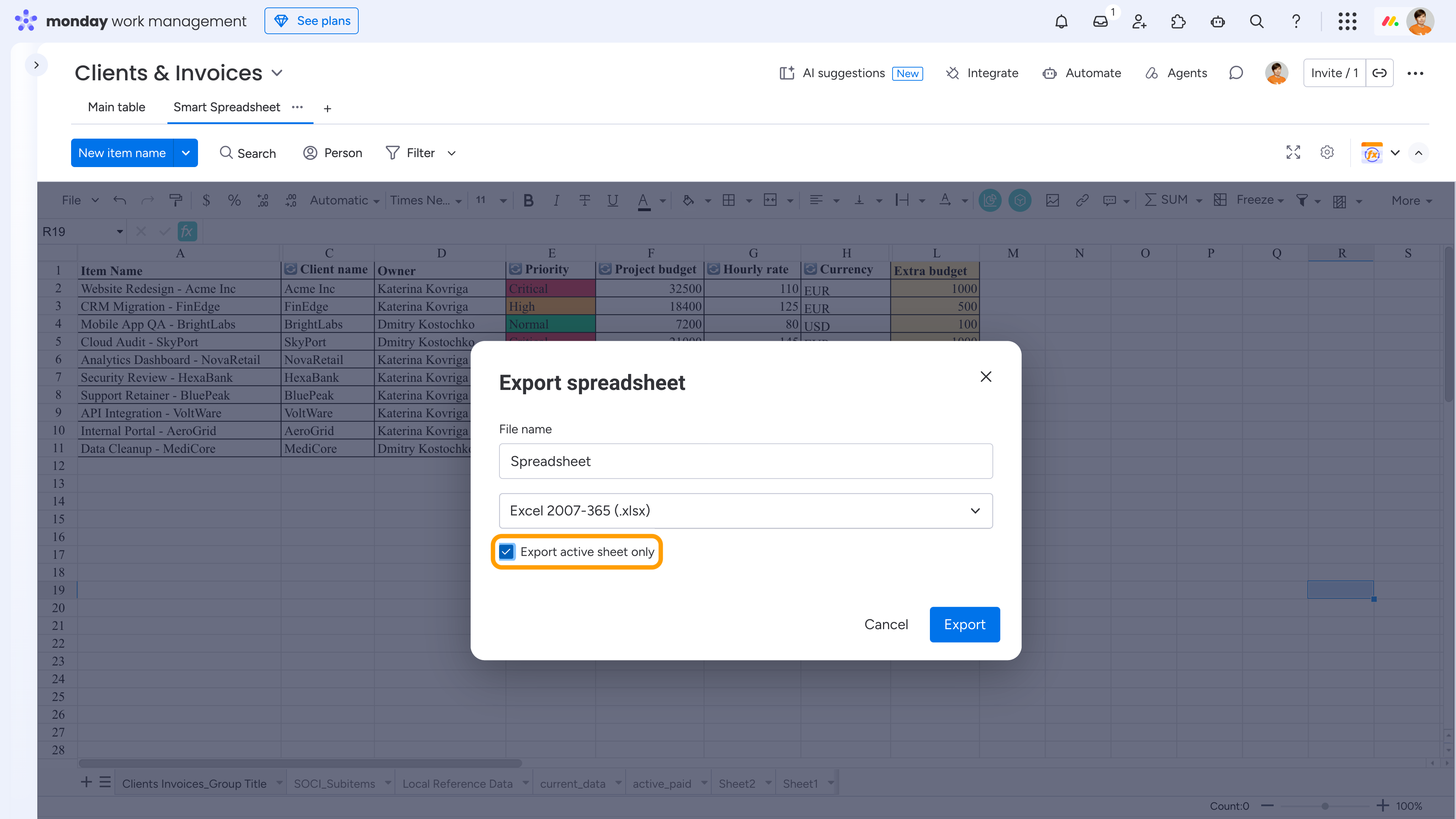
Click Export
Note that for .xlsx, .pdf, .tfss exports, you can enable the option to export only the active (current) sheet. For .csv exports, this option does not appear, because the CSV format supports exporting only the active sheet by design.
Read how to import a board wih subitems on this page.
Cookie Notice
This website uses cookies for analytics, personalization and advertising. By continuing to browse, you agree to our use of cookies. Learn more