Download PDF
Download page Smart Spreadsheet - Templates.
Smart Spreadsheet - Templates
Smart Spreadsheet Templates Overview
If you have a Smart Spreadsheet view that you want to reuse, you can save it as a template.
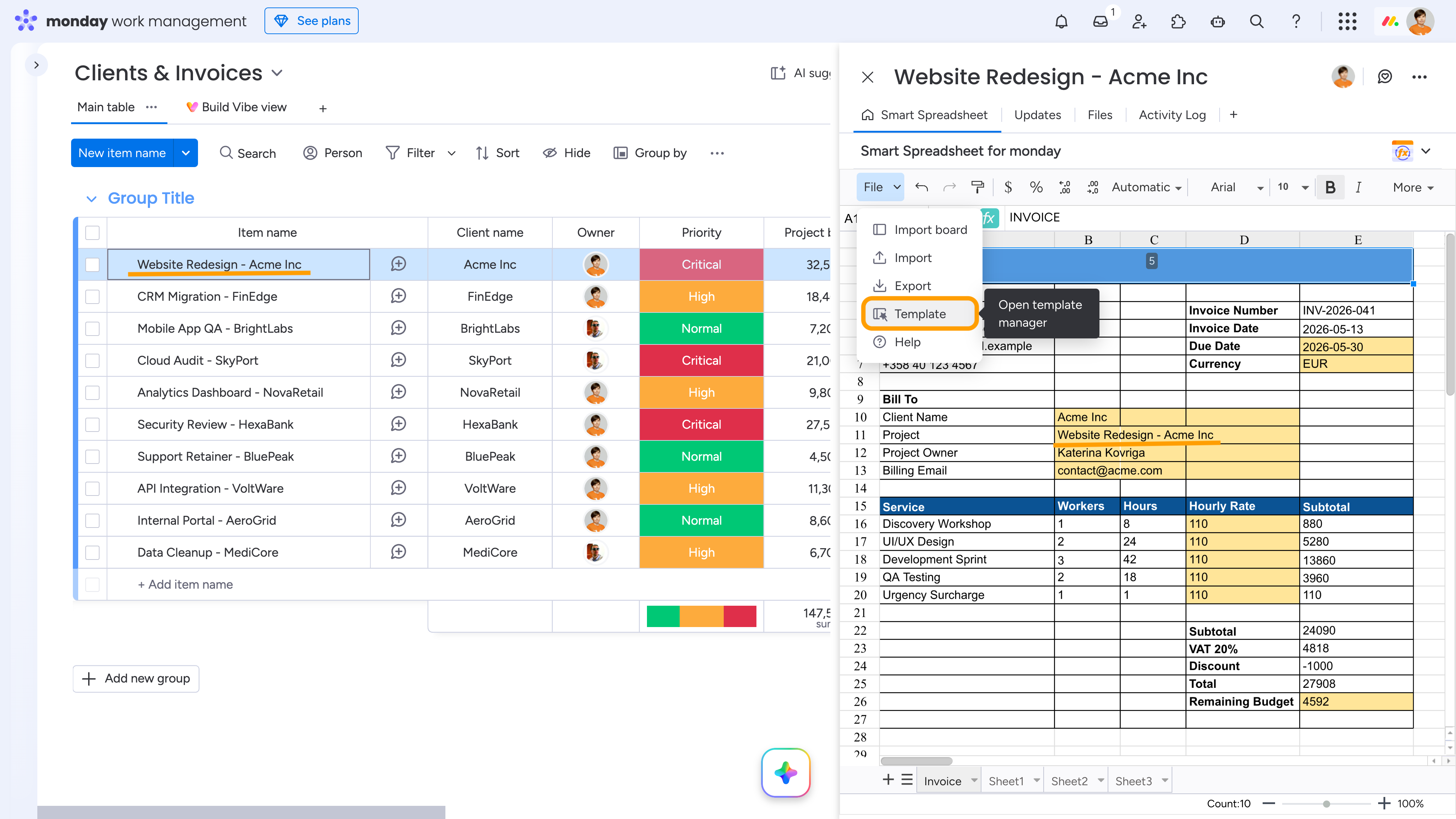
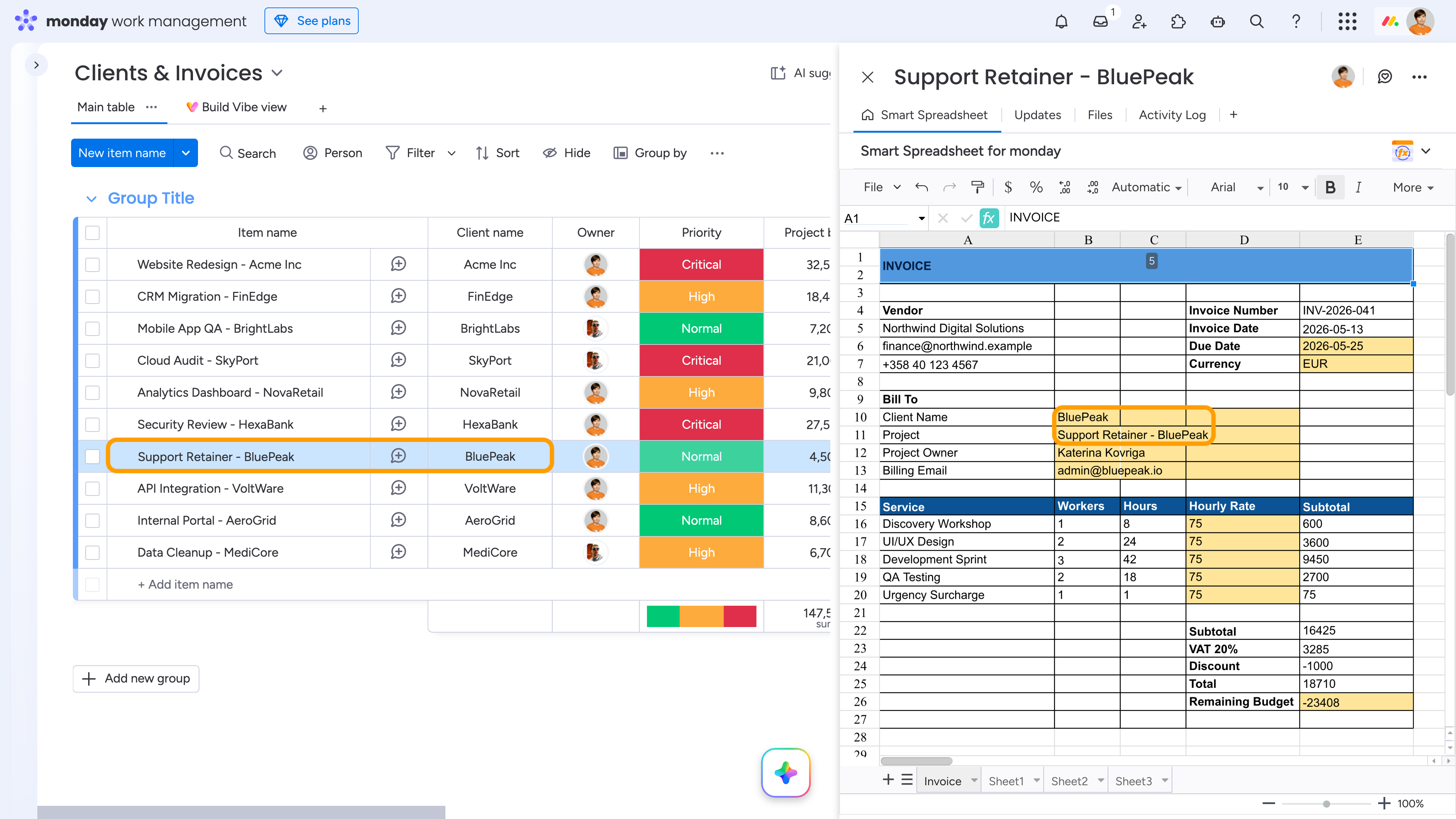
For example, you may have an invoice with a predefined layout that uses the ITEMVALUE() reference formula to retrieve values from specific item or subitem fields on any monday board (highlighted in yellow in the example below). By saving it as a template, you can quickly reuse the same invoice structure for other clients.
To create a template, go to File → Template to open the Templates Manager.
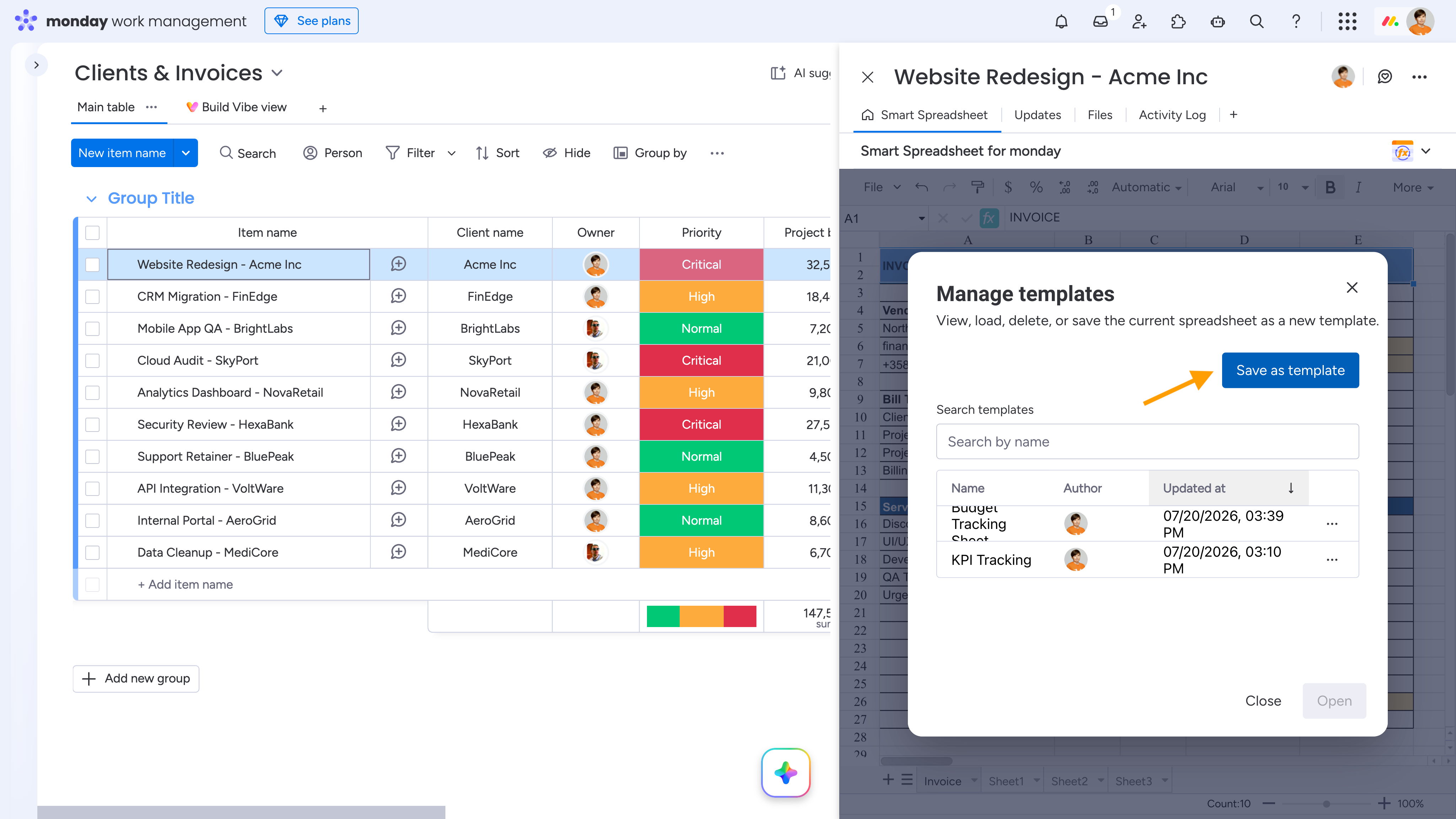
Click Save as template, enter a template name, and save it.
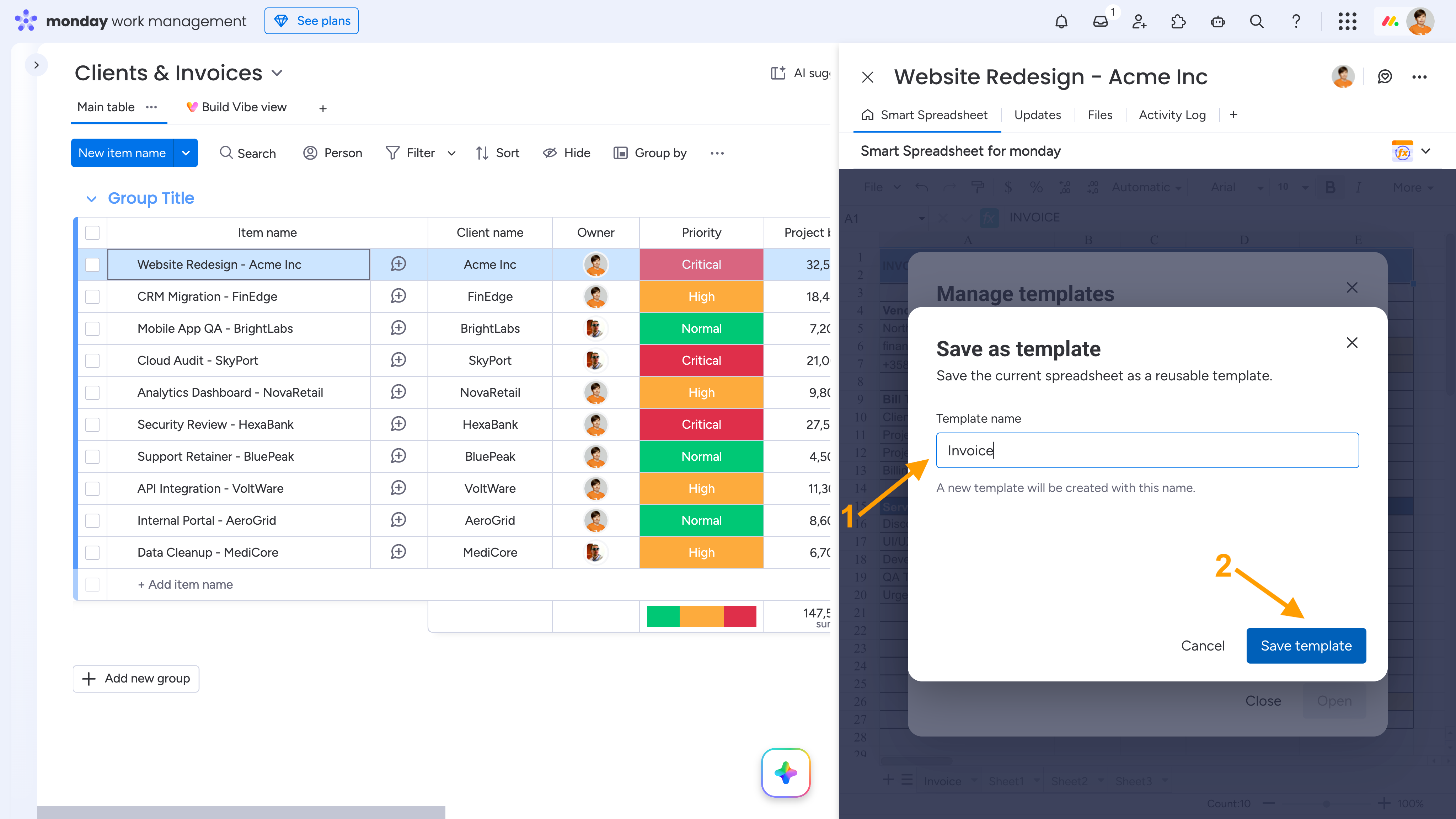
Using Templates for Item Views
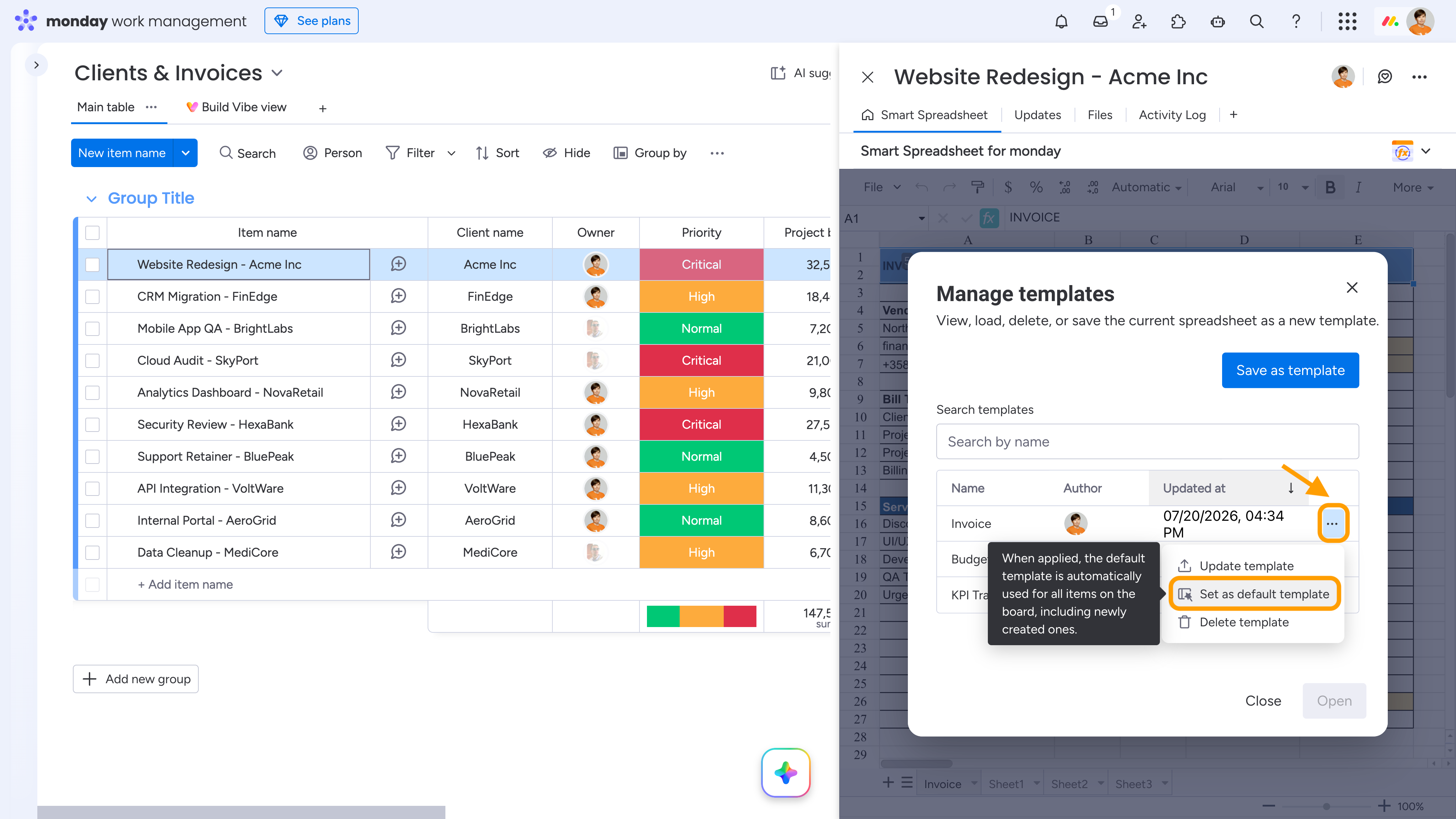
If you frequently create similar documents in Smart Spreadsheet item views, you can set a template as the default for the entire board. Open the three-dot menu next to the template and select Set as default template.
Once applied, the default template is automatically used for the Smart Spreadsheet view of all existing items on the board and any items created in the future.
This is especially useful for invoices, purchase orders, bills, and other repetitive documents where the layout remains the same while the data is populated from the currently opened item.
Note: When applied to a Smart Spreadsheet board/dashboard view, there is no difference between a regular and a default template. Both are applied only to the currently open view.
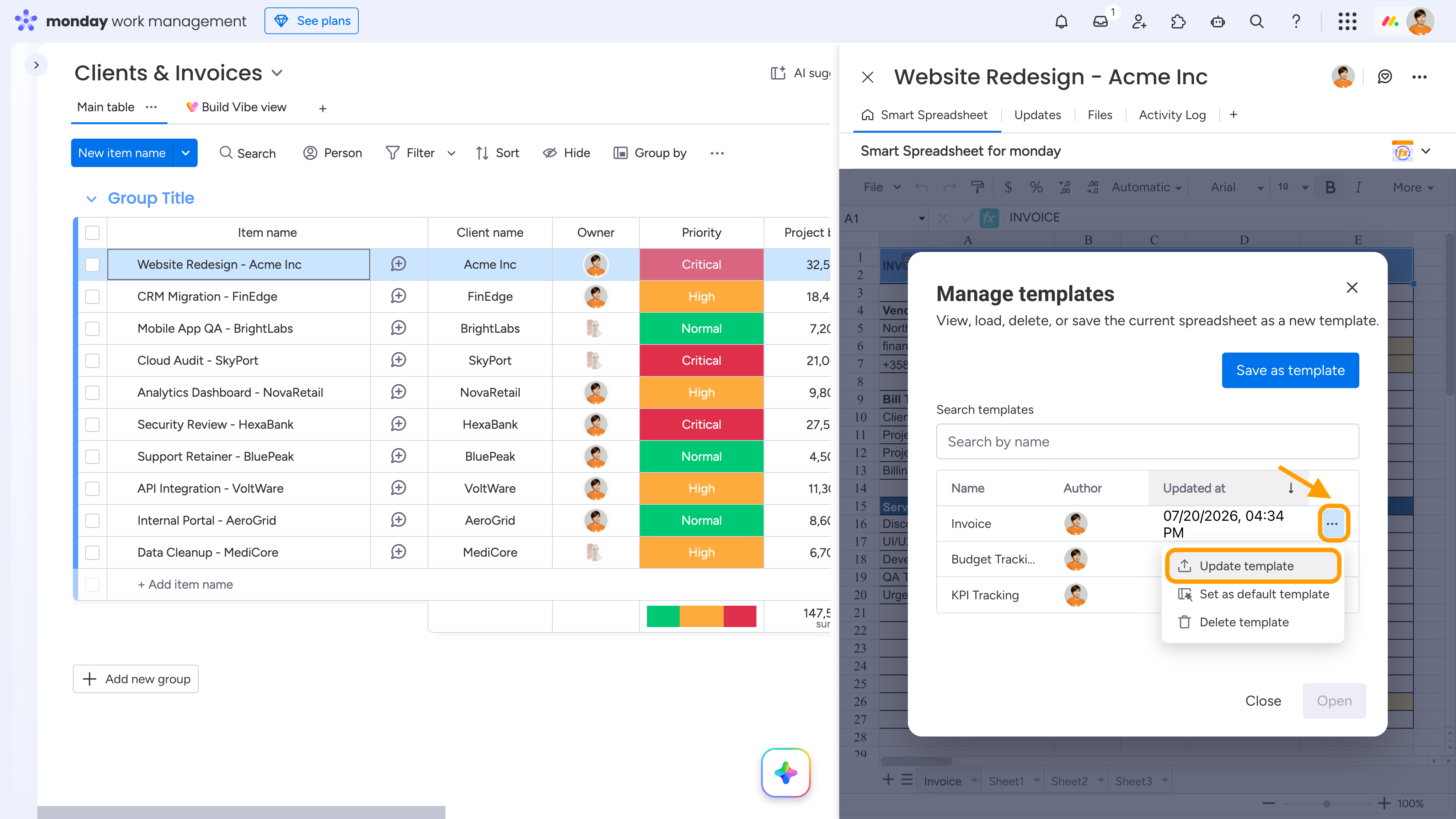
If you later modify the Smart Spreadsheet view, you can update the existing template. If you no longer need it, open the same three-dot menu and select Update or Delete.
To use a template, open the target Smart Spreadsheet view, go to File → Template, and select the required template from the list.
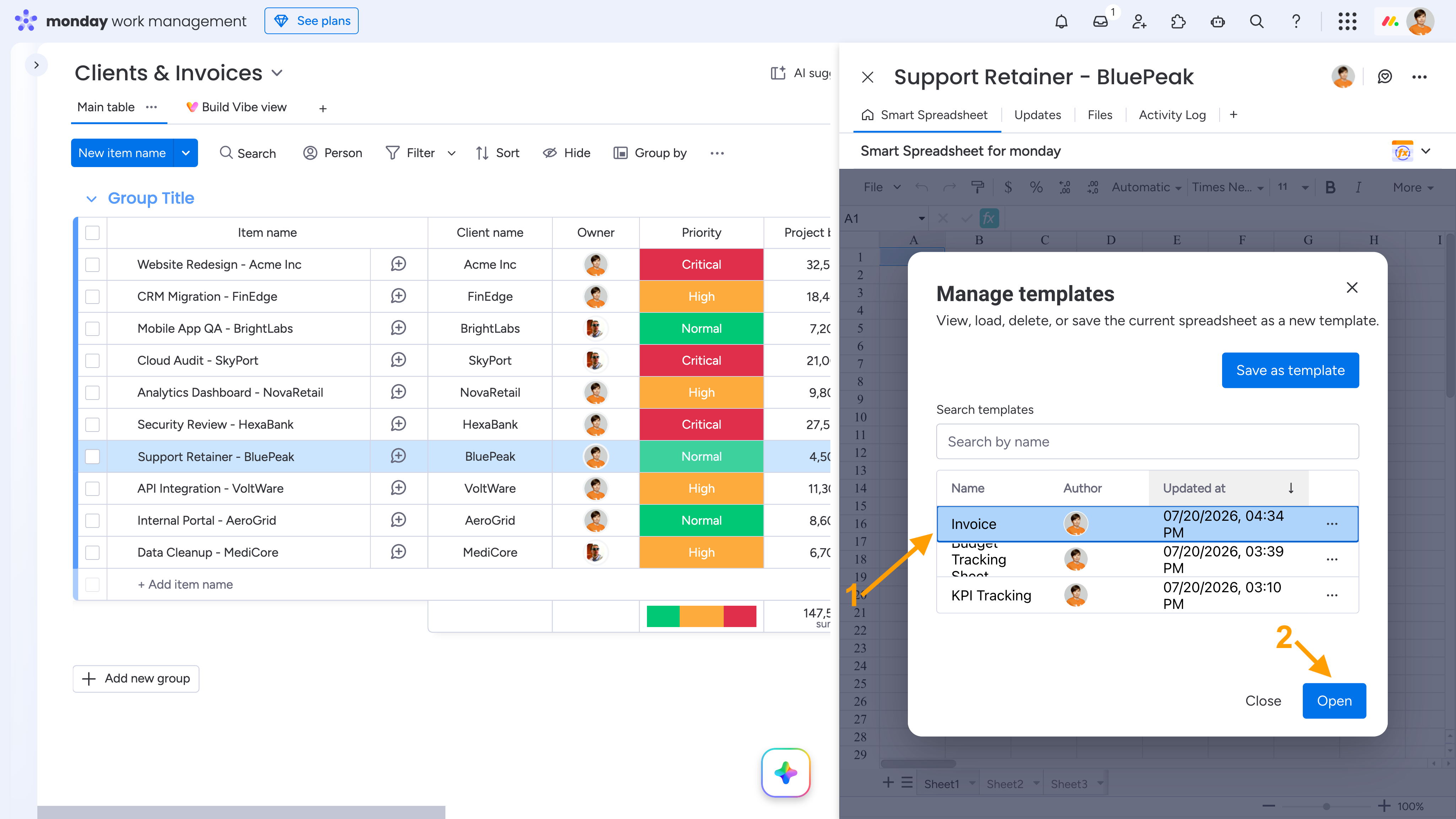
When the template is loaded, the saved spreadsheet structure is restored automatically. Any ITEMVALUE() reference formulas are updated to the current board, and all linked values are recalculated automatically - no manual copying or formula updates are required.
Integration with the Template Center
User Templates
Smart Spreadsheet is fully integrated with the monday.com Template Center, allowing you to include Smart Spreadsheet views in your board templates.
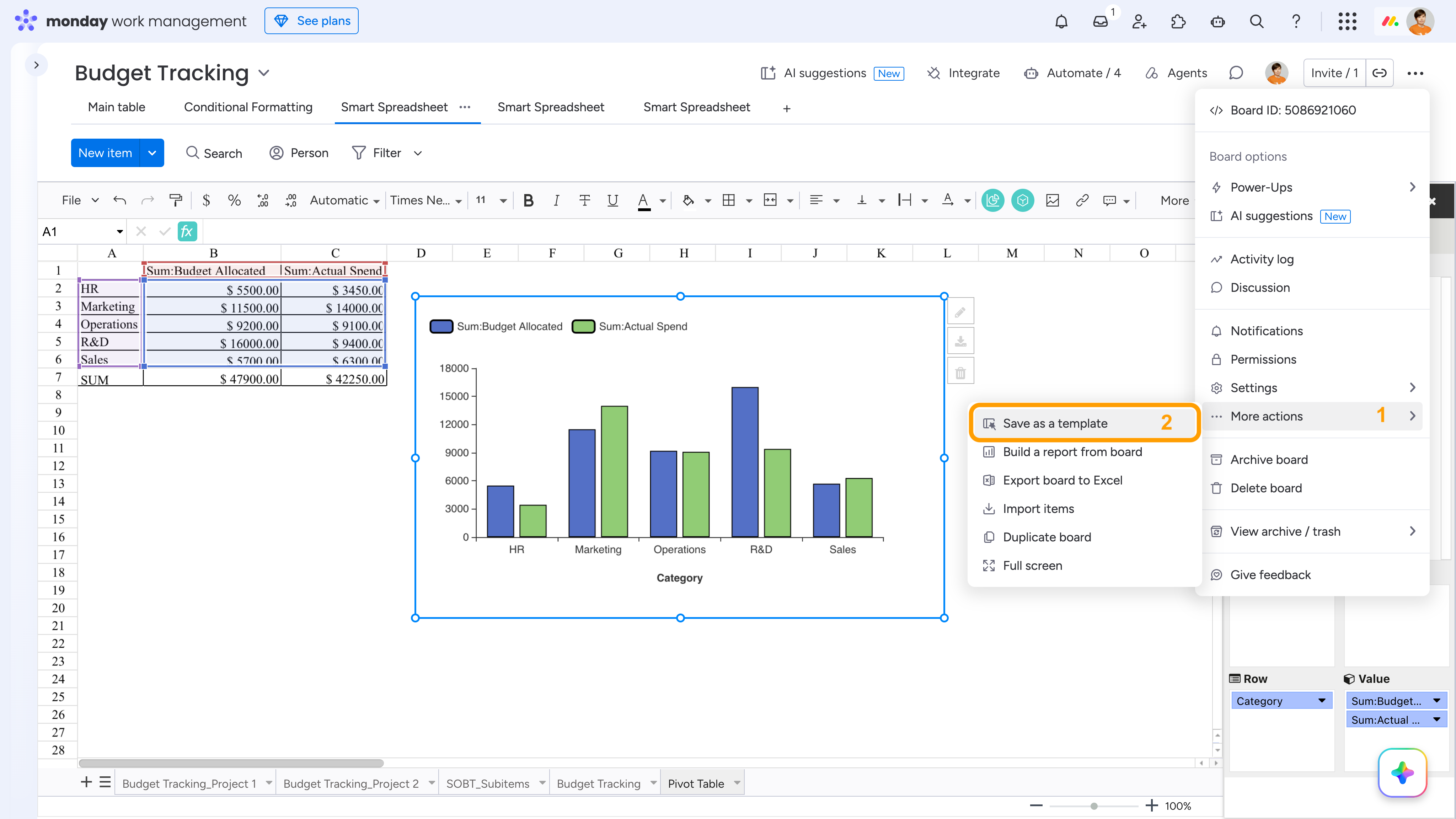
If you create or edit a board template using the standard monday.com template workflow (Board menu → More actions → Save as a template), all Smart Spreadsheet views on the board are saved as part of the template.
When you create a new board from that template, the Smart Spreadsheet views are restored automatically together with their layout, formulas, formatting, charts, and other spreadsheet settings.
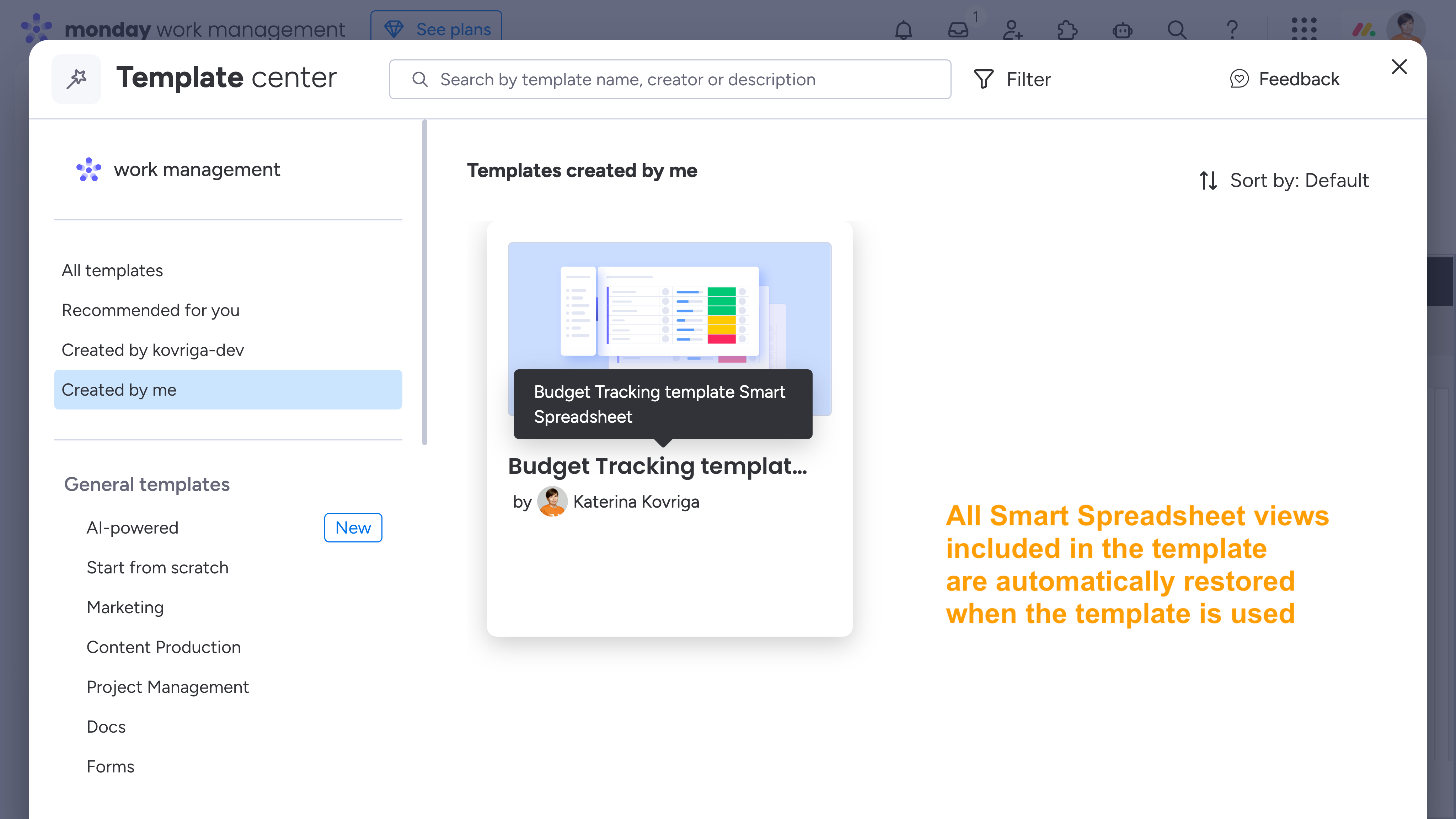

If your Smart Spreadsheet view included imported data from the board when the template was created, the two-way synchronization between the board and the spreadsheet is preserved after creating a new board from the template.
Predefined Templates
We have also prepared templates for some of the most common use cases shared by our customers. Each template combines monday.com boards with Smart Spreadsheet calculations, reusable Item View templates for automatic document generation, automations, and analytics to help you build a ready-to-use workflow for a specific business scenario.
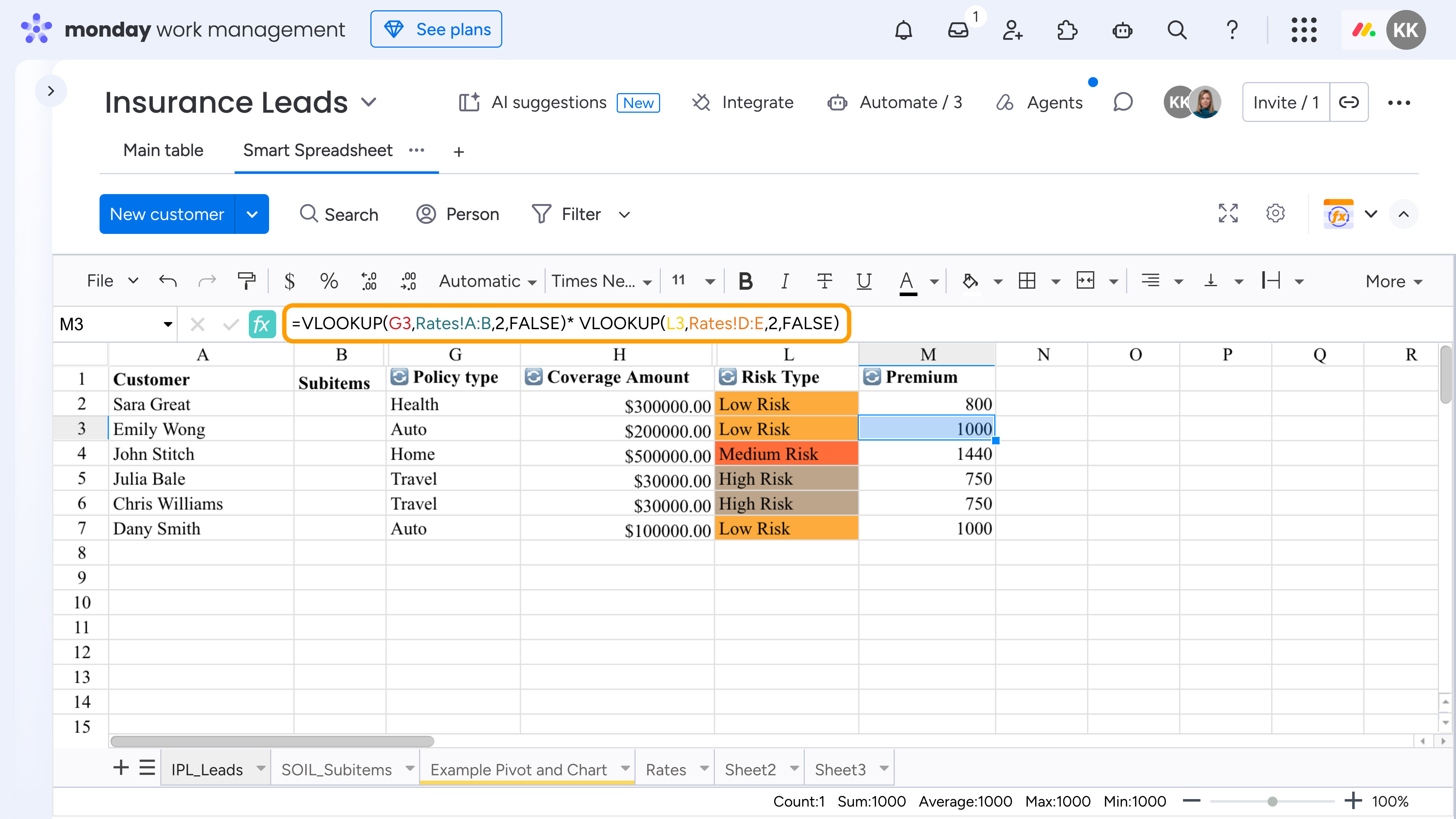
Insurance Pipeline Template
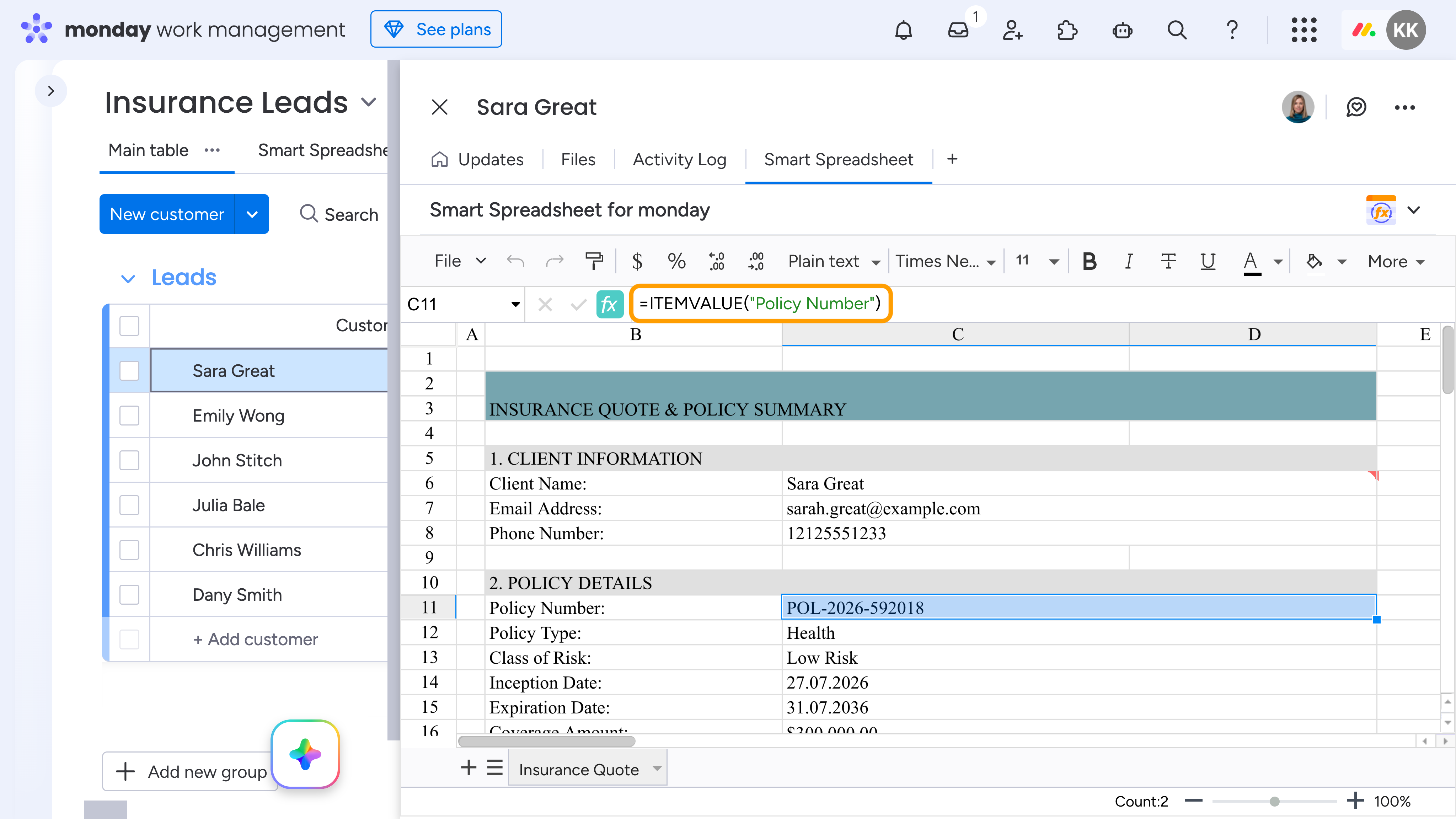
Build an automated insurance workflow in monday.com with Smart Spreadsheet. Use live monday.com data to calculate premiums, generate personalized insurance quotes, and track revenue without manual data entry. Use VLOOKUP-based pricing, reusable Item View templates for automatic quote generation, pivot tables, and charts to manage the workflow from lead qualification to closed deals.
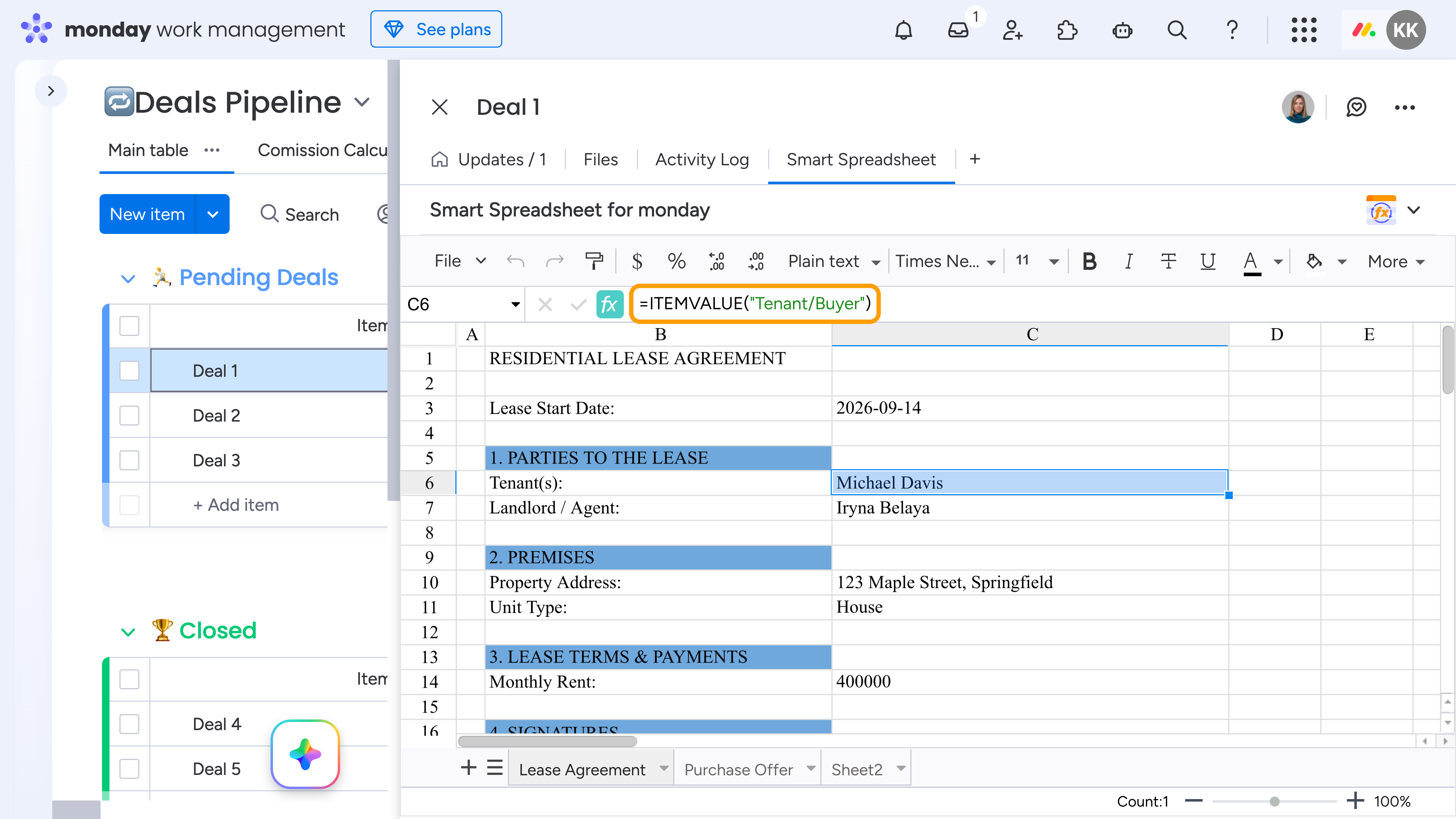
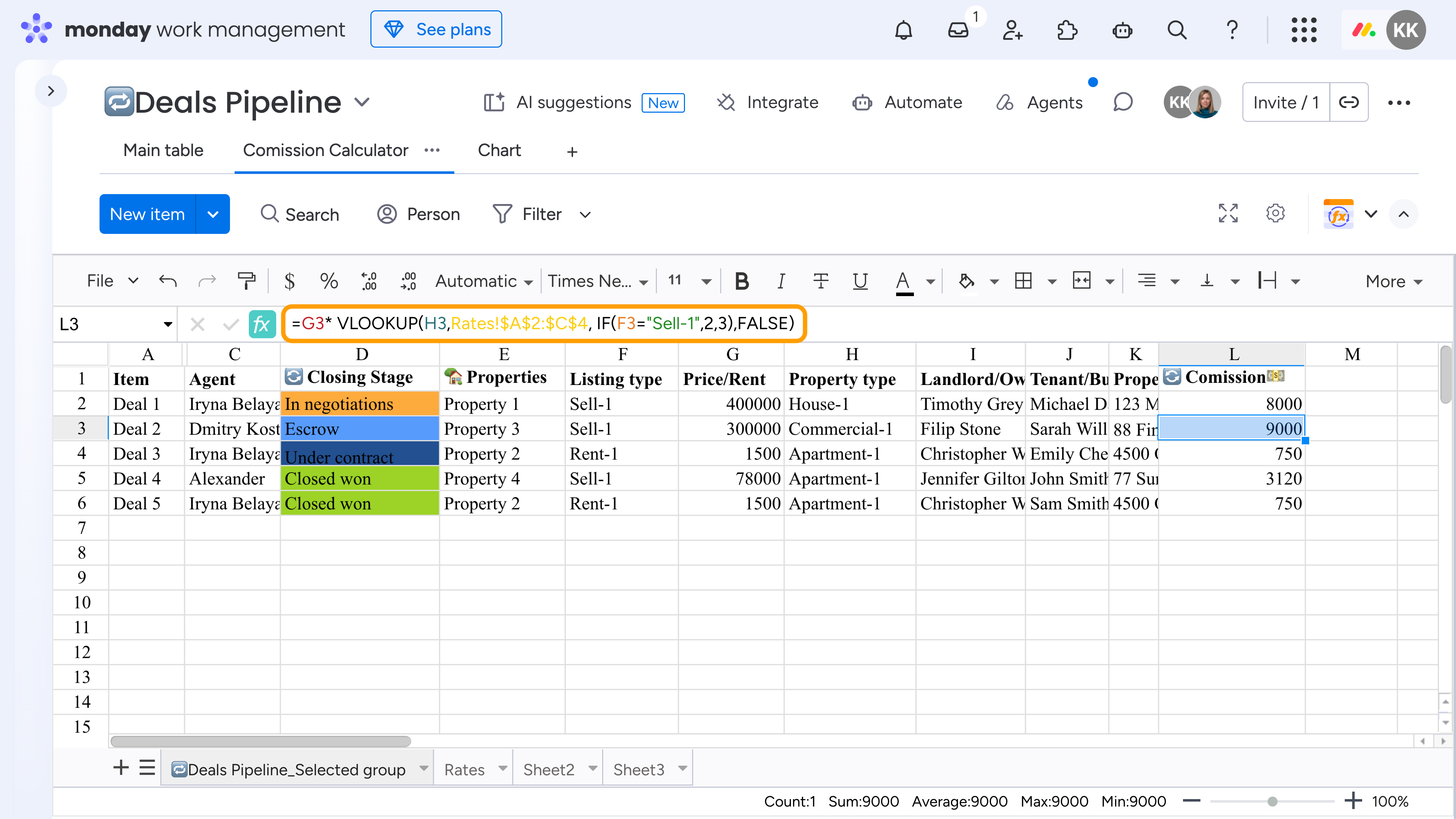
Real Estate Template
Build an automated real estate workflow in monday.com with Smart Spreadsheet. Use live monday.com data to calculate agent commissions, generate property contracts, and track agency revenue without manual data entry. Use VLOOKUP-based commission rules, reusable Item View templates for automatic contract generation, pivot tables, and charts to manage the workflow from contact to closed deals.
Construction Material Planning & Ordering Template
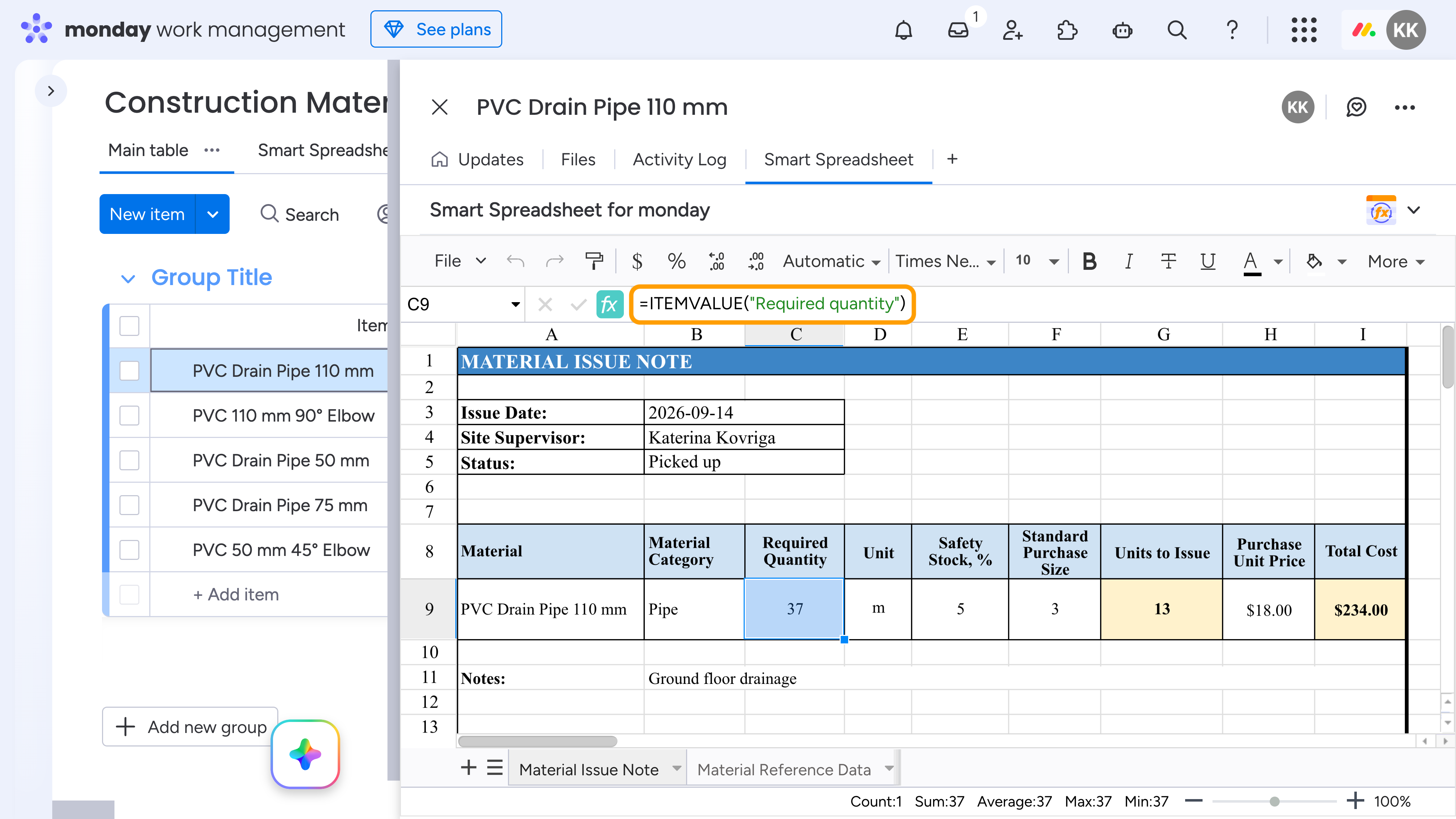
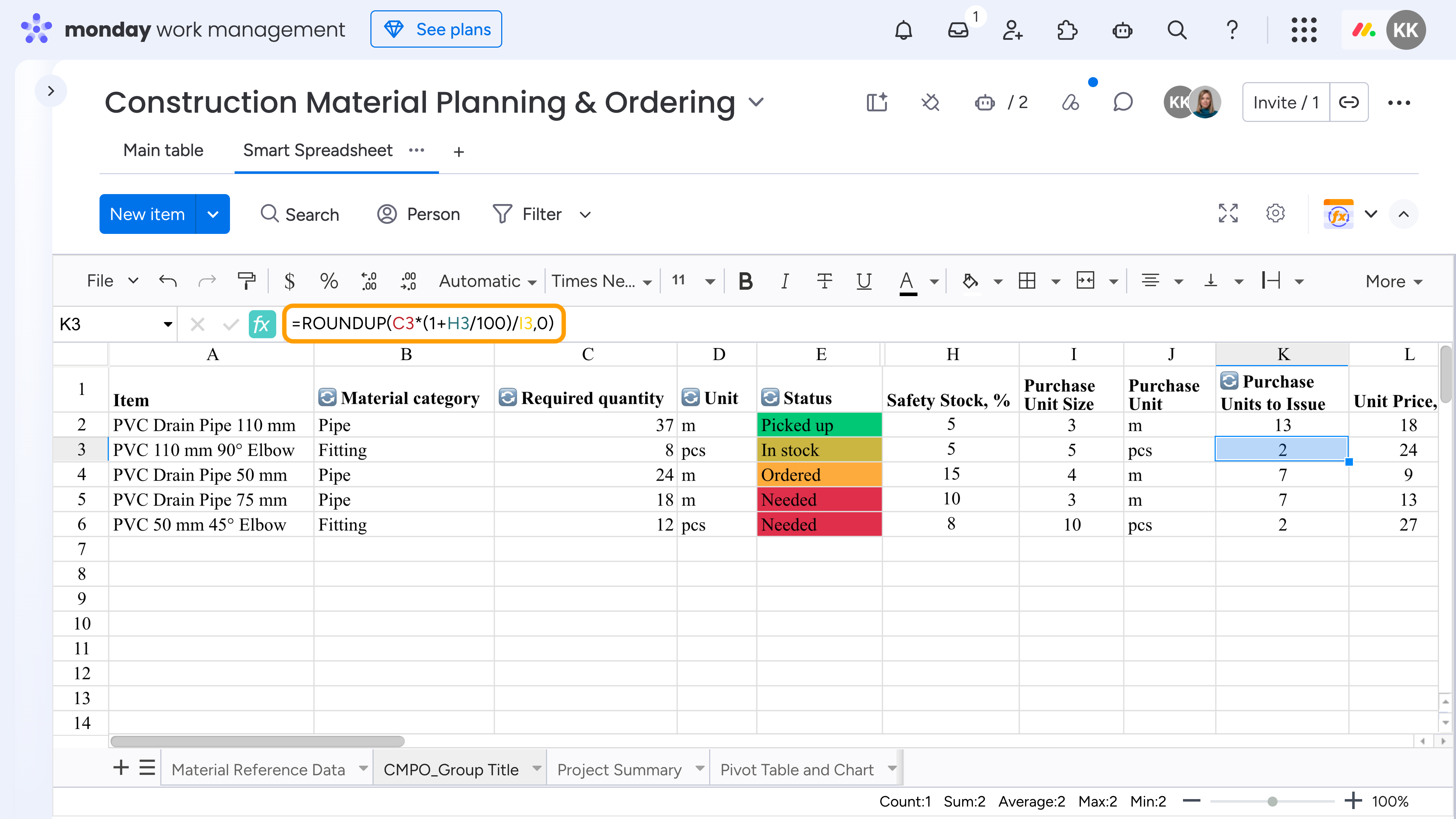
Build an automated material planning workflow in monday.com with Smart Spreadsheet. Use live monday.com data to calculate purchase quantities and material costs without manual calculations. Use VLOOKUP-based calculations to pull safety stock, purchase unit sizes, and prices from reference data, and create reusable Item View templates for automatic material issue note generation, pivot tables, and charts to manage the workflow from on-site measurements to material ordering and pickup.