Cloud
If the Table Filter, Charts & Spreadsheets for Confluence app is not working as expected on Cloud, try the following:
- Check in Incognito/Private mode. Open the Confluence page in your browser’s Incognito/Private mode with all extensions disabled and check if the issue persists.
- If the problem persists, please contact our support team and provide the following information. This will help us reproduce and investigate the issue:
Instructions on how to collect these files are described below.
If the issue is related to the Table Spreadsheet macro
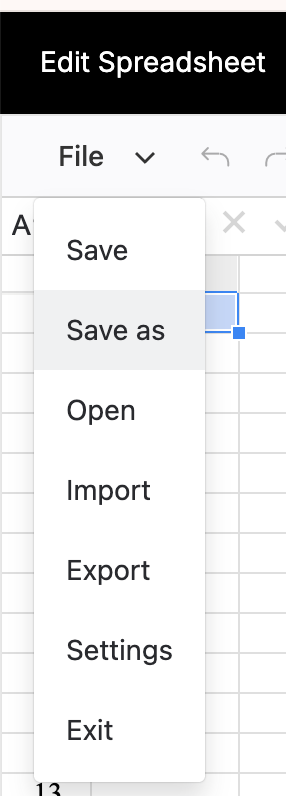
Please provide a .tfss file so we can reproduce the issue on our side. You can export it in edit mode inside the Table Spreadsheet macro: File → Save as.
If the file contains sensitive information, feel free to hide or remove it before sending.
Page storage format
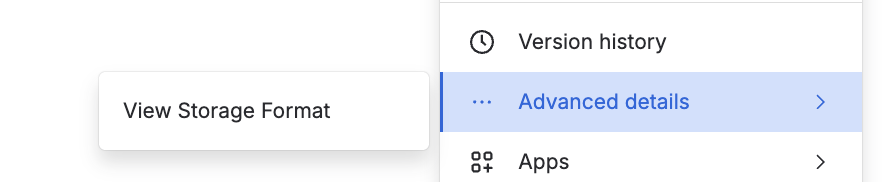
You can view the Confluence page storage format for a given page by choosing … -> ... Advanced details -> View Storage Format (available for Confluence admin):
HAR (HTTP Archive) file and browser console log
You can generate a HAR file following the instructions:
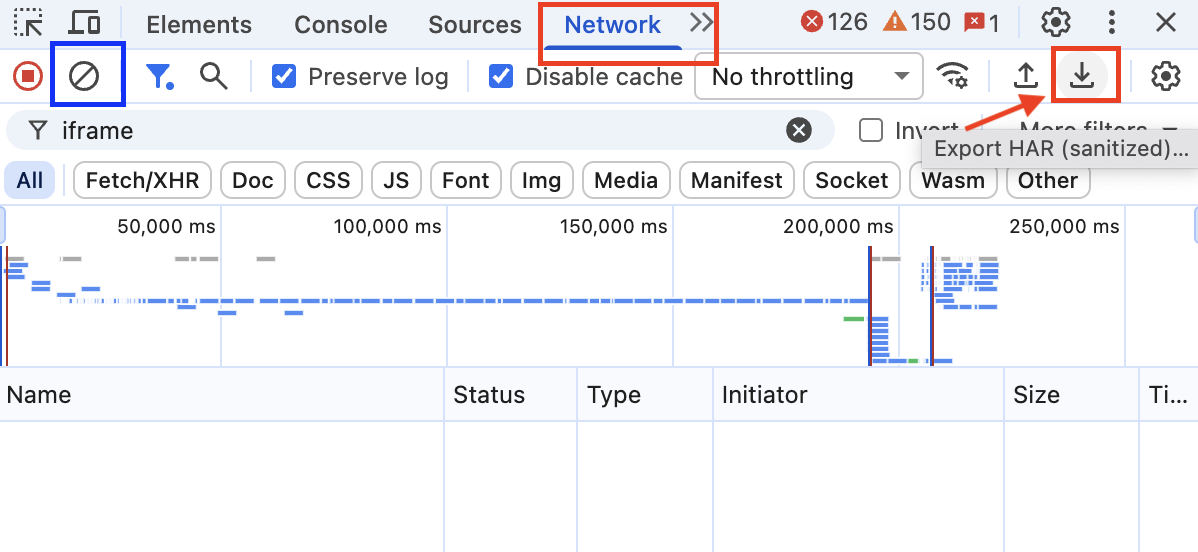
Open Network tab in browser console first - open the browser console (press F12), switch to the Network tab
Clear the current Network log
Keep the Network tab open
Refresh your page and wait for the content to load for ~3 minutes - you should see many requests in the Network tab
Save data in the Network tab as a HAR file and attach it to the ticket
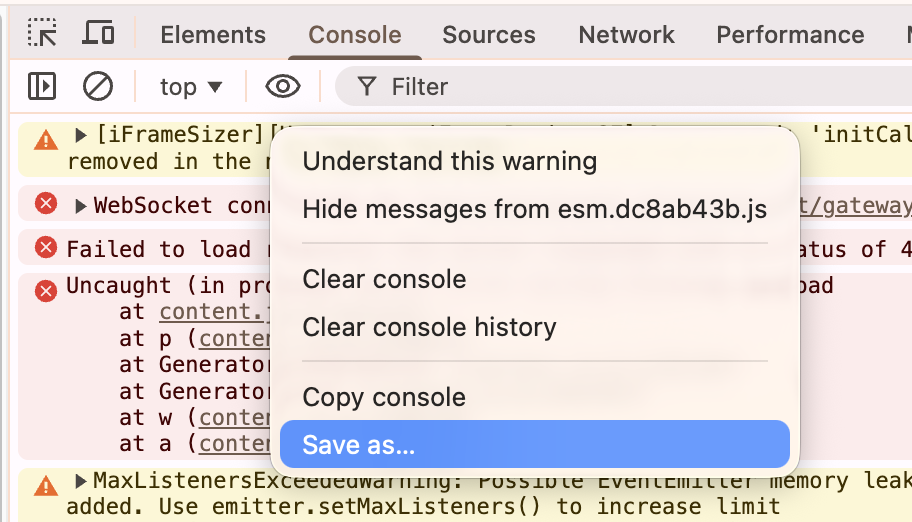
After reproducing the issue and saving the HAR file, switch to the Console tab, copy the logs from the browser console, and attach the corresponding file to the ticket as well.
Data Center
If the Table Filter, Charts & Spreadsheets for Confluence app is not working as expected on Data Center, please try the following steps via the Confluence admin user:
Enable Safe Mode: enter safe mode, enable only the Table Filter, Charts & Spreadsheets for Confluence app in the Confluence Administration console, and see if the issue persists.
Check the app version. Make sure you’re using the latest version of the app for your hosting Data Center. Update the app if necessary.
Try to clear the plugin's cache.
If the above steps did not solve your issue, please contact us and mention your Confluence, plugin, and browser versions, and attach the page storage format as a .txt file. Screenshots or a short screen recording where the issue occurs would also help to understand the problem better.
If the issue is related to the Table Spreadsheet macro
Please provide a .tfss file so we can reproduce the issue on our side. You can export it in edit mode inside the Table Spreadsheet macro: File → Save as.
If the file contains sensitive information, feel free to hide or remove it before sending.