Log in
Linked Applications
Loading…
Spaces
People
Learning
Hit enter to search
Help
Online Help
Keyboard Shortcuts
Feed Builder
What’s new
About Confluence
Log in
(OUTDATED) Table Filter and Charts for Confluence
Edit space details
Space shortcuts
Contact Us
Page tree
Browse pages
Configure
Space tools
Remove Read Confirmation
A
t
tachments (9)
Page History
Page Information
Resolved comments
View in Hierarchy
View Source
Export to PDF
Export to Word
Export to PDF
Pages
Table Filter for Confluence
Jira links
Workflow
Read Confirmation
How to use Table Transformer macro
This version of the app's documentation is outdated. Please find the information you're looking for here:
Table Transformer
Table Transformer is one of the macros bundled in the
(OUTDATED) Table Filter and Charts for Confluence
app. The macro allows you to merge and associate all kinds of tables using both automatic presets and advanced SQL queries.
See the next pages for the details:
Default automatic presets
Custom Transformation - use cases with advanced SQL queries
What do I need to get started?
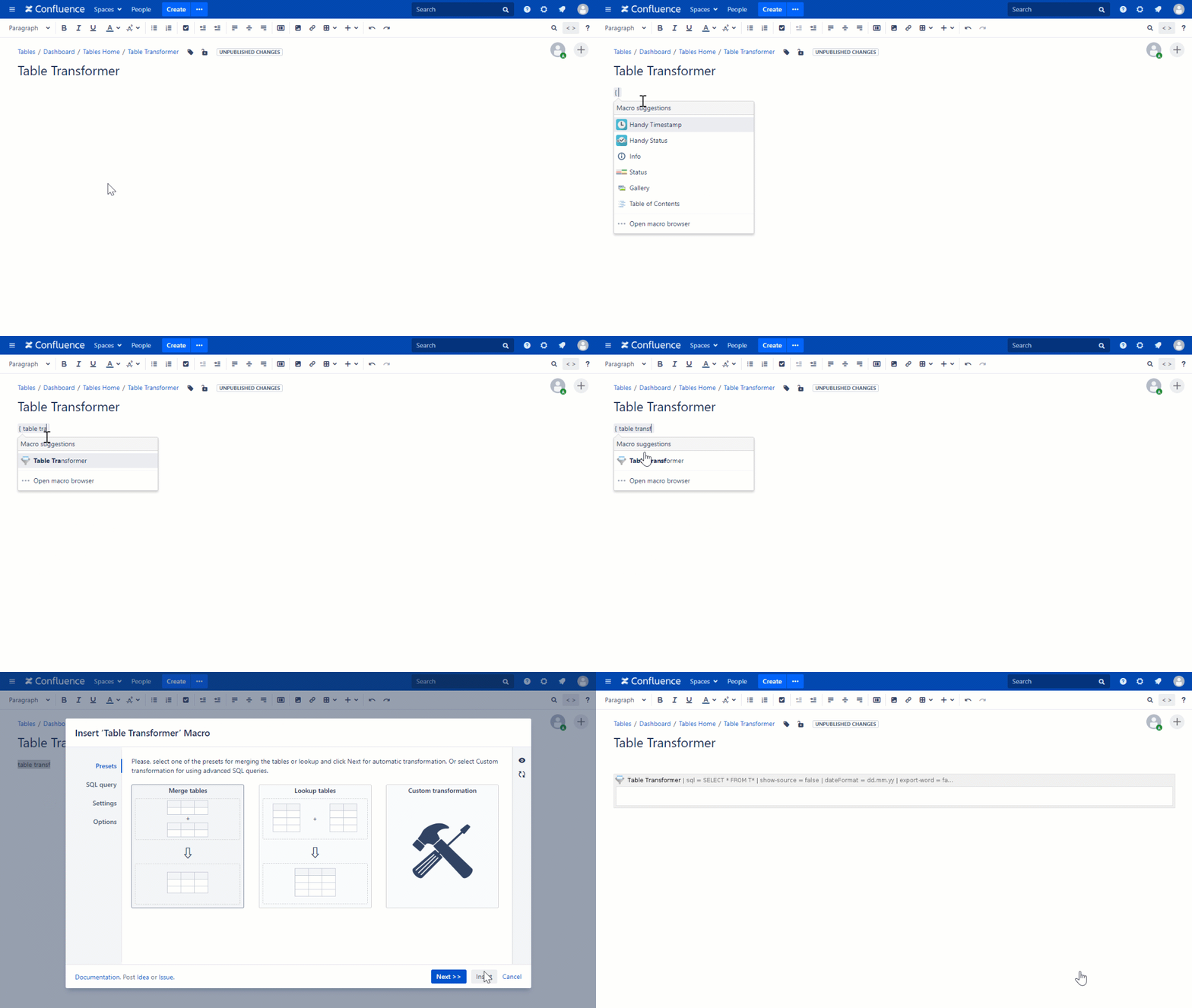
Step 1. Add the macro to the page in the edit mode:
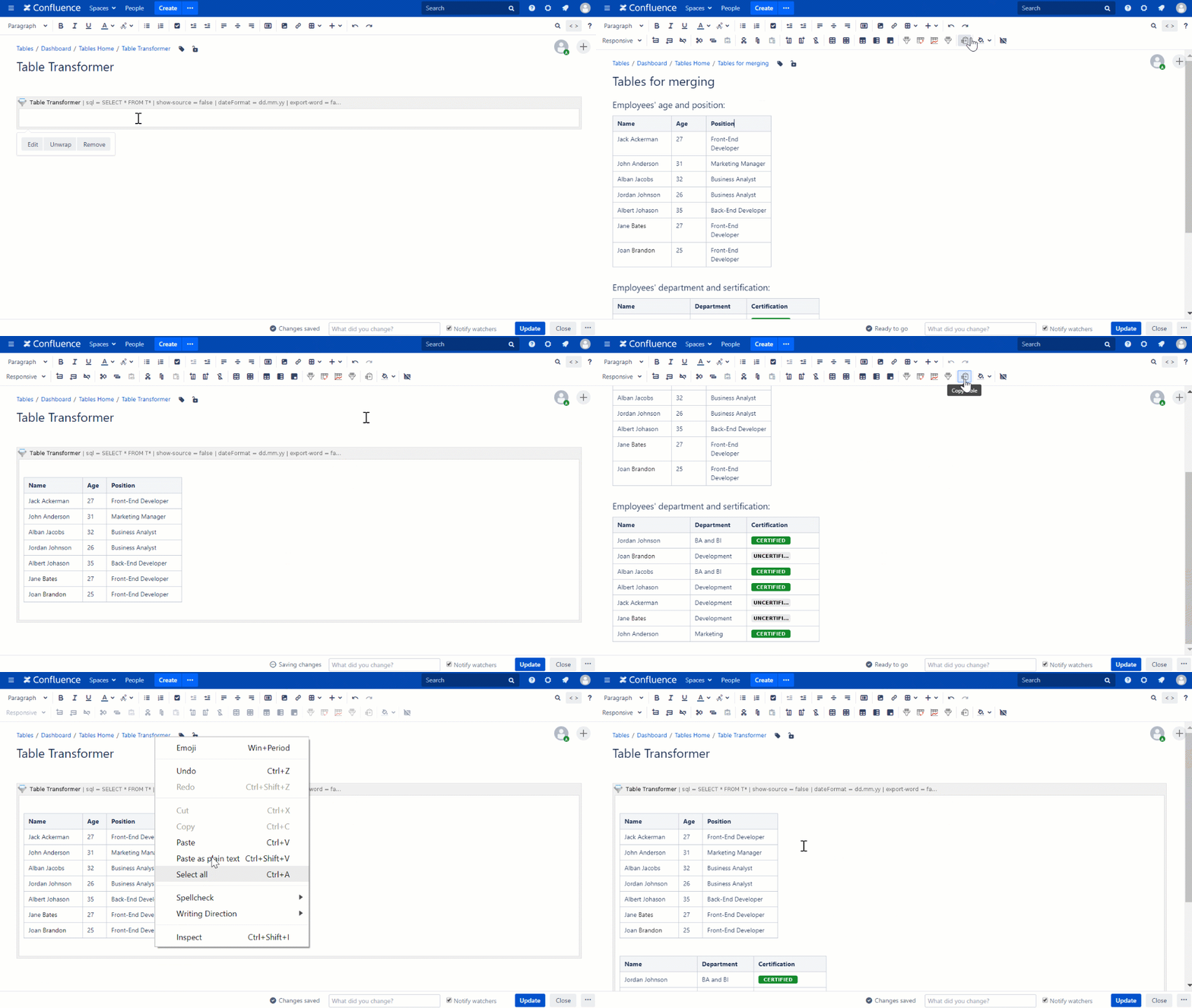
Step 2. Place tables or macros outputting or including excerpted tables in the macro placeholder:
Read more:
How to use Table Excerpt and Table Excerpt Include macros
Step 3. Select the automatic preset or the custom transformation mode:
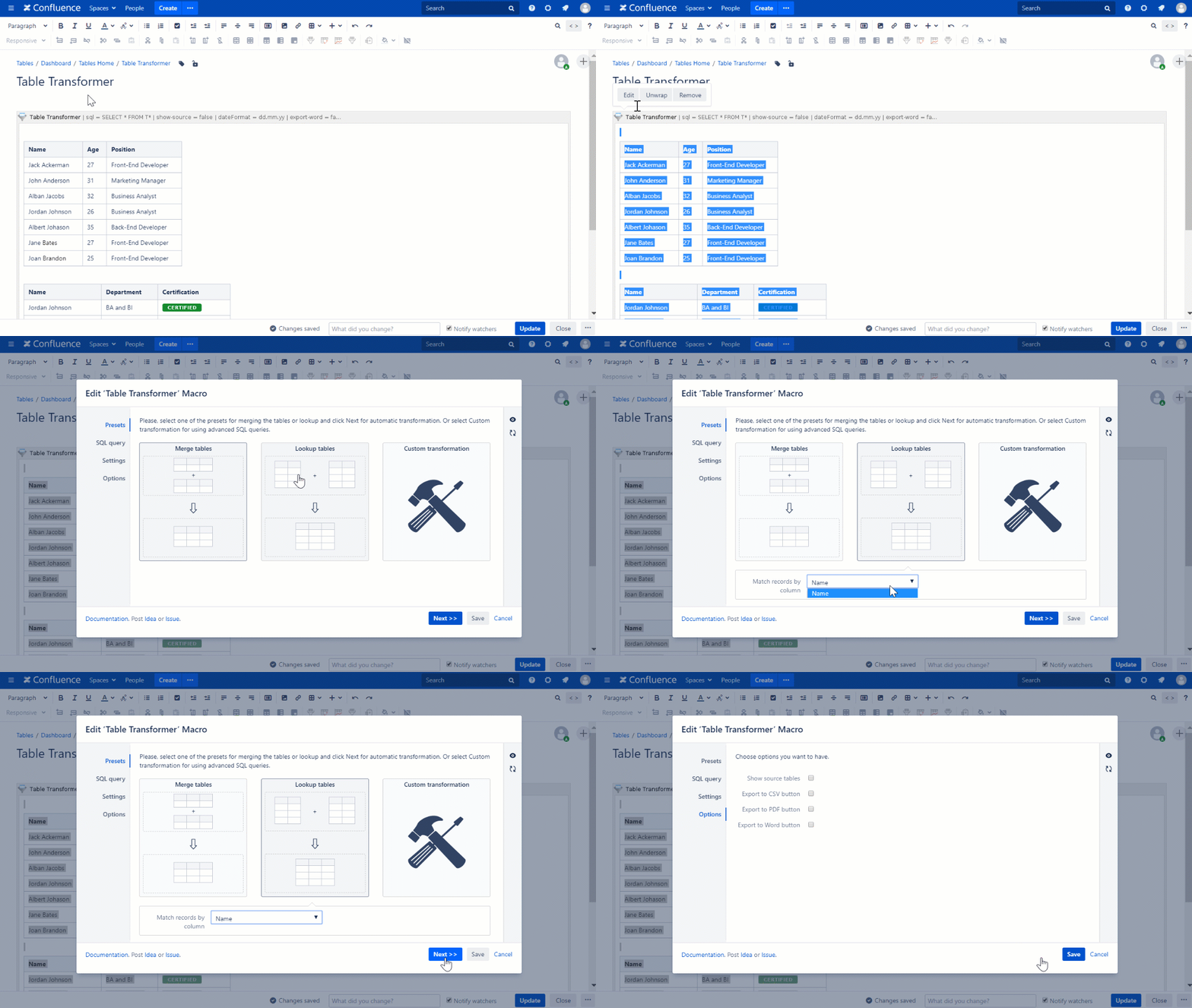
Read more:
Merge Tables Preset
Lookup Tables Preset
Custom Transformation - Use Cases with Advanced SQL Queries
Step 4. Set the options and settings if needed:
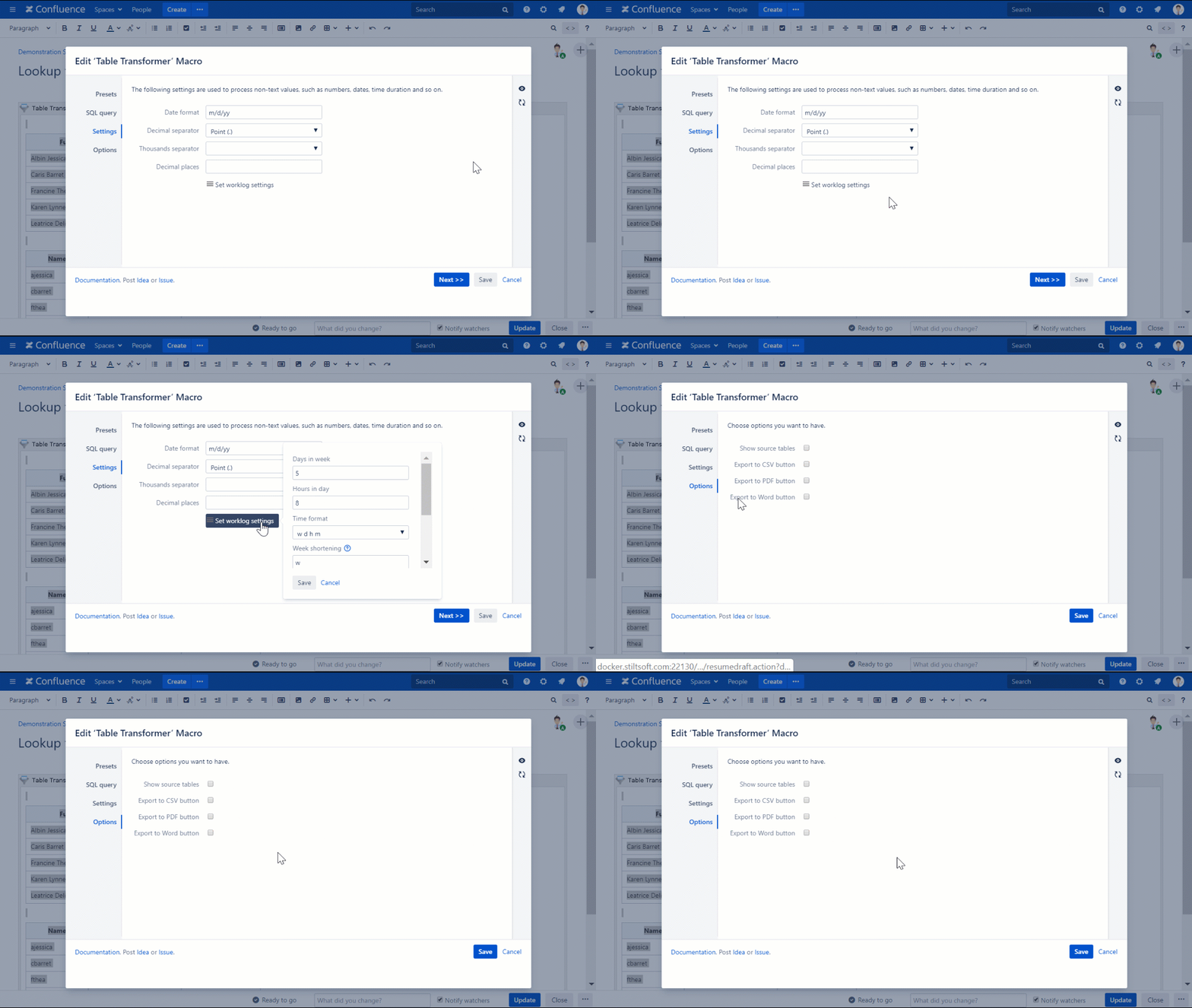
Read more:
Managing parameters of the macro
Step 5. Save the macro and use the joint table in combination with other macros:
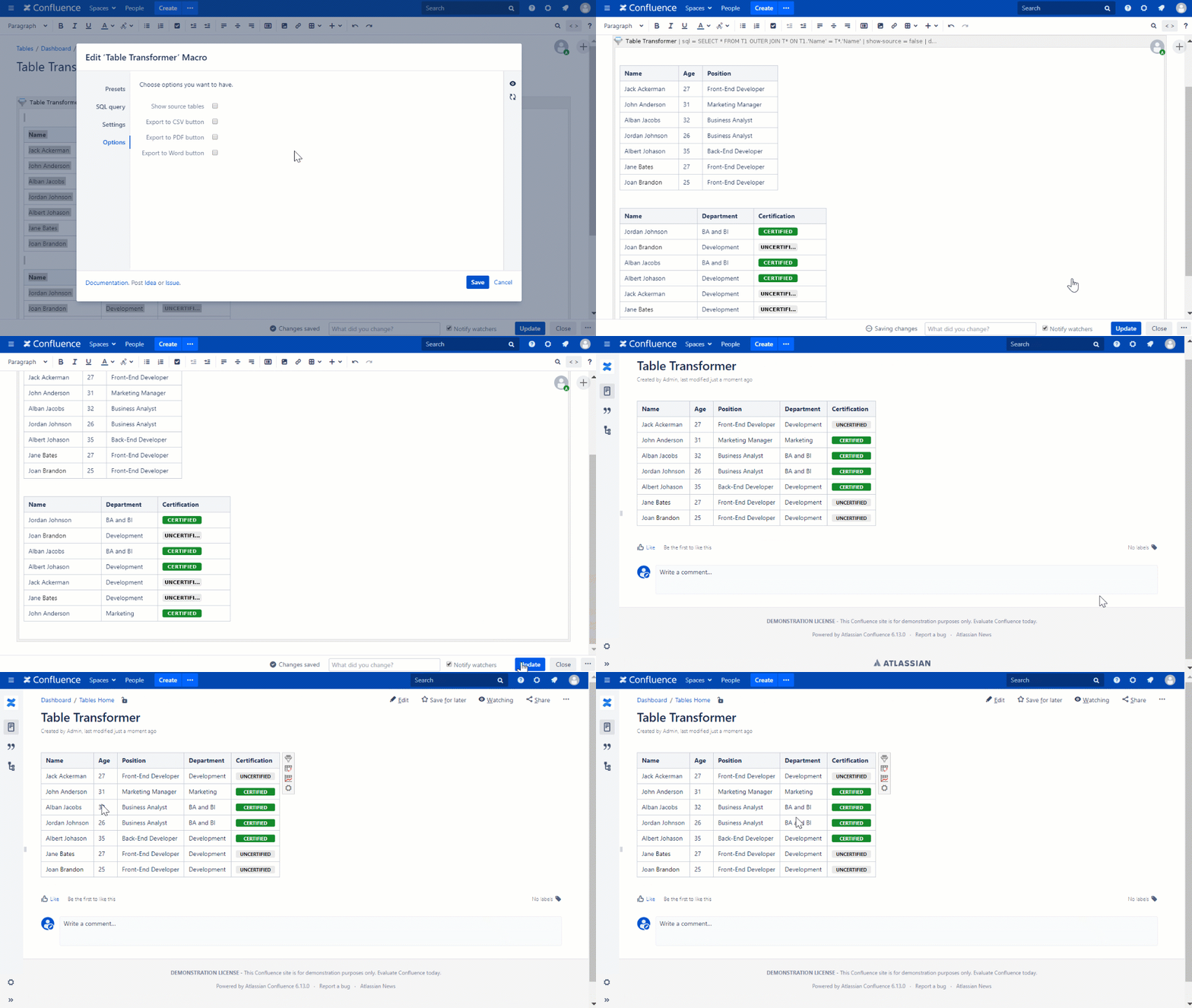
Read more:
How to work with multiple macros at once
Learn
how to
:
Filter joint tables with the help of the various filter types:
Build various charts based on joint tables:
Create a pivot table from joint tables, calculate and aggregate data:
No labels
Overview
Content Tools
{"serverDuration": 326, "requestCorrelationId": "5f4c5a4e687ed5fd"}