The Permissions page lets you configure allow lists for the Awesome Graphs pages, UI elements, and documented REST API entry points listed below. By default, no allow-list restrictions are applied. Adding users or groups restricts the access points covered by the corresponding setting.
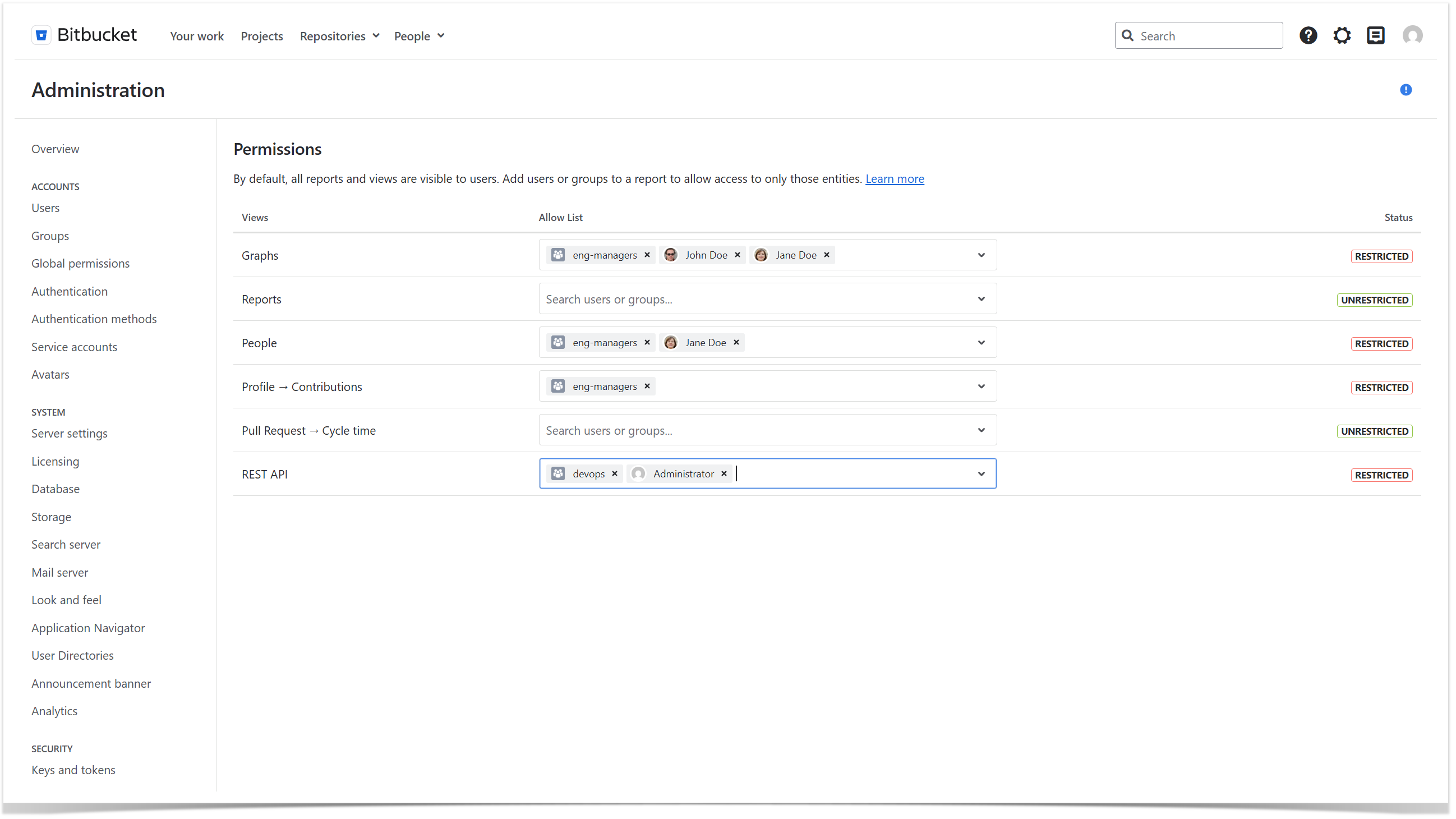
Below on the page, you'll find:
- an explanation of how the access logic works
- instructions on how to configure permissions
- an overview of the features you can restrict
For easier navigation, use the Table of Contents at the top-right of the page.
How the access logic works
By default, all Awesome Graphs features are unrestricted. Each permission setting uses an allow list and has one of the following states:
| Status | Meaning |
|---|
| Unrestricted | No allow-list restriction is applied to the pages, UI elements, or documented API entry points covered by this setting. |
| Restricted | Access to those pages, UI elements, or documented API entry points is limited to selected users and members of selected groups. |
For a Restricted setting, a user meets the allow-list requirement if at least one of the following is true:
- the user is added directly to the feature allow-list
- the user belongs to a group added to the feature allow-list
When a feature is restricted, Awesome Graphs limits its visibility in the UI and on supported feature pages. If a user does not have access to a feature, Awesome Graphs hides the corresponding tabs, buttons, links, or menu items from the UI where applicable.
These settings apply to the Awesome Graphs feature visibility and supported access points. They do not replace Bitbucket's native permission model. Users still need the corresponding Bitbucket access to the project, repository, pull request, or profile page.
Additionally, these settings do not restrict analytics data returned through internal application APIs or the Bitbucket REST API.
Permissions can be configured globally on the Administration page. Only System Admins can manage these settings.
To restrict access to an Awesome Graphs feature:
1. Navigate to the Permissions tab on the Administration page.
2. Find the feature you want to configure.
3. Start typing a Bitbucket user's or a group's name.
4. Choose the name you want to add from the list of suggestions or press Enter when the necessary user or group is displayed.
5. Repeat these steps to add more users or groups if needed.
Once at least one user or group is added, the feature status changes to Restricted.
To make a feature available to everyone again, remove all selected users and groups from that feature. When no users or groups are specified, the feature status changes to Unrestricted.
Features controlled on this page
You can configure permissions for the following Awesome Graphs features:
| Feature | What is affected |
|---|
| Graphs | Graphs pages on the global, project and repository levels |
| Reports | Reports pages on the project and repository levels |
| People | The global People page |
| Pull Requests → Cycle Time | The Cycle Time column and related details on Pull Requests pages |
| Profile → Contributions | The Contributions tab in Bitbucket user profiles |
| REST API | Documented Awesome Graphs REST API entry points and related UI controls |
Please note that the Analytics section in the header combines entry points from several Awesome Graphs features. The items available in this menu depend on the user's permissions:
If a user does not have access to a corresponding feature, its entry points are hidden from the Analytics menu.
