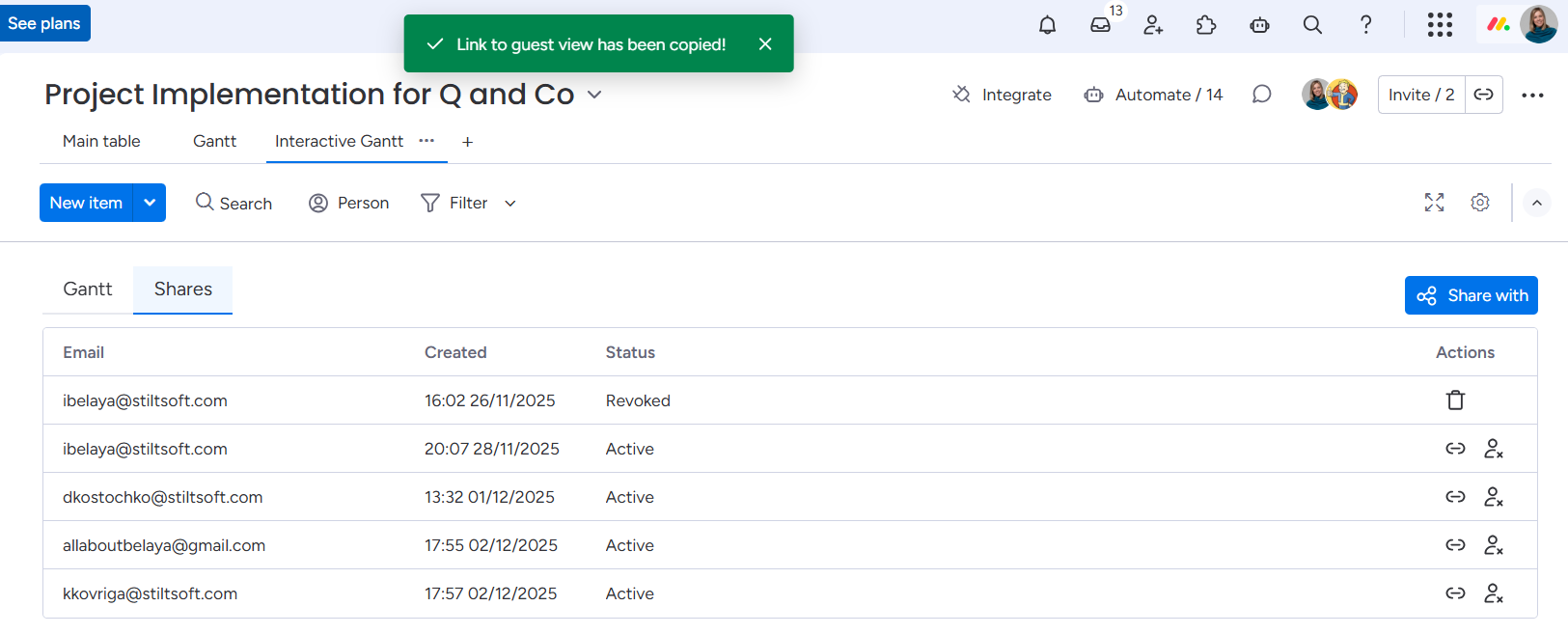
To share your Interactive Gantt Timeline with a client, open a board and switch to the Shares tab inside your Interactive Gantt view. This tab shows all invited guests, their access status, and when their access was created.
Click Share with in the upper-right corner to invite external users.
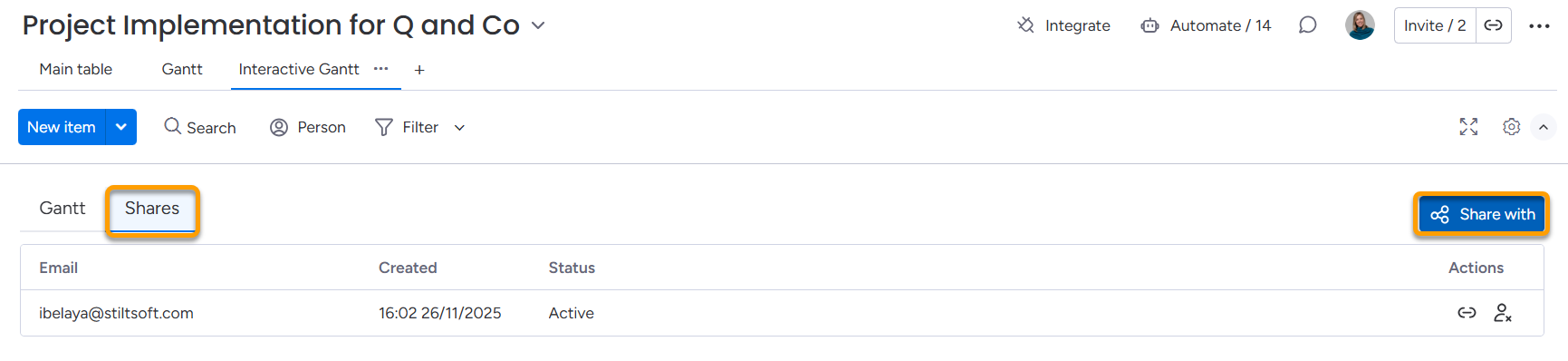
 Only the board owner can share Interactive Gantt Timeline, test and approve suggestions. Other team members can only access the Interactive Gantt Timeline view.
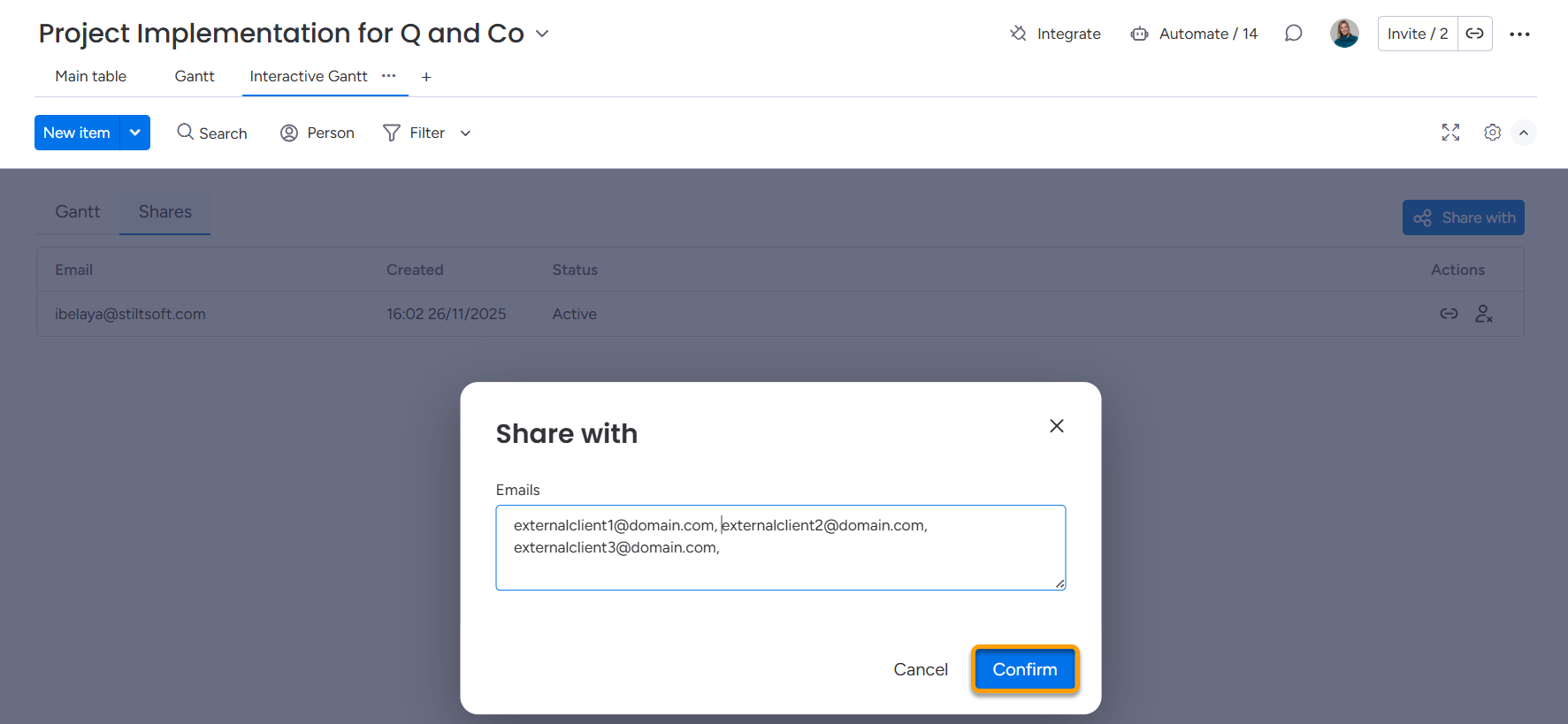
In the Share with dialog, enter one or more email addresses of people you want to invite. You can add multiple emails at once — just separate them with commas.
When ready, click Confirm to send invitations and generate access links.
Guest View on Interactive Gantt
To send the access link manually or check the guest's view, click the guest actions menu and choose Copy guest link.
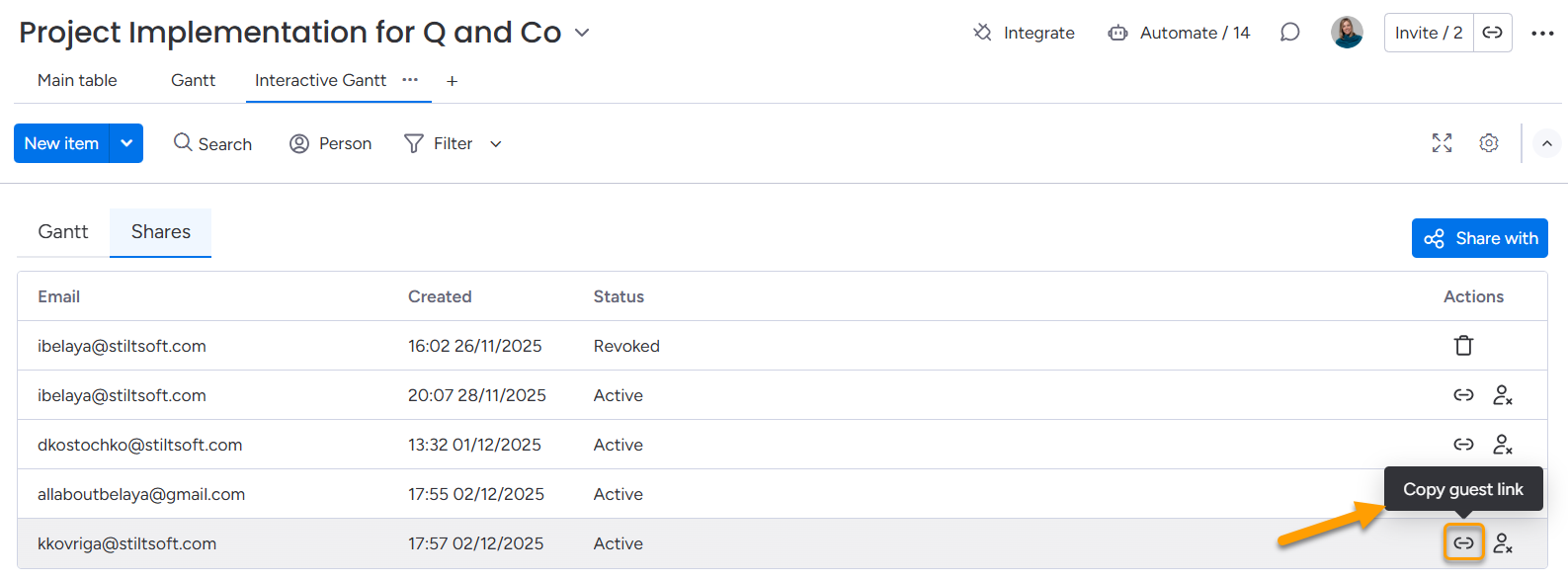
After copying the link, you’ll see a confirmation notification that the guest URL has been successfully copied. This ensures you can safely send the link to your client. You can then paste the link in the browser line and open the Interactive Gantt's client view.
Revoke Access to Gantt
If you no longer want a guest to access your Gantt timeline, open the guest’s action menu and select Revoke access to guest.
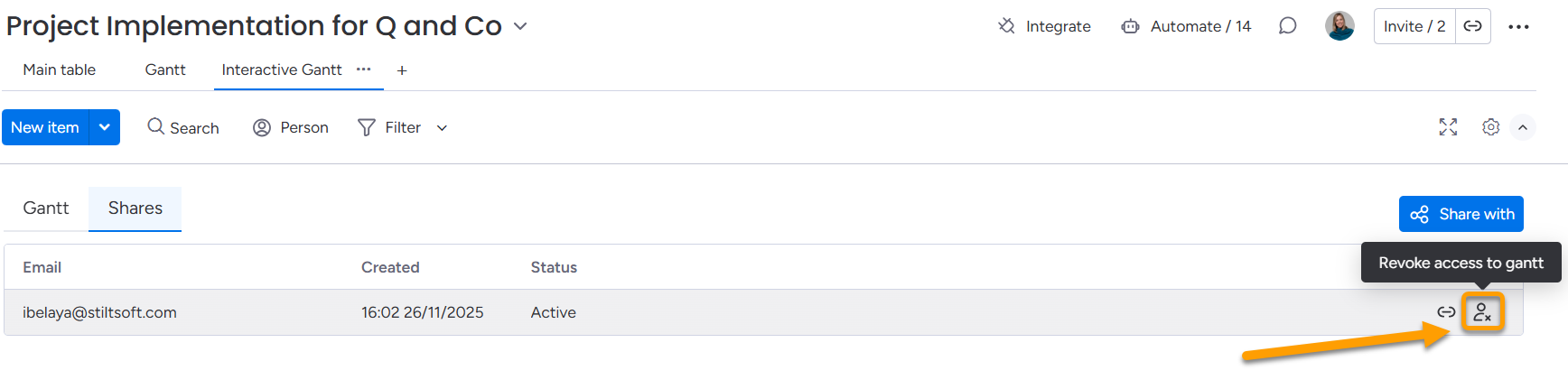
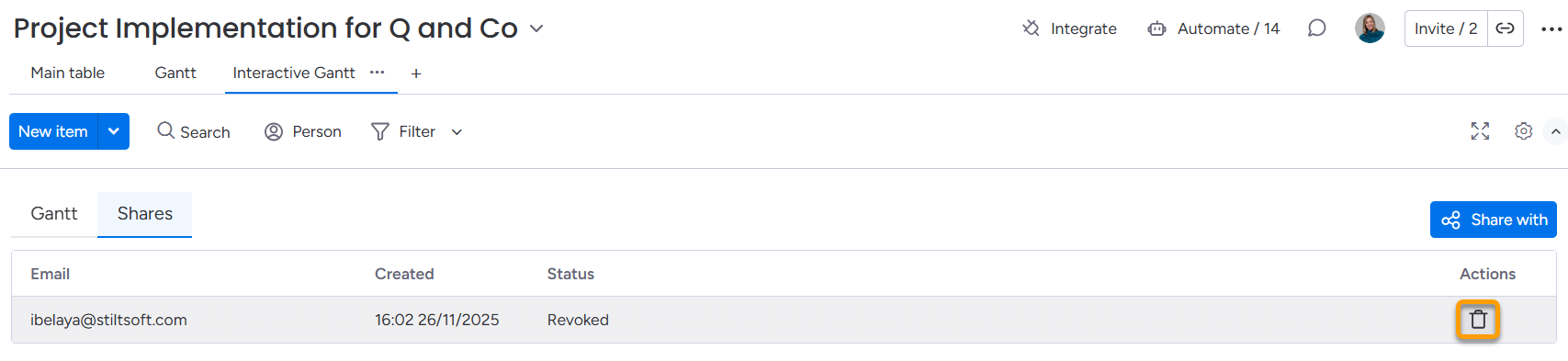
Once access is revoked, the guest link immediately becomes inactive and the status changes to Revoked.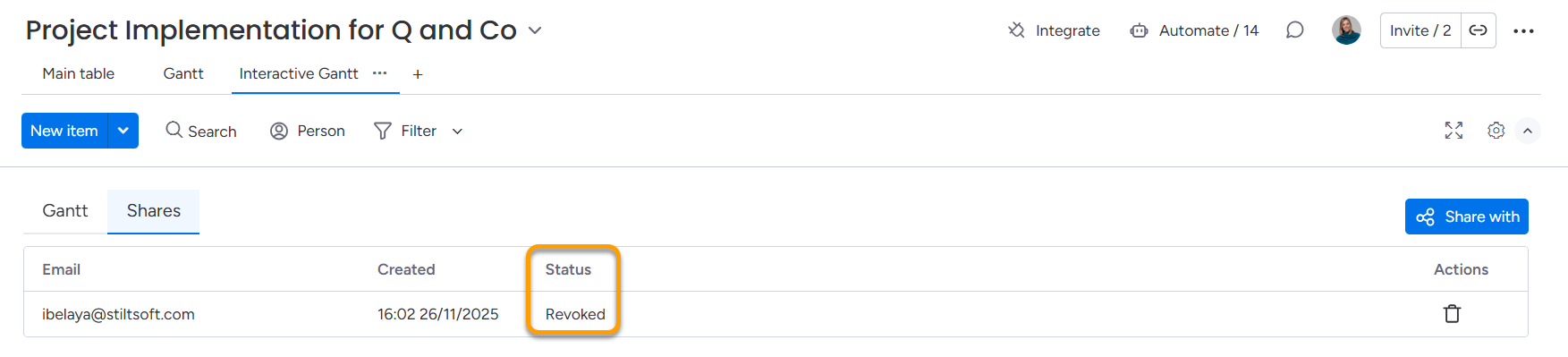
To completely remove guest information from your board, click the bucket icon in the Actions column.
This will permanently delete:
all guest emails,
shared links
Use this option if you want to reset external sharing or clear old integrations.