What-if Mode
What-if Mode allows you to test timeline changes suggested by guests without immediately applying them to your real plan.
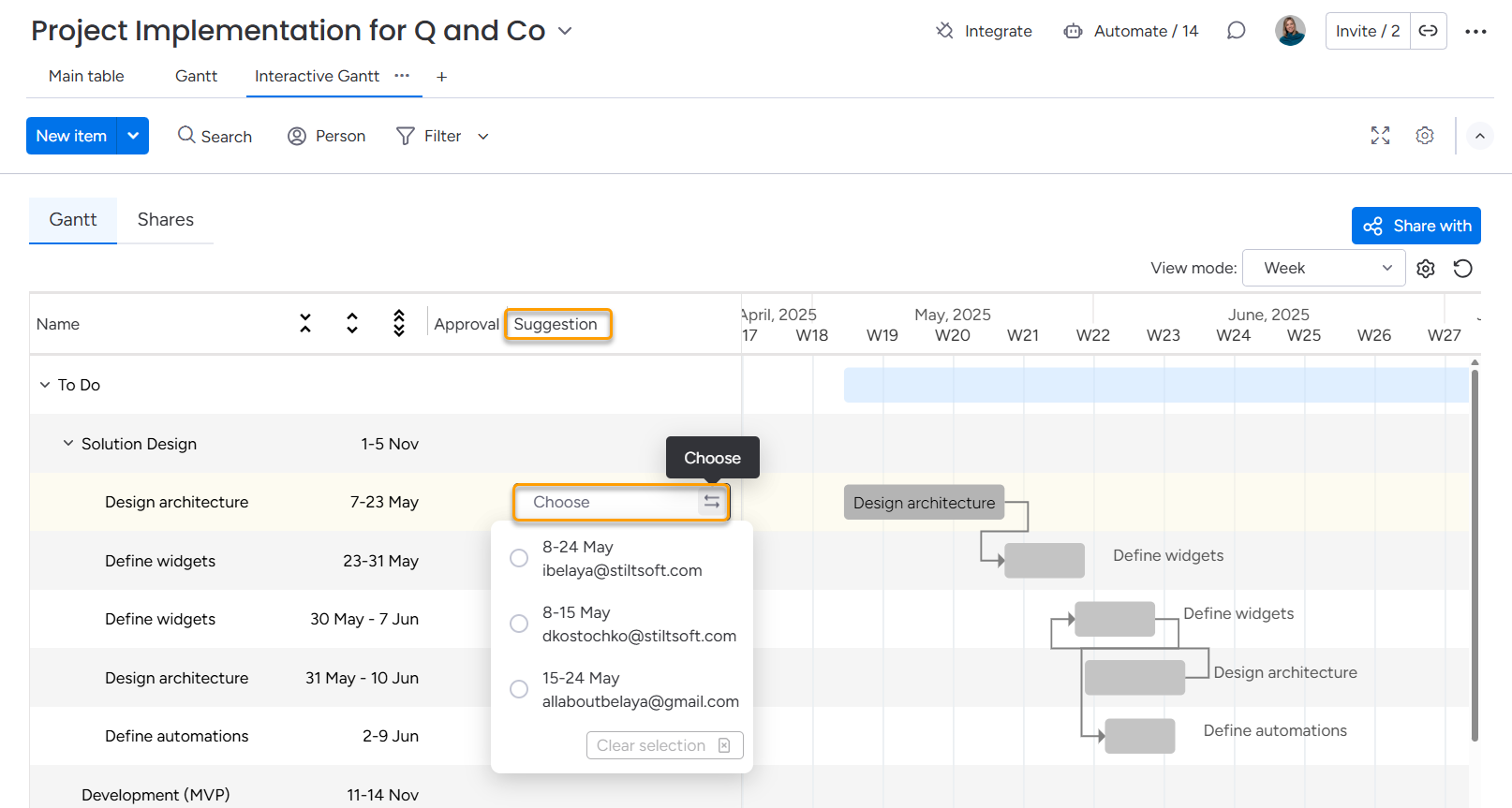
Each suggestion appears in the Suggestion column and can be reviewed independently.
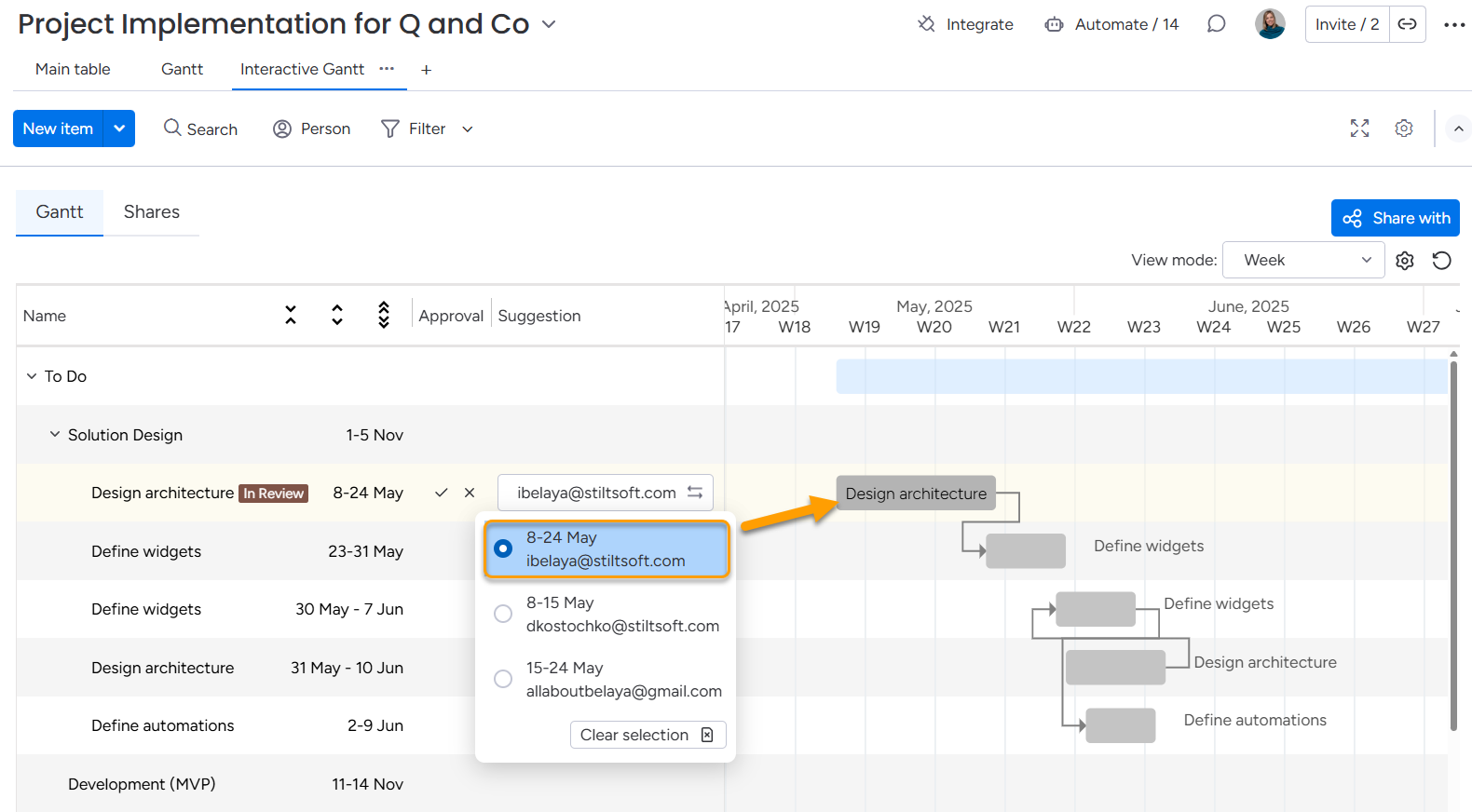
Selecting a suggestion temporarily applies the proposed dates to the timeline so you can visually test the impact on the schedule.
This makes it easy to:
When multiple suggestions exist for a task, click Choose in the Suggestion column to open the list.
Each entry shows:
Click any option to preview it directly on the Gantt chart.
 Only the board owner can share Interactive Gantt Timeline, test and approve suggestions. Other team members can only access the Interactive Gantt Timeline view.
Strict dependencies are not yet supported in What-if mode.
Approval Workflow
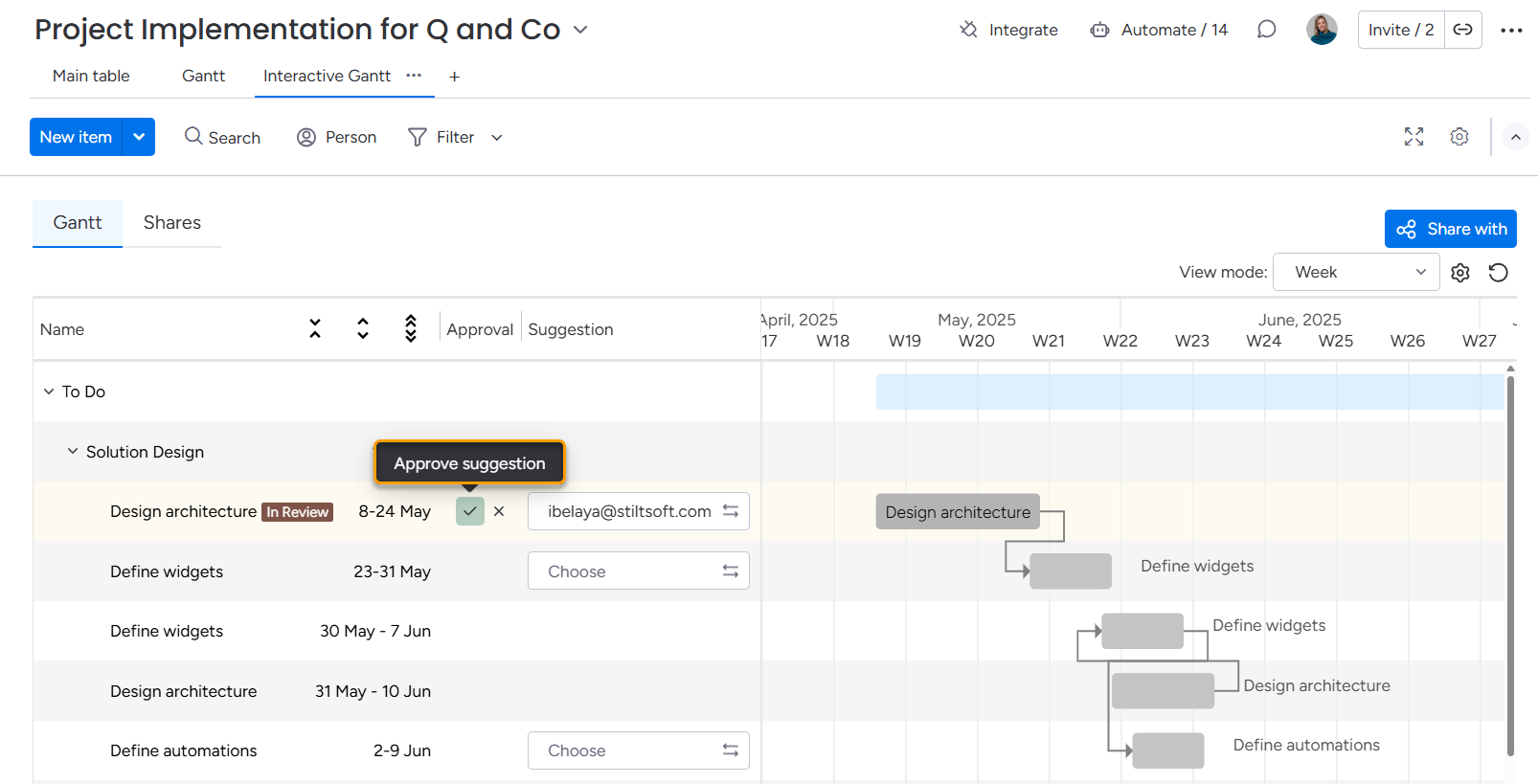
When you are satisfied with a proposed timeline, click Approve suggestion directly from the Suggestion column.
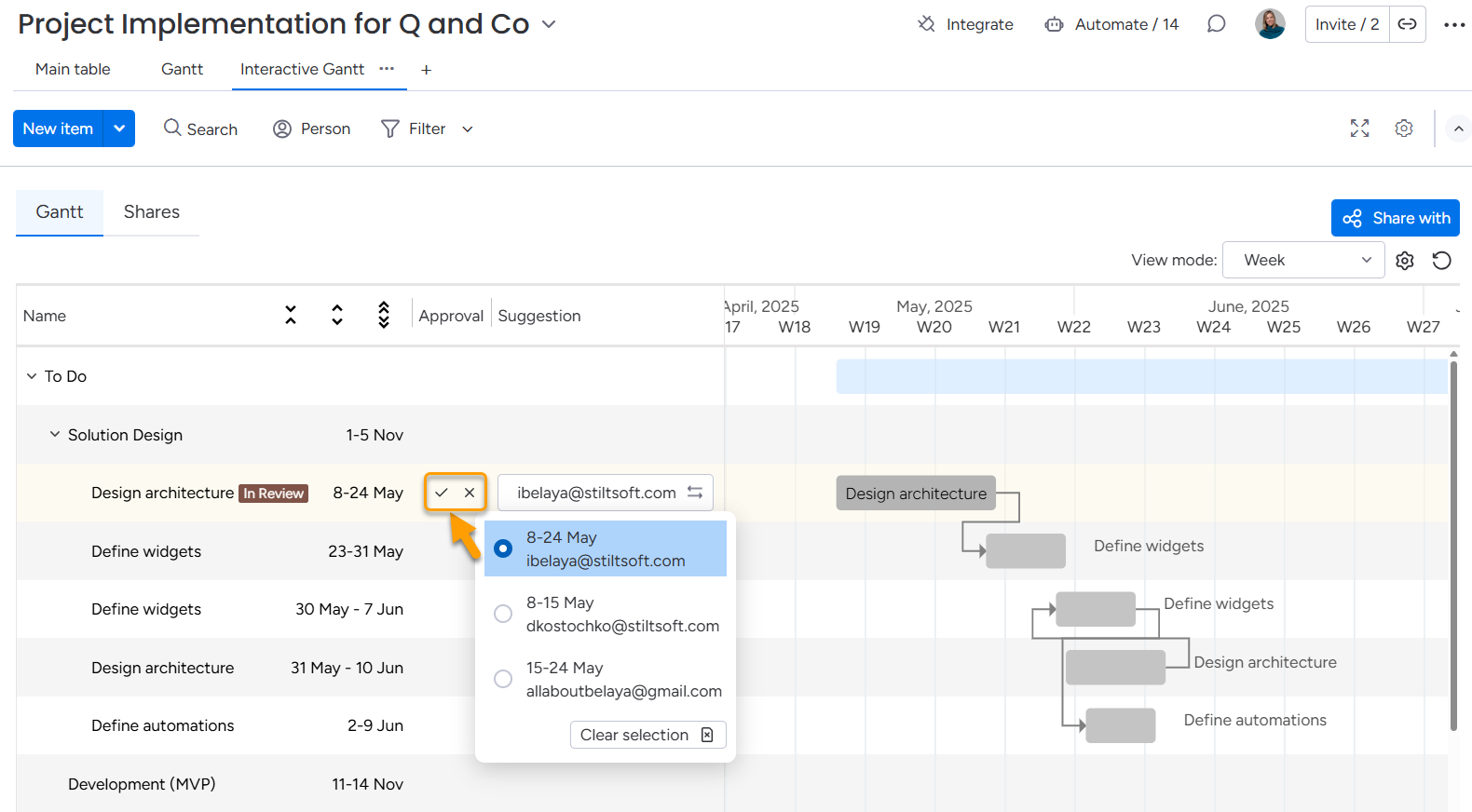
Once approved:
the selected timeline is applied to the task,
its status changes to Approved,
all other pending suggestions for this item are automatically marked as Declined.
 The changed timeline is immediately applied not only in Interactive Gantt, but also on your board.
This means that only one approved suggestion becomes active for the task, both in Interactive Gantt Timeline view and on the board.
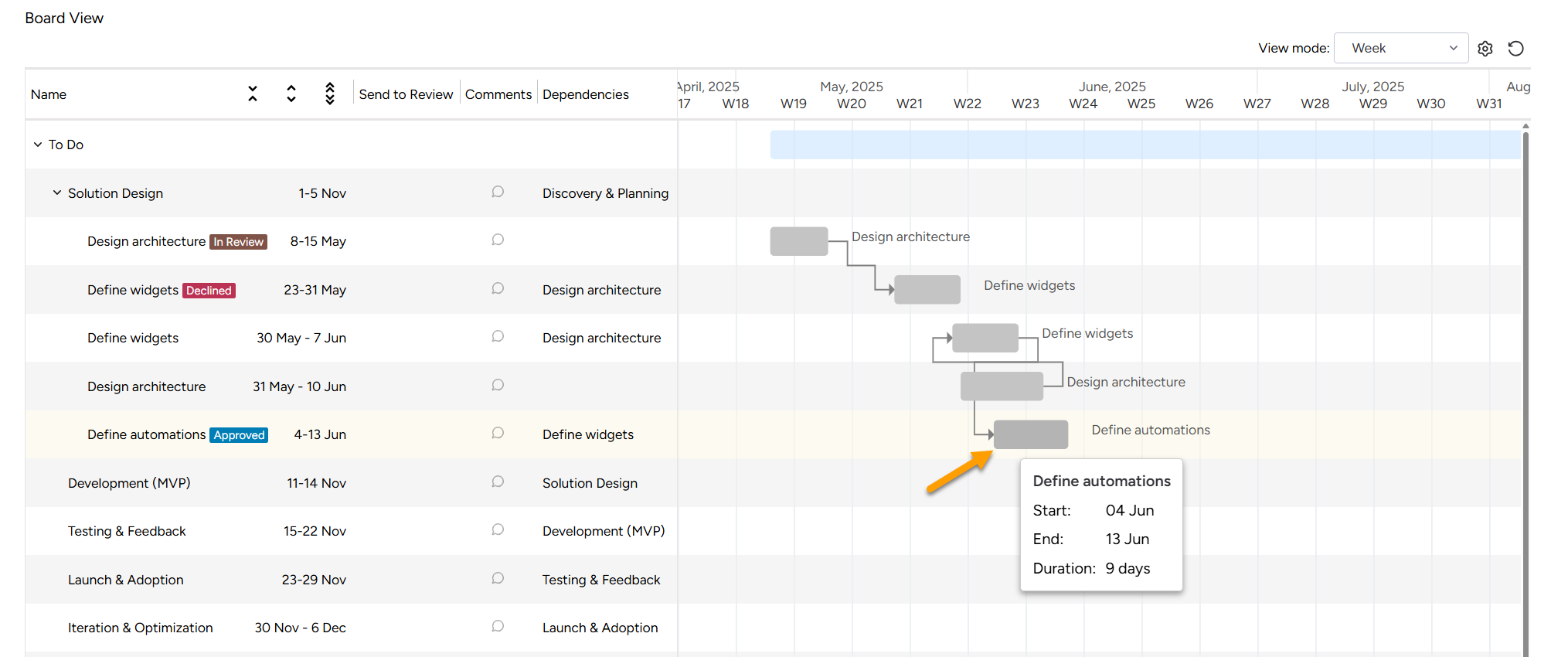
Approval decisions are instantly visible on an client's view.
Clients can:
see which suggestion was approved or declined,
click the labeled timeline to check the final resolution.
This keeps external stakeholders aligned and reduces follow-up discussions.
If you reject a suggestion, click Decline suggestion.
The declined option is removed from active consideration, while remaining suggestions stay available for review and approval.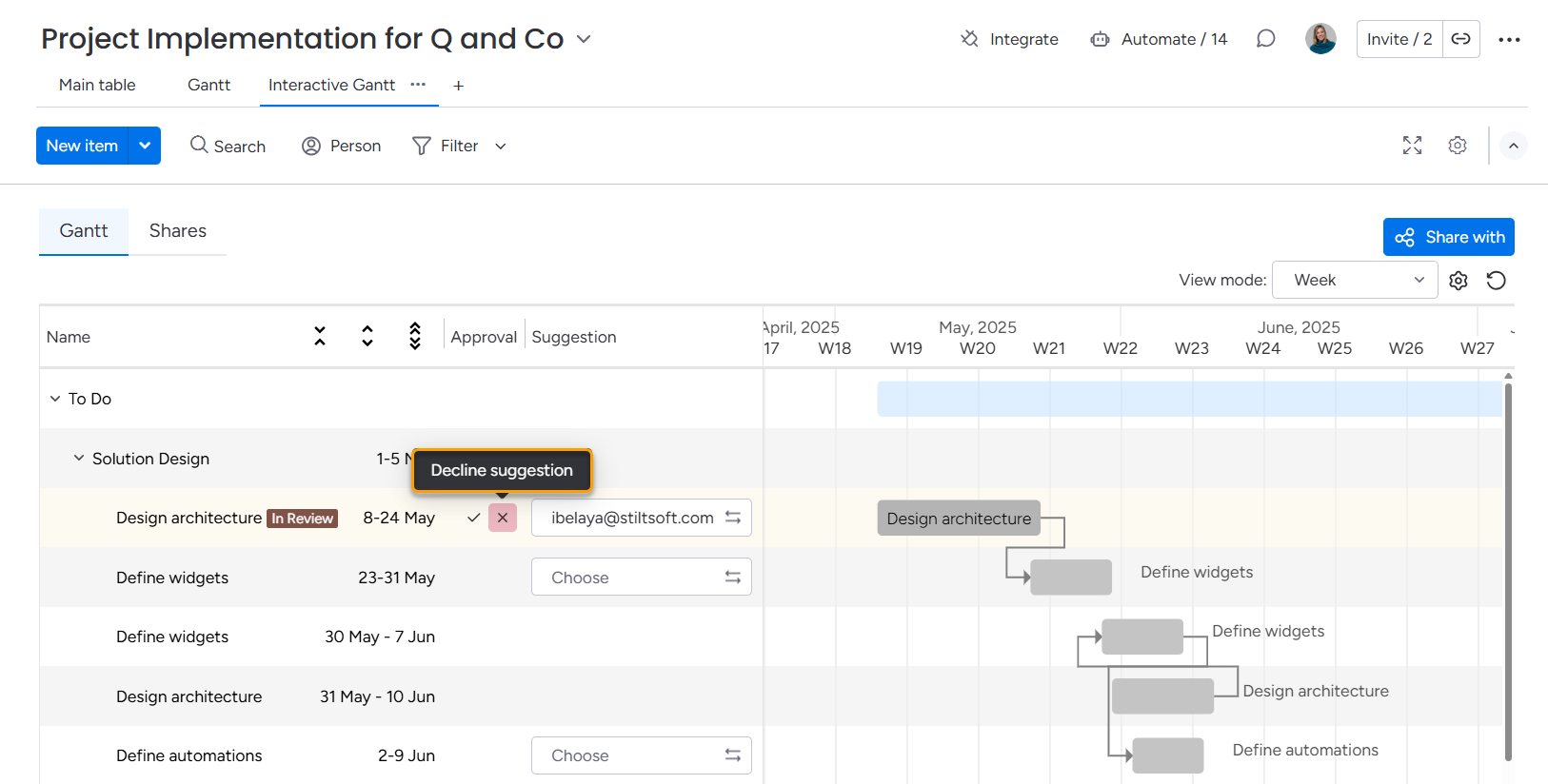
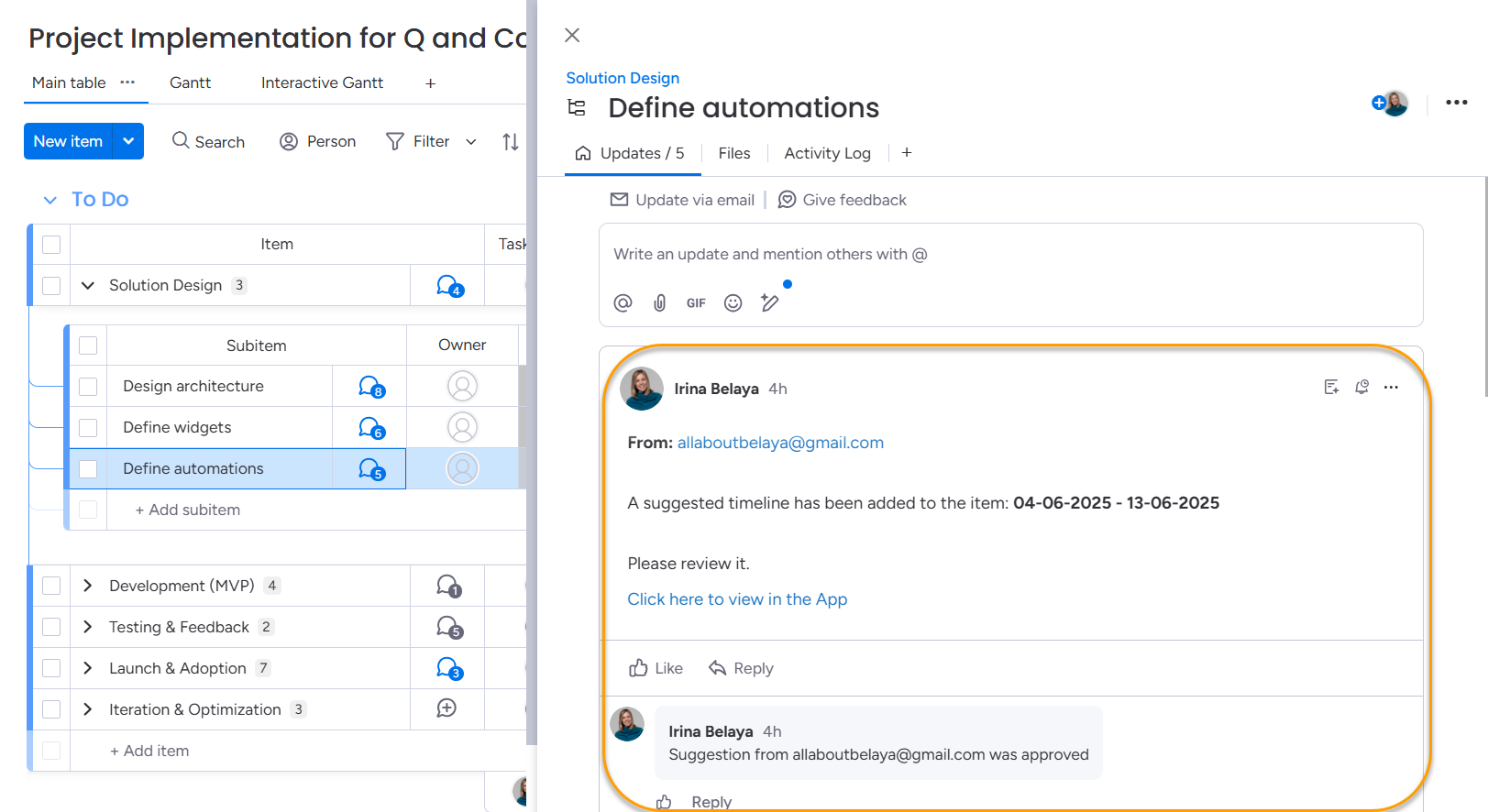
All approval actions are automatically recorded in the item updates.
The update includes:
This provides a full audit trail of schedule decisions inside the task history.