Download PDF
Download page Live Table from CSV.
Live Table from CSV
The Live Table from CSV macro allows you to output a table from a CSV or TSV data source.
The macro supports outputting data from a URL or an attached file.
Using the Live Table from CSV macro
1. Insert the macro on a page:
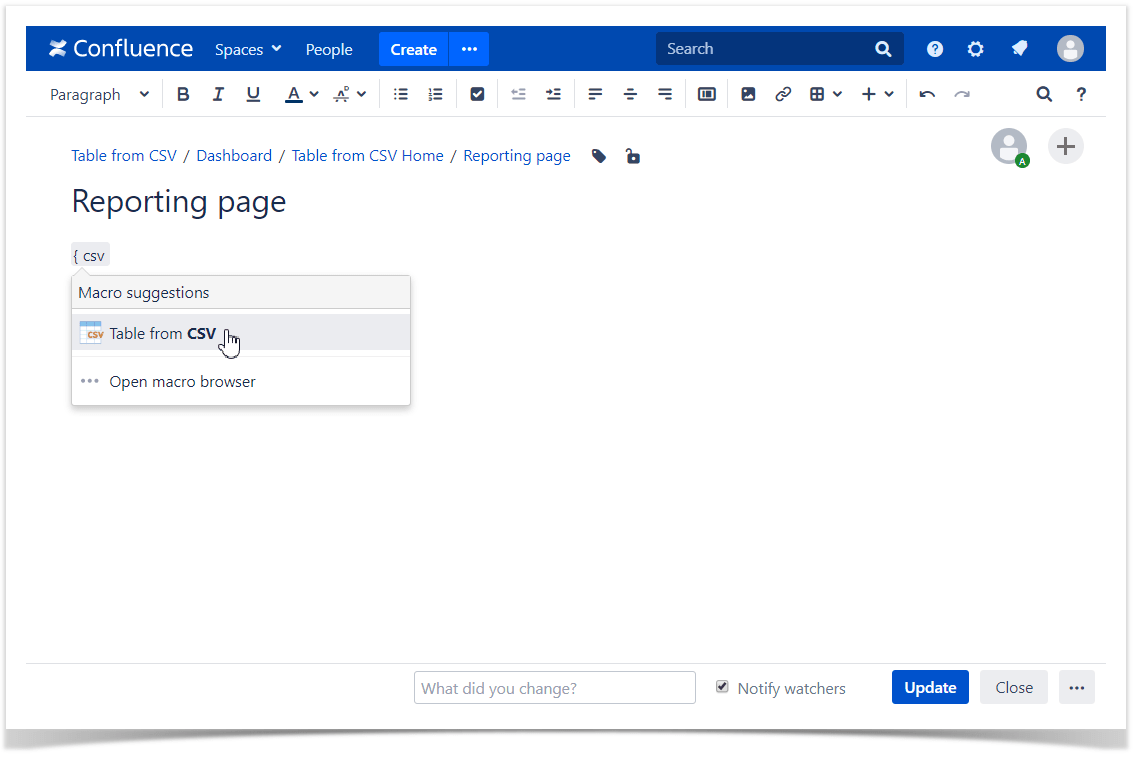
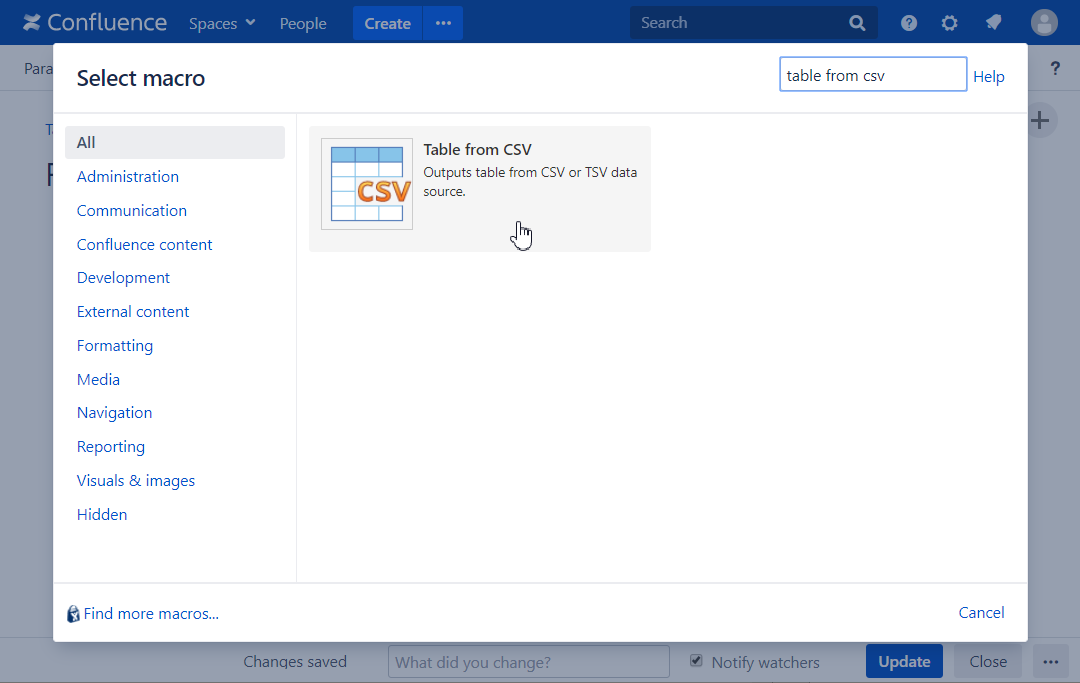
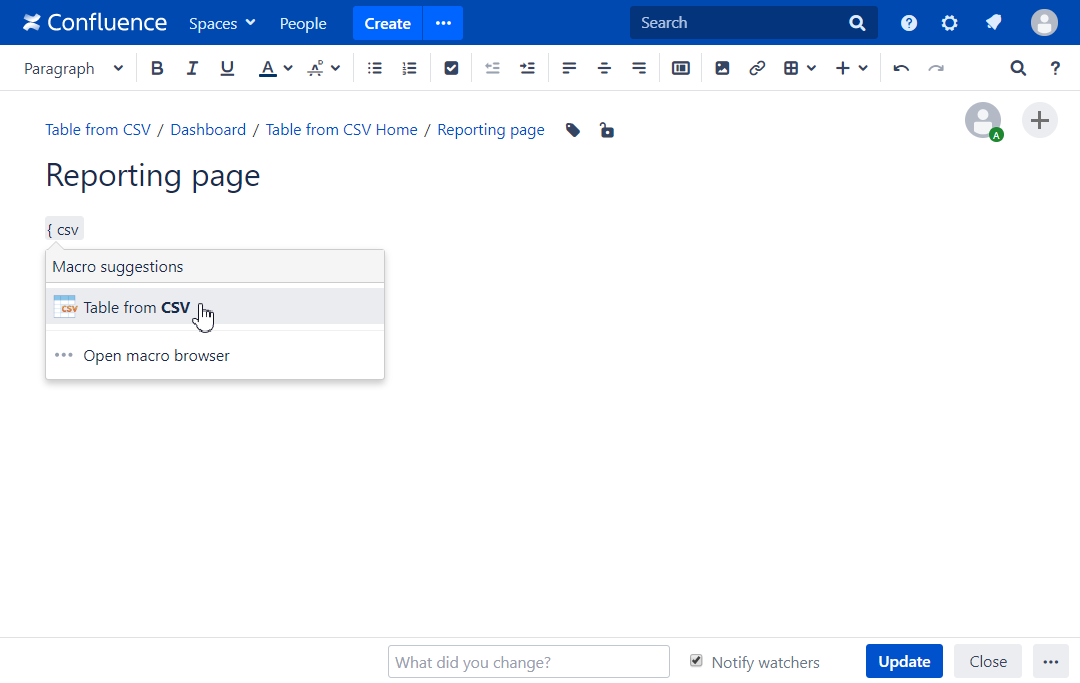
- Start entering /Live Table from CSV and select the macro
- Or, in the editor pane, click Insert elements -> View more, find the macro, and insert it on the page
2. Specify the CSV source option:
- URL
- Attachment

You can use {pageId} variable in the URL, which means ID of the current page.
You can use {currentUser.id} variable in the URL, which stands for the email address of the current user.
The case may be to pass this email to the server that generates a CSV file, so that only the specific data related to the current user will be produced.
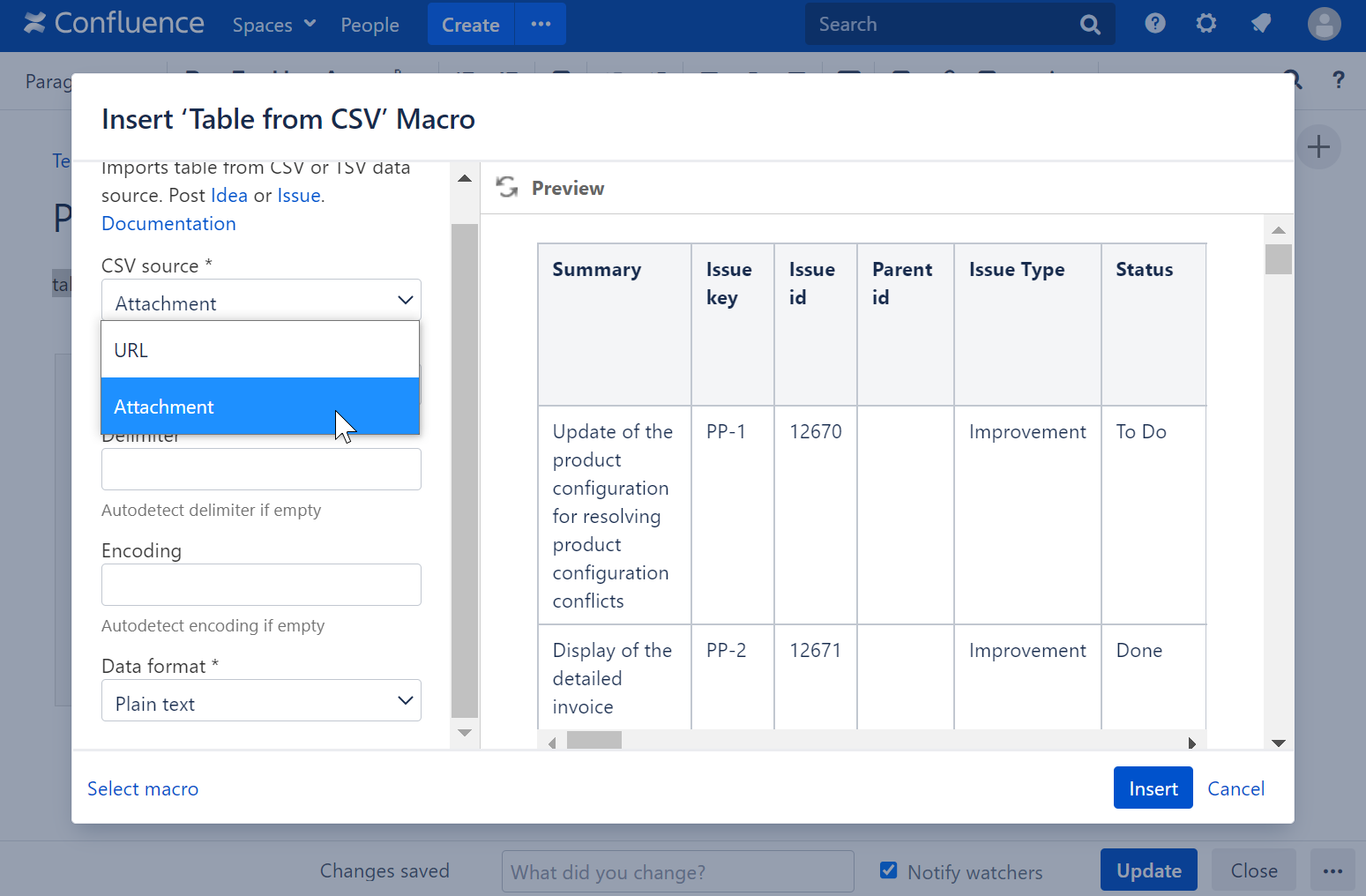
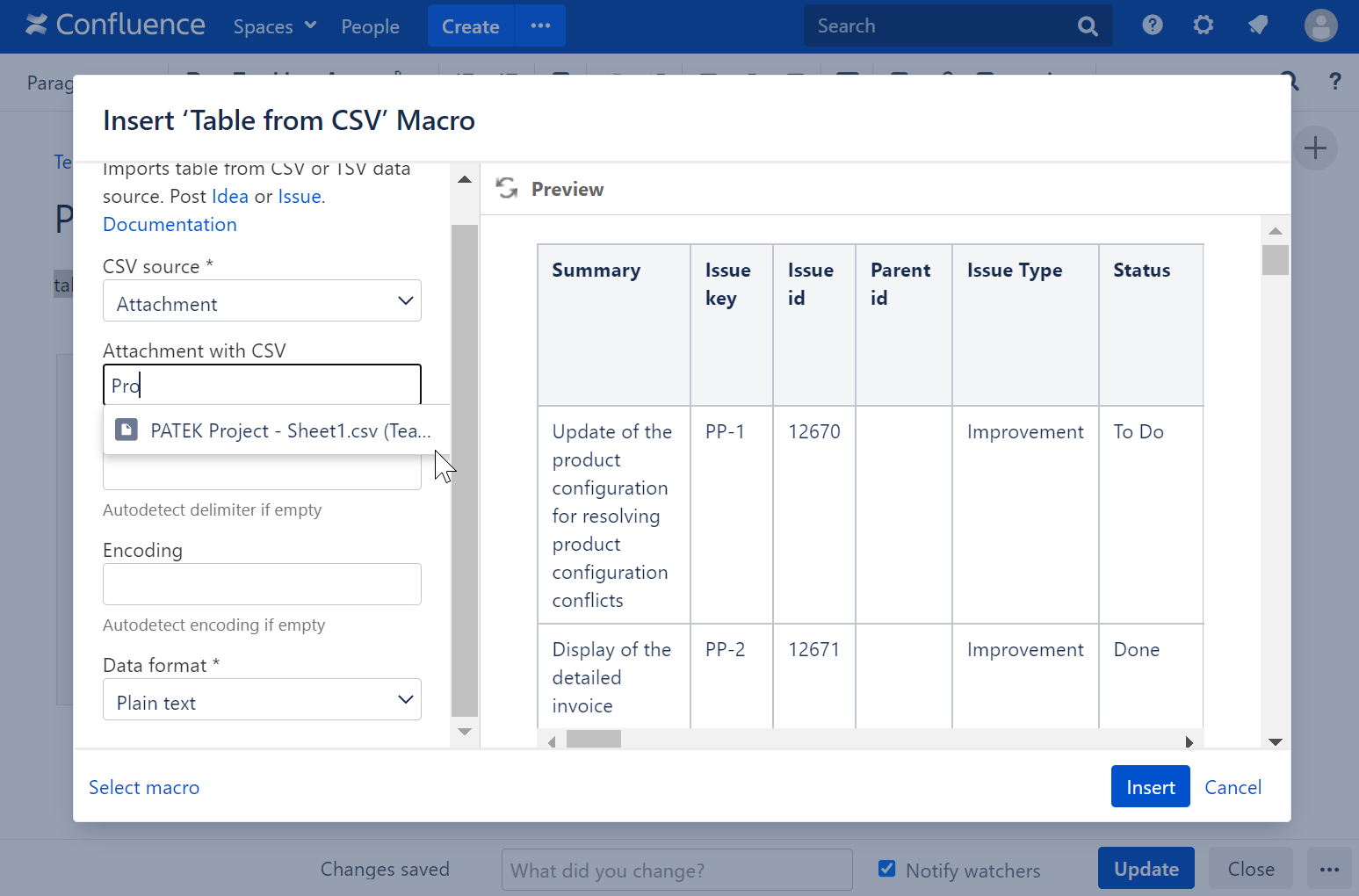
3. Find the attachment by typing the file name.
4. Or configure a URL:
- Add a URL to CSV
- Select the Authentication type
Optionally set the login and password settings, the authentication header, and additional headers.

To ensure users re-enter credentials when a macro is copied to another page, ask your Confluence administrator to enable the Live Table from CSV & JSON: Prevent macro copy with credentials option in the Administration console.
The request headers format:
Header name: header value
Another header: another value
A colon should separate the header name and its value, headers by line breaks.
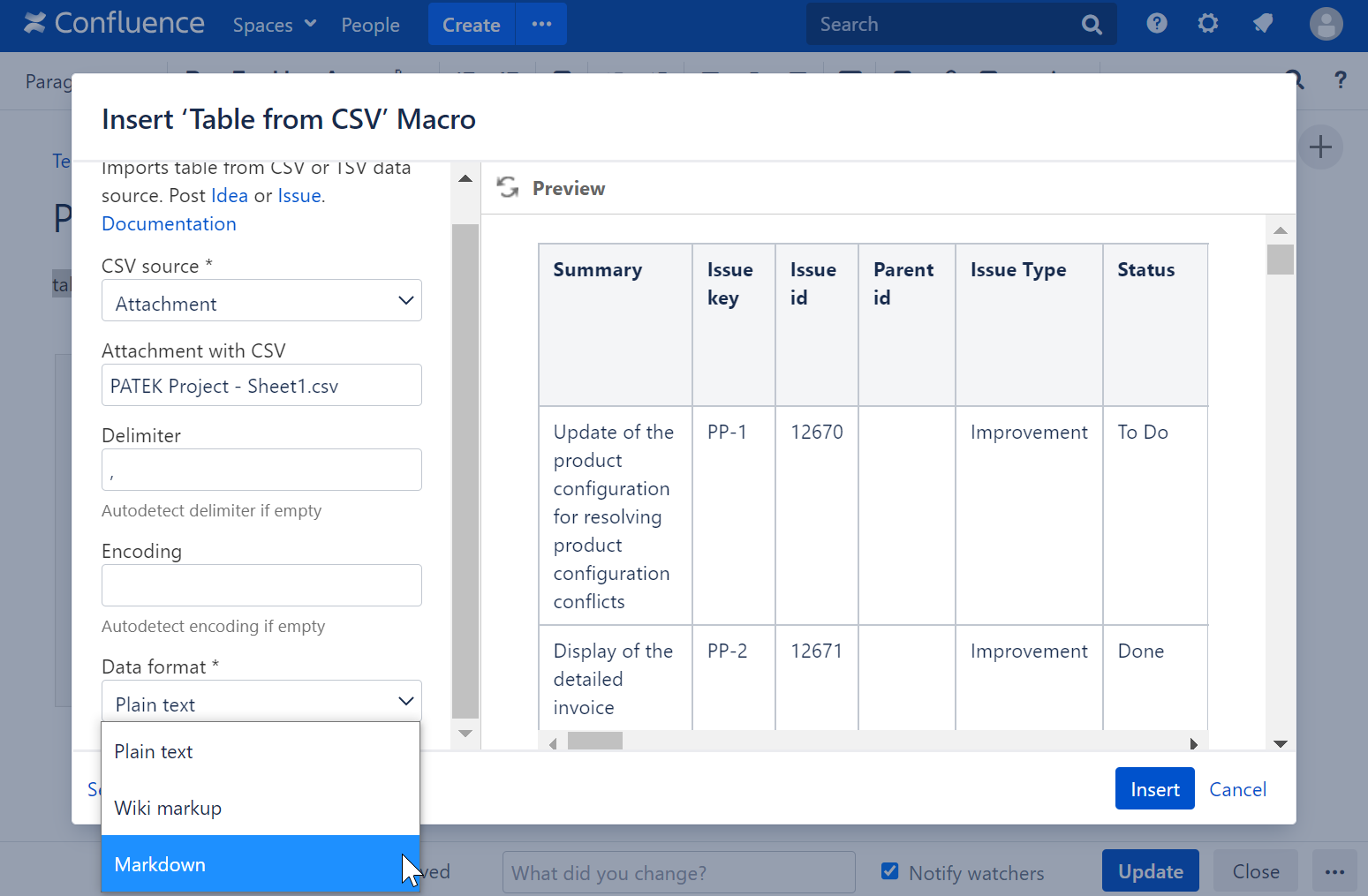
5. Select an appropriate encoding and data format (Plain text/Wiki markup/Markdown) from the list or add it manually.
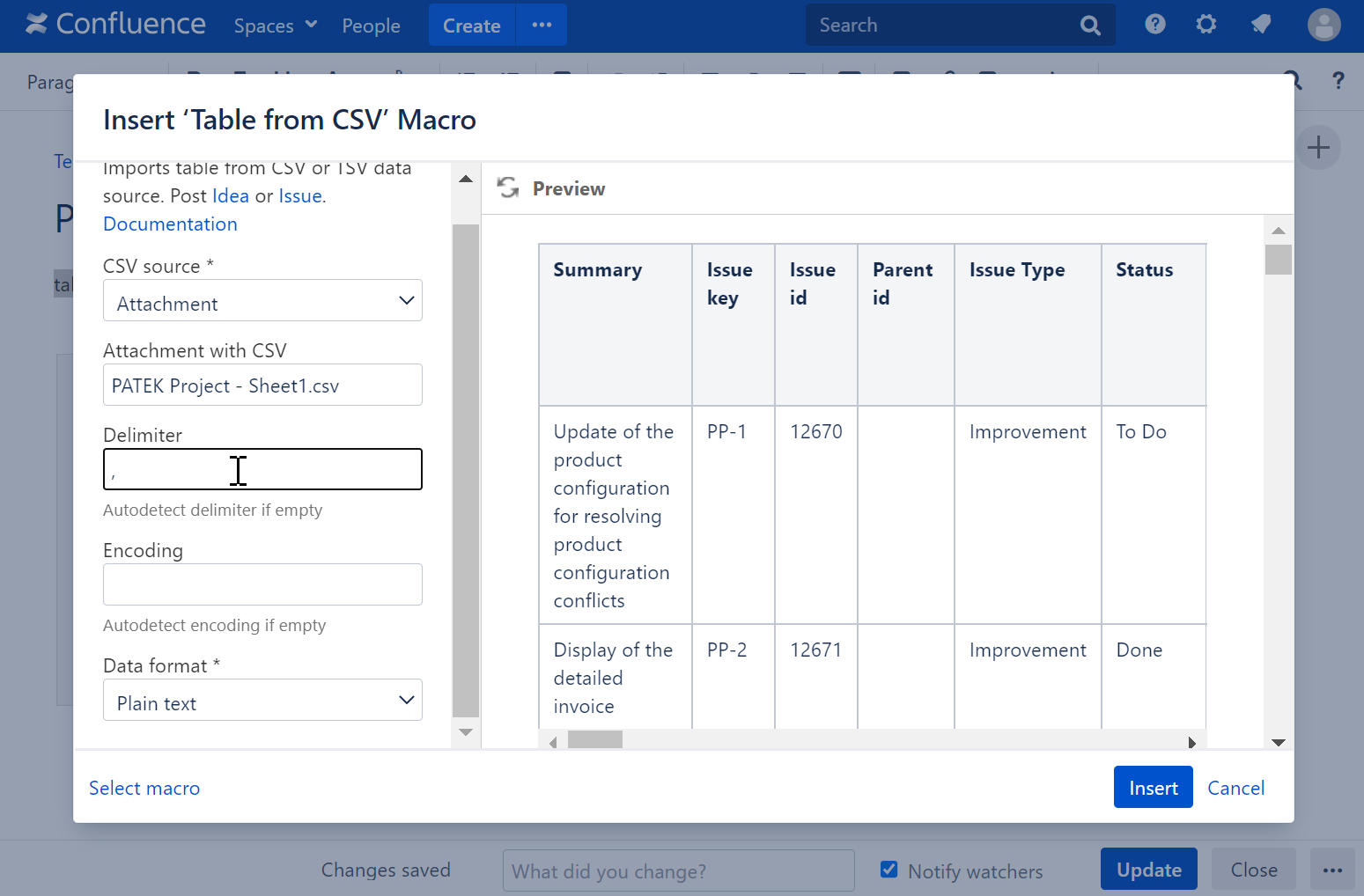
6. Specify a delimiter.
7. Save the macro and update the page.
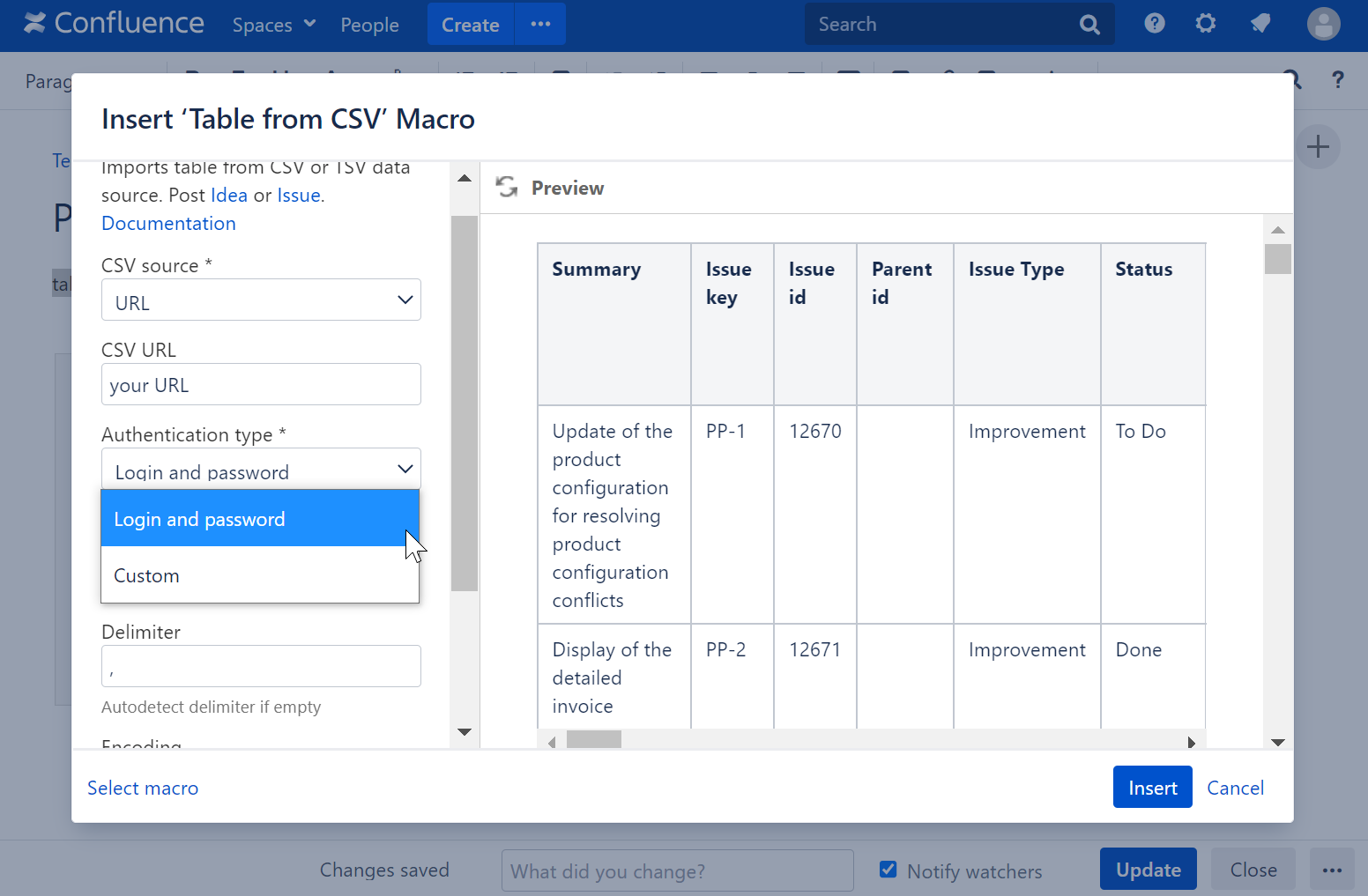
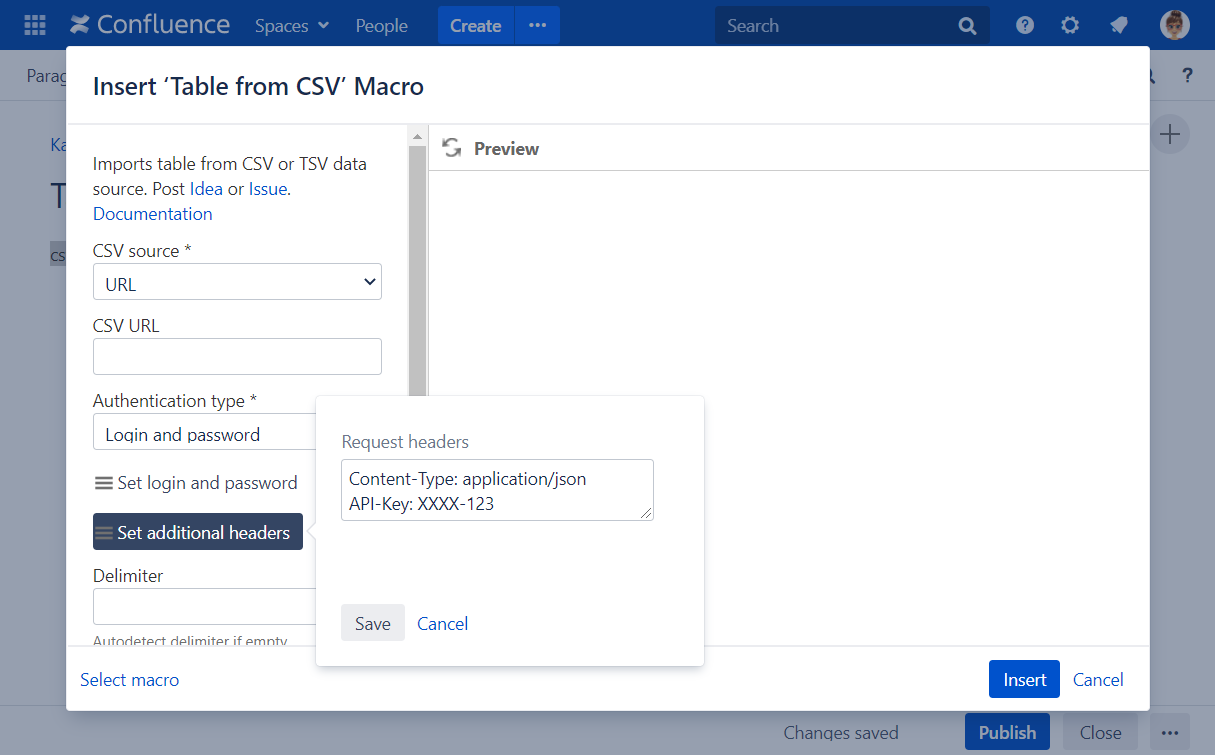
Utilize the benefits of Excel-like spreadsheets right on your Confluence pages. Try spreadsheets for Confluence now!
Storing authentication data
Login and password, or a custom authentication header, are encrypted with the AES-256 algorithm using a secret key and saved in the macro parameters.
The secret key is generated uniquely for each installation. It is stored in the encrypted Forge storage and rotated yearly.
The encrypted authentication data can be used only in your Confluence instance and only for the URL (excluding query params) you specified when configuring the macro, so it is impossible to steal and reuse it elsewhere.
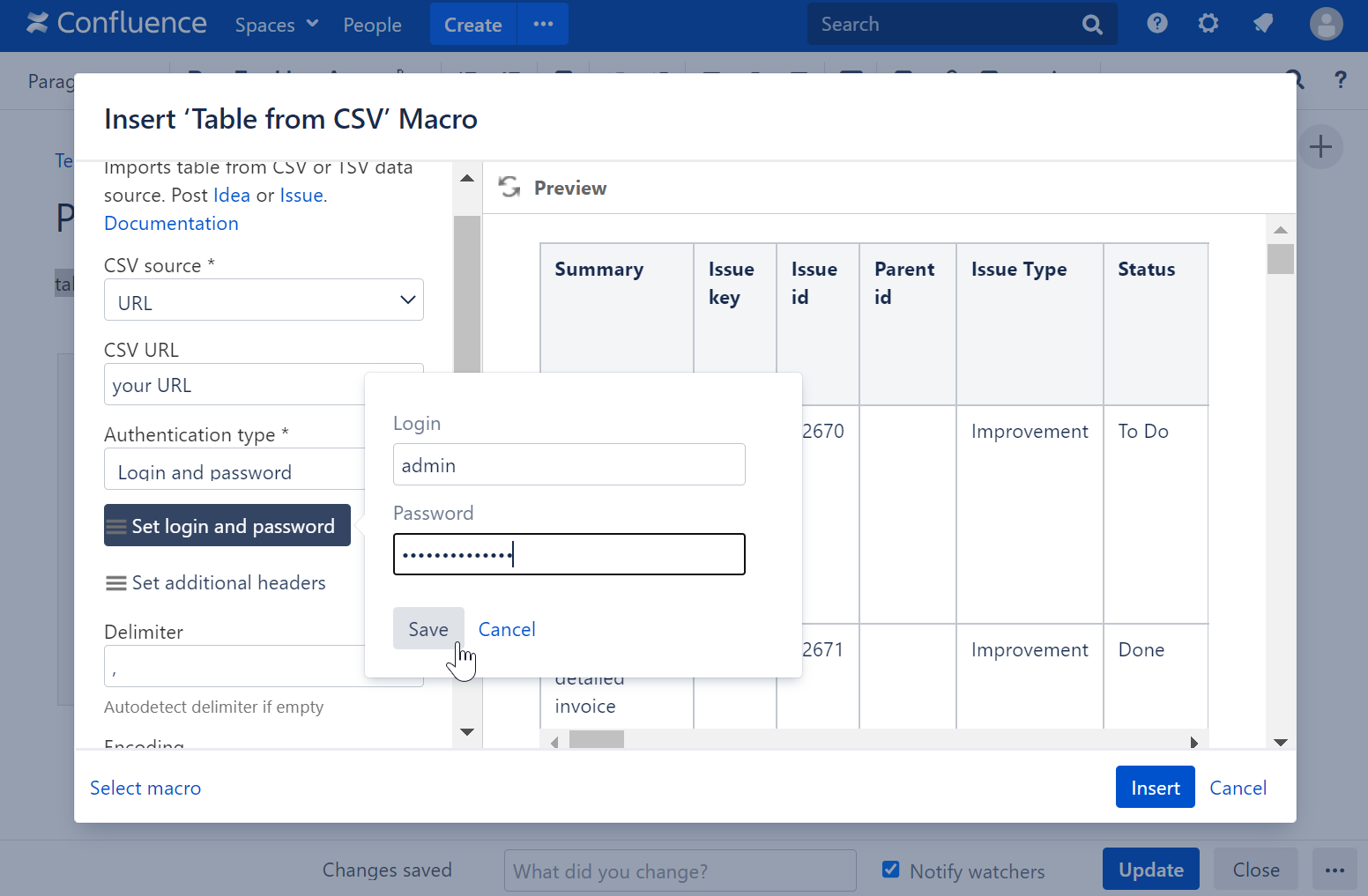
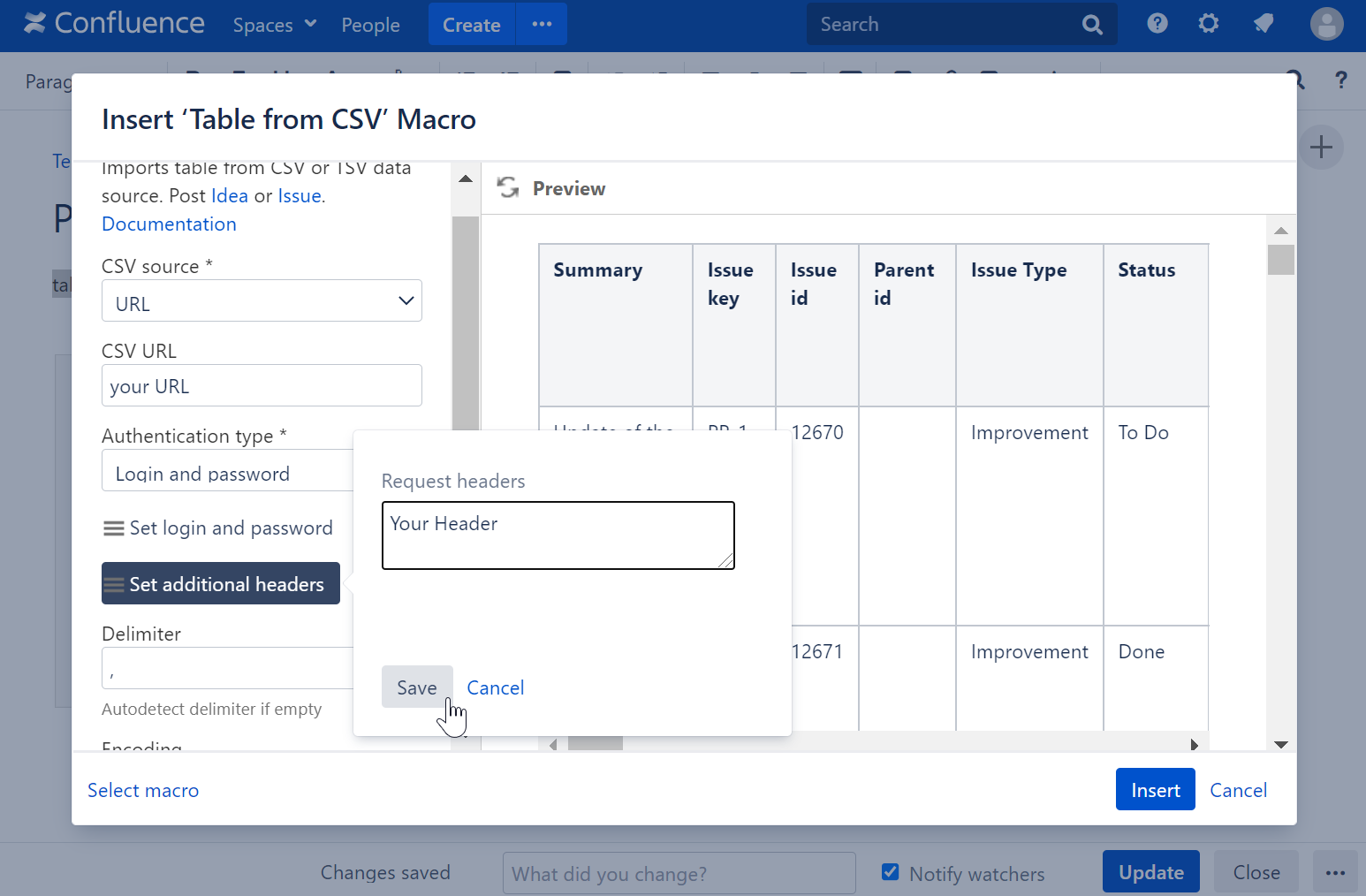
Custom Authentication with a Jira/Bitbucket/GitLab access token
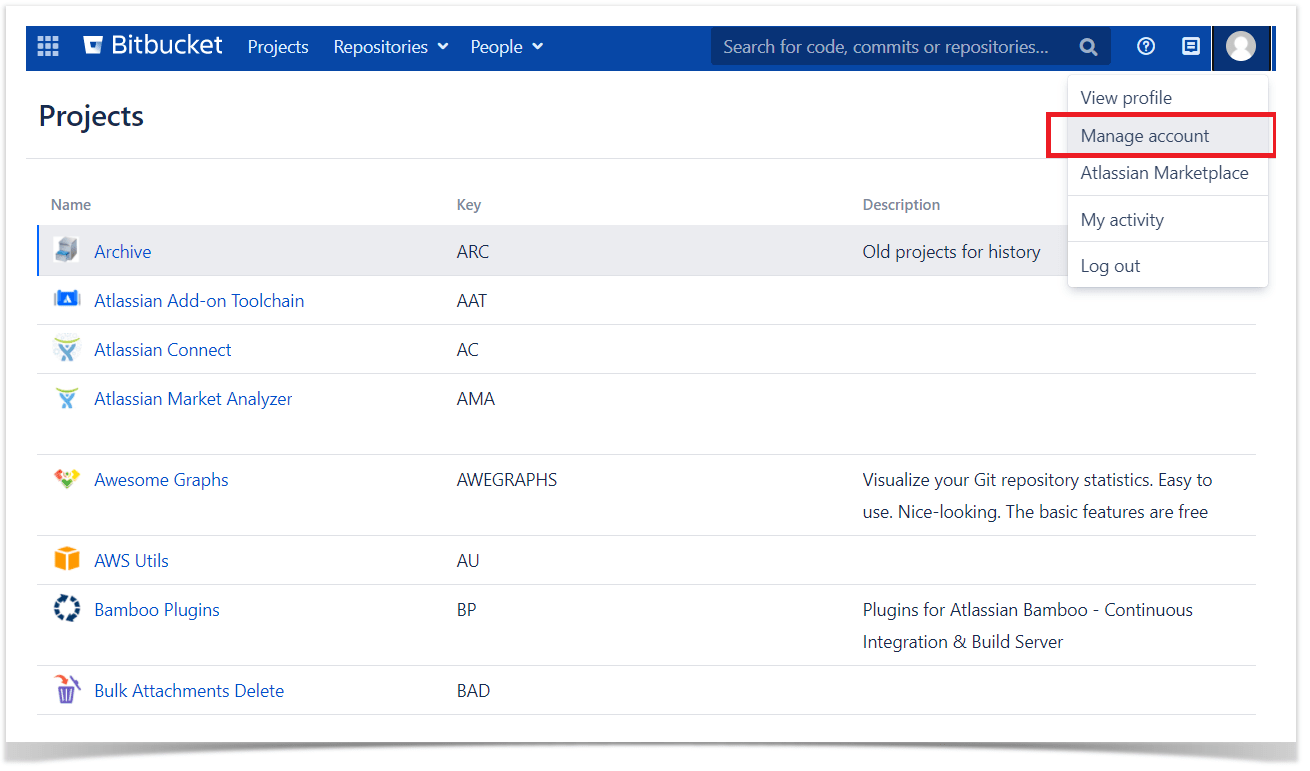
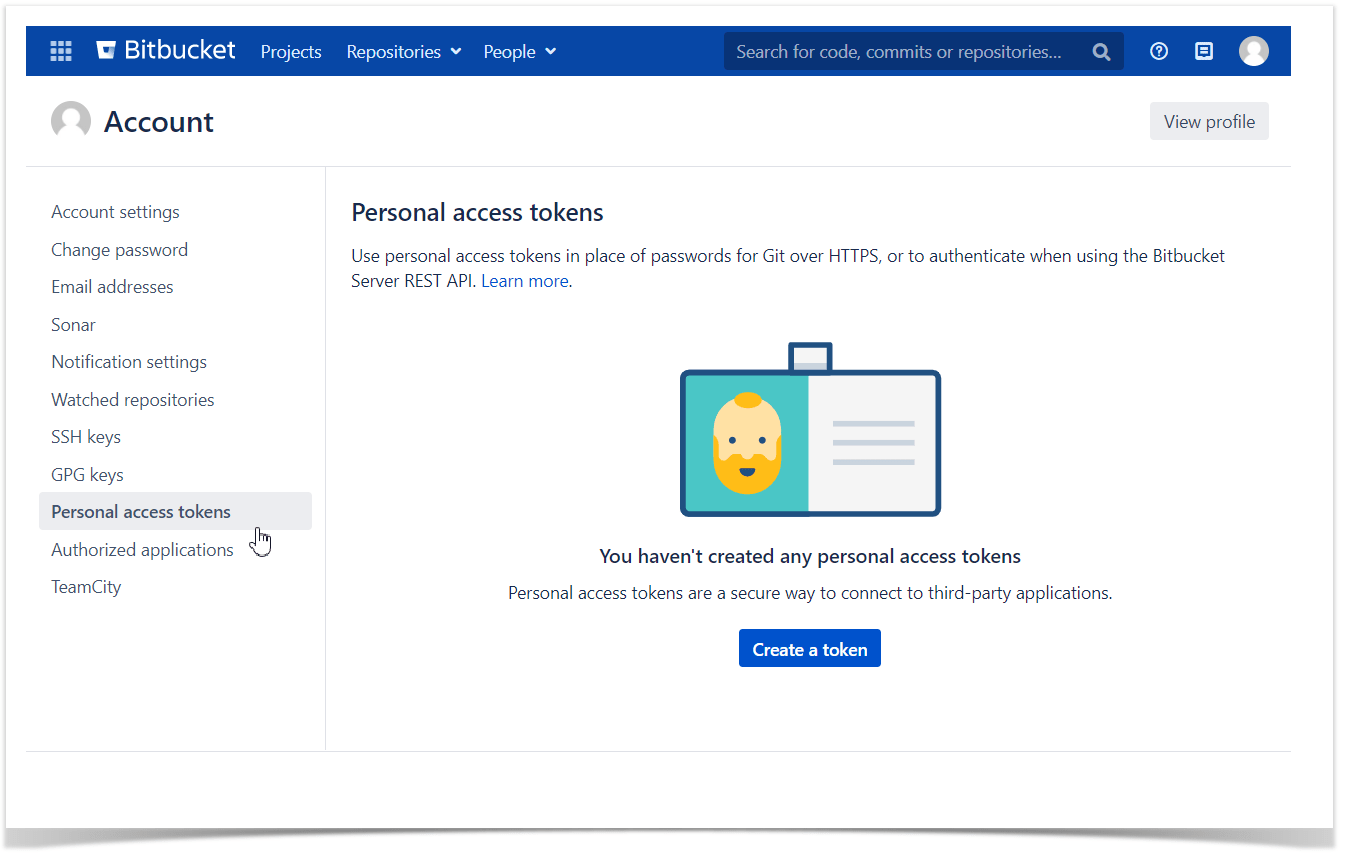
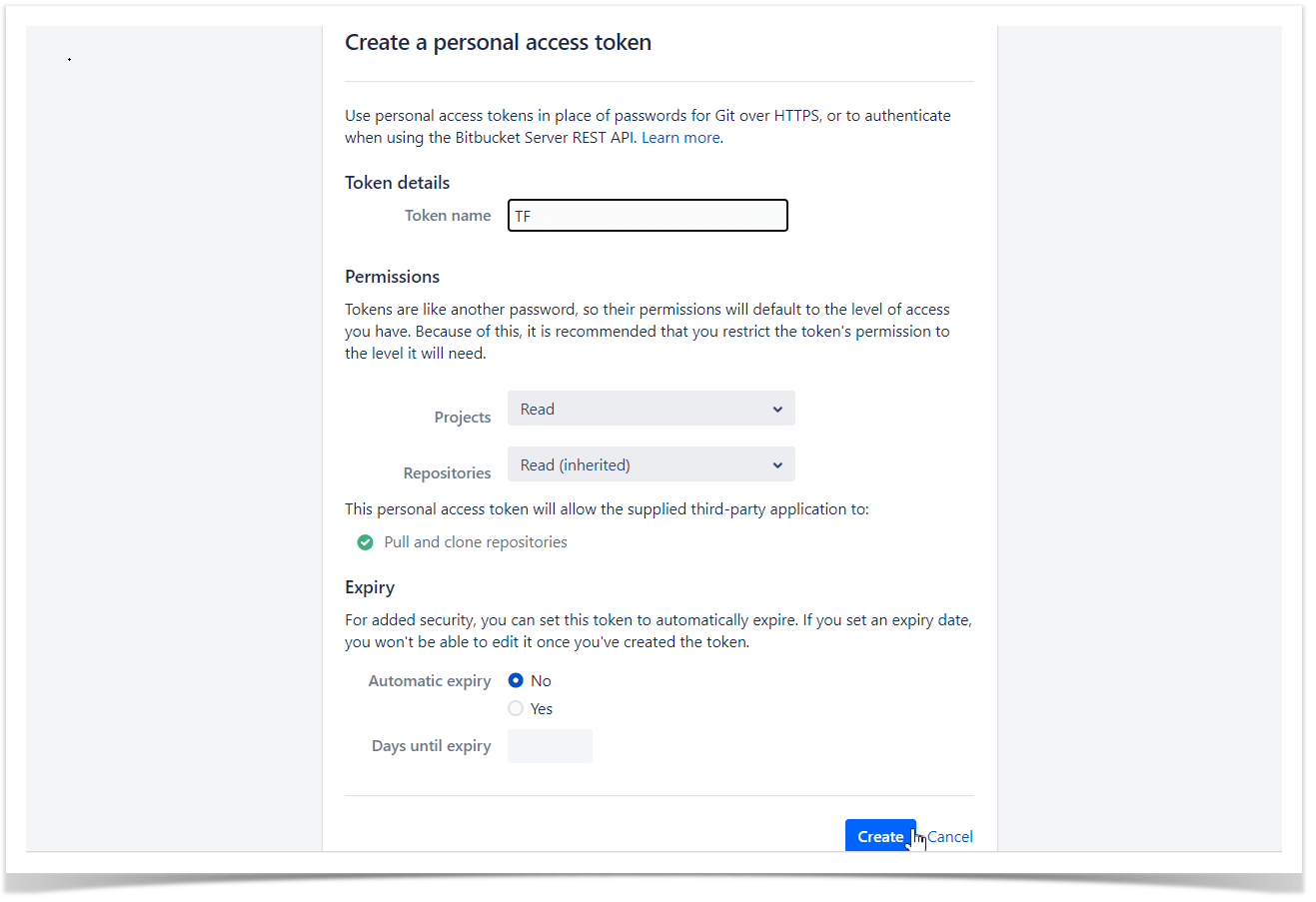
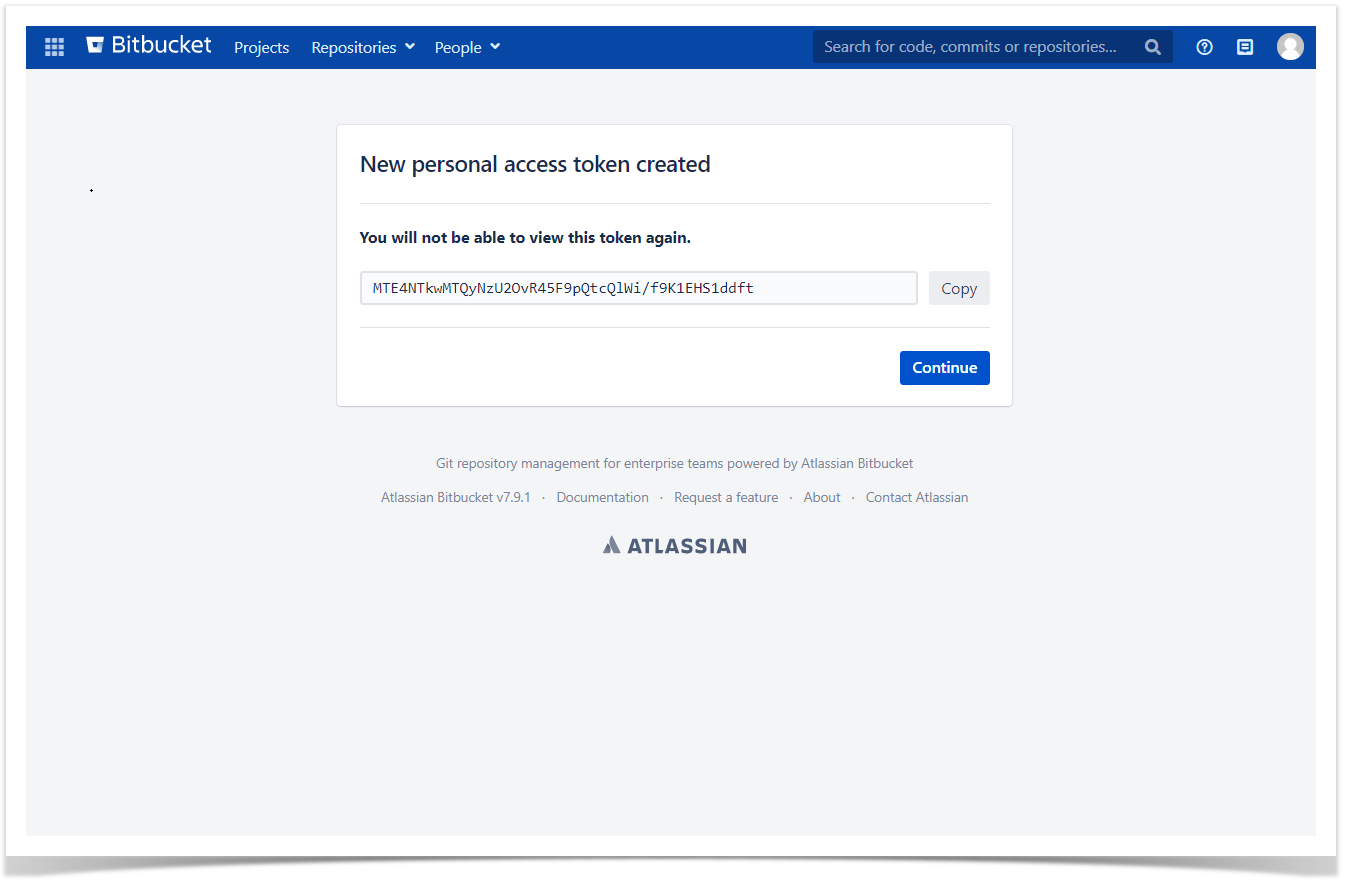
1. Create a personal access token in your Jira, Bitbucket, or GitLab account
2. Insert the Table from CSV macro on the Confluence page
3. Add a URL to CSV.
To specify a correct URL for GitLab, visit its API documentation
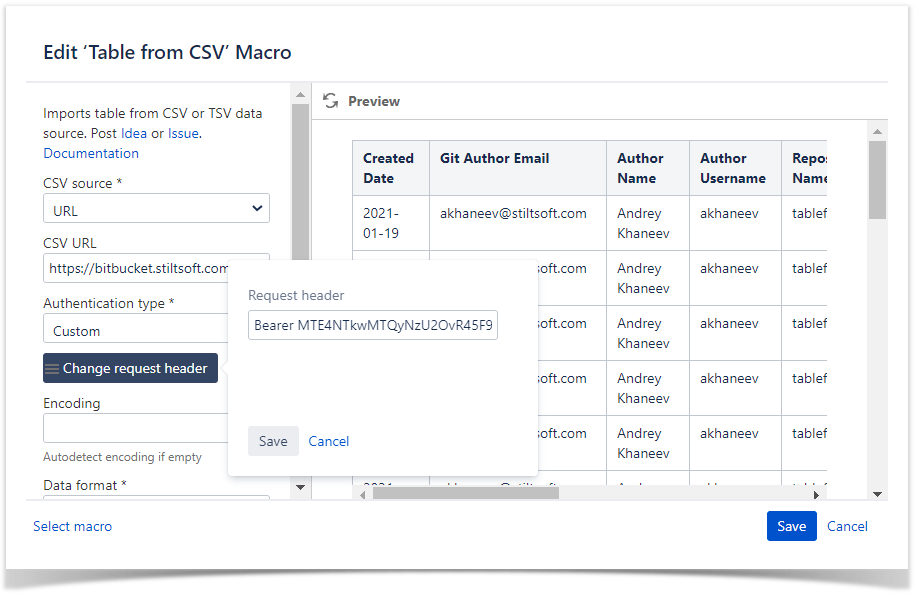
4. Select the Authentication type: Custom.
5. Use Bearer Auth without the username.
Change request header: Bearer Y our_Token
6. Save Request header