Download PDF
Download page Live Table from SharePoint and OneDrive.
Live Table from SharePoint and OneDrive
The Live Table from SharePoint and OneDrive macro displays an Excel, CSV, TSV, or JSON file stored in SharePoint or OneDrive as a table on a Confluence page. Paste a link to an individual file into the page editor to create the macro automatically. Each person viewing the table needs access to that file through their Microsoft account.
Using the Live Table from SharePoint and OneDrive macro
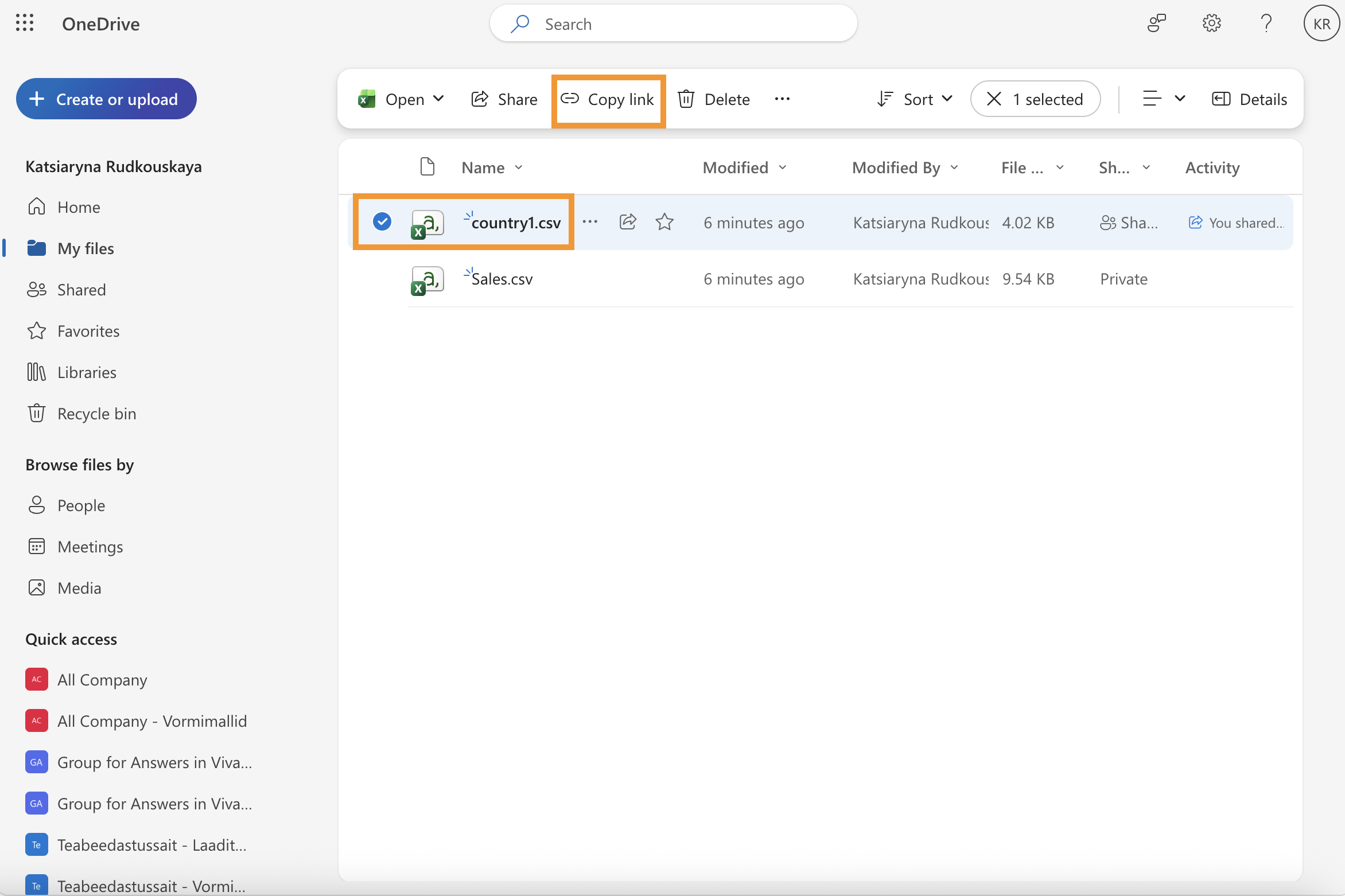
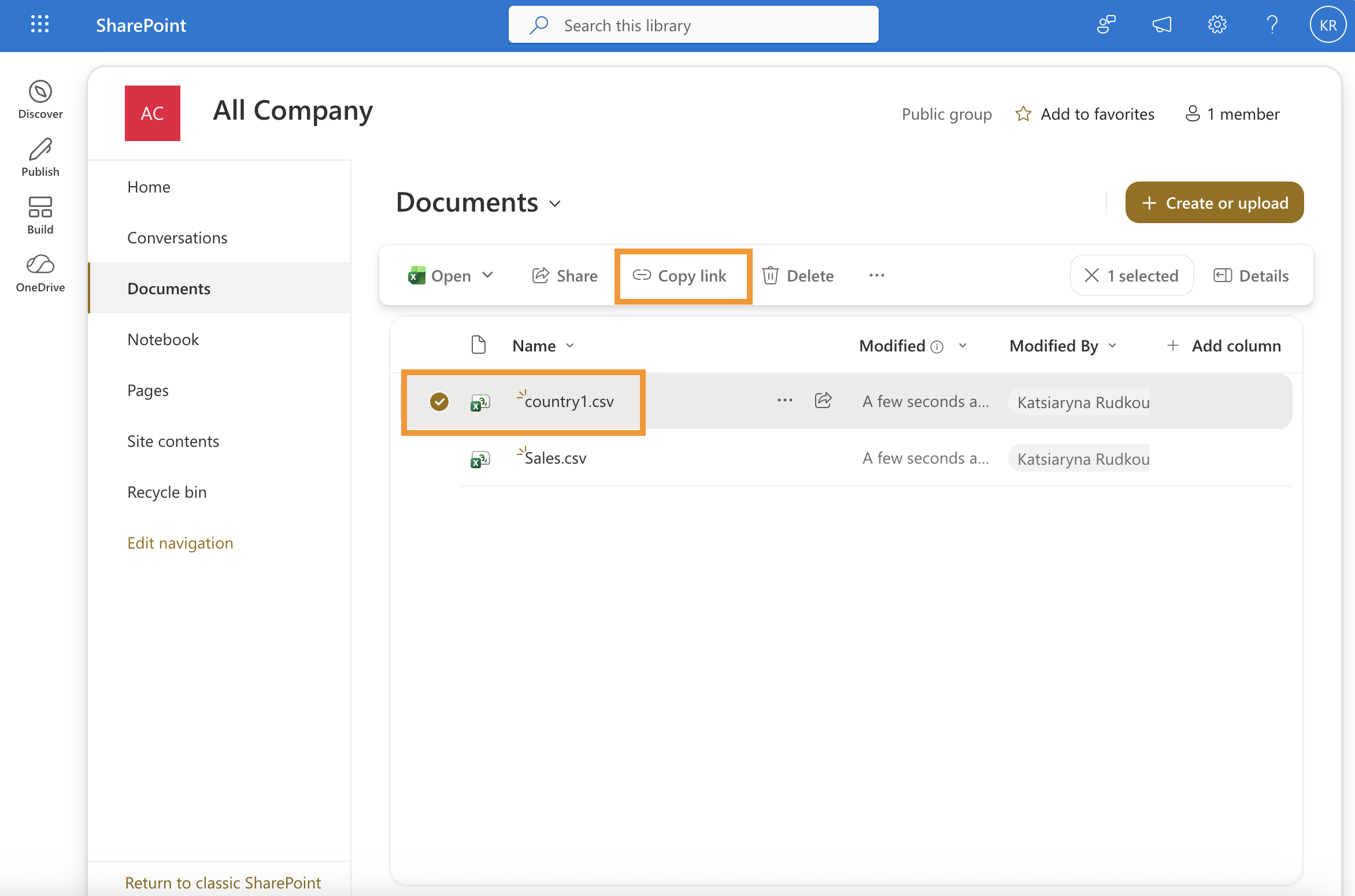
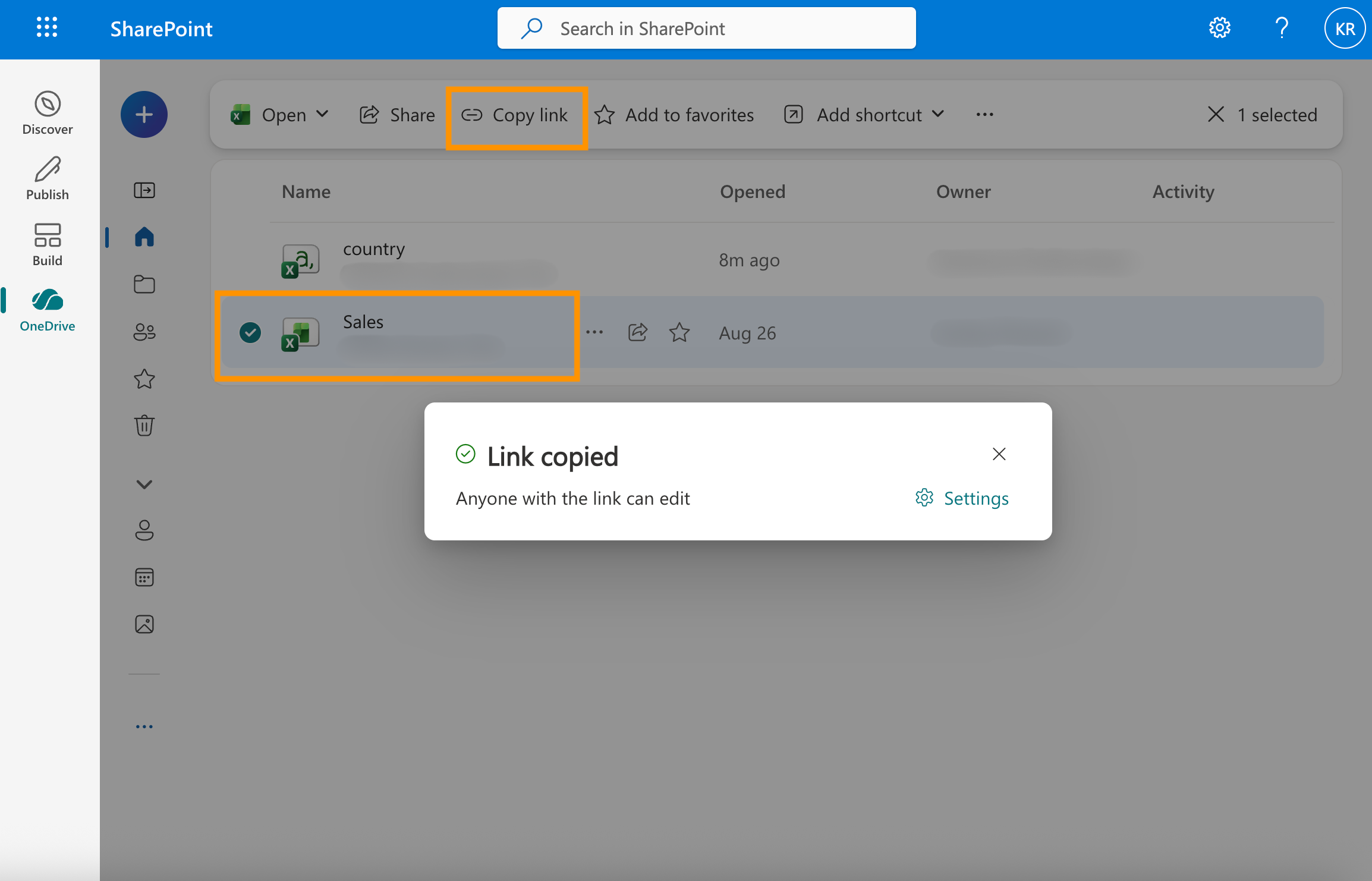
- In SharePoint or OneDrive, locate the file you want to display and use Share or Copy link to get its file link.
- Open a Confluence page for editing and paste the link into the page editor. Confluence converts it to the Live Table from SharePoint and OneDrive macro automatically. You can also type
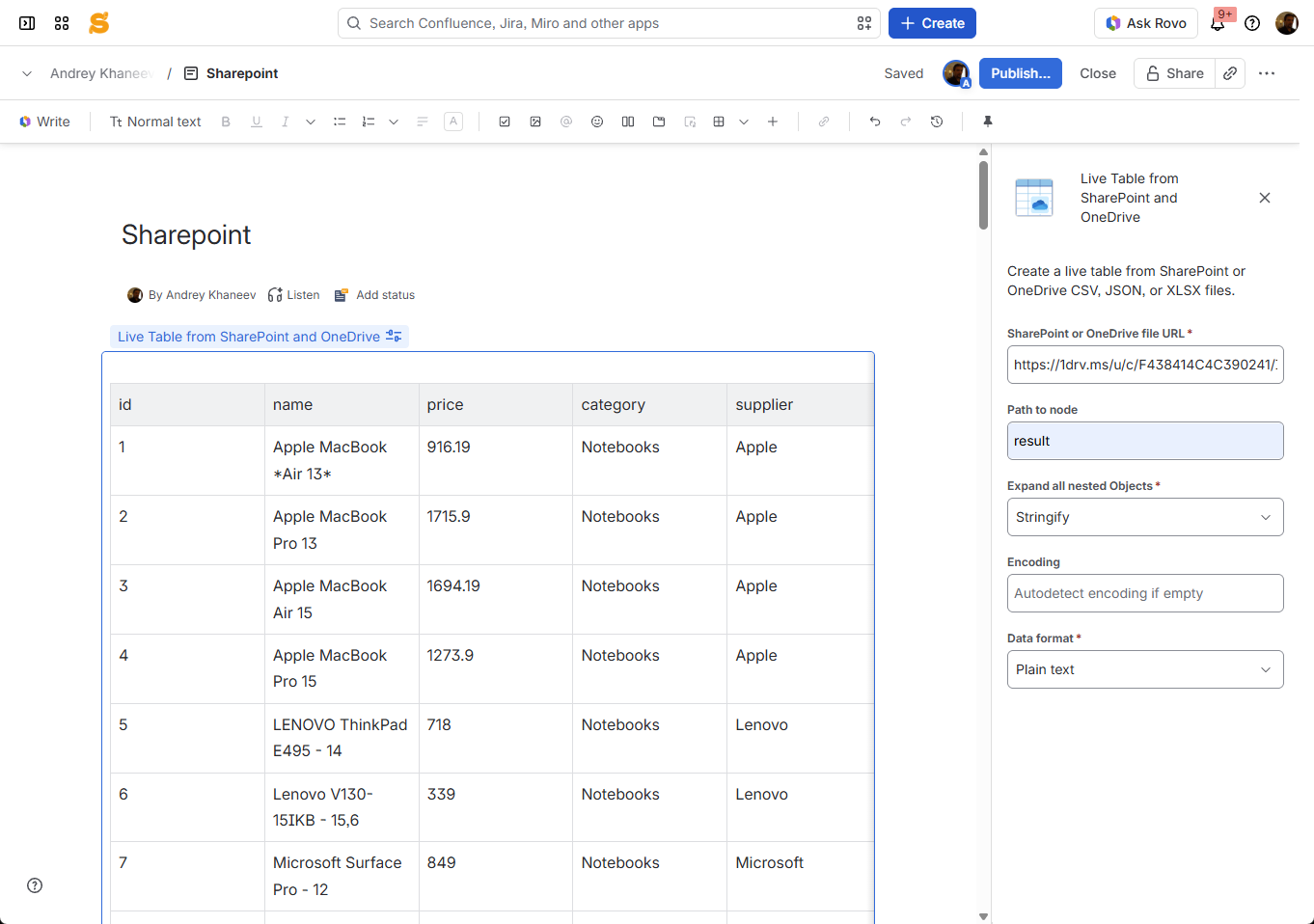
/Live Table from SharePoint and OneDrive, select the macro, and paste the link into its file URL field.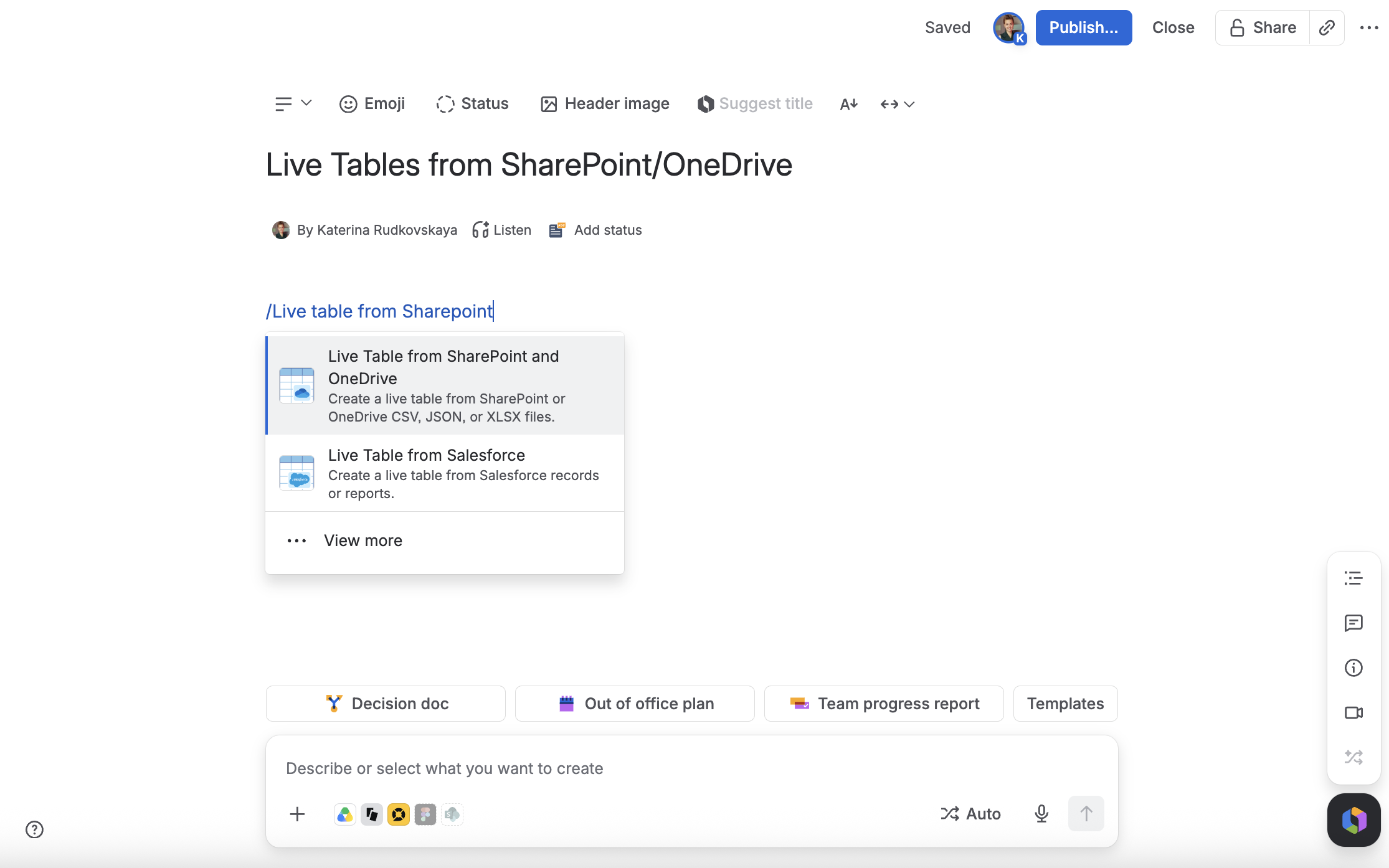
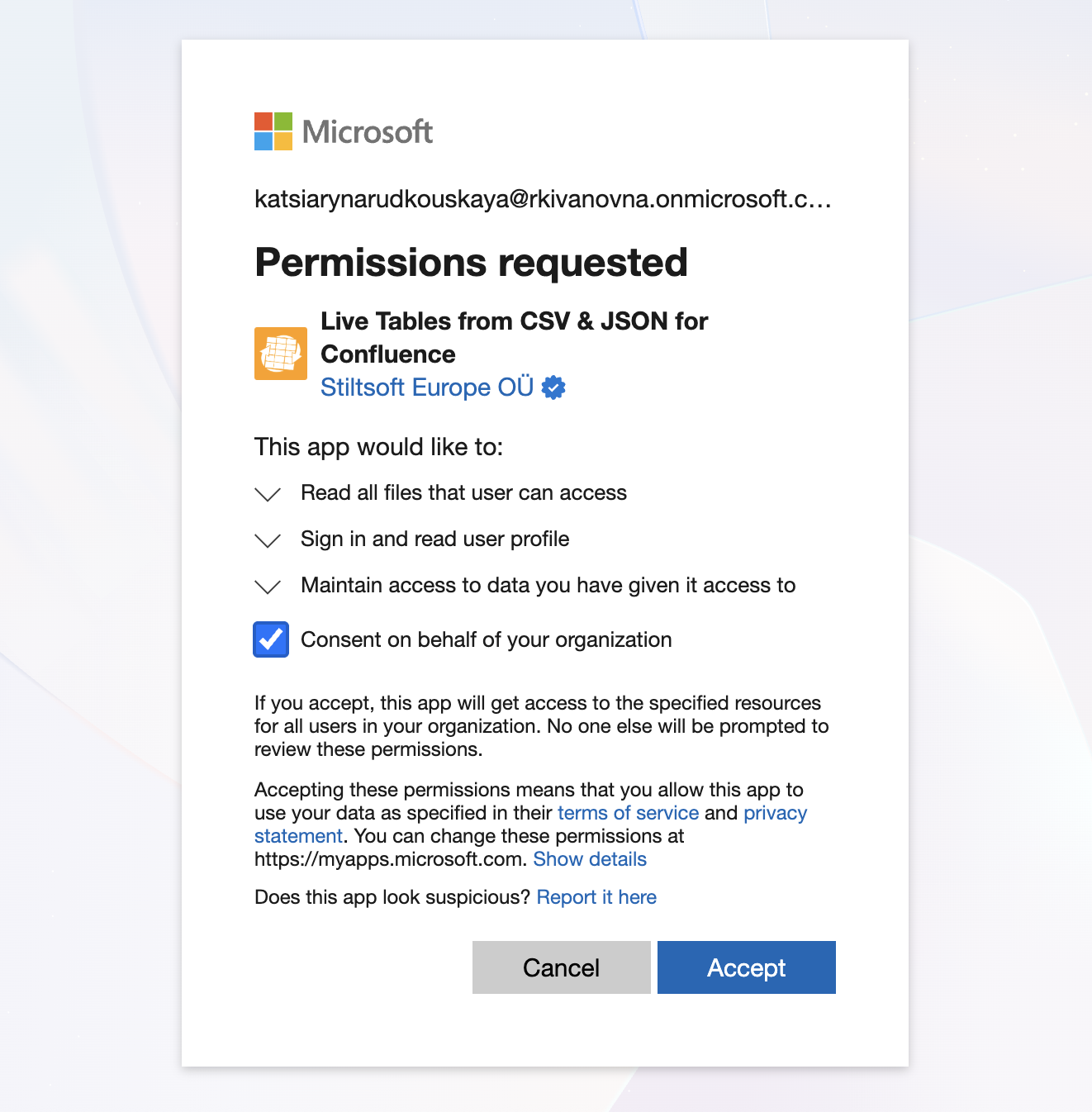
- Connect your Microsoft account when prompted. Review the requested permissions and authorize the app. Your organization may require an administrator to approve the connection.
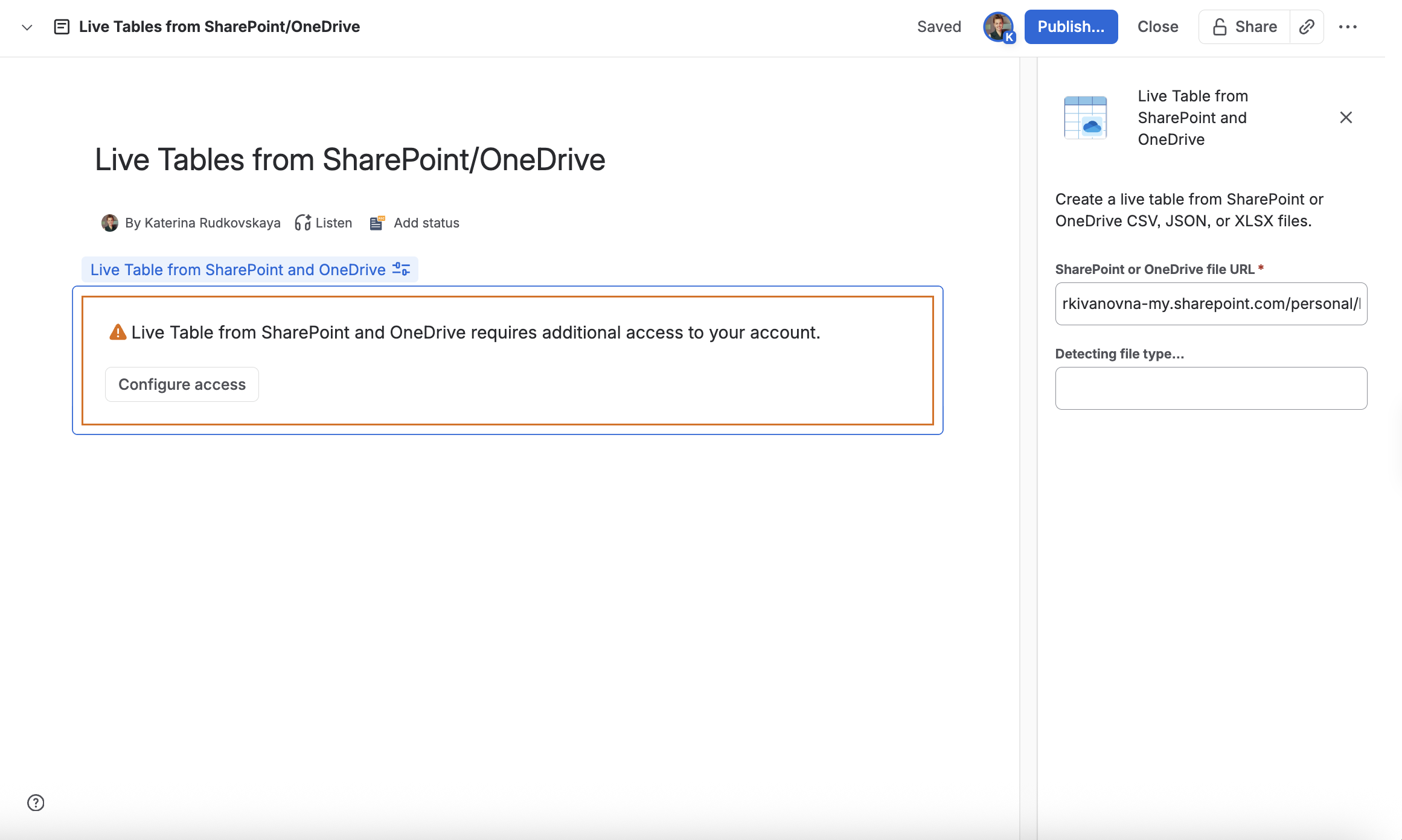

- Choose the file-specific settings, if needed. By default, the macro automatically detects the CSV delimiter, CSV quote character, and text encoding.
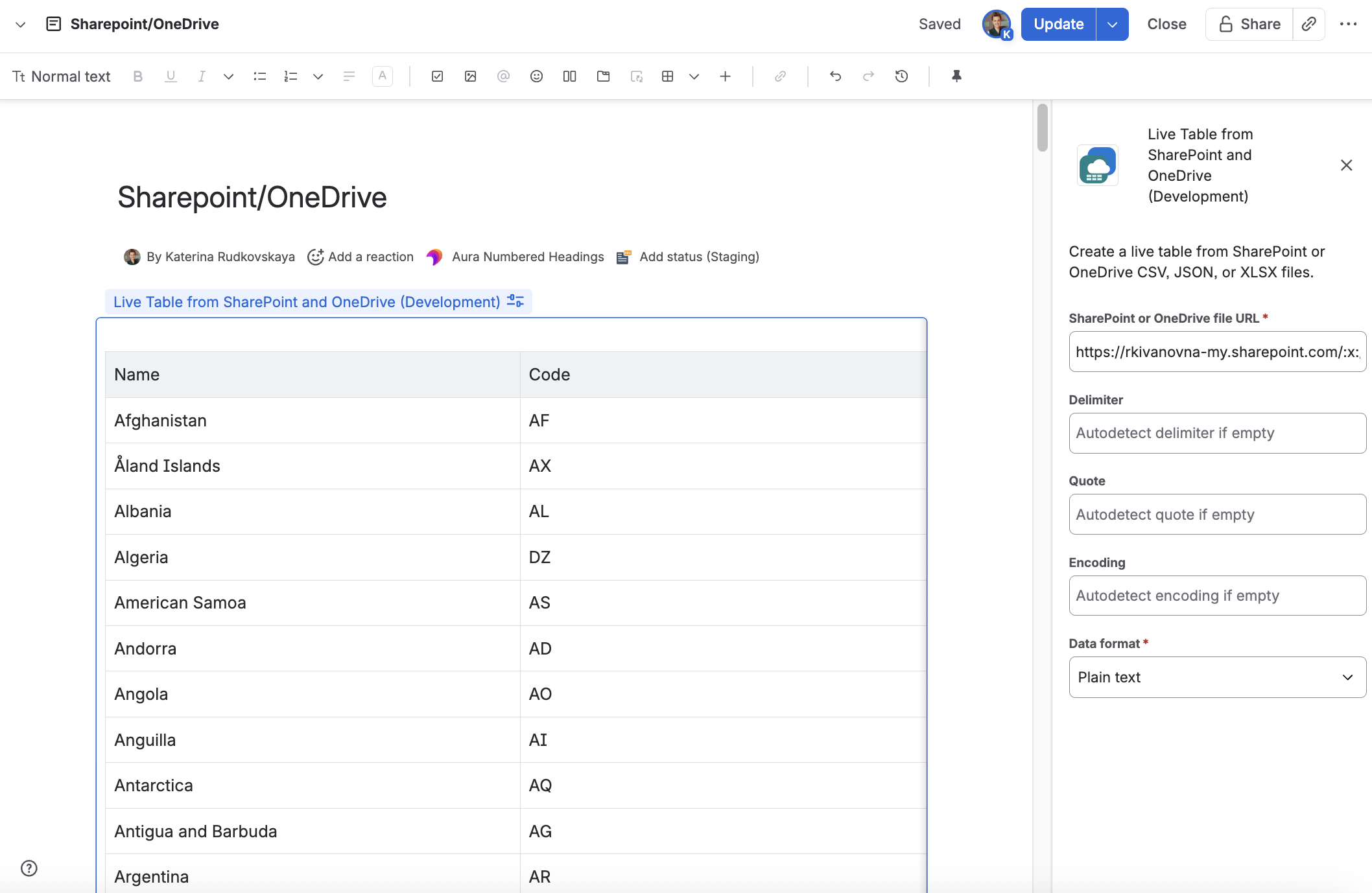
- Save the macro and publish the Confluence page.
File links
Use a link to an individual supported file in SharePoint or OneDrive, rather than a link to a folder or document library. Keep the complete link copied from Microsoft 365, including its query parameters. A link that opens for the page author does not necessarily grant access to everyone who views the Confluence page.
The macro retrieves the configured file when the table renders, so changes can appear when the table loads again. If the file is moved, deleted, or its link or permissions change, update the macro's link or restore access.
File-specific settings
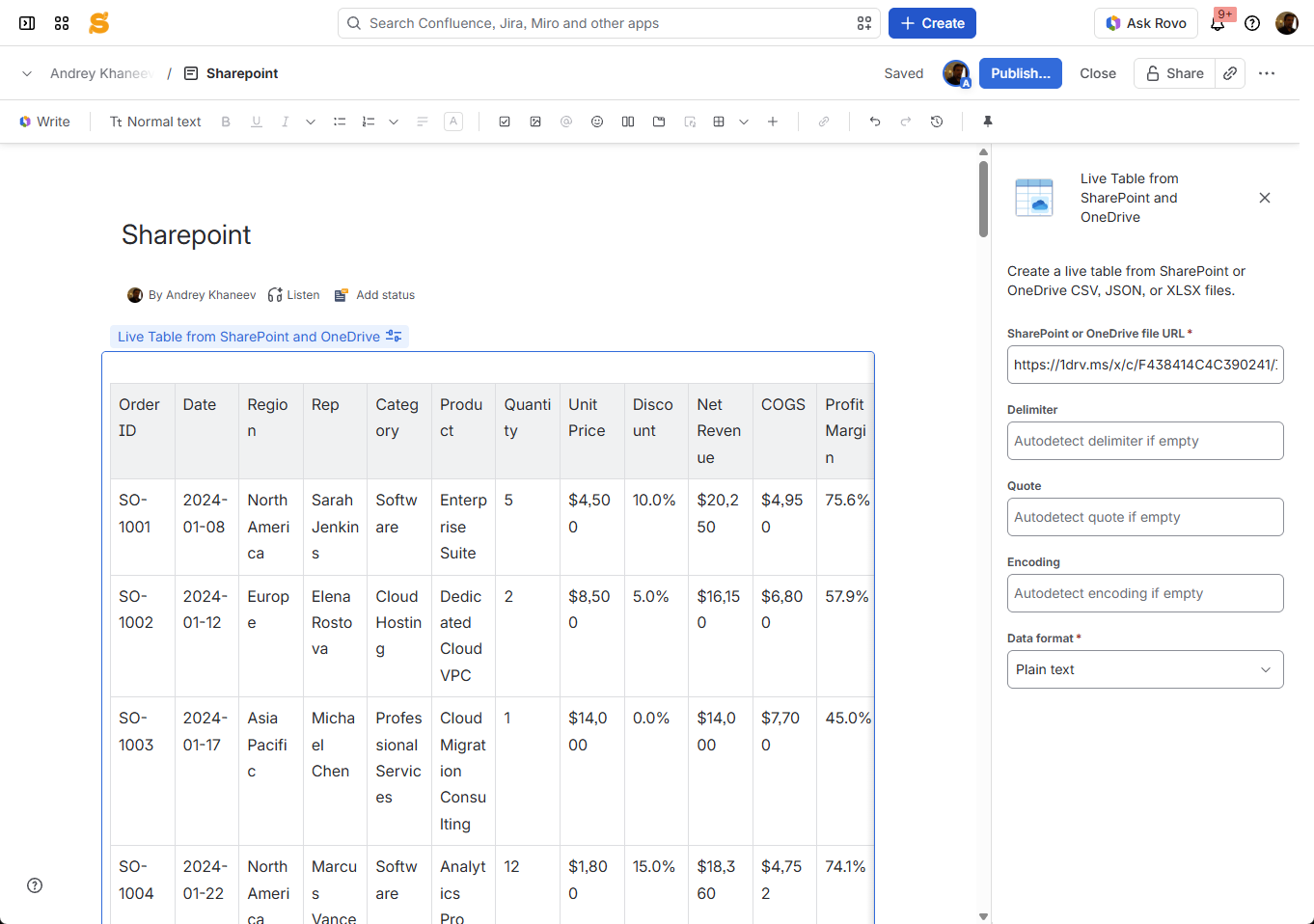
CSV and TSV files
- Delimiter: Automatically detected by default. Specify it if the detected separator is incorrect.
- Quote: Automatically detected by default. Specify the character used to quote values if detection is incorrect.
- Encoding: Automatically detected by default. Select an encoding if text is displayed incorrectly.
- Data format: Choose Plain text, Wiki markup, or Markdown for cell contents.
JSON files
- Path to node: Enter a JSONPath to the array or node whose data you want to display. You can enter several JSON paths, separated by commas. Leave it empty if the JSON document is an array at the root.
- Expand all nested Objects: Expand nested object values in the output table.
- Encoding: Automatically detected by default. Select an encoding if text is displayed incorrectly.
- Data format: Choose Plain text, Wiki markup, or Markdown for cell contents.
Viewing files with restricted access
Each viewer connects with their own Microsoft account. That account must be able to access the file identified by the macro link. The page author's connection does not give other viewers access. If someone cannot see the table, check that they can open the file with the same Microsoft account and that the link's sharing settings permit their access. SharePoint site permissions, link restrictions, and organization policies can also affect access.
The connection requests the delegated Microsoft Graph Files.Read.All permission. This permits the app to read files the signed-in person can access, including files shared with them. The macro uses the connection to retrieve the file configured on the page and does not modify Microsoft files. Review the permissions on the Microsoft authorization screen before connecting your account.
Working with the table
The table shows the file data available to the viewer when the macro loads. For filtering, charts, or other table processing, place the Live Table from SharePoint and OneDrive macro inside Table Toolbox and combine it with the Table Filter, Charts & Spreadsheets macros.