| Excerpt | ||
|---|---|---|
| ||
Combine a variety of macros from Table Filter and , Charts & Spreadsheets. |

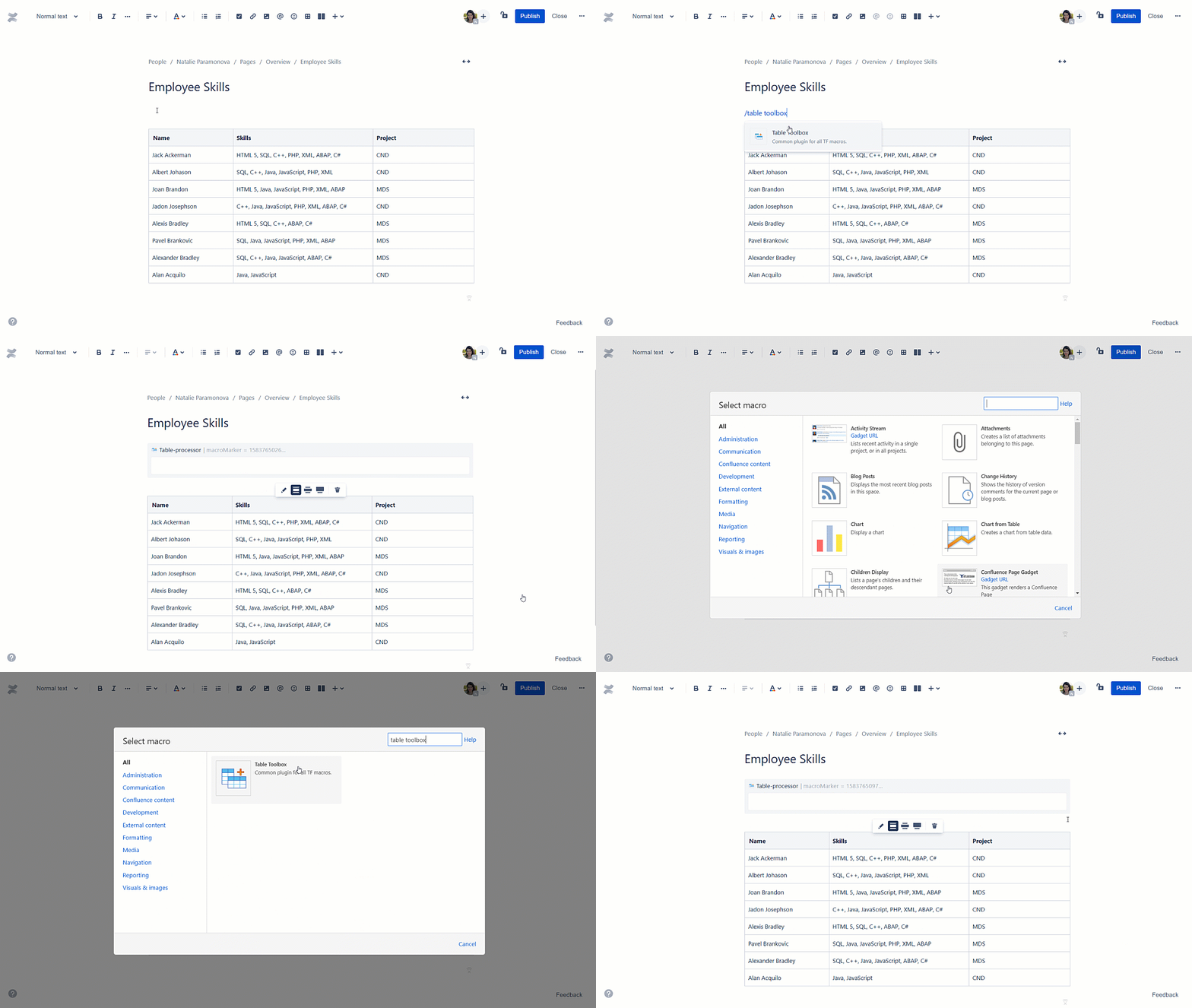
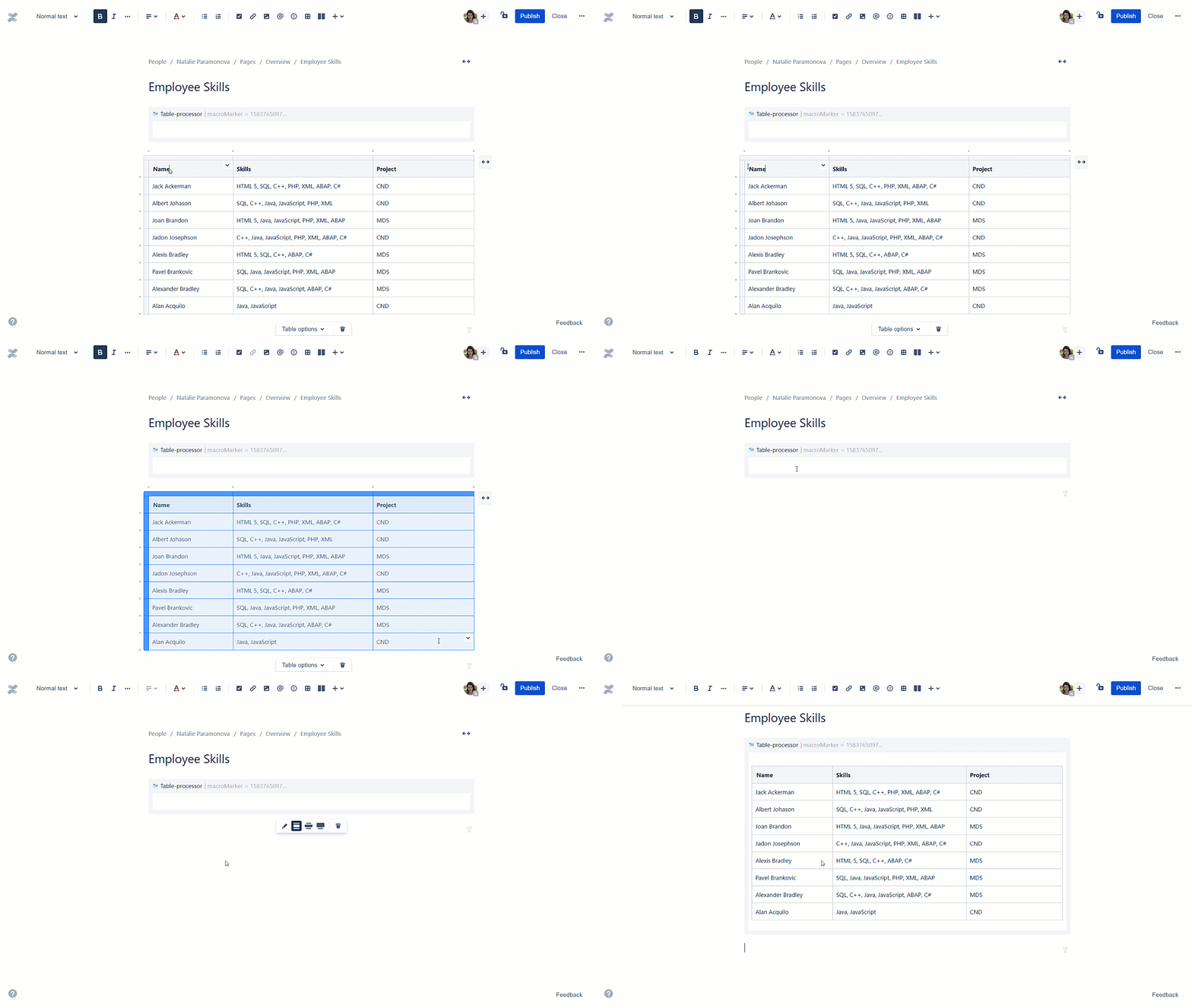
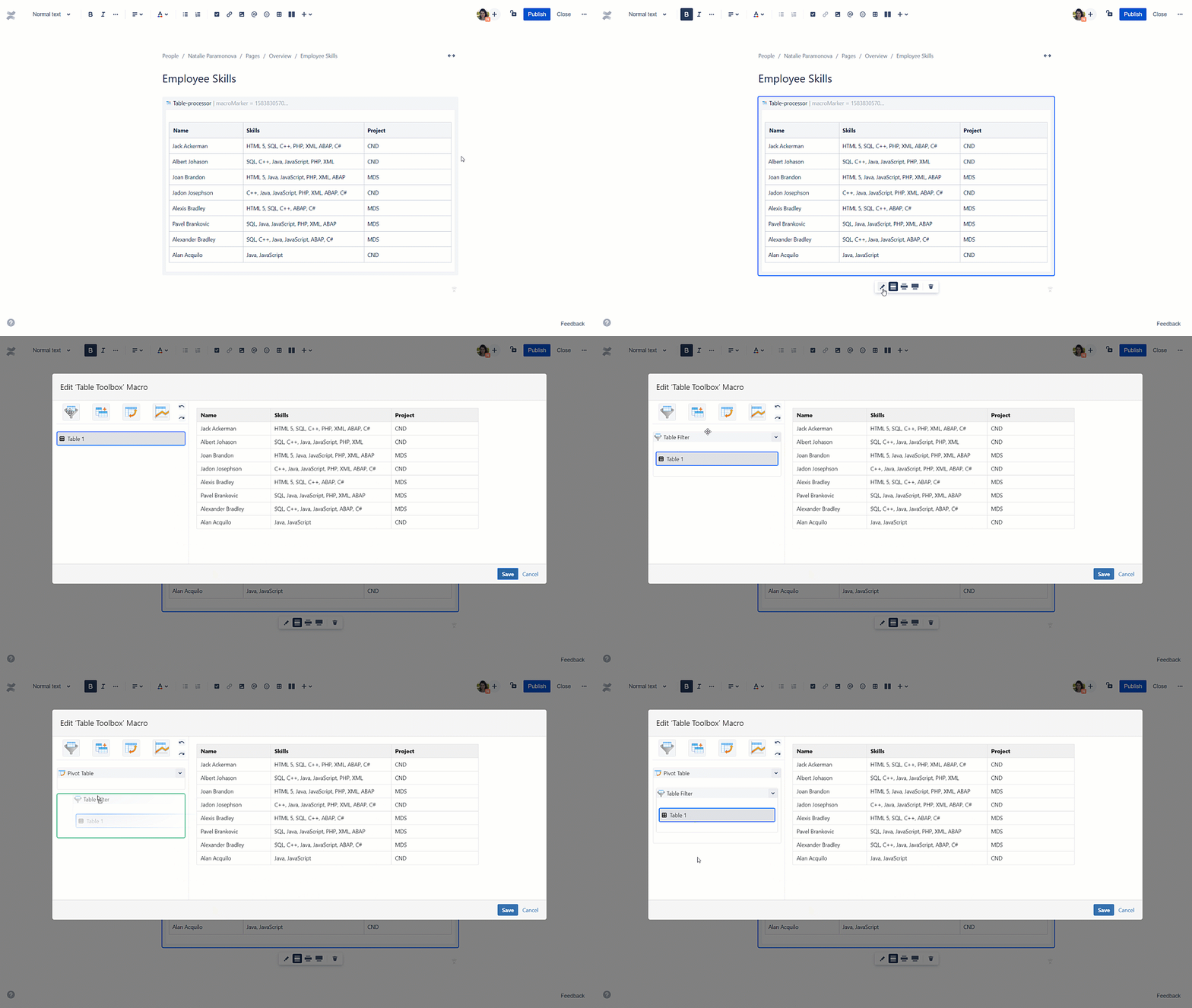
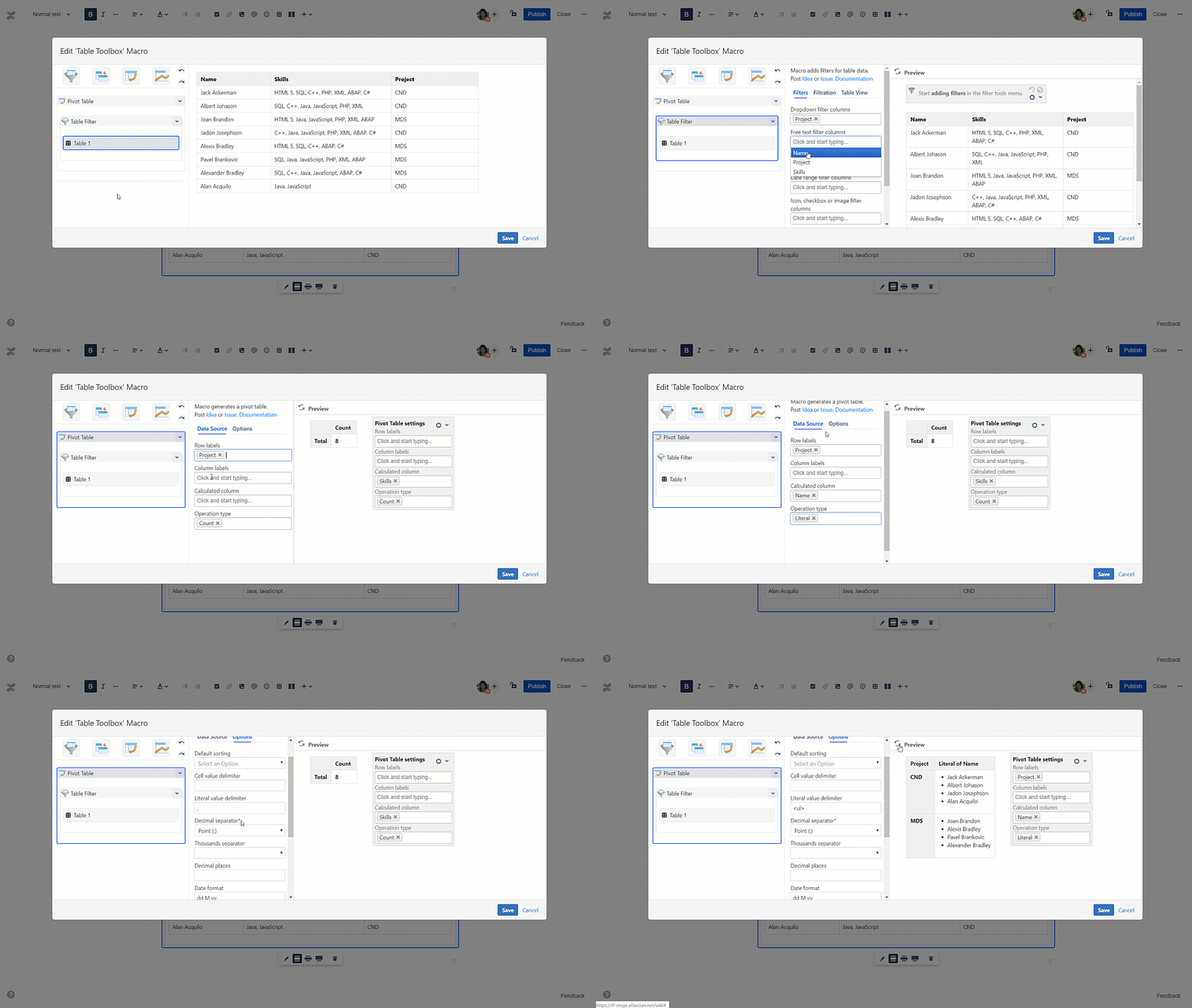
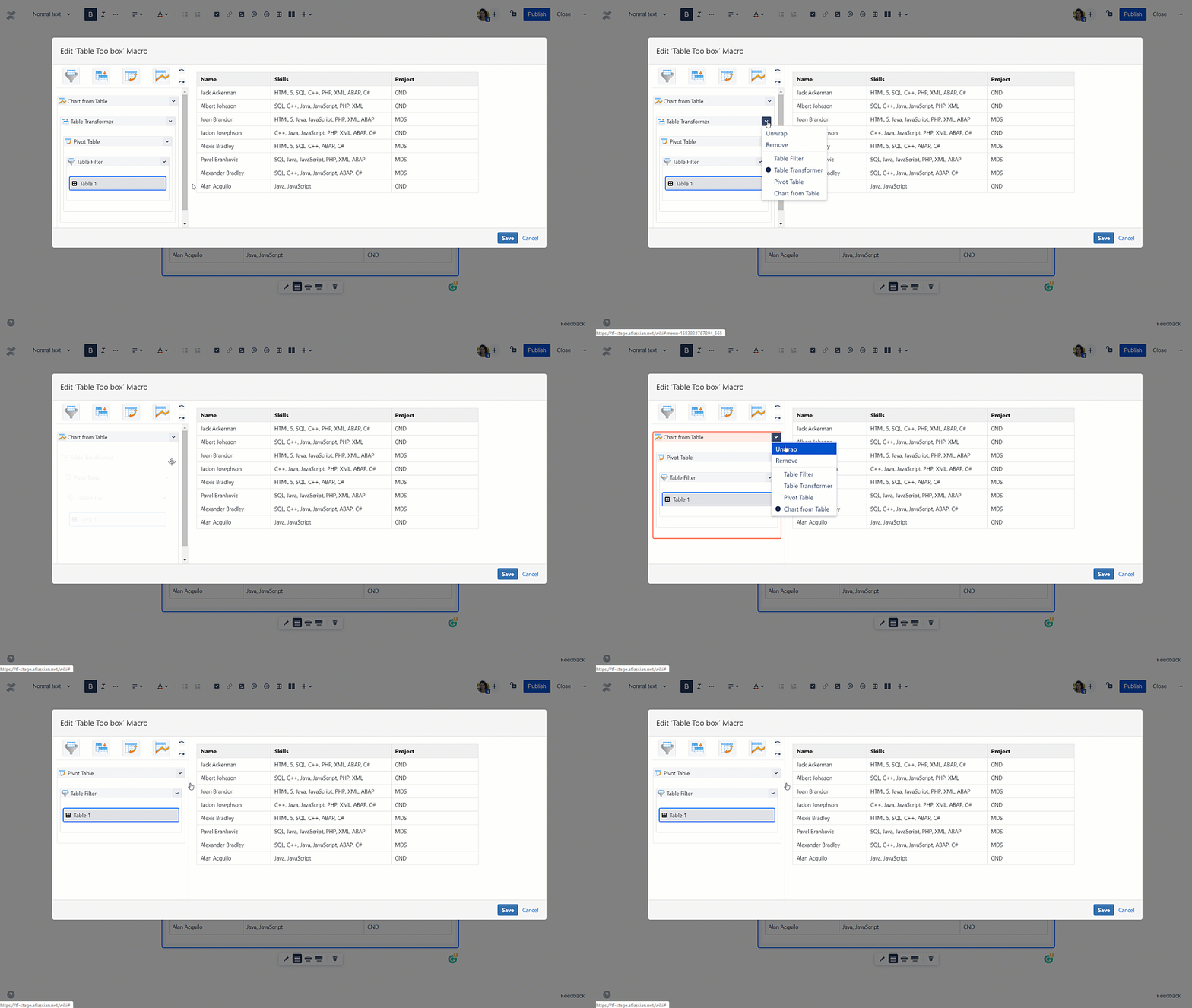
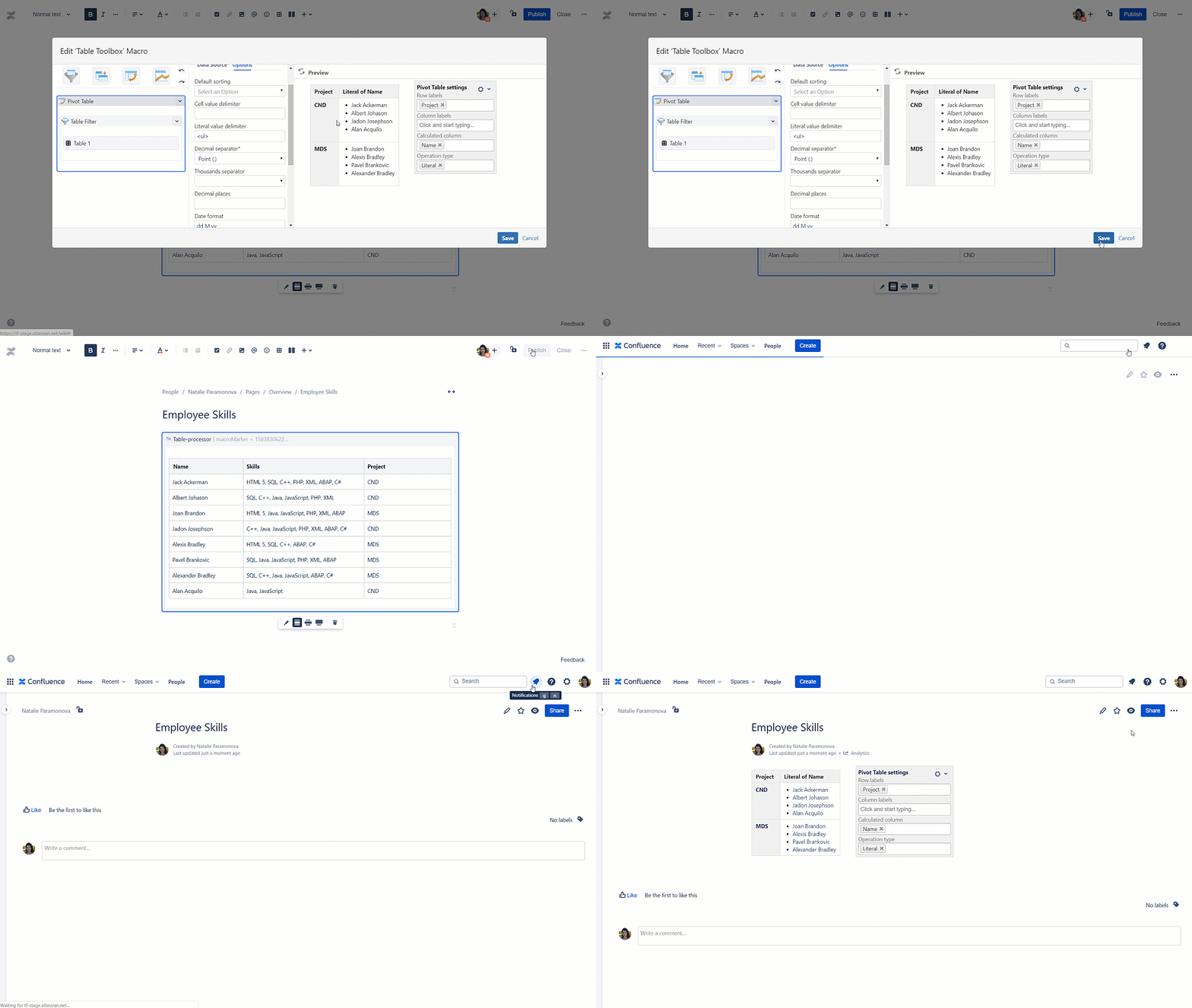
Table Toolbox is one of the macros bundled in the Table Filter and , Charts & Spreadsheets for Confluence app. The macro allows you to combine (nest) multiple macros included in the app in one tool and complete analytical tasks with ease.
Add Table Toolbox macro on the page
| Section | ||||||||||||||||||||
|---|---|---|---|---|---|---|---|---|---|---|---|---|---|---|---|---|---|---|---|---|
|
| Section | ||||||||||||||||||||
|---|---|---|---|---|---|---|---|---|---|---|---|---|---|---|---|---|---|---|---|---|
|
| Section | ||||||||||||||||||||
|---|---|---|---|---|---|---|---|---|---|---|---|---|---|---|---|---|---|---|---|---|
|
| Section | ||||||||||||||||||||
|---|---|---|---|---|---|---|---|---|---|---|---|---|---|---|---|---|---|---|---|---|
|
| Section | ||||||||||||||||||||
|---|---|---|---|---|---|---|---|---|---|---|---|---|---|---|---|---|---|---|---|---|
|
| Section | ||||||||||||||||||||
|---|---|---|---|---|---|---|---|---|---|---|---|---|---|---|---|---|---|---|---|---|
|
| Section | |||||||
|---|---|---|---|---|---|---|---|
|

| Section | |||||||
|---|---|---|---|---|---|---|---|
|

| Section | |||||||
|---|---|---|---|---|---|---|---|
|
| Section | |||||||
|---|---|---|---|---|---|---|---|
|