| Excerpt | ||
|---|---|---|
| ||
Combine a variety of macros from Table Filter, Charts & Spreadsheets. |

Table Toolbox is one of the macros bundled in the Table Filter, Charts & Spreadsheets for Confluence app. The macro allows you to combine (nest) multiple macros included in the app in one tool and complete analytical tasks with ease.
| Note |
|---|
The Table Toolbox macro was specifically developed to overcome the nesting limitations of the new Cloud editor. Without this macro, it is impossible to wrap macros with bodies one into another. |
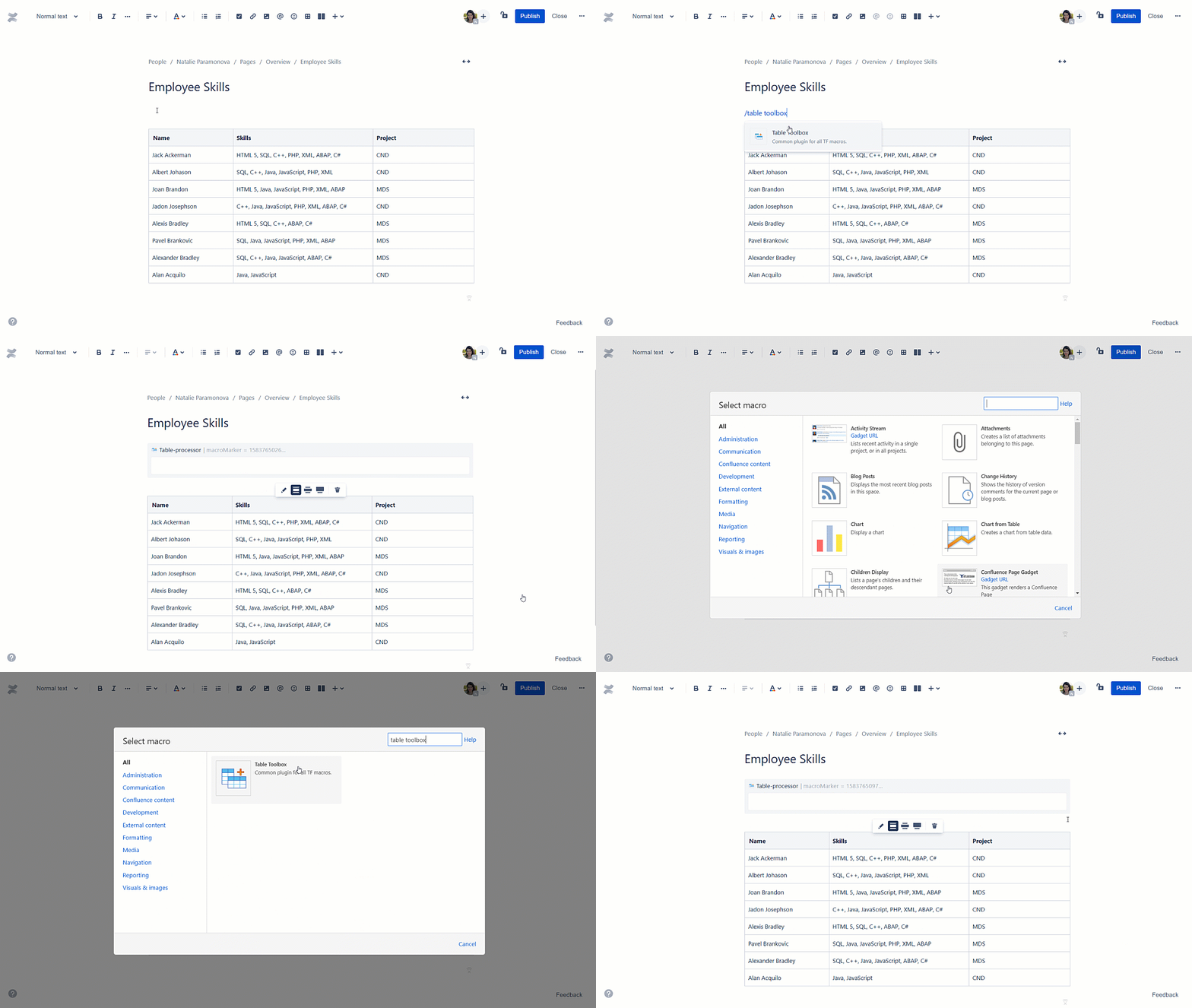
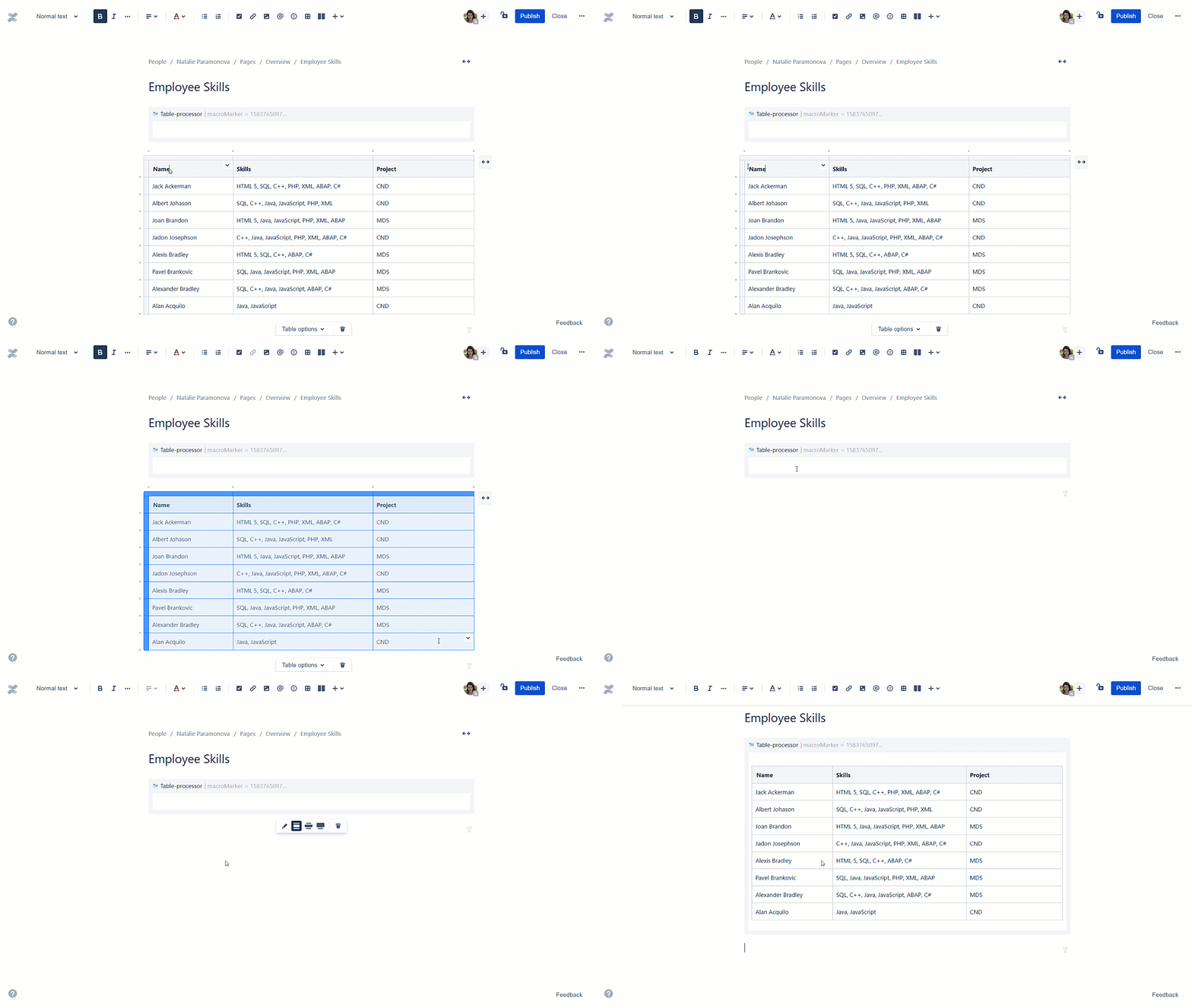
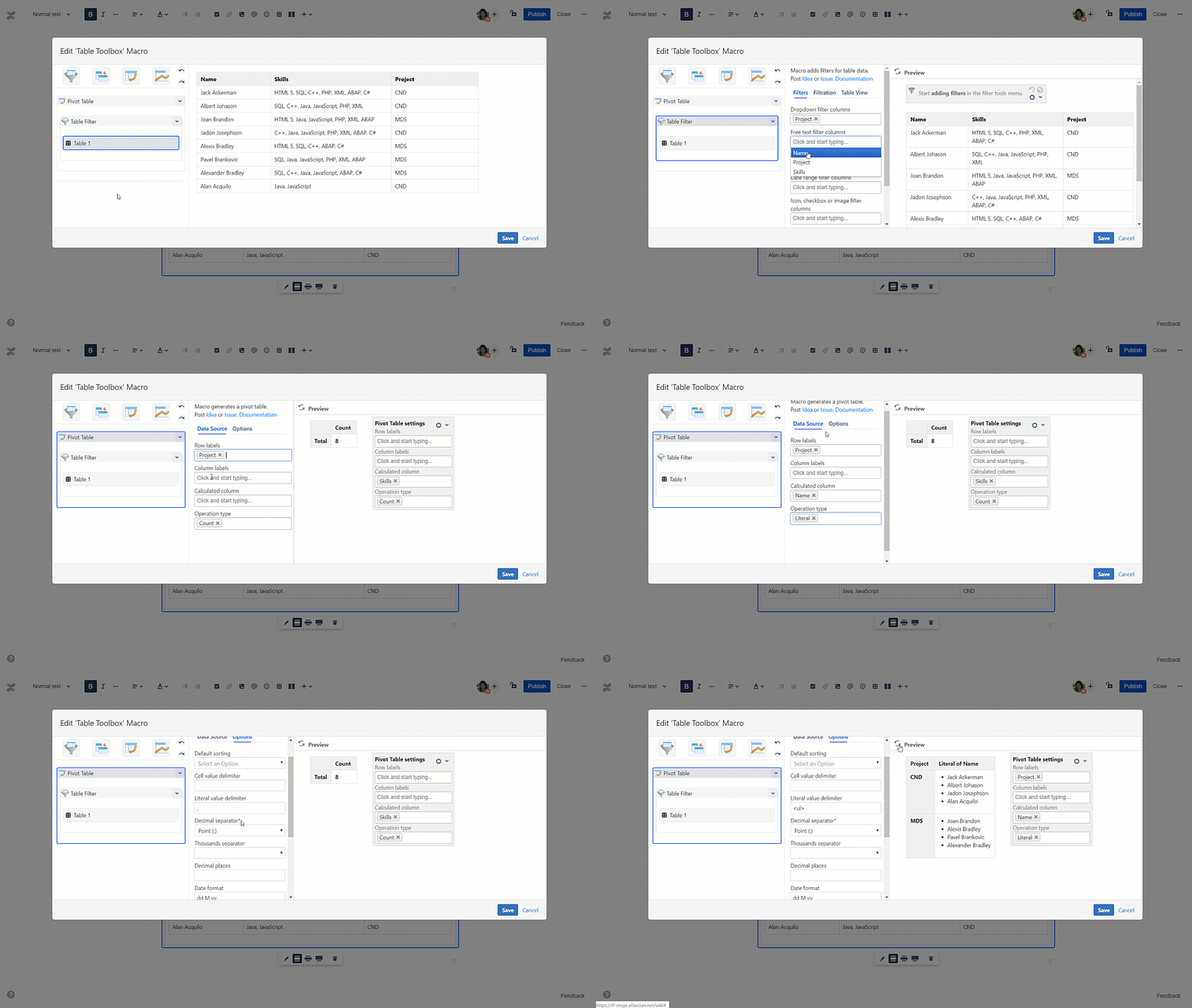
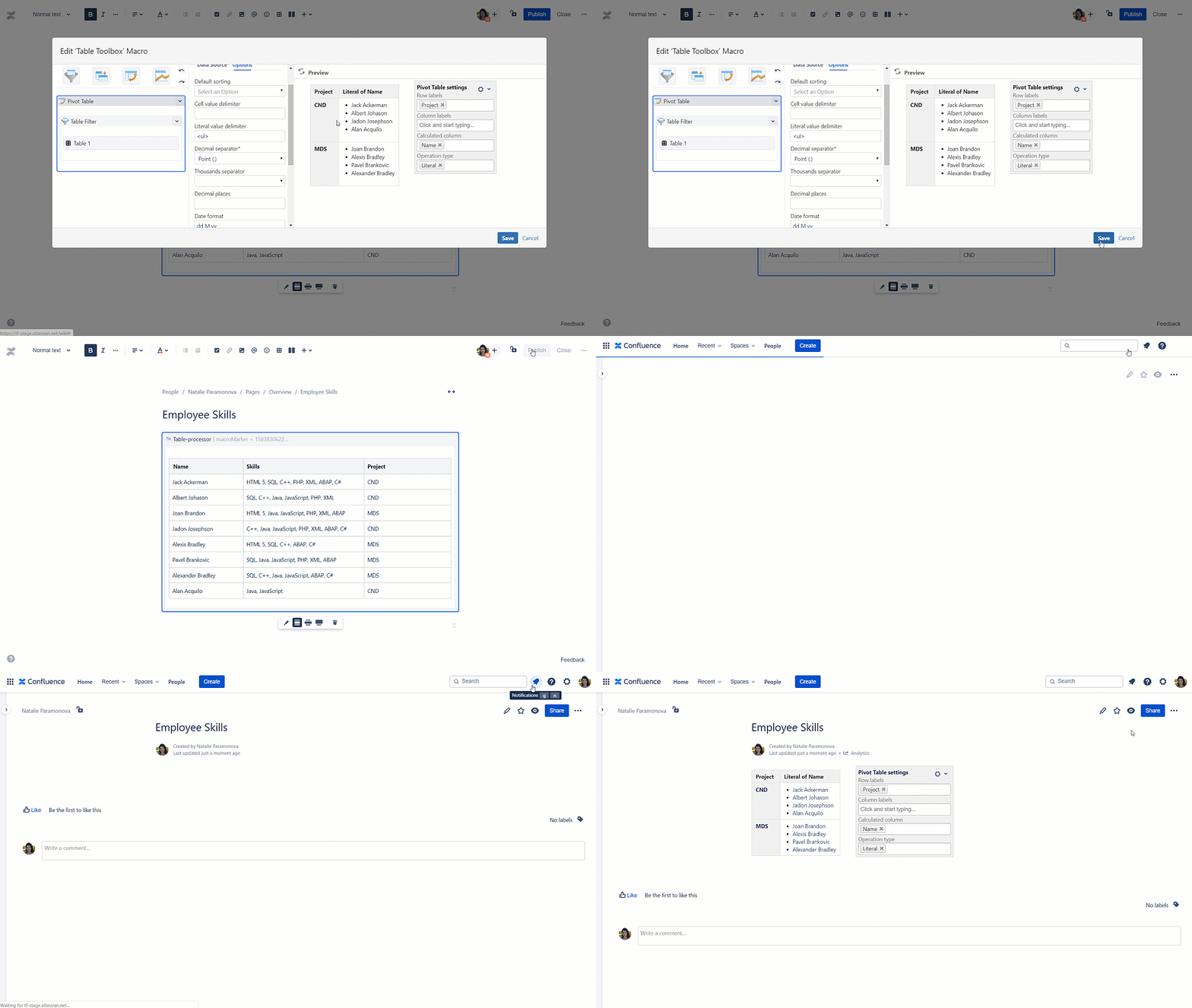
Add Table Toolbox macro on the page
| Section | ||||||||||||||||||||||||||||||
|---|---|---|---|---|---|---|---|---|---|---|---|---|---|---|---|---|---|---|---|---|---|---|---|---|---|---|---|---|---|---|
| ||||||||||||||||||||||||||||||
| Section | ||||||||||||||||||||||||||||||
|
| Section | ||||||||||||||||||||||||||||||
|---|---|---|---|---|---|---|---|---|---|---|---|---|---|---|---|---|---|---|---|---|---|---|---|---|---|---|---|---|---|---|
|
| Section | ||||||||||||||||||||||||||||||
|---|---|---|---|---|---|---|---|---|---|---|---|---|---|---|---|---|---|---|---|---|---|---|---|---|---|---|---|---|---|---|
|
| Section | ||||||||||||||||||||||||||||||
|---|---|---|---|---|---|---|---|---|---|---|---|---|---|---|---|---|---|---|---|---|---|---|---|---|---|---|---|---|---|---|
|
| Section | ||||||||||||||||||||||||||||||
|---|---|---|---|---|---|---|---|---|---|---|---|---|---|---|---|---|---|---|---|---|---|---|---|---|---|---|---|---|---|---|
|
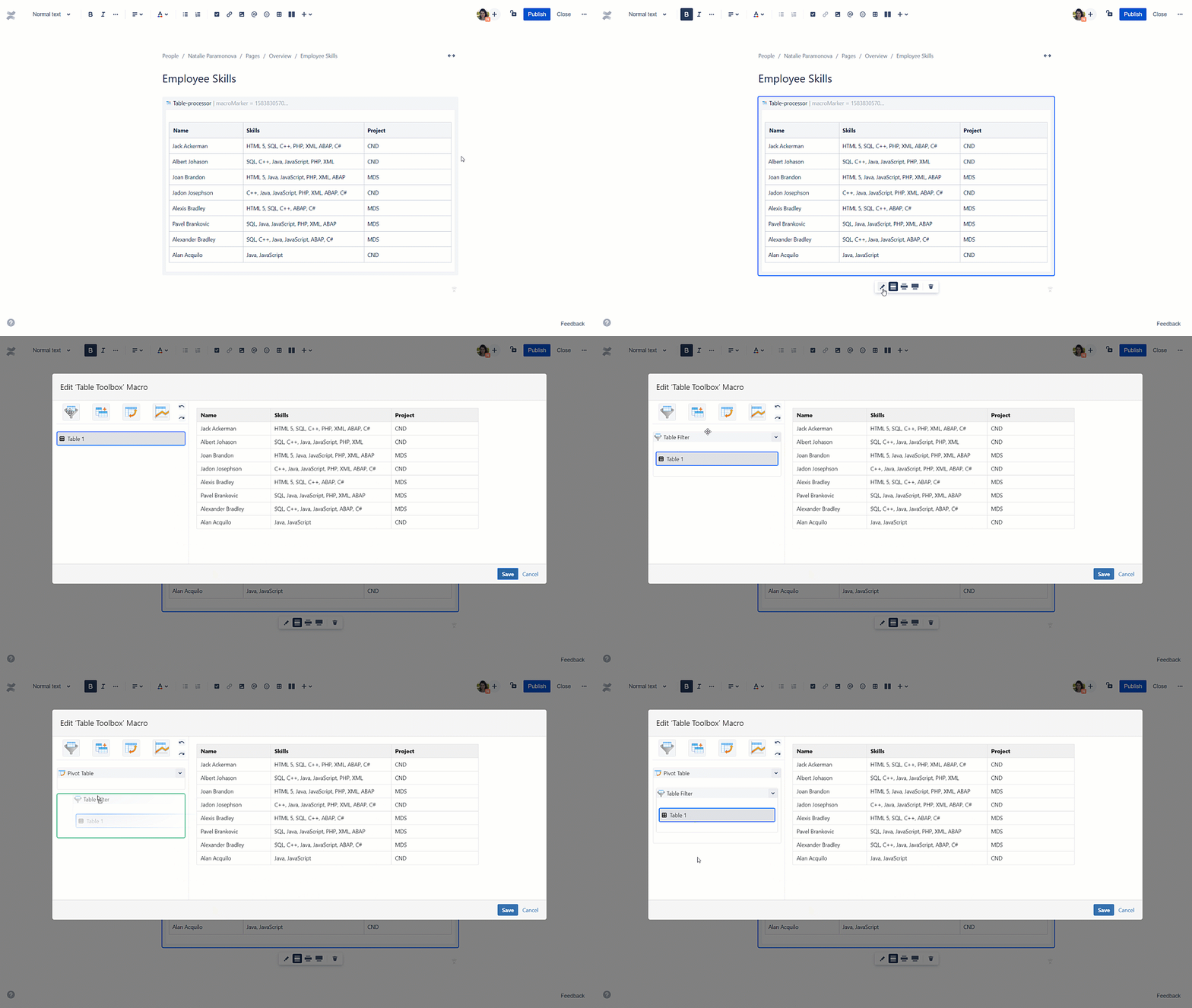
Available macros within the Table Toolbox macro
Inside its shell, the Table Toolbox macro operates with the following macros with bodies:
- Table Filter
- Table Transformer
- Pivot Table
- Chart from Table
- Table Excerpt
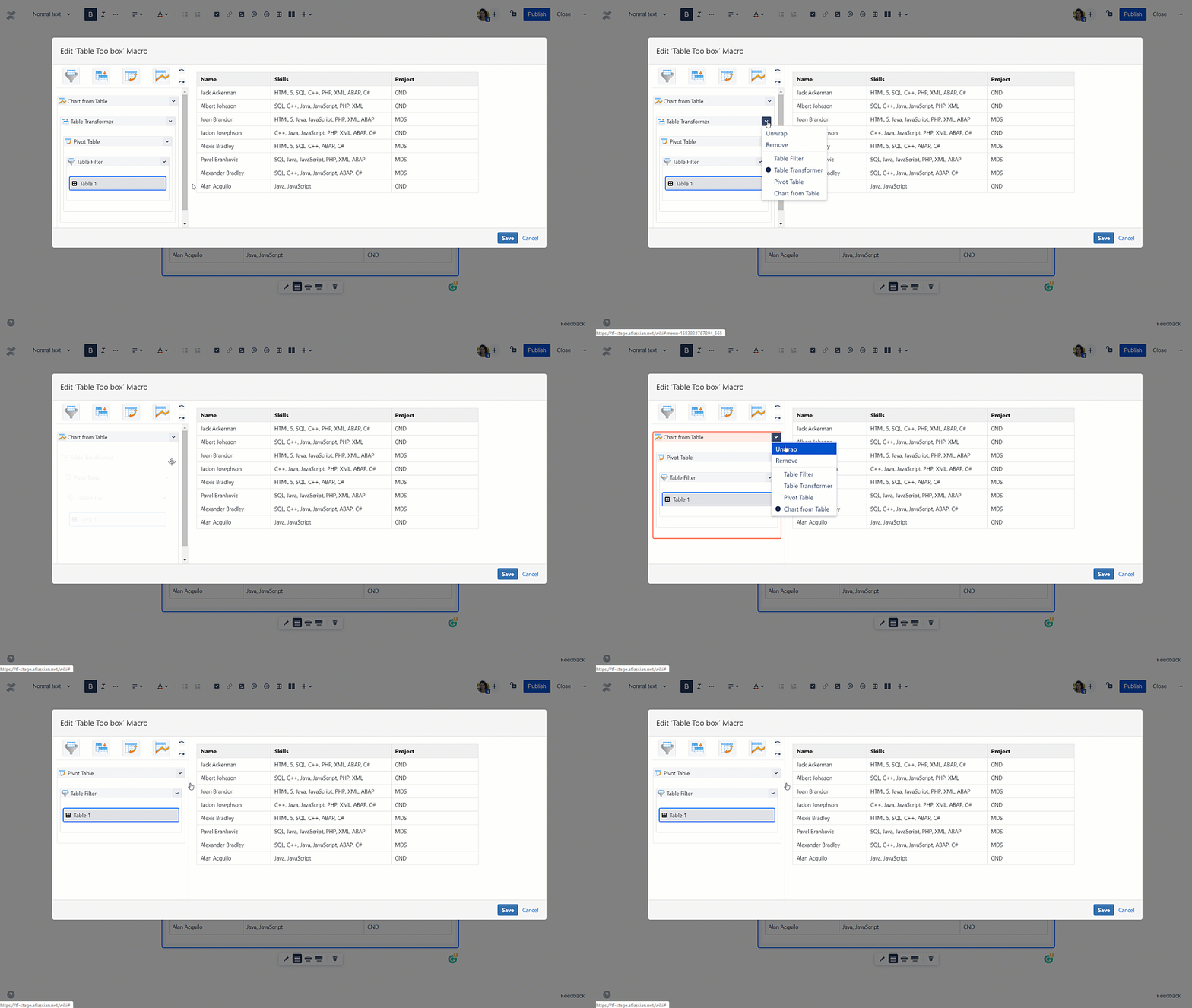
These macros can be added and rearranged in various sequences to complete custom use cases.
Manually created and bodiless macro generated (for example, Table Excerpt Include, Jira Issues, Page Properties Report, etc.) tables should be wrapped into the Table Toolbox macro directly on the page.

These tables are recognized as source tables and shown inside the Table Toolbox macro shell.
| Section | |||||||
|---|---|---|---|---|---|---|---|
|

| Section | |||||||
|---|---|---|---|---|---|---|---|
|
| Section | |||||||
|---|---|---|---|---|---|---|---|
|
| Section | |||||||
|---|---|---|---|---|---|---|---|
|