In addition to creating questions right in Confluence, you can work on them outside of your Confluence site in a CSV file and then import it in a quiz of your choice.
Use cases
migrating questions from another platform (that supports export in CSV)
question creators or reviewers are not Confluence users
creating many similar questions (it's easy to copy and paste text snippets when working on questions in a CSV file)
Open the downloaded file and fill it in. Each row in the template is a question. The second row is a sample question – make sure you remove it. The template has the following columns:
Question text – type your question text in this column.
Additional text – if your question exceeds 255 characters, you can have the second part of the question here.
Type – enter question type (single choice/ multiple choice/ free text (checked manually), free text (checked automatically)). If blank, a single choice question will be created.
Randomize answers – type 'yes'to enable randomizing answer options for this question, or 'no'to disable that. If blank, randomizing will be enabled.
Correct answers – type numbers of correct answer options separated with commas, e.g. if a question has 5 answer options and the second and fifth are the correct ones, you should type '2,5'.
Answer Option 1 – type the first answer option here.
Answer Option 2 – type the second answer option here.
Answer Option 3 – type the third answer option here.
Answer Option 4 – type the fourth answer option here.
Answer Option 5 – type the fifth answer option here. If you have more than 5 answer options, just add a new column after the column 'Answer Option 5'. If you have less than 5 options, just leave the remaining columns blank.
Once done, save your file in CSV UTF-8.
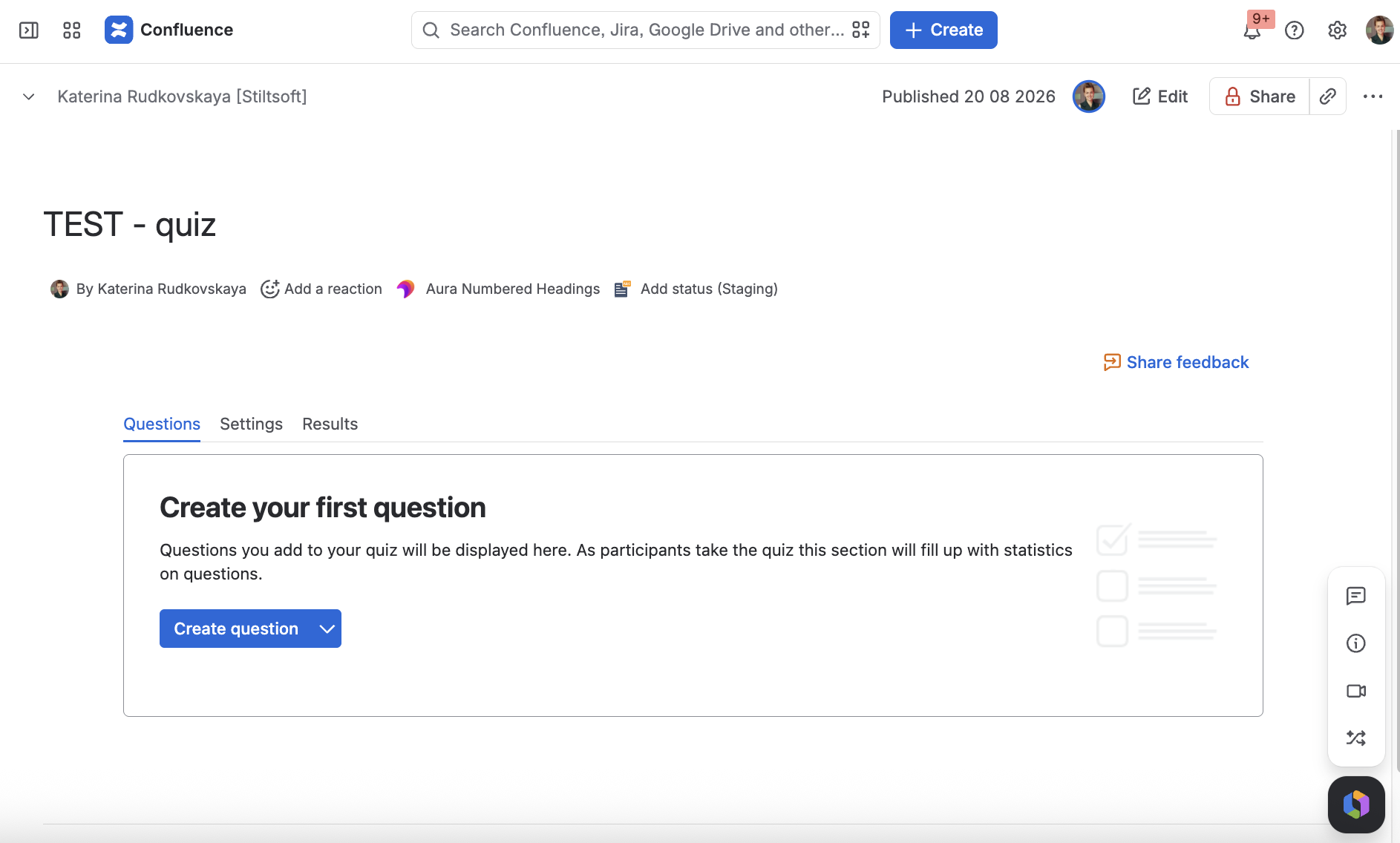
Find a quiz that you want to add questions to
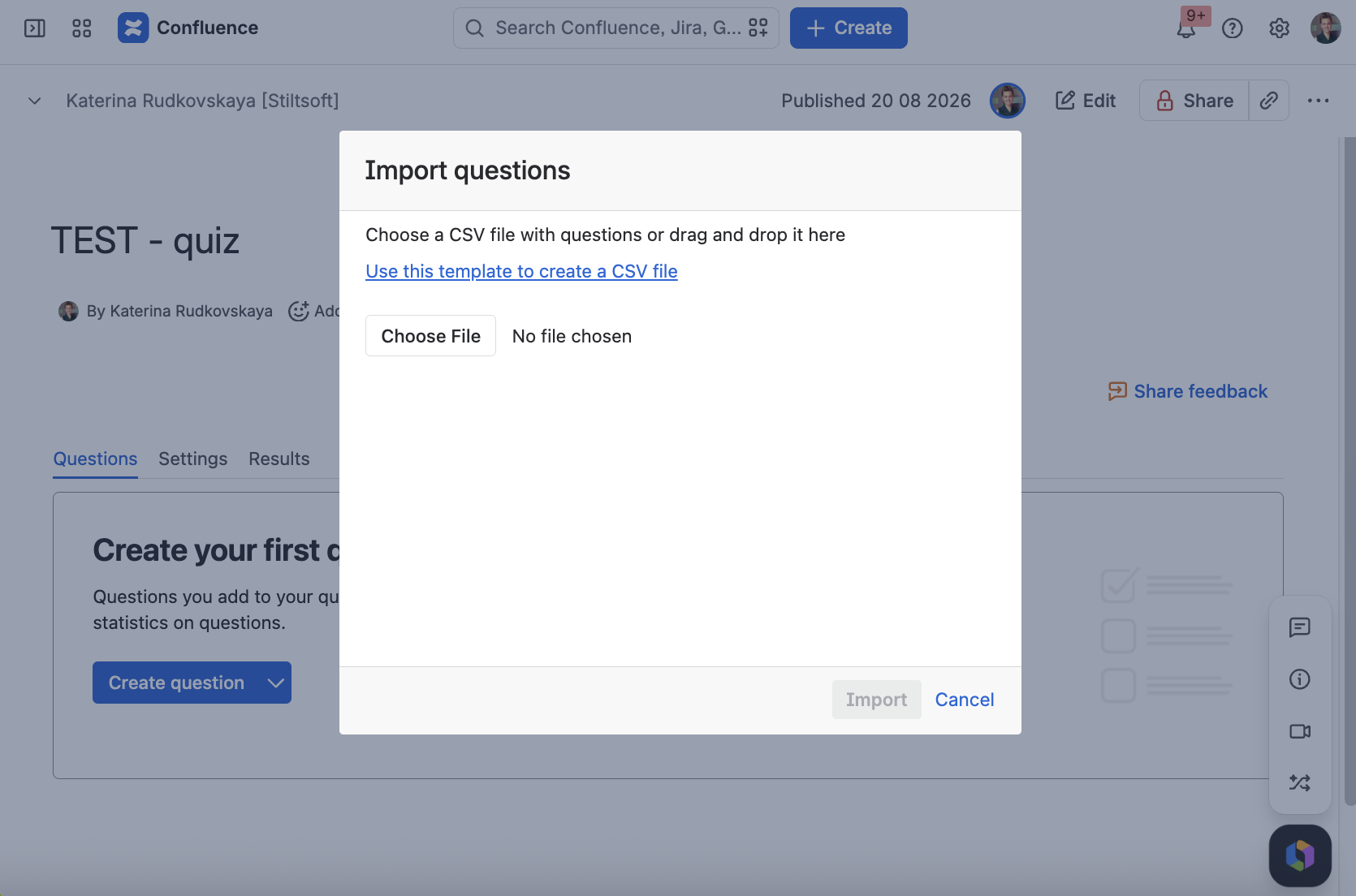
Click in the Create question button and select Import questions.
Select the file you want to import or simply drag and drop it into the dialog.
Click Import.
When the import is completed, you will see the message saying how many questions:
were successfully created
failed (in case something went wrong).
Cookie Notice
This website uses cookies for analytics, personalization and advertising. By continuing to browse, you agree to our use of cookies. Learn more