Download PDF
Download page Working Days and Hours Configuration.
Working Days and Hours Configuration
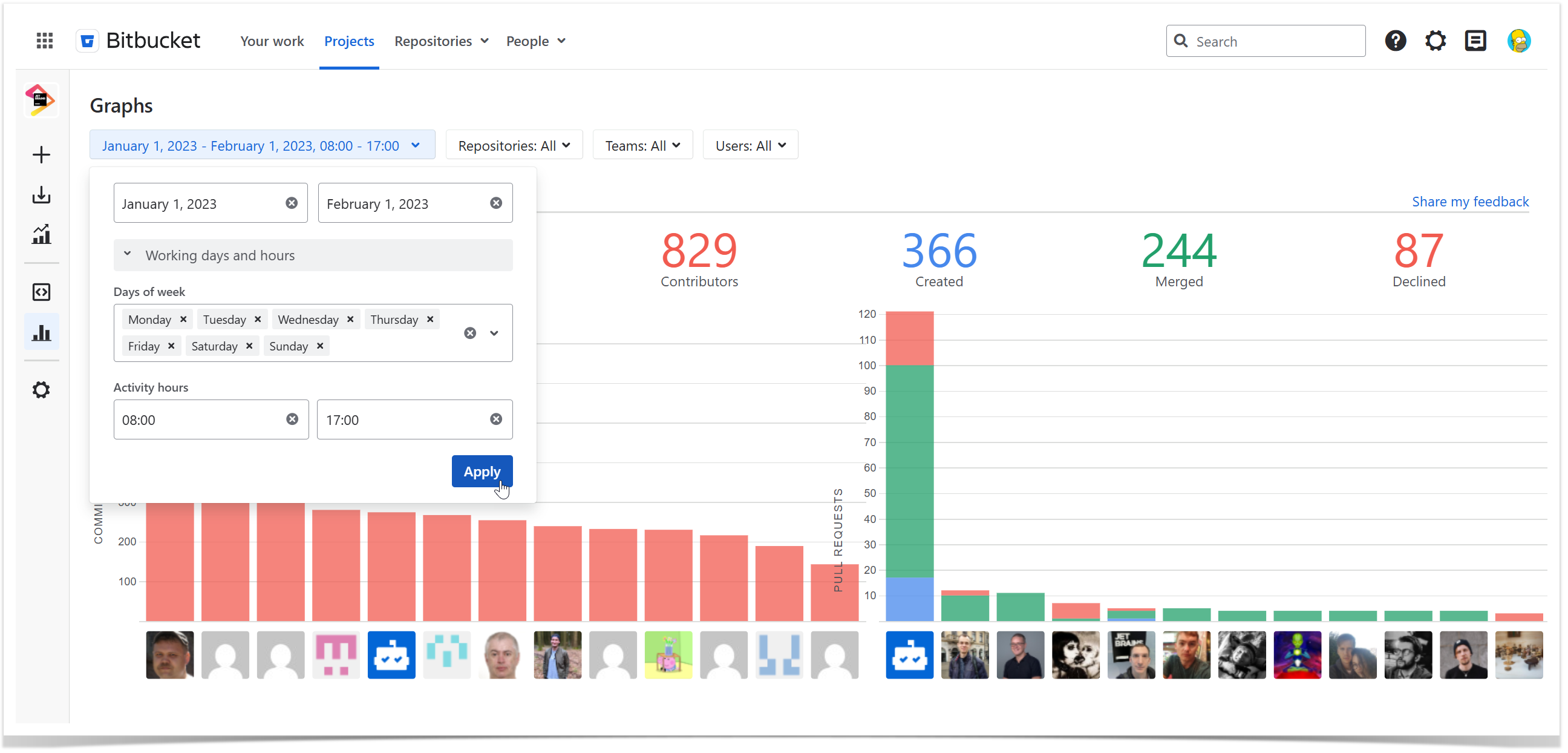
Awesome Graphs lets you control which days and hours are included in Graphs and Reports, the People page, and the REST API.
By default, Awesome Graphs includes all days of the week and the full day within the selected period. You can narrow the results by selecting specific weekdays and activity hours to focus analytics on regular team activity, exclude non-working time, or analyze outliers such as activity outside standard working hours.
Below on the page, you'll find:
an explanation of how working days and hours work
instructions on how to configure working days and hours
- examples of common configurations
For easier navigation, use the Table of Contents at the top-right of the page.
How working days and hours configuration works
Working days and hours are configured in the custom time span selector. The selected date range defines the overall period for a Graph, Report, or People page data. Working days and hours narrow this period further.
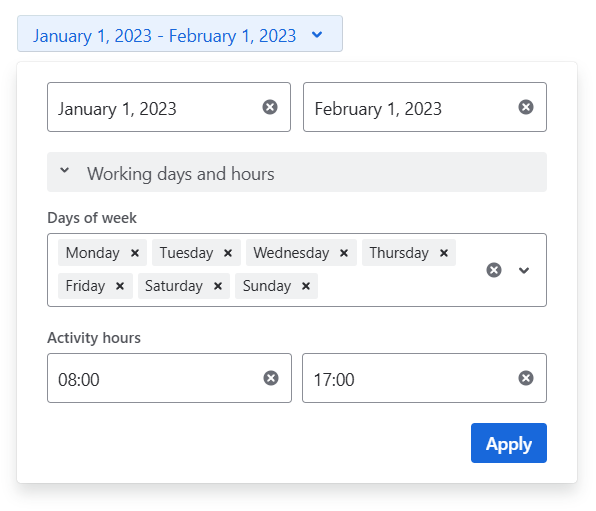
By default, all days of the week are selected.
Activity hours are displayed in your timezone and use the 24-hour format. They are applied only when both start and end times are selected.
For duration-based reports, such as the Cycle Time Report and the Resolution Time Distribution Report, working days and hours are used to recalculate time-based metrics. Time outside the selected days and hours is excluded from the calculation.
Working days and hours also support time ranges that cross midnight. For example, 18:00 - 7:00 includes activity from 18:00 to midnight and from midnight to 7:00. This can be useful for analyzing night shifts, on-call work, or activity outside regular working hours.
Working days and hours configuration is available in the following Awesome Graphs features:
| Area | What is affected |
|---|---|
| Graphs | Activity shown in commit and pull request graphs. |
| Reports | Activity, statistics, related lists, and time-based metrics shown in commit and pull request reports. |
| People page | Developer cards and contributor graphs filtered by the selected date range, activity type, days of week, and activity hours. Exports follow the selected time span, including working days and hours when they are configured. |
| REST API | Data returned by supported REST API endpoints when working days and activity hours parameters are used. For the full list of supported endpoints and parameter descriptions, see the REST API documentation. |

Please note that working days and hours use the timezone of the user viewing the Graph, Report, or People page. Different users may see different included activities when applying the same date range and activity hours across different time zones.
How to configure working days and hours
Working days and hours can be configured when you select a custom period during report configuration or in the menu at the top of the Graphs or People pages.
To configure working days and hours:
Open the Period selector.
Select Custom.
Choose the start and end dates for the period.
Expand the Working days and hours panel.
In Days of week, select the weekdays you want to include.
To limit the results to specific hours, select both start and end times in Activity hours.
Apply the filter.
Once the filter is applied, Awesome Graphs updates the Graph, Report, or People page according to the selected date range, weekdays, and activity hours.
Examples
Analyze activity during a standard work week
To include only weekday activity during standard office hours:
Select Monday, Tuesday, Wednesday, Thursday, and Friday in Days of week.
Select 9:00 and 17:00 in Activity hours.
Exclude weekend activity
To exclude weekend activity but include the full day for weekdays:
Select Monday, Tuesday, Wednesday, Thursday, and Friday in Days of week.
Leave Activity hours empty.
Analyze overnight activity
To analyze work performed during an overnight period:
Select the relevant days in Days of week.
Select 18:00 and 7:00 in Activity hours.
Awesome Graphs will include activity from 18:00 to midnight and from midnight to 7:00
Recalculate cycle time using working days and hours
If a pull request is open from Friday 16:00 to Monday 10:00 and the filter is set to Mon-Fri, 8:00 - 18:00, the calculated cycle time is 4 hours:
2 hours on Friday, from 16:00 to 18:00
2 hours on Monday, from 8:00 to 10:00
The weekend and all hours outside 8:00 - 18:00 are excluded from the calculation.