Download PDF
Download page Combine data across tables.
Combine data across tables
When your data is stored in different tables, you may need to bring it together into a single view — for reporting, analysis, or better visibility.
With the Table Filter, Charts & Spreadsheets app, you can achieve this in different ways. This guide explains the differences between the various setups, shows practical use cases, and helps you decide which to use.
What are your options?
There are two ways that allow you to combine data across tables:
Option 1- With Table Excerpt and Table Excerpt Include
Option 2: With Table Transformer using Merge tables, Lookup tables, or Custom transformation
What tables do you want to combine? | What macro should you use? | What does it do? |
|---|---|---|
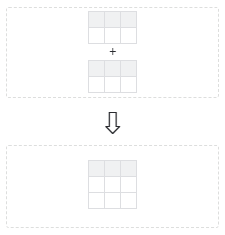
When tables have the same column (same-structured), and you want to collect them into one table | Table Excerpt + Table Excerpt Include | Combine the same-structured tables into one table. |
Table Transformer (Merge tables) | ||
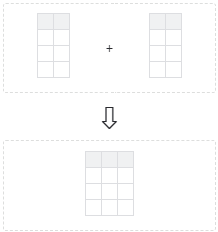
When you have a main table and need to add one or a few columns from another table | Table Transformer (Lookup tables) | Enriches an existing table with additional data — adds columns from another table based on a matching value
|
When you need an advanced table transformation that is not covered by presets. For example:
| Table Transformer (Custom transformation - SQL query) | Lets you combine and transform one or more tables however you want using an SQL query. |

What tables can I combine together?
No matter which setup you choose, you can merge the following table types in any combination:
Native Confluence tables
Macro-generated tables, including:
Jira Issues (Jira work items)
Page Properties (Content Properties)
Task Report
External data sources, including:
CSV (via the Table from CSV macro)
JSON (via the Table from JSON macro)
Any setup also supports other macros from the Table Filter, Charts & Spreadsheets app.
What is the difference between Table Excerpt + Table Excerpt Include and Table Transformer – Merge setup, since they both work with the same-structured tables?
Both methods can combine tables that have the same structure. However, they differ significantly in how they are set up and how they work.
With Table Excerpt + Table Excerpt Include:
You wrap every table you want to collect data from in the Table Excerpt macro.
You assign the same Excerpt name to each table.
On another page (where you want the final combined table), you insert Table Excerpt Include and define the source pages.
As a result, the tables are automatically pulled into one combined table. Whenever the original tables are changed, the combined table updates automatically. Refer to this page for more information about this macro setup and various use cases.
With Table Transformer – Merge, the workflow is different:
You insert the Table Transformer macro.
You paste all the tables you want to combine directly into the macro body (or insert macros that output tables).
The macro merges only the tables placed inside it.
Can I further process a merged table—for example, filter the data, build pivot tables, or create charts?
Yes. To do this, use the Table Toolbox macro. This macro allows you to combine (nest) multiple macros included in the app and perform analytical tasks with ease. For example, you can use the Table Filter macro to filter your newly created table or set default sorting, and then create a pivot table using the Pivot Table macro.
What can I use this for?
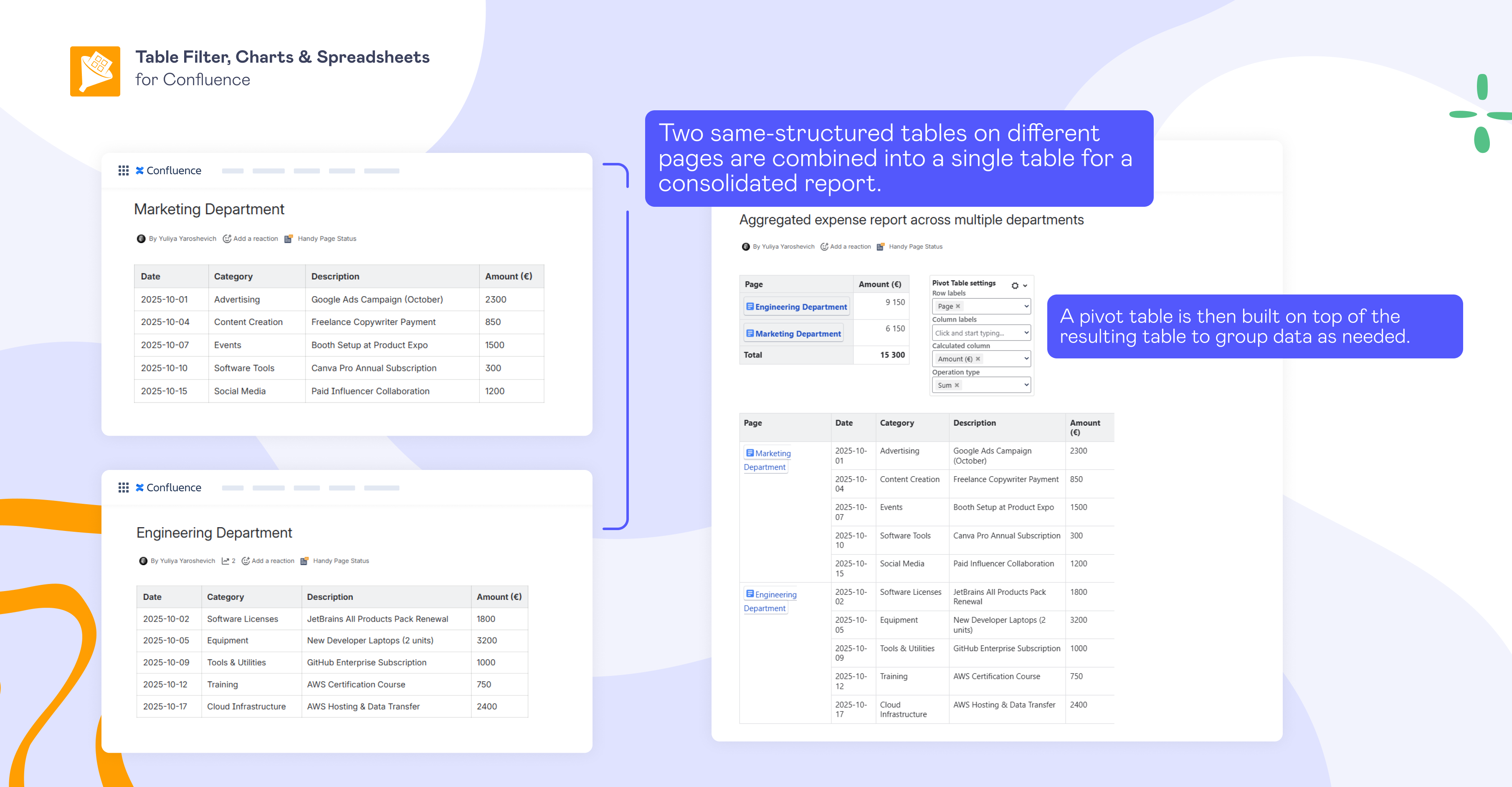
Case 1: Combining same-structured tables across pages for a consolidated report
You have two tables with the same structure located on different Confluence pages:
1️⃣ Marketing expenses
2️⃣ Engineering expenses
Since both tables share identical column labels (Date, Category, Description, Amount), the goal here is to combine them into a single dataset and further group and summarize the data (for example, by department, category, or time period).
Macro setup: Table Excerpt + Table Excerpt Include + Pivot table built on top of the resulting table
For more information about Table Excerpt + Table Excerpt Include, including various use cases and a step-by-step setup guide, please refer to this page.
Case 2: Joining team members and project assignments tables by one shared column
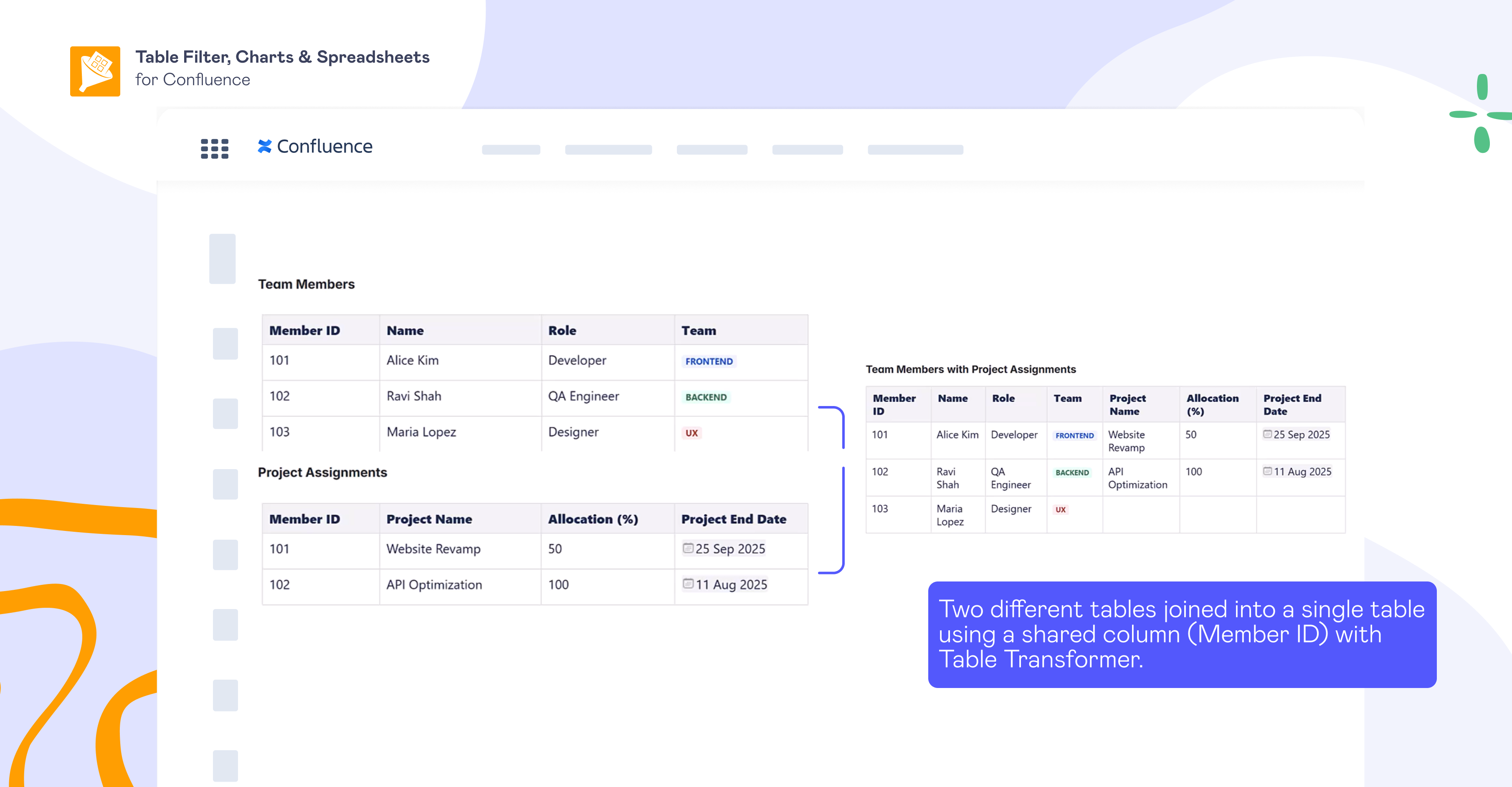
Macro setup: Table Transformer - Lookup tables
You have two separate tables:
1️⃣ Team Members
Contains employee information: Member ID, Name, Role and Team.
2️⃣ Project Assignments
Contains project-related data: Member ID, Project Name, Allocation (%), Project End Date.
Both tables share a common column — Member ID. The goal is to combine these two tables into a single report where you see employee information and their project assignments in the same row.
Case 3: Merging Jira Issue tables by linked issues and keys
Macro setup: Table Transformer - Custom Transformation with SQL query
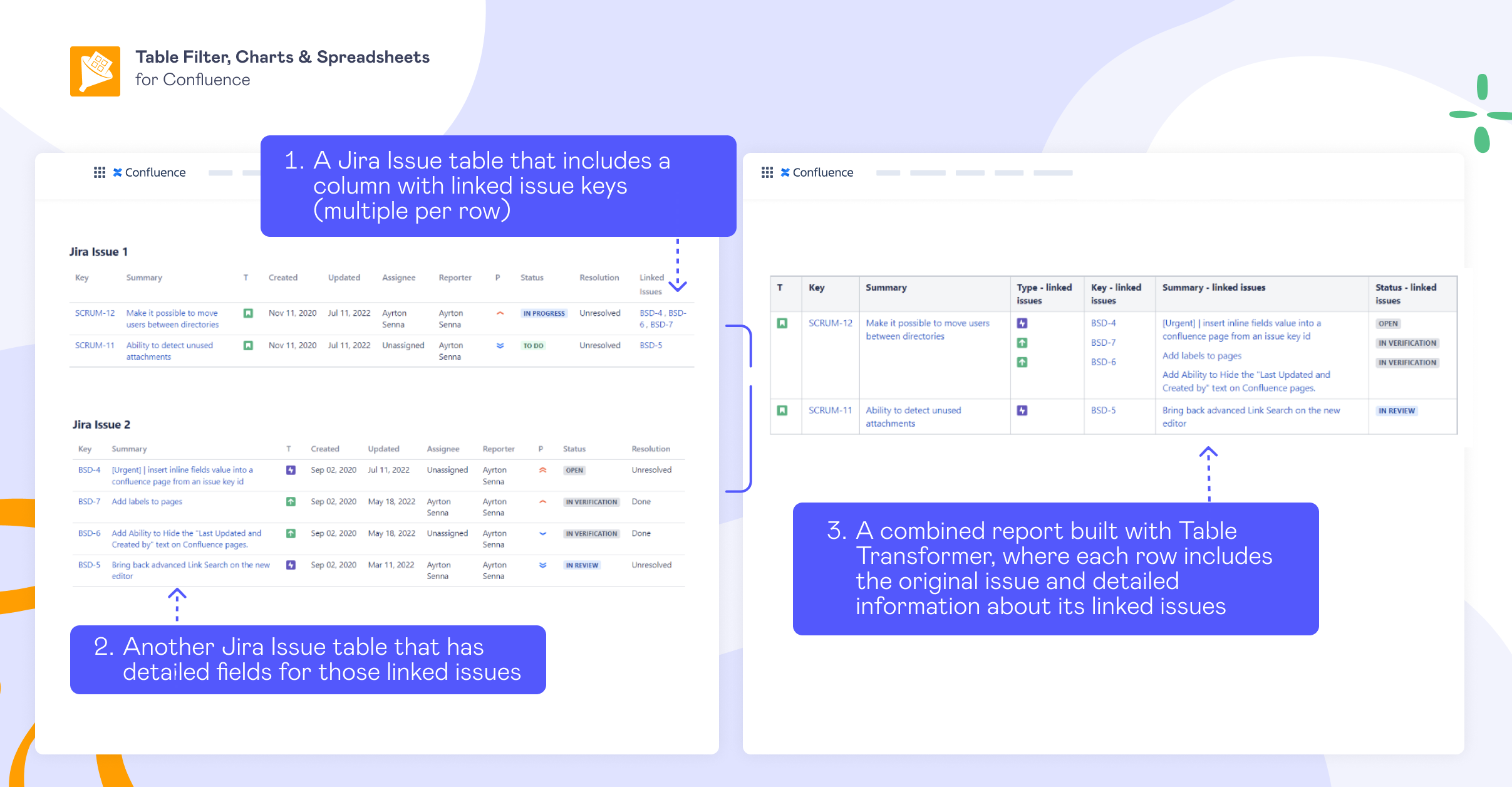
This use case shows how to combine two Jira issue tables (Jira work items) when one of them has lists of linked issue keys in a single cell.
The goal here is to combine:
1️⃣A Jira table that includes a column with linked issue keys (multiple per row).
2️⃣Another Jira table that has detailed fields for those linked issues (one row per issue).
And create a combined report where, for each row, you show the original issue and the details of each linked issue — even though there may be multiple linked keys.
FULL SETUP GUIDE WITH SQL QUERY
Good to know: with Table Transformer - Custom Transformation with SQL query, you’re almost unlimited in use cases. Using SQL, you can literally do anything you want with your table. Explore our library of use cases with full setup instructions and ready-to-use queries.
Case 4: Combining CSV table with a Confluence table
You have two separate tables:
1️⃣ A CSV file containing a product catalogue with article numbers and article names.
2️⃣ A native Confluence table as a digital logbook to document problems in a production plant. Employees record the article number and a description of the issue. However, the Confluence table contains only article numbers, not article names.
The goal is to merge the CSV product list with the Confluence table so that:
Article names are automatically added to the Confluence table, making the report easier to read
No manual searching or copying of product names is required
Macro setup: Table from CSV, Table Transformer – Lookup Tables
Place the Confluence table and the Table from CSV macro inside the Table Transformer macro. Then choose Lookup Tables and use the shared column Article number to match the data.