Download PDF
Download page Excel-like Spreadsheets.
Excel-like Spreadsheets
If you’re a fan of Excel-like data work or need formulas and other powerful Excel features for your workaround, the Table Filter, Charts & Spreadsheets app lets you work in Confluence much like you would in Excel.
This page provides an overview of spreadsheet-related macros and helps you choose the right one for your needs.

Good to know: Many Excel-style tasks — especially when your data is already in Confluence tables — don’t necessarily require converting tables into spreadsheets. You can achieve the same results by working directly with tables using app macros like Table Filter, Pivot Table, or Table Transformer.
1-minute demo video on spreadsheet-like work in Confluence
App macros for spreadsheet-like work in Confluence



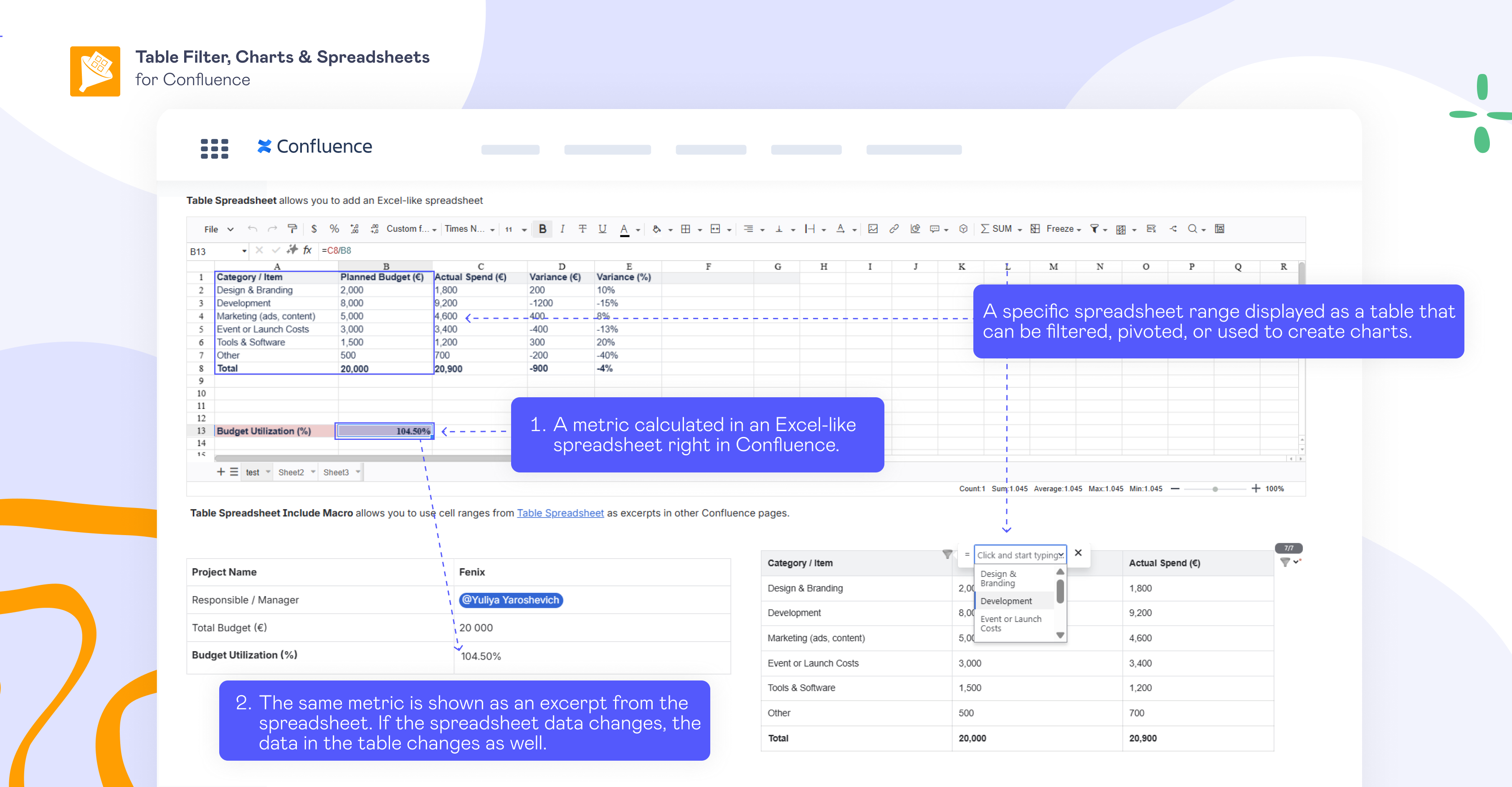
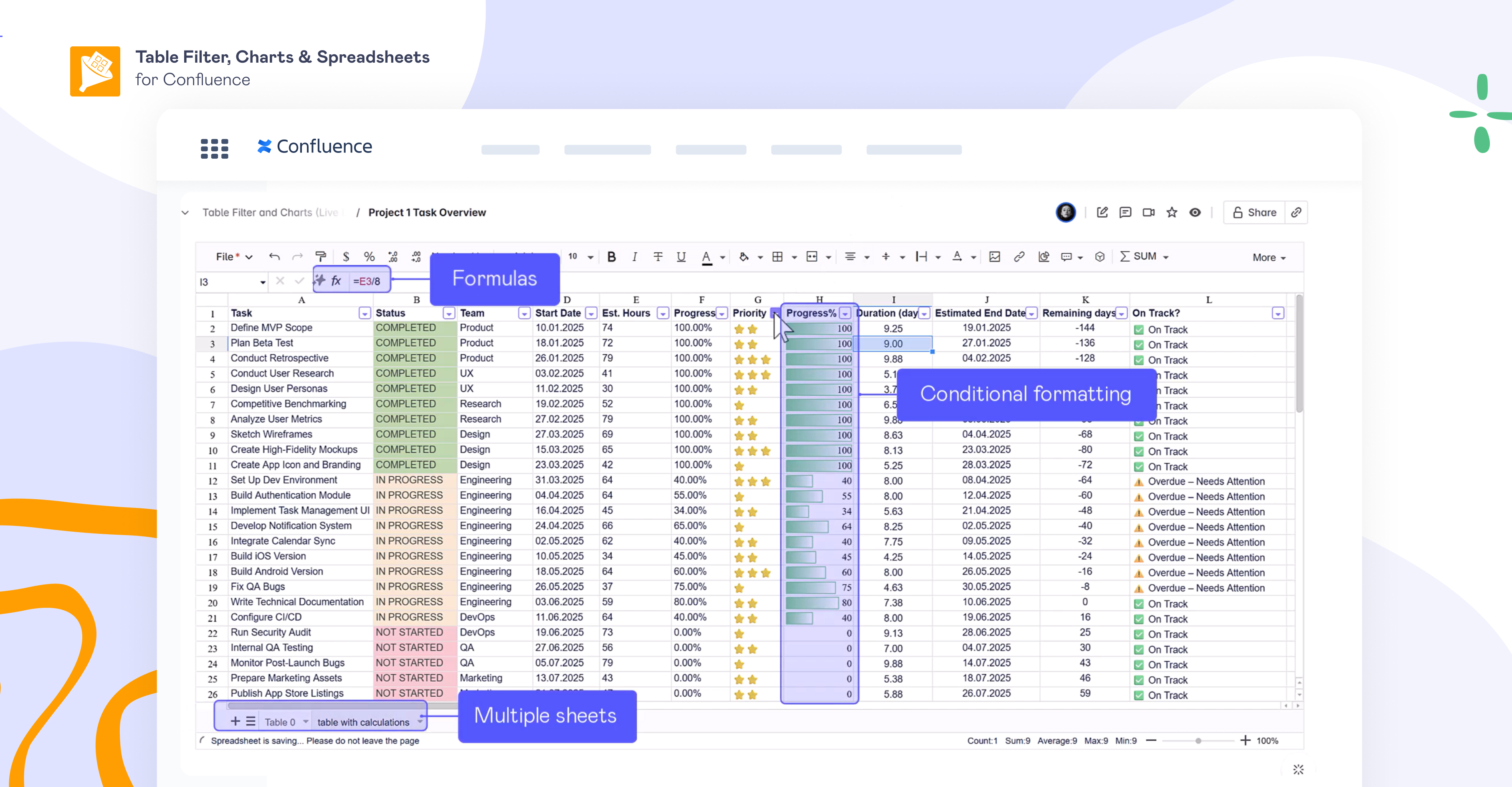
Table Spreadsheet — create new spreadsheets in Confluence or upload existing Excel files.
The Table Spreadsheet macro allows you to create Excel-like spreadsheets directly on Confluence pages. It supports formulas, cell and text formatting, conditional formatting, multiple sheets, sheet protection, version history, dropdown lists, and other spreadsheet functionality.
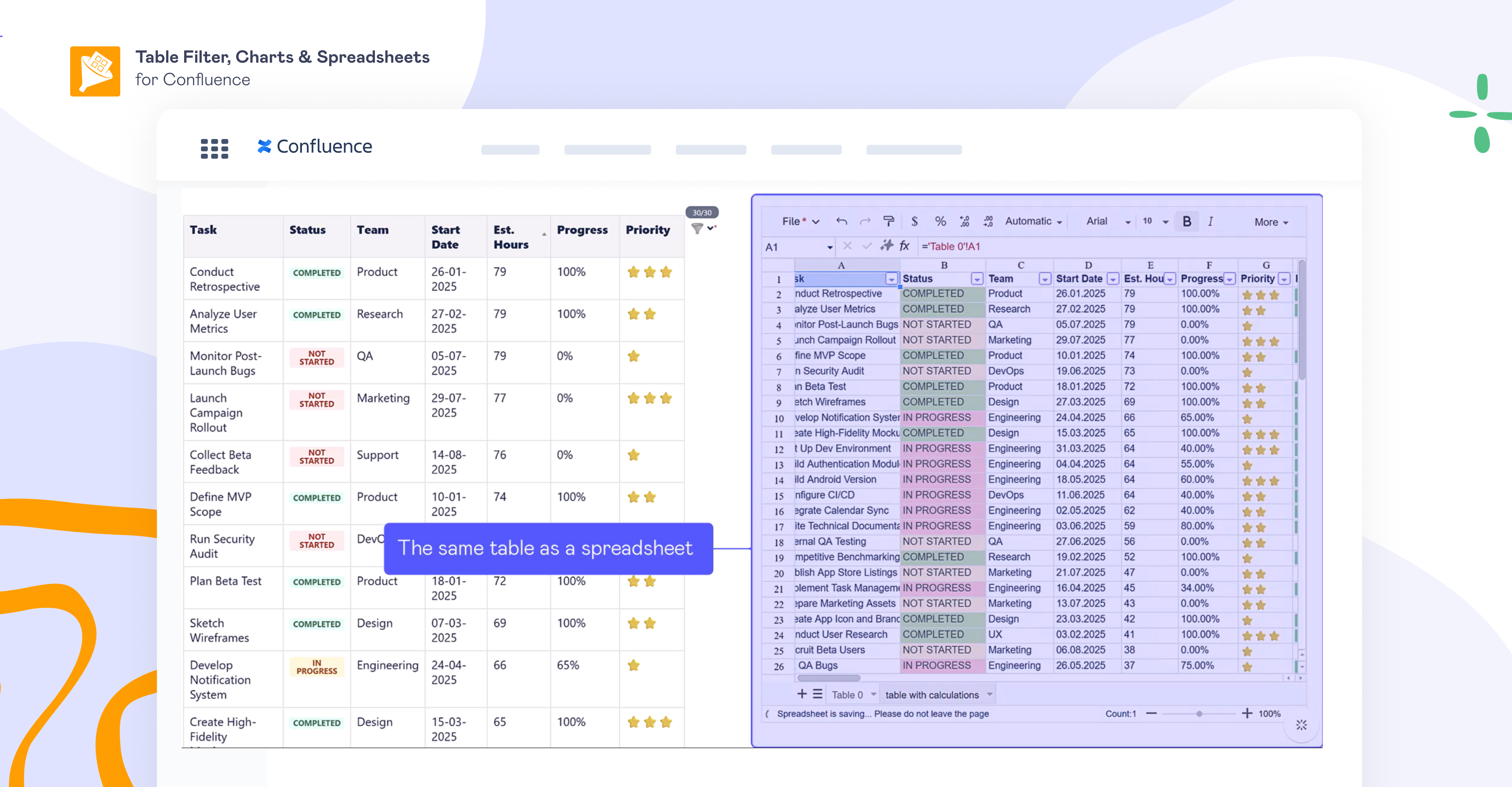
Spreadsheet from Table — convert any Confluence table into a spreadsheet.
Whether it’s a native Confluence table or a macro-generated table, the Spreadsheet from Table macro lets you instantly convert it into a spreadsheet.
Workaround details: When you create a Spreadsheet from Table, you’ll see Table 0 as the data source. Table 0 is dynamic and automatically reflects any updates made to the source table. If you want to work with the data, use a formula to copy the source data to a separate sheet, where you can edit and adjust it while keeping Table 0 unchanged.
Good to know: If you only need filtering, aggregating, or grouping data in your table, you don’t always need to convert tables into spreadsheets. You can achieve this using macros like Table Filter or Pivot Table.
Table Spreadsheet Include — display selected spreadsheet ranges anywhere in Confluence.
Imagine you’re calculating a budget or preparing an ad hoc report in Excel and don’t want to overwhelm your colleagues with the entire spreadsheet. Often, they only need a single metric or a small table range.
In such cases, the Table Spreadsheet Include macro comes in handy. Keep your Table Spreadsheet macro with calculations in one place, then reference a selected range using Table Spreadsheet Include on another page. Any changes to the spreadsheet are automatically reflected in the referenced data.