A Definition of Done checklist in Jira is a list of checks the team goes through before closing a story. With Checklists for Jira (Templates & Automation), the list can be automatically added to every new story, and you can choose what happens when a checklist item is left unchecked: the story shows up in a report, or it can't be moved to Done.
Why teams need a Definition of Done checklist
A Definition of Done (DoD) often lives on a Confluence page that nobody opens. As a result:
- Stories get closed without unit tests or updated docs.
- The missing work is noticed only a sprint later.
- Checkboxes typed into the description can't be searched, so you can't see which stories were closed with open items.
One DoD also doesn't fit all work. A bug fix needs different checks than a new feature, and a change to payments needs more checks than a typo fix. A separate, short DoD for each type of work is easier to follow than a single long list.
What you get
With Checklists for Jira (Templates & Automation):
- The DoD appears on every new story automatically.
- Bugs, stories, and risky changes each get their own DoD.
- One filter shows every story closed with unchecked DoD items.
- If you want a hard rule, you can set up that a story can't move to Done until the mandatory items are checked.
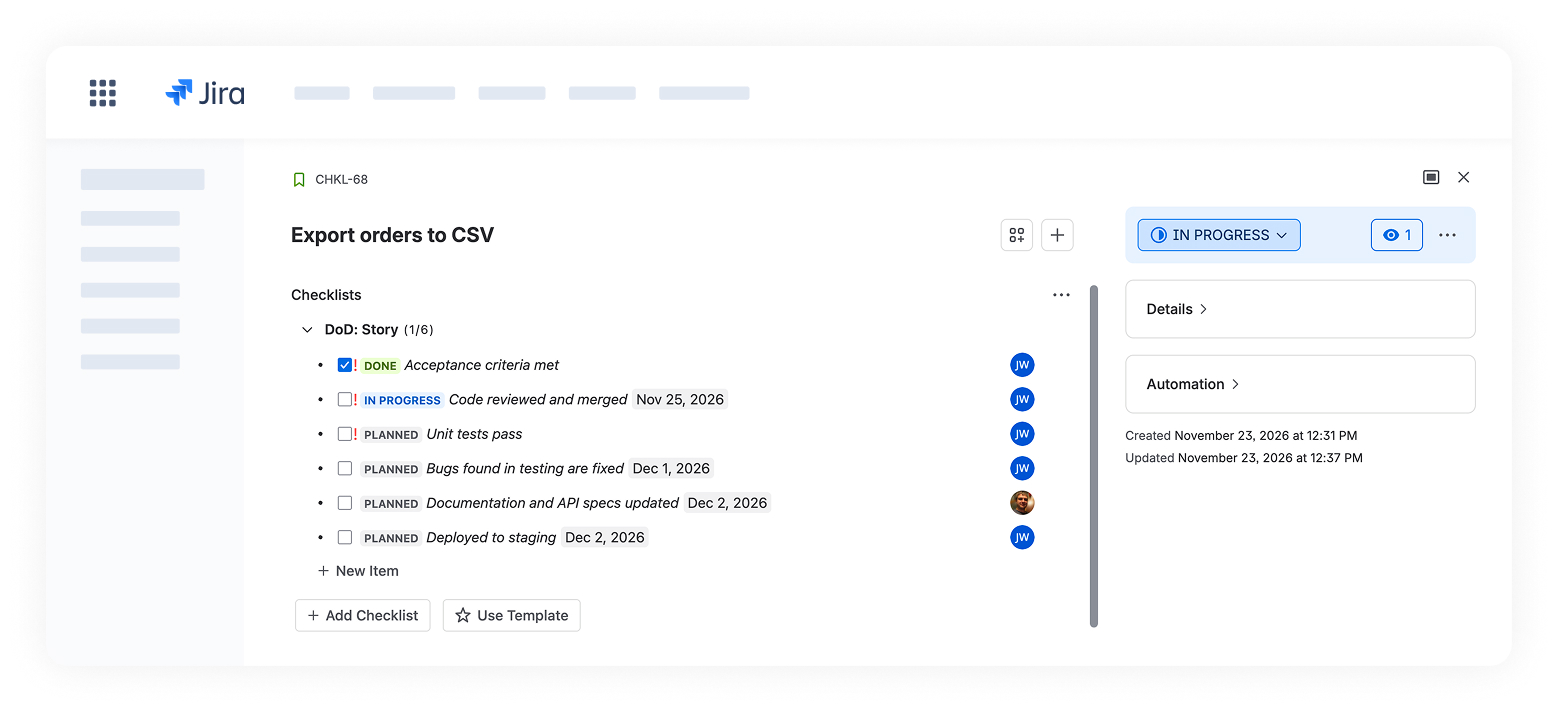
Definition of Done checklist template
Copy this template and adjust it to your team. Mandatory items are the ones the team agrees never to skip.
DoD: Story
- Acceptance criteria met — mandatory
- Code reviewed and merged — mandatory
- Unit tests pass — mandatory
- Bugs found in testing are fixed
- Documentation and API specs updated
- Deployed to staging
For riskier changes, for example, anything that touches payments, a stricter DoD: High-risk change can add items such as "Logging and monitoring added" and "Rollback plan ready".
How to set it up
- Create the checklist. Add a checklist to any story, title it "DoD: Story", and add the DoD items. → Add checklists to a Jira work item
- Mark the items that can't be skipped. Open the item's ⋯ menu and select Mark as mandatory. → Mark items as mandatory
- Save it as a template. Select the ⋯ menu in the top-right corner of the checklist → Save as Template. Repeat for each work type: "DoD: Bug", "DoD: Technical task". → Create checklist templates
- Add the DoD to new work items automatically. Create a Jira Automation rule: Work item created → condition Work type equals Story → Add Checklist to work item with "DoD: Story". Add an If/else branch for each other work type. → Automation quick start
- Find stories closed with an open DoD. Save this JQL query as a filter and check it before the sprint review:
status = Done AND checklistsOpenItemsCount > 0. → JQL search - (Optional) Block Done. Add the validator Checklists: Validate that all mandatory items are complete to the transition into Done, with a message such as "Finish the Definition of Done before closing this story." → Validator setup
Tips
- Start without the validator. Run the filter from step 5 for a few sprints. You'll see which items people really skip, and only those need to be mandatory.
- Turn on the automation only where the team agreed on a DoD. People in other projects won't be happy to find a checklist on every ticket they create.
- Review the DoD at a retrospective. Remove items that are always checked without thinking or never apply. Updating a template doesn't change stories already in progress.