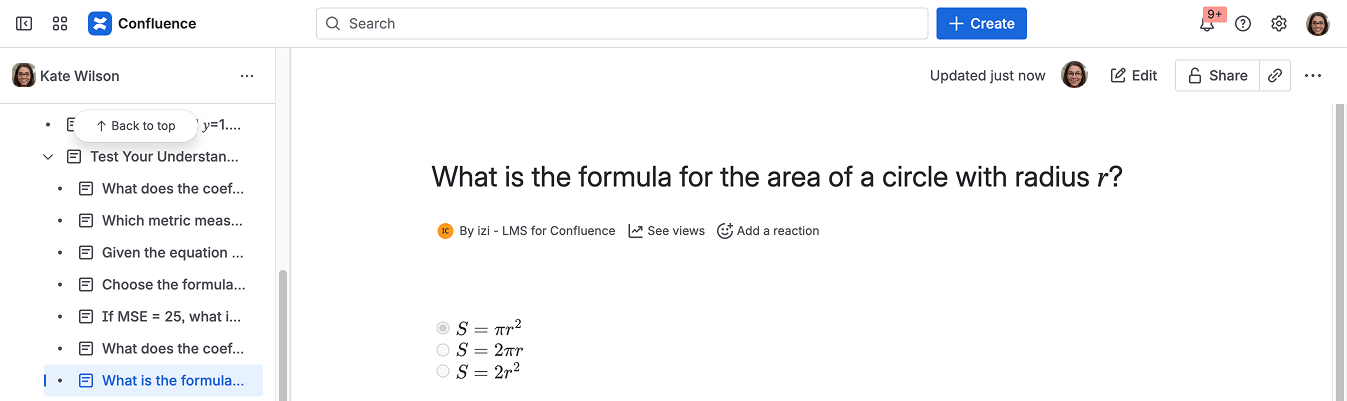
You can easily add mathematical formulas to your quizzes with the help of the LaTeX Math for Confluence app. This integration allows you to display formulas beautifully formatted directly inside questions.

Add formulas to a quiz question

If you need to create a question with formulas, you need to first create a plain text question in the Create question dialog (see Intro to Quiz Management) and then edit it.

To use formulas in your courses, make sure the LaTeX Math for Confluence app is installed from the Atlassian Marketplace.

  1. Open a question in which you want to add formulas, and click Edit.
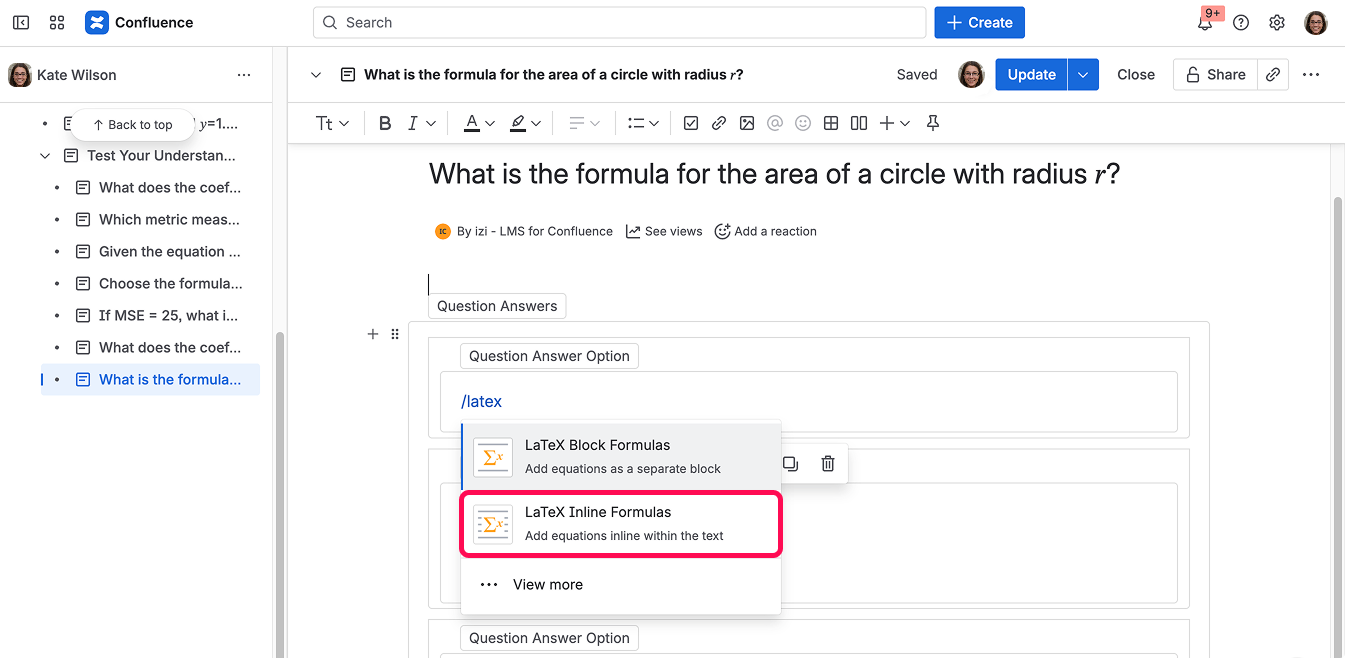
  2. Type /latex inside Question Answer Option macros at the place where you want to add a formula. 

  3. Select the LaTeX Inline Formulas macro.


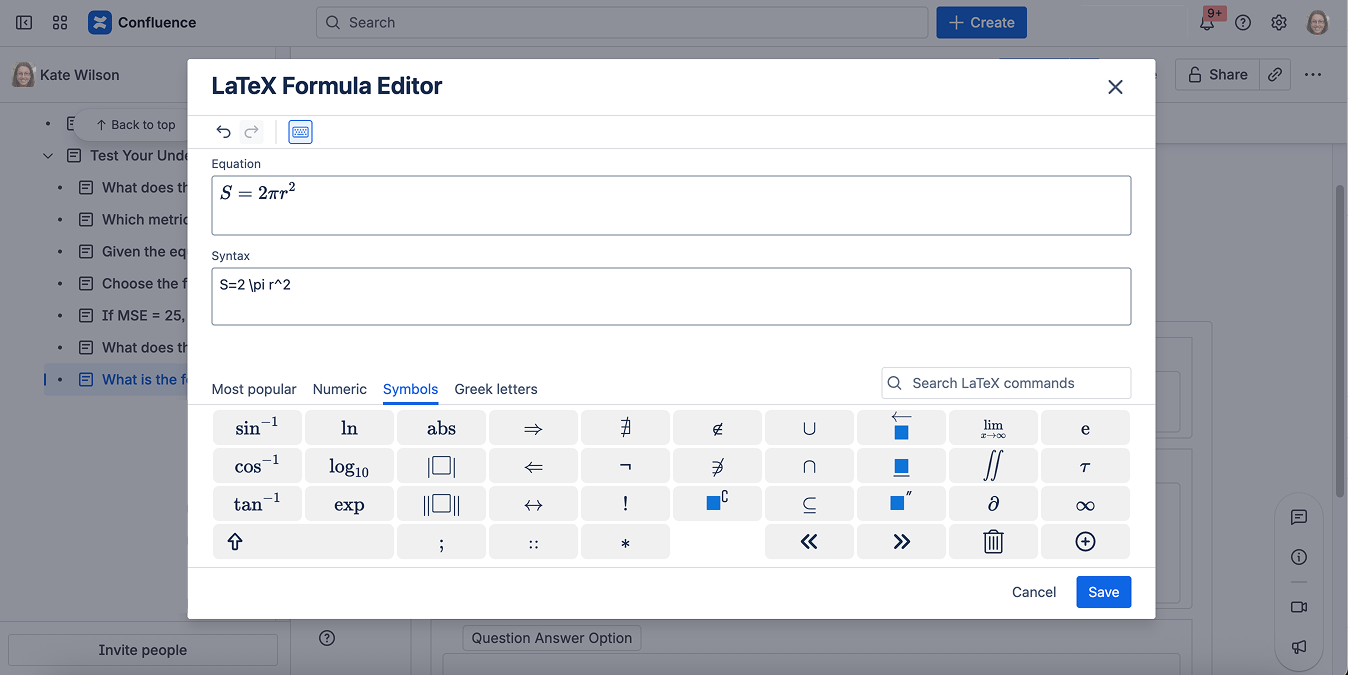
  4. Type your equation using LaTeX syntax.


    Use Smart Formula Input to quickly insert LaTeX symbols or ready-made formula templates.

  5. When your question is done, Publish the page. You will see your question the way it will be displayed to the participants of your quiz. The only difference is that the correct answers are marked on the question page, while they will obviously not be marked in a quiz.


At the top of the page, above a set of macros, you can see a hint prompting you to add a question description. Description can be a formula or anything else that you would like to include in the question. It is optional. If you leave it blank, this section will not be displayed in the question.

If you share a quiz and then edit its question(s), both future and enrolled participants will see the latest version of the questions.